I have recently changed my modem as the last one died and now I cannot connect my hub to the new network even though I’m connecting to a 2.4 network it just won’t find the connection when it gets to the bridge stage. Has anyone else had this issue and if so however you overcome. I’ve tried to support Team and nothing seems to be working based on the recommendations
1 Like
Hello, welcome to the forum. Before connecting, try to disable (temporarily). 5.0 on the router. Also, check if the router needs to allow the addition of new equipment.
2 Likes
I had similar issues with the M100 hub (the successor of the e1). As already mentioned above, disable temporarily your 5 GHz connection. But also delete your aqara app and reinstall it to remove any cache that causes the issue.
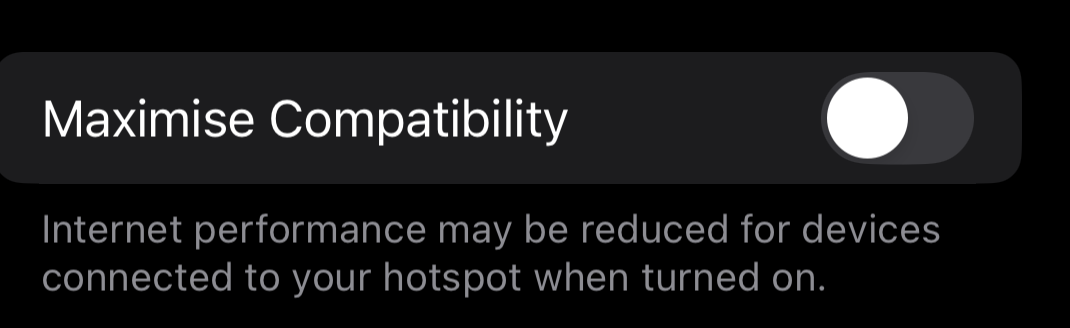
Instead of temporarily disabling the 5 GHz band in modem, you can also use a personal hotspot from another phone. When doing so, do make sure you turn on the option ‘Maximise Compatability’ in your hotspot settings.
1 Like
Check Wi-Fi settings
The Aqara Hub E1 only supports 2.4 GHz Wi-Fi - it cannot connect to 5 GHz or mixed-band networks. Even if you think you’re using 2.4 GHz, many modern routers combine both bands under one SSID, which often causes issues for smart home devices.
- Temporarily separate your 2.4 GHz and 5 GHz networks → for example, name them “MyWiFi_2GHz” and “MyWiFi_5GHz”
- Disable “Smart Connect” or similar options that automatically merge both bands
- set Encryption to WPA2-PSK (AES) → no WPA3 or mixed modes
- Wi-Fi name and password have no special characters or spaces → use only letters and numbers for testing
- Wi-Fi channel is set manually to 1, 6, or 11 (not “Auto”)
To test this, you can also activate a guest network that only uses 2.4GHz (disable 5GHz for the guest network in the router) + WPA2-PSK (AES) + fixed Wi-Fi channel and use a simple password (only temporarily, of course).
Check router settings
Make sure the following options are enabled or disabled correctly:
- DHCP enabled + Free IP addresses → the Hub needs an automatic IP
- AP Isolation / Client Isolation disabled
- Multicast and Broadcast enabled
Check DNS settings
After changing routers, sometimes the DNS or firewall blocks cloud access.
- Set your DNS server to 8.8.8.8 (Google) or 1.1.1.1 (Cloudflare)
- Do not use filtered DNS like 1.1.1.2 (No Malware) or 1.1.1.3 (No Malware or Adult Content)
- If you use Pi-hole or AdGuard, temporarily disable them
Check smartphone
- Make sure the Aqara Home app is up to date
- Enable Bluetooth
- Disable Mobile Data
- Check phone settings if Aqaqa Home app has access to the local network (and access to Apple Home on iOS)
- Allow Location permission (required on Android)
- Or try setting up the hub with another phone (iPhone running iOS 18 or newer)
Pairing the E1 Hub
- Plug the Hub into a USB power source
- Hold the button on the back until the LED starts blinking (pairing mode)
- In the Aqara Home app → Devices → Hub E1 → Add device
- Wait patiently – connection can take 1–2 minutes
Perhaps this forum post will also help:
2 Likes
Hi, thank you for such an extensive explanation. Very useful for beginners and not only.
1 Like