[EDIT: please also read John’s first response to this post, as they make some excellent suggestions for simplifying the automations]
I am easily distracted and can forget important things like emptying the laundry or, the one that gets me in the most trouble, forgetting that I’ve left our tiny dog outside.
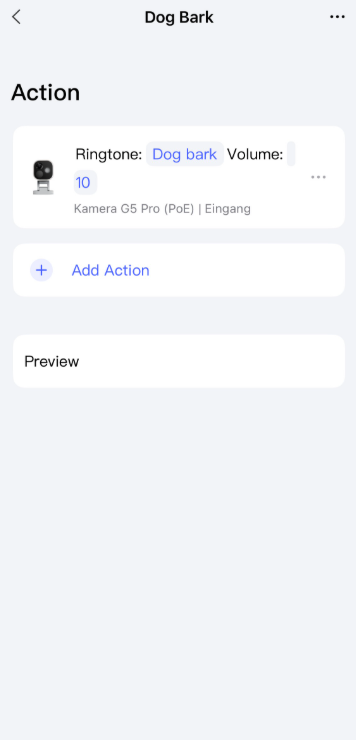
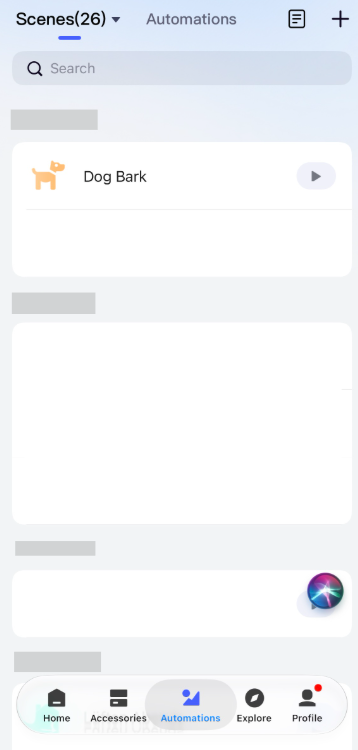
The dog only ever barks at delivery drivers, so she will just quietly wait outside forever. I now have the Aqara M3 play a dog barking MP3 every 5 minutes until I let her in and cancel the notifications.
My most recent notification method is triggered by a button press, but you could repurpose this to be triggered by anything you want for a constant reminder. e.g power monitoring plug, time of day, change of weather, presence, temperature, geolocation, whatever.
This method does require setting up a number of automations that contain temporary triggers and actions that you’ll return to edit/replace later. It might help to use a pen and paper to plan this out.
You will create 4 automations. They all need to be created upfront as they will be edited to reference each other or reference THEMSELVES!
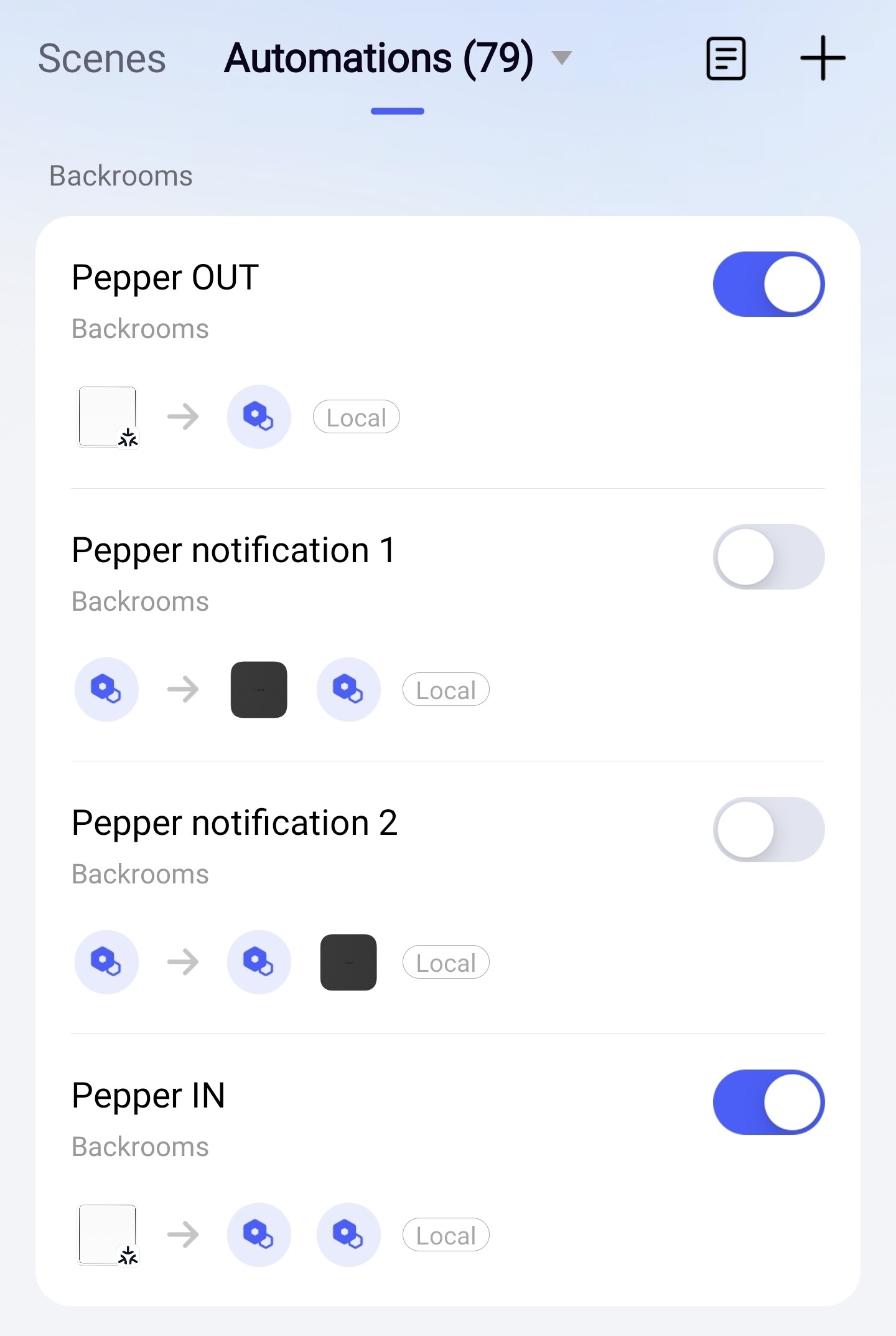
The first automation is the trigger
The next two automations are the reminders. I named mine “notification 1” & “notification 2”. Both of the notification automations are TRIGGER ONCE.
The fourth and final automation cancels the notifications.
Now that you’ve made your templates, you can return to change their triggers and actions to do what we want.
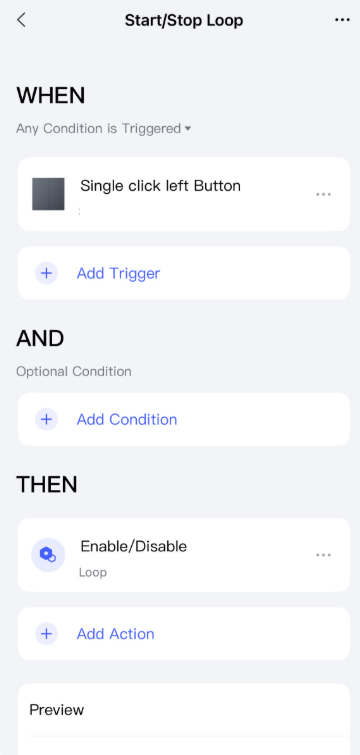
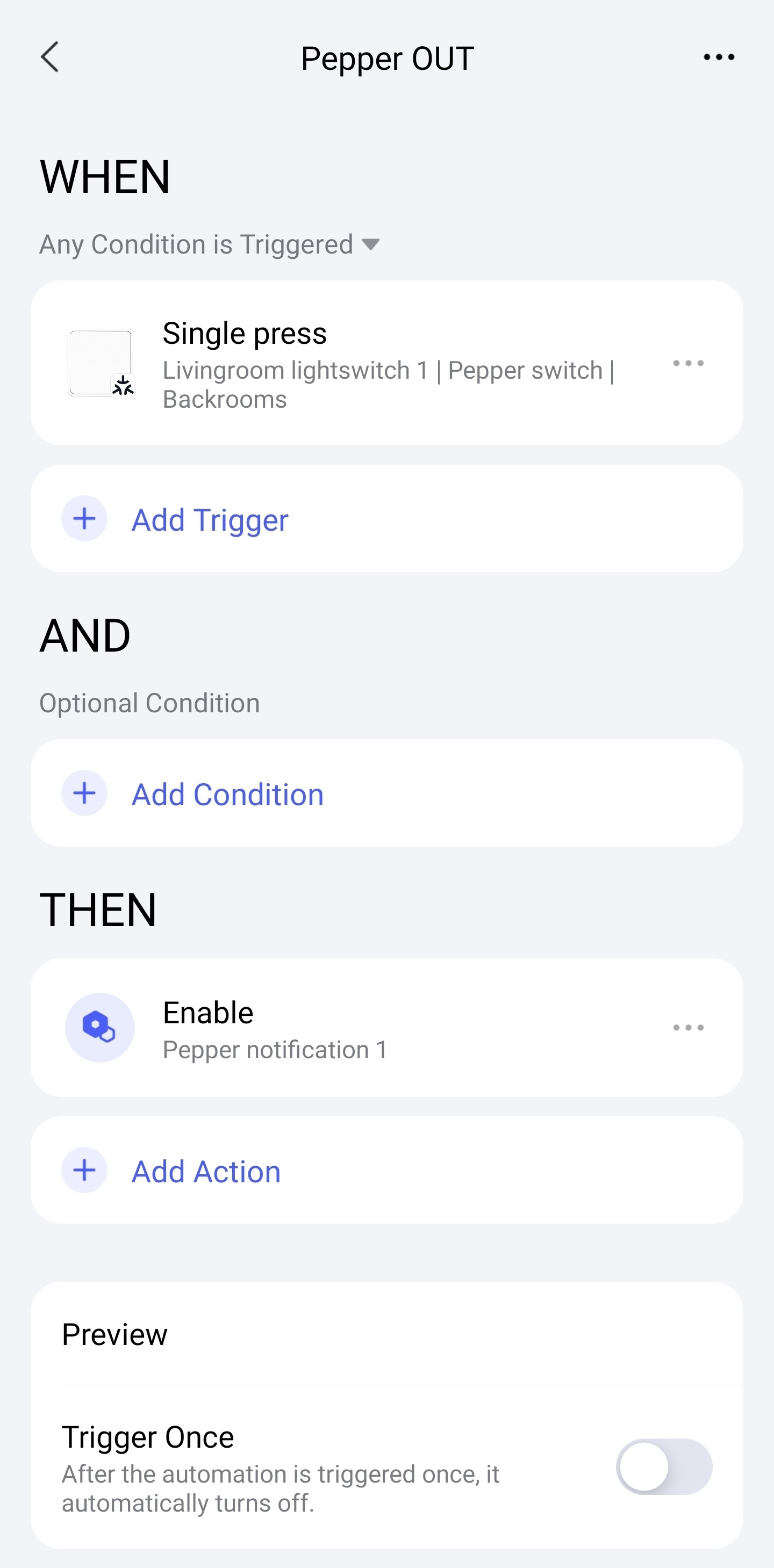
The trigger: in my case it’s a button press. It then enables “notification 1”
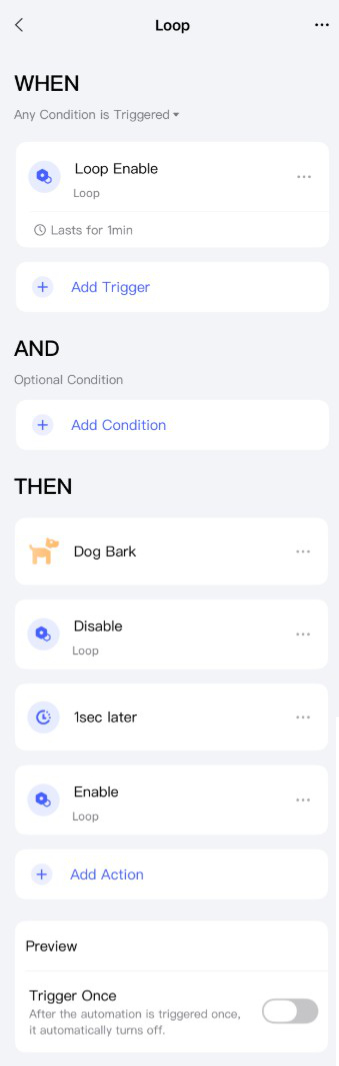
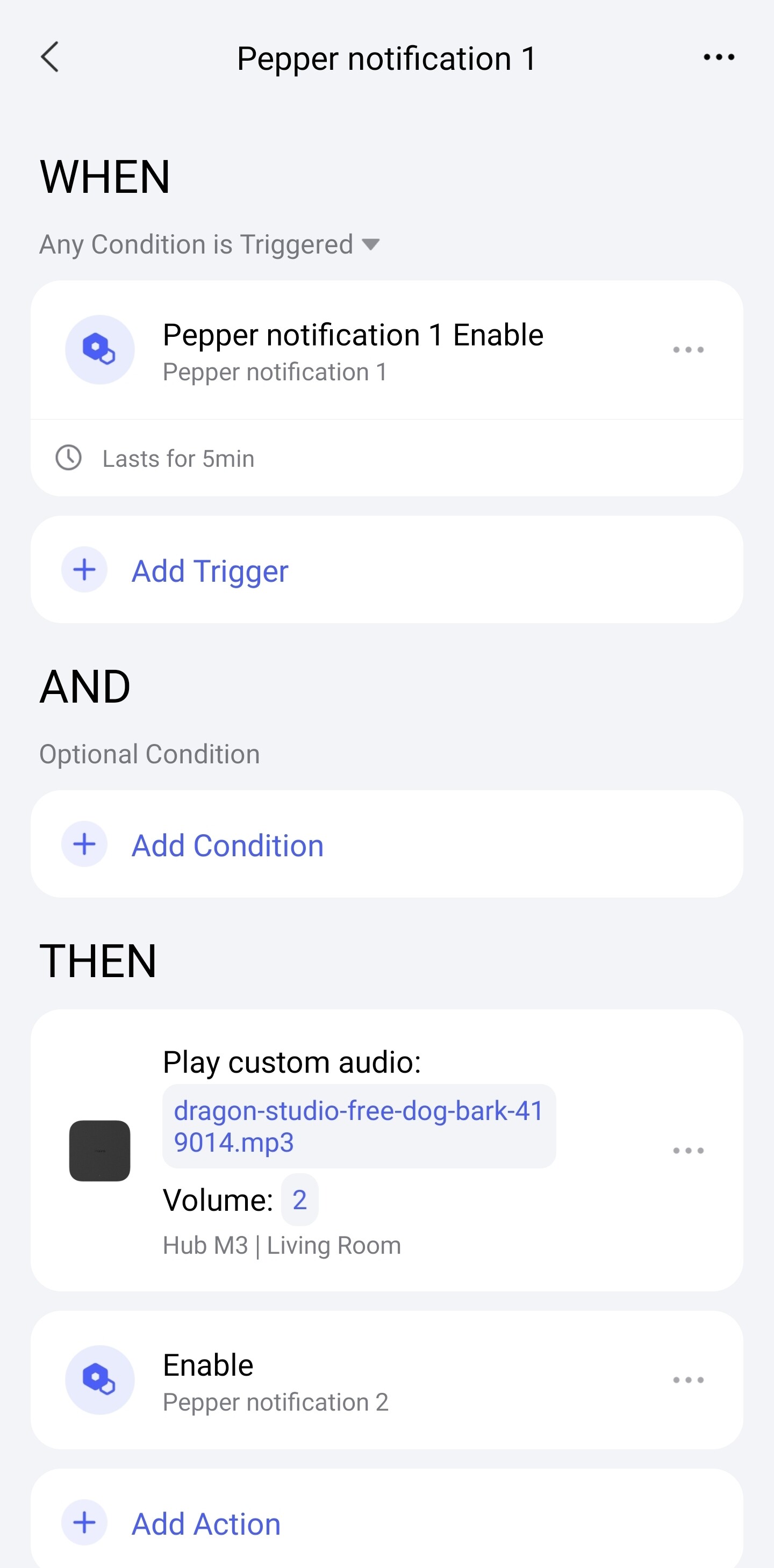
Notification 1 has a trigger that waits for ITSELF to have been enabled for a period of time. Select “automation” as the trigger, scroll to the same automation, then “enabled”. Then tap the three dots to change the “duration” for how long you want it to last for. In my case, it then plays an MP3 that I uploaded to the audio library of my M3 hub. You could have it send a notification to your phone app. It then enables “notification 2”. Remember to tap the TRIGGER ONCE option.
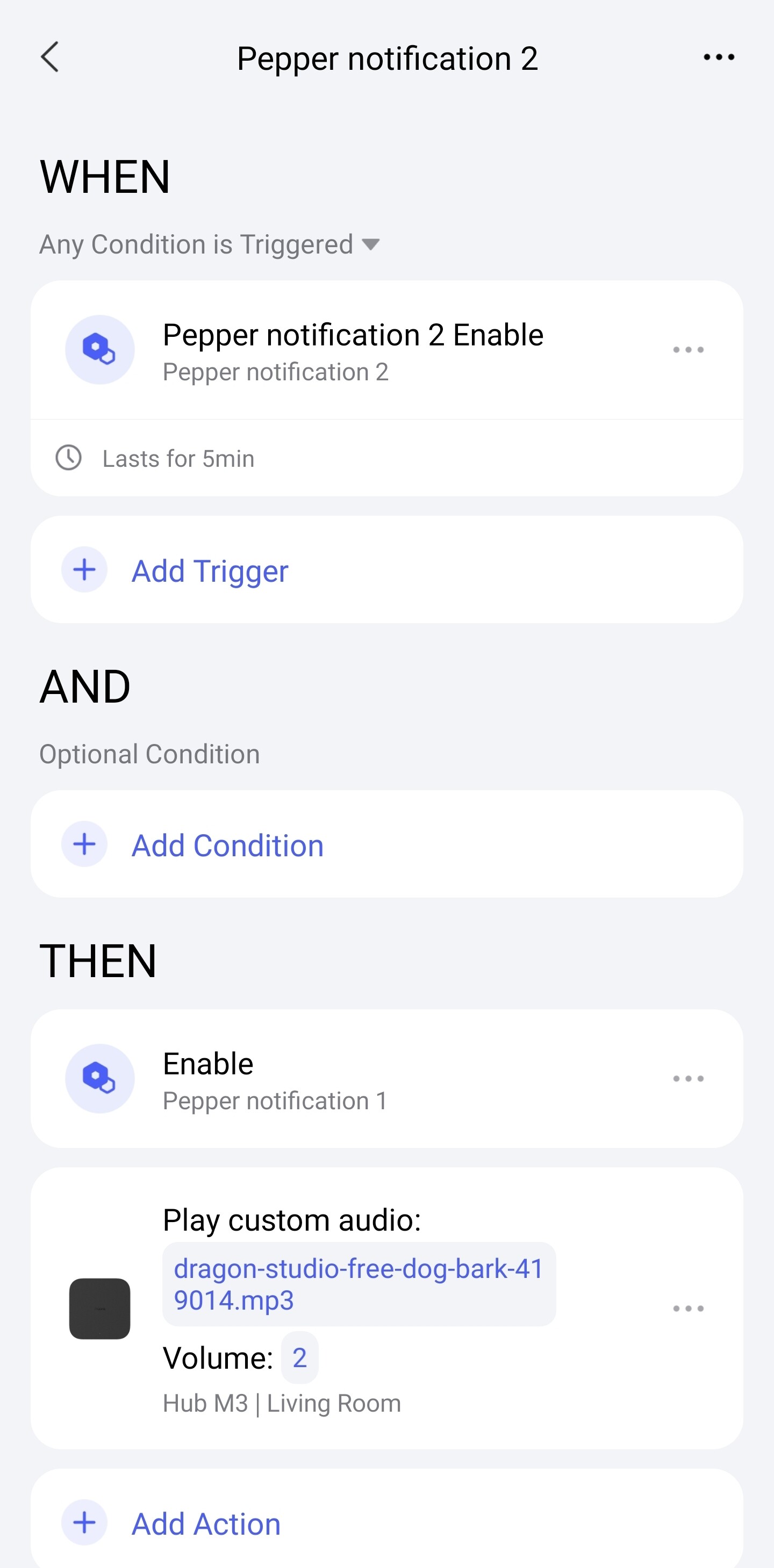
Notification 2 is set up identically to notification 1, in that it waits for itself to have been active for a period of time. It enables notification 1 and these two automations run in a loop, playing a sound every 5 minutes until disabled.
The final automation simply disables both notification 1 & 2. I used a second button.
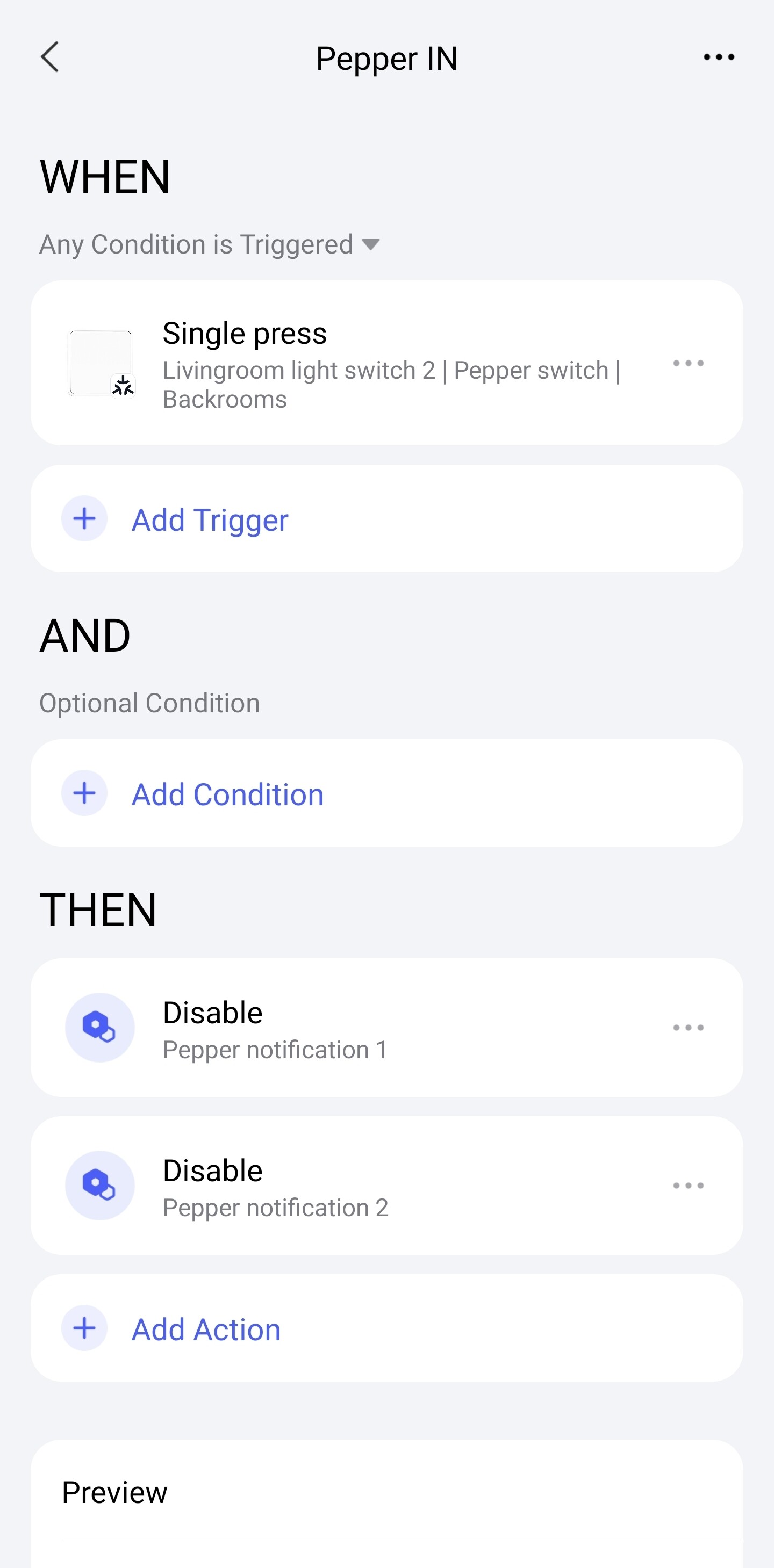
You could of course set up something similar with multiple delay actions within a single automation, however my method can be cancelled at any time and you will get no further notifications.
This is now the same notification method I have for my laundry reminders.
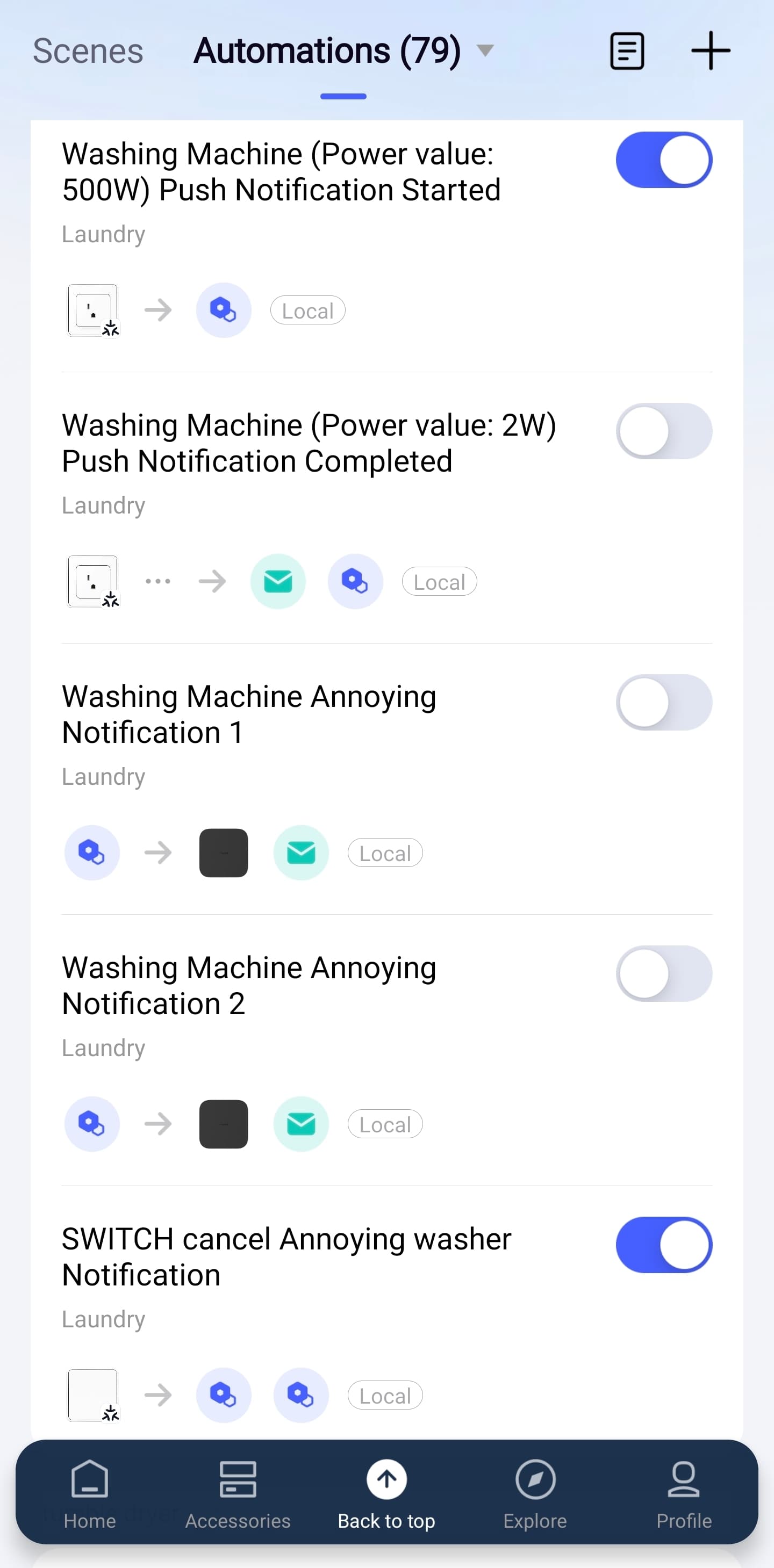
I also set up self-referencing automations that turn off the dressing room light after it has been on for a set period of time.
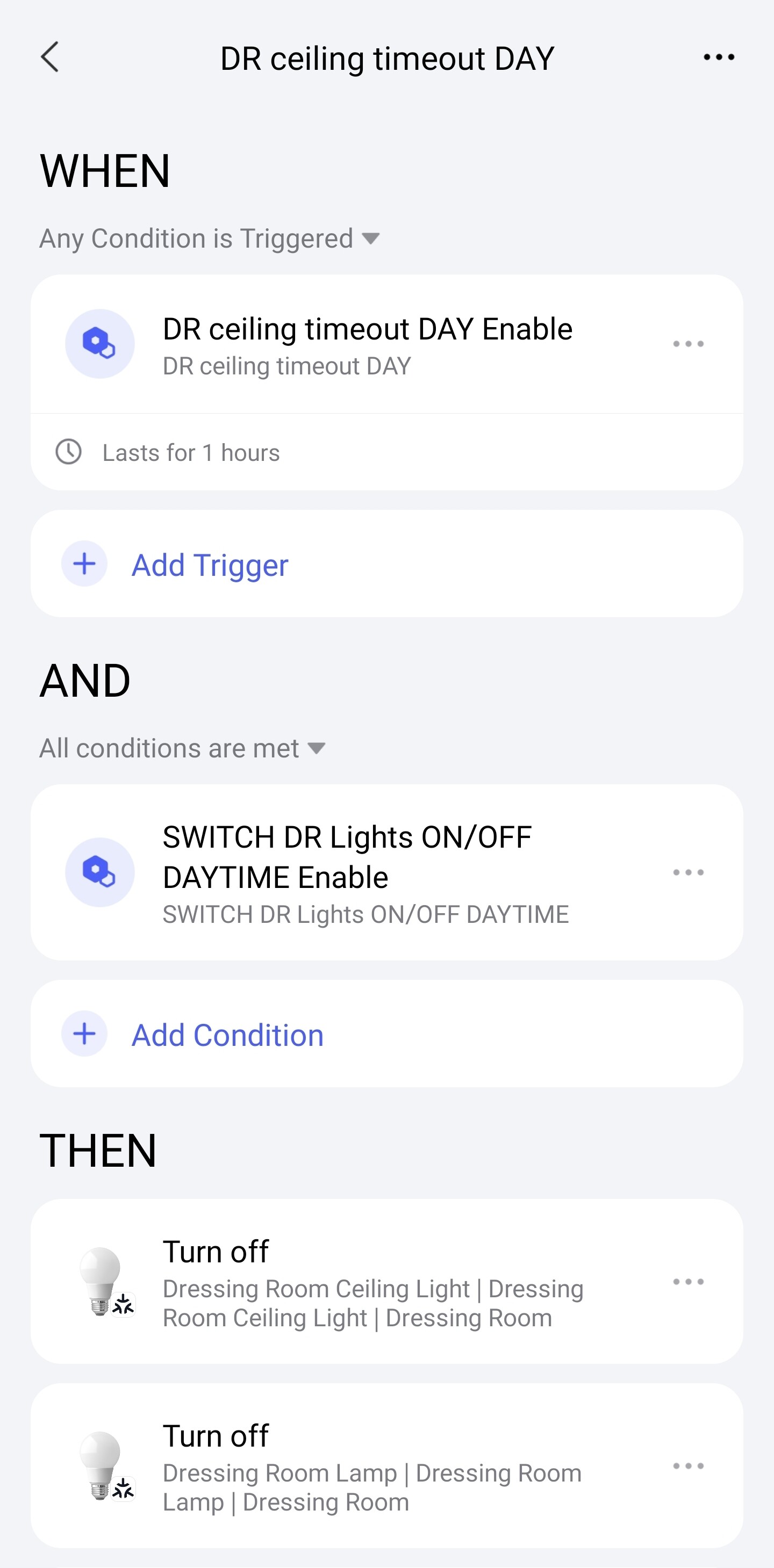
The discovery that an automation can reference ITSELF for a time-based trigger or condition is really useful.
What might you use it for? What other uses can you think of?
Here’s one to get you started:
Rain is forecast soon so you know to bring in your drying bedsheets from the clothesline.
Have fun!