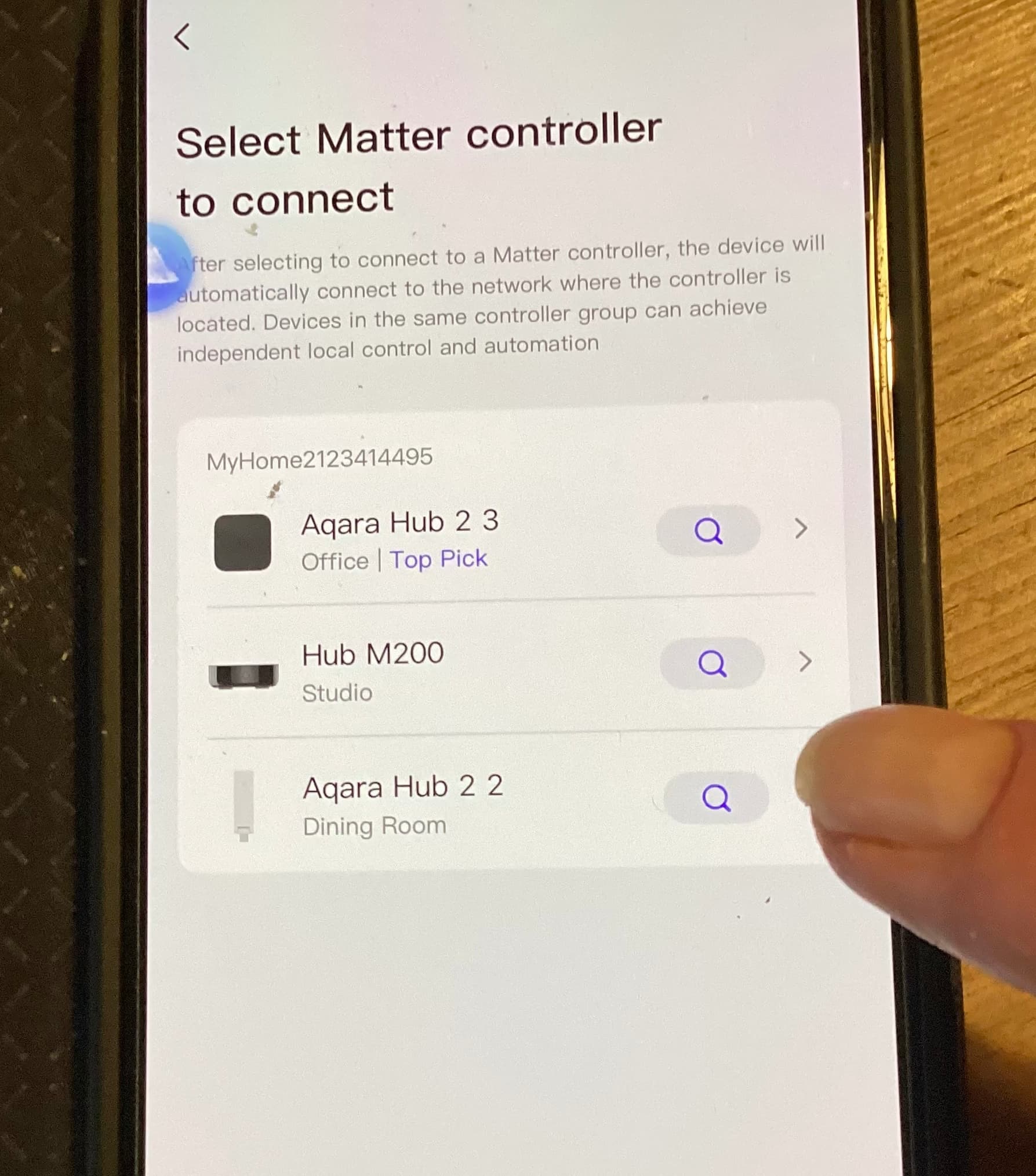
I’m fairly new to using Aqara and haven’t had any other problems. I have an M300 in my home office as my main hub, an M200 on the same WiFi Mesh but in a studio in the garden and an M100 in my dining room which isn’t far away.
I’ve already connected 3 light switches, single pole no neutral, 2 to the M100 and one to the M300, 3 T1 buttons to the M300 and a smoke detector to the M200. The smoke detector was a bit tricky but eventually connected.
All except the smoke detector are working in Apple HomeKit no problem, I haven’t got round to seeing how to connect it, it isn’t a priority.
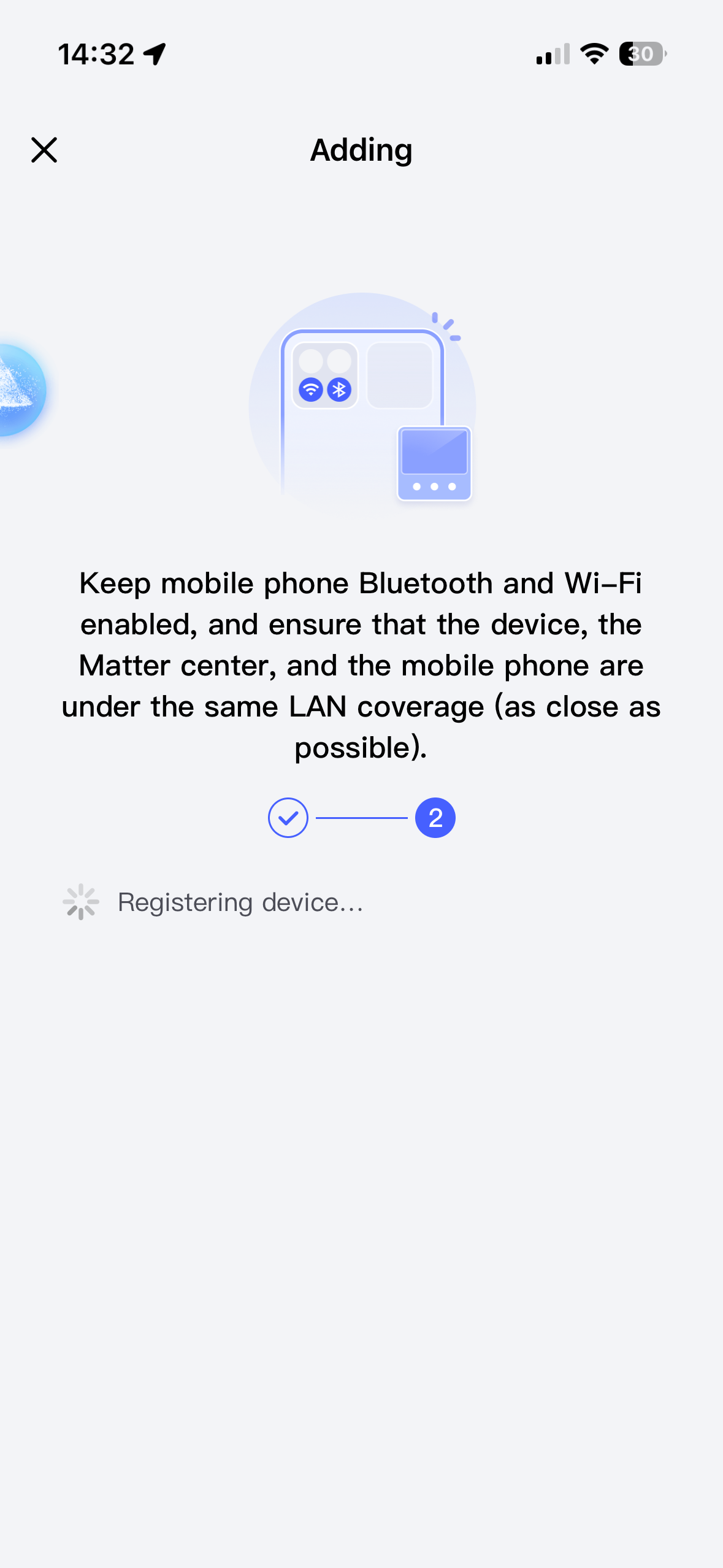
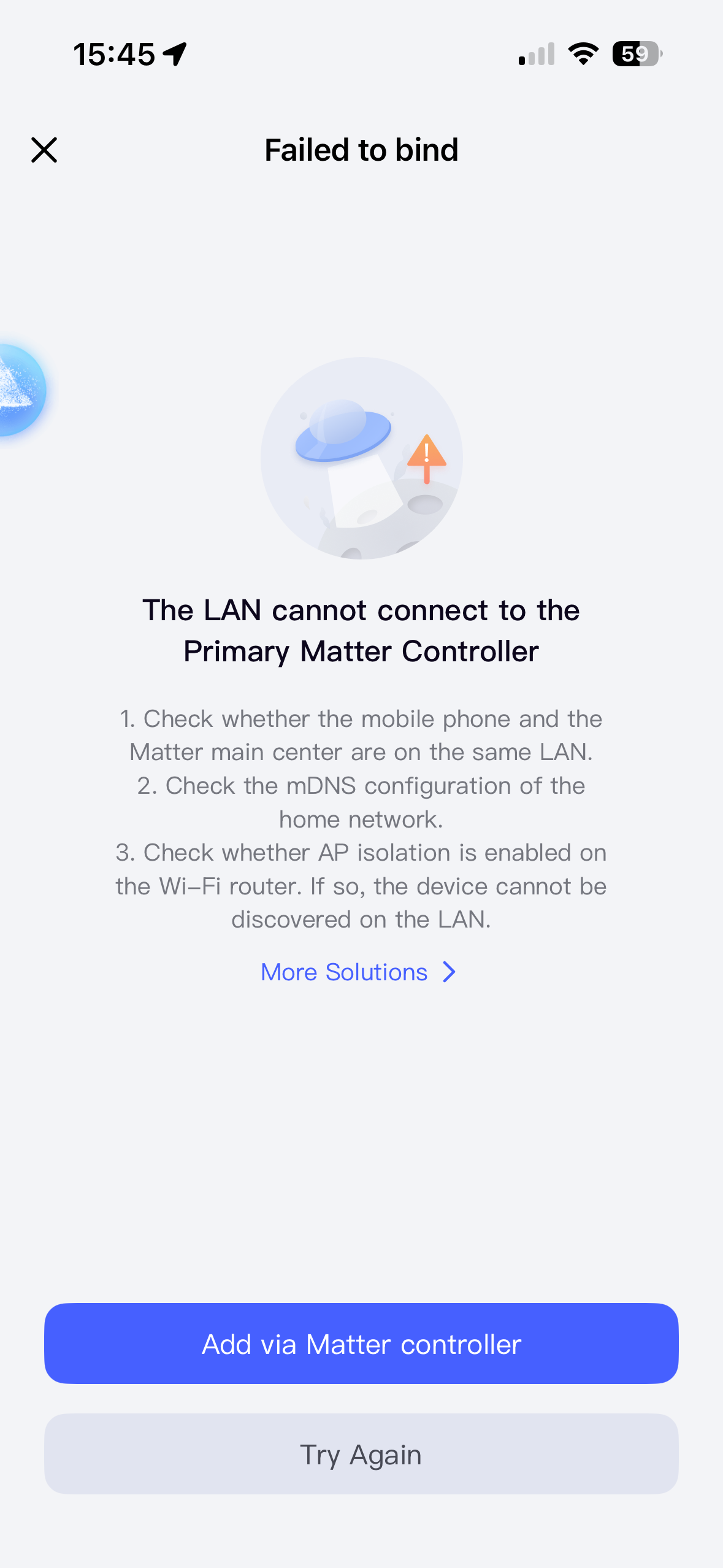
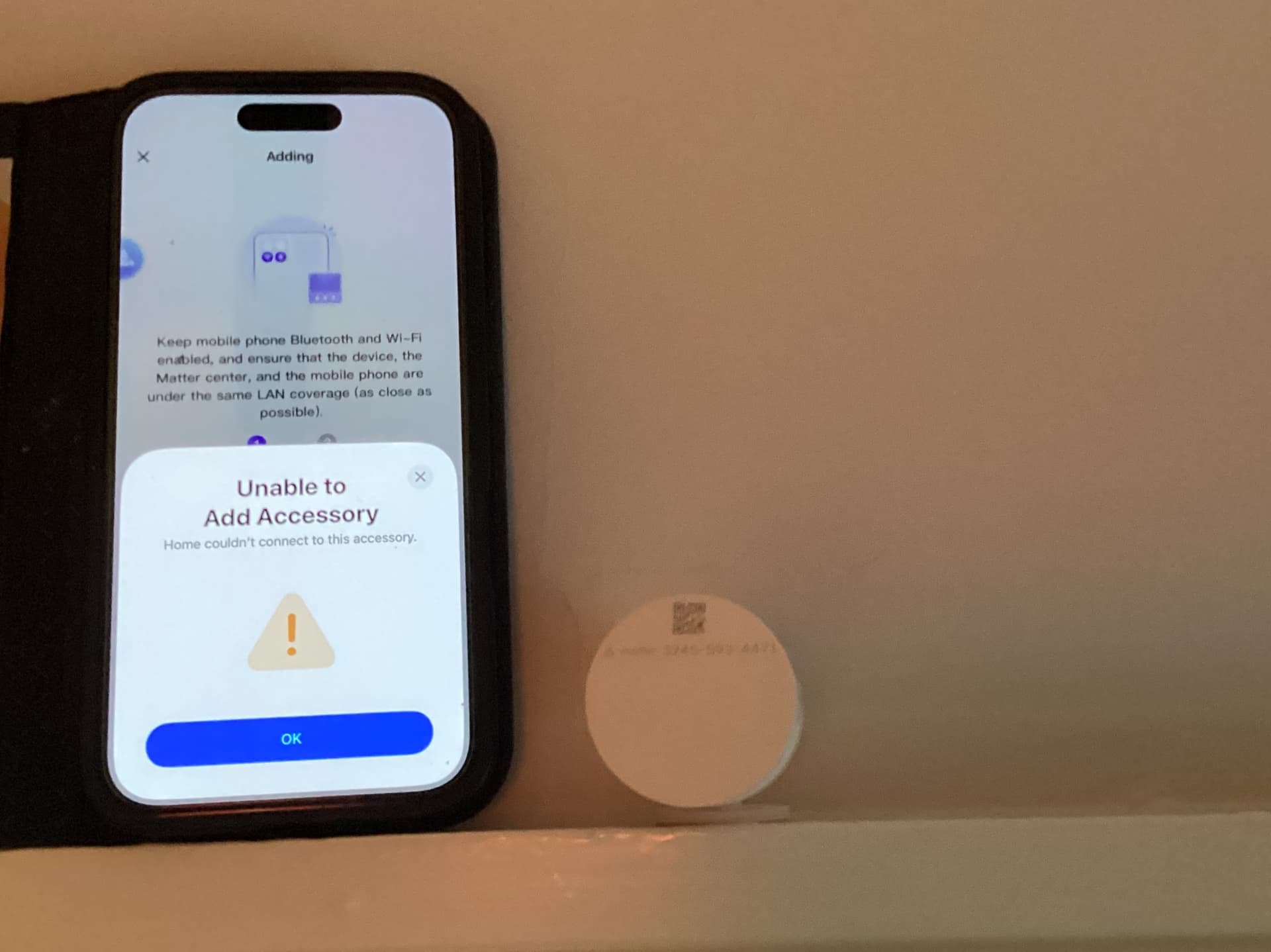
I’m trying to connect a motion sensor and it keeps failing at the registration stage. The first stage goes OK.
I’ve set my wifi to 2.5GHz only and checked the M300 firmware is up to date and done a reboot. I’ve restarted the sensor a number of times but always the same problem.
I’ve also tried it on the M100, same problem.
Is it likely I’ve got a faulty sensor because it really shouldn’t be this hard.
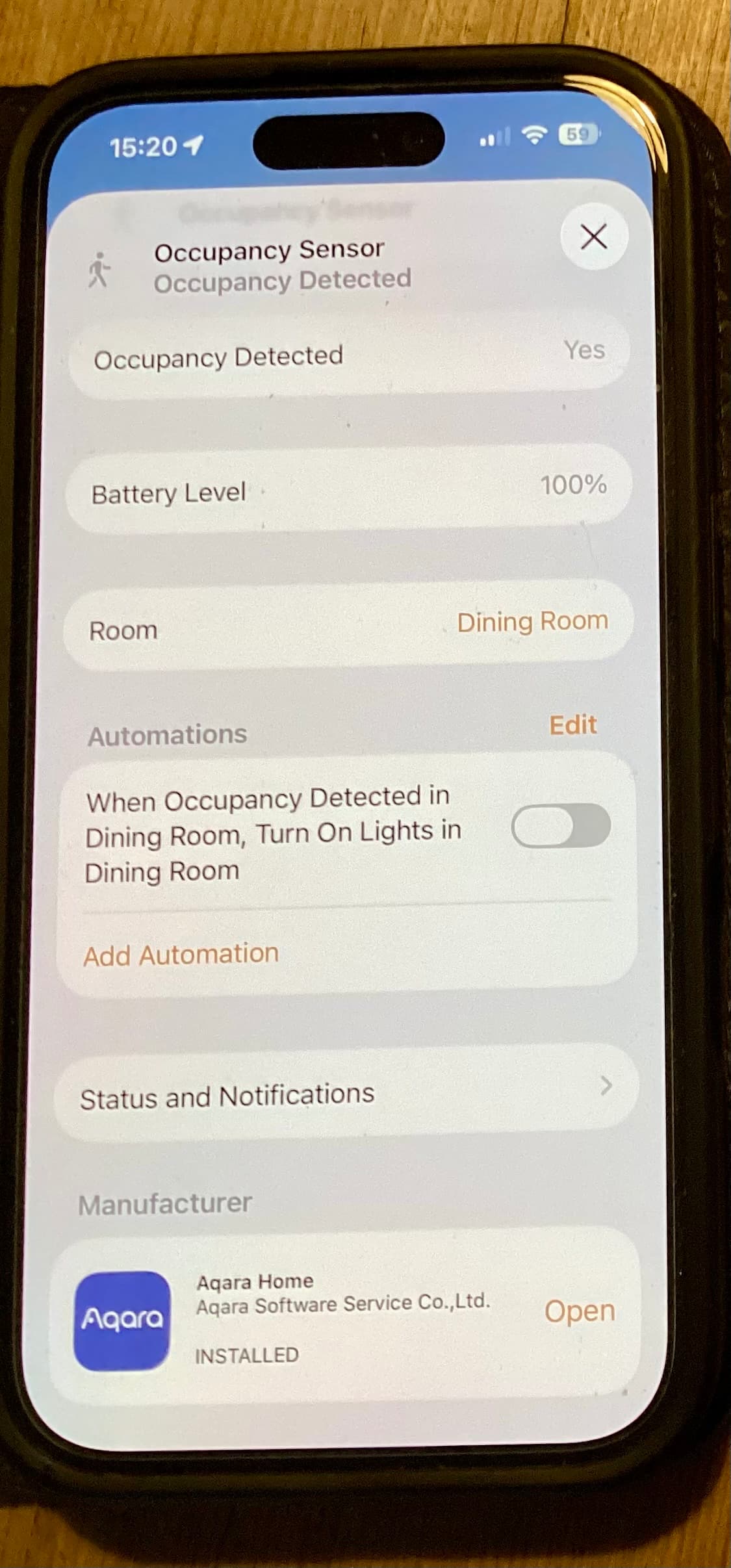
Hi. I have a P2 in my Aqara app and Apple Home, and it works perfect.
The P2 sensor works via Matter over Thread. As your Aqara hubs are also Thread Border Routers, you can add the sensor via the Aqara app. However, there may be some technical hurdles. First, please check whether IPv6 is enabled on your home network. If you continue to experience issues, please take a screenshot of the error message.
If you want to add the sensor to Apple Home, this works via Matter and not HomeKit. In this case, you will also need a Thread Border Router from Apple. Which Apple devices do you have in your household? Do you have a HomePod or an Apple TV?
I was just about to add to the thread that I fixed the HomeKit problem, I restarted my iPhone.
For the record I have a couple of HomePods.
My ISP owns the router and I just need to check with them how I get access to it. It looks like you might be right as me Deco Mesh doesn’t show any IPv6 addresses.
Don’t give up yet! The ISP support gave you the easy answer, but not the complete one.
You can absolutely use IPv6 inside your home for your sensors, even if your ISP doesn’t support it for the internet connection. It just requires a specific setting in your router.
Which specific router model do you have?
If you can tell us the exact model name, we can likely guide you step-by-step on where to find this setting. It’s usually just a checkbox, and then it works.
Hi John. I’ve tried that a couple of times on both my M3 and M100 hubs. I restarted both hubs before trying as well. I also ensured that I was one running the 2.4Ghz channel on my WiFi.
If you already have the P2 in HomeKit, please do not use the code on the device, but proceed as I have already described:
Here is a general description of how the process works:
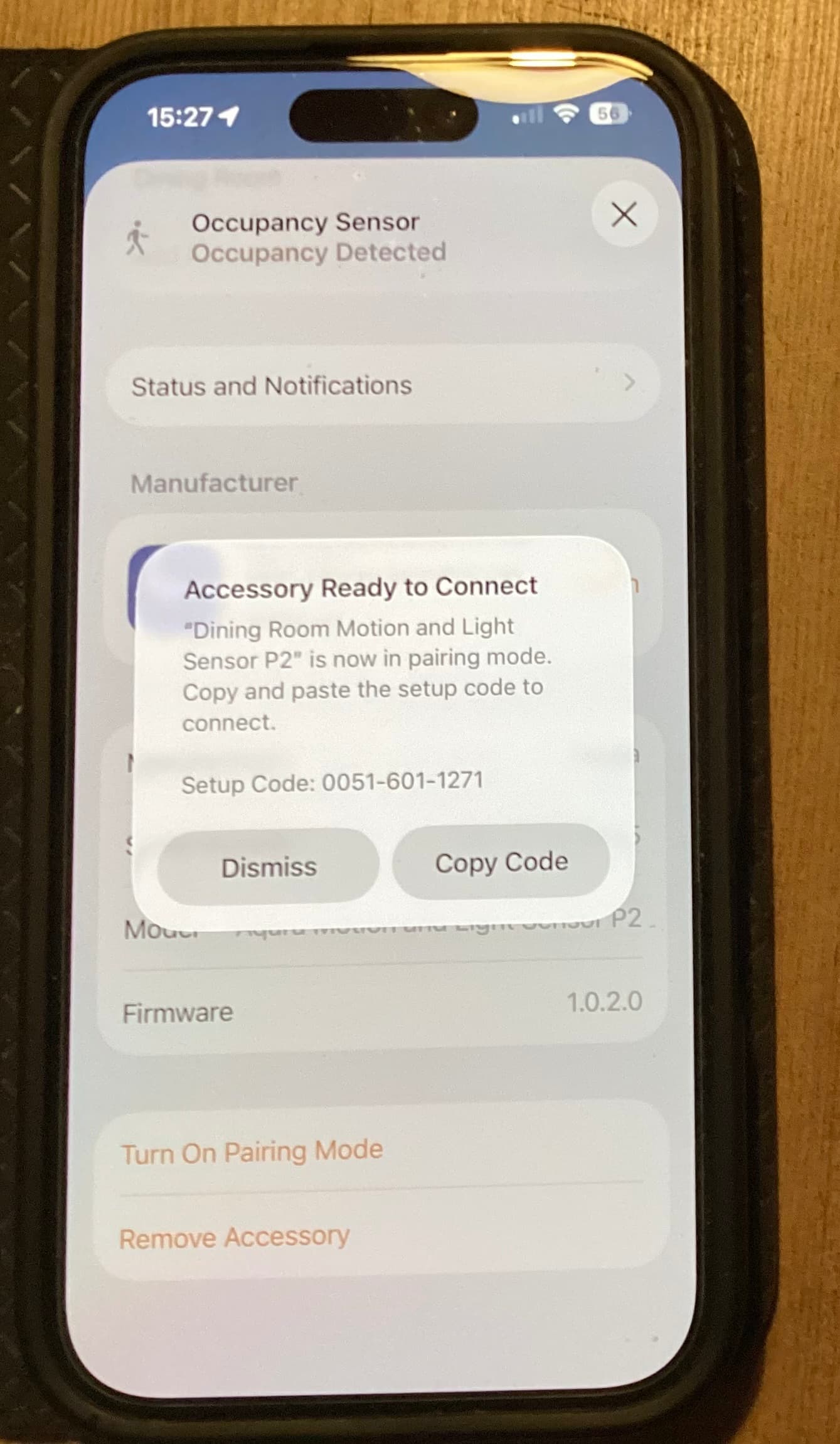
If you get the error message again in the Aqara app, then press “Add via Matter Controller” and use the generated code (not the one from the device, because the code from the device may only be used for the first pairing).
I followed the instructions and didn’t use the sticker. At one point it old me to put the device in pairing mode so I Just pressed the button at the back.
I’ve been through it at least 20 times since I reset the device this morning and only did that once.
Okay, once you have reset the device, you will need to use the device code (sticker) again. Once you have added it to either the Apple Home or the Aqara Home app, you will need to generate the code within that app. The second time, the P2 sensor will automatically enter pairing mode when you generate the code, which is why Apple calls it ‘Turn on pairing mode’.
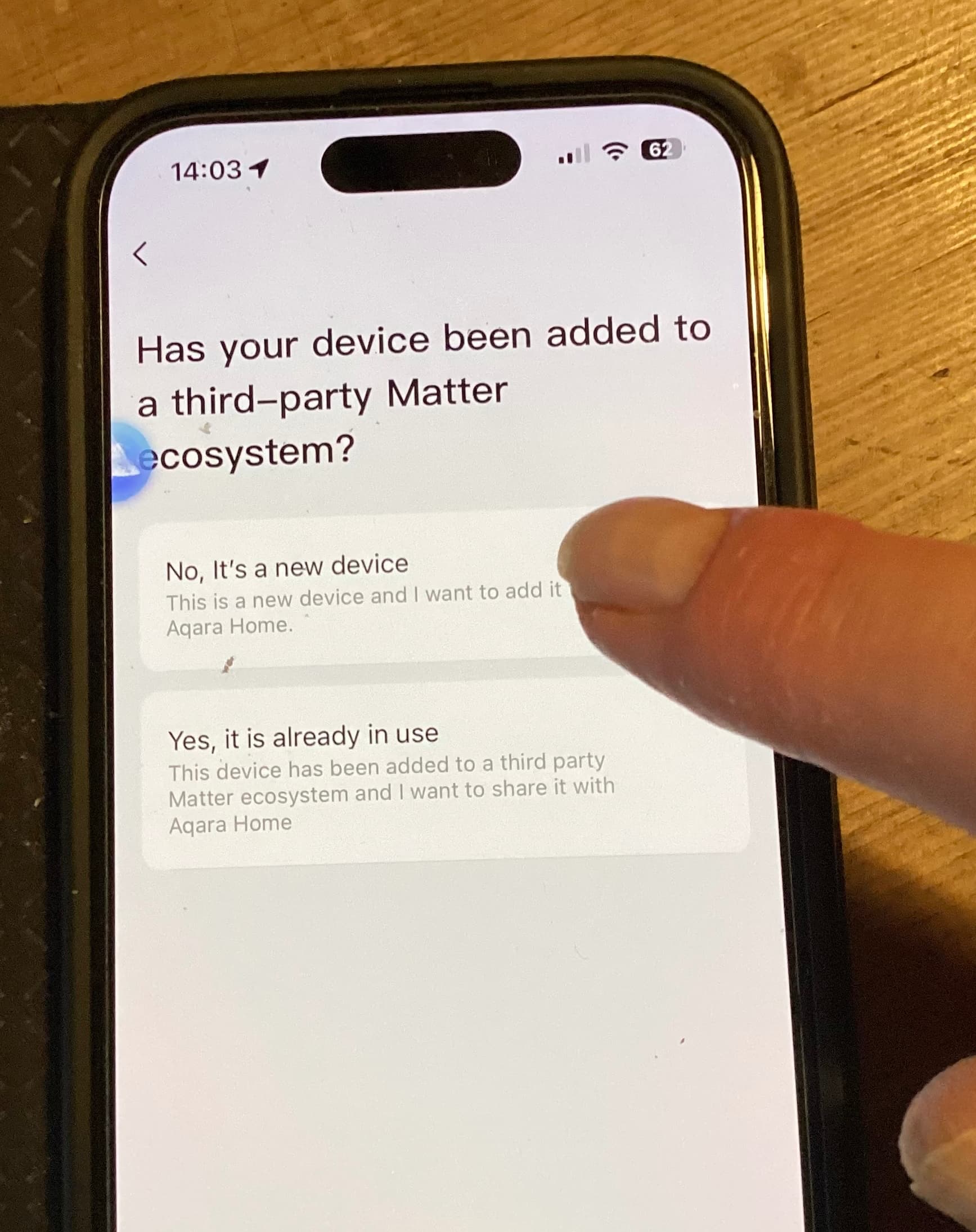
I’m also surprised that the Aqara app instructions say to put the sensor into pairing mode, because the app should actually ask if the sensor is already connected to Apple. If so, you have to select this option, after which the instructions in the app should look different.
I removed the device from Apple HomeKit and reset it.
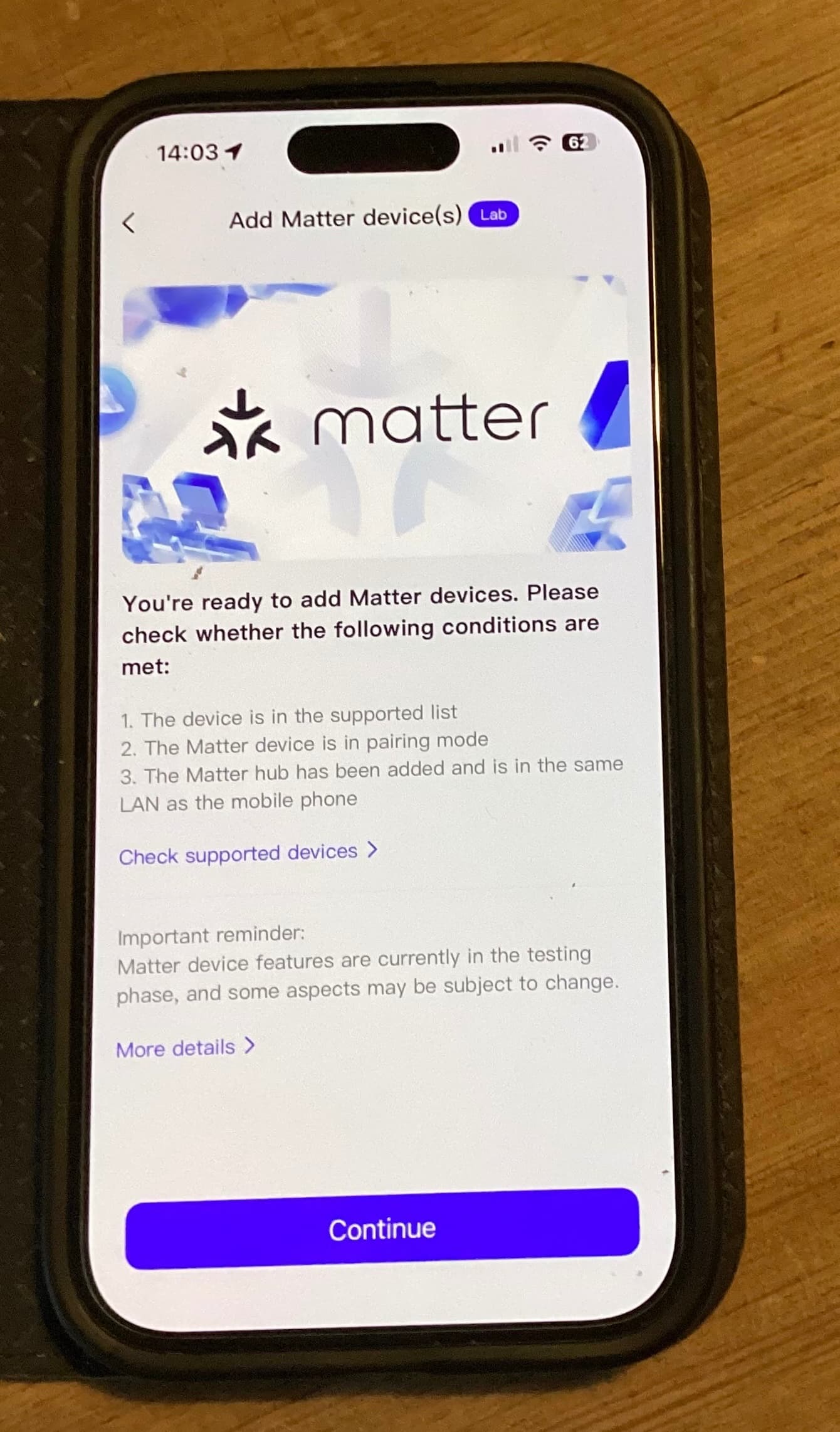
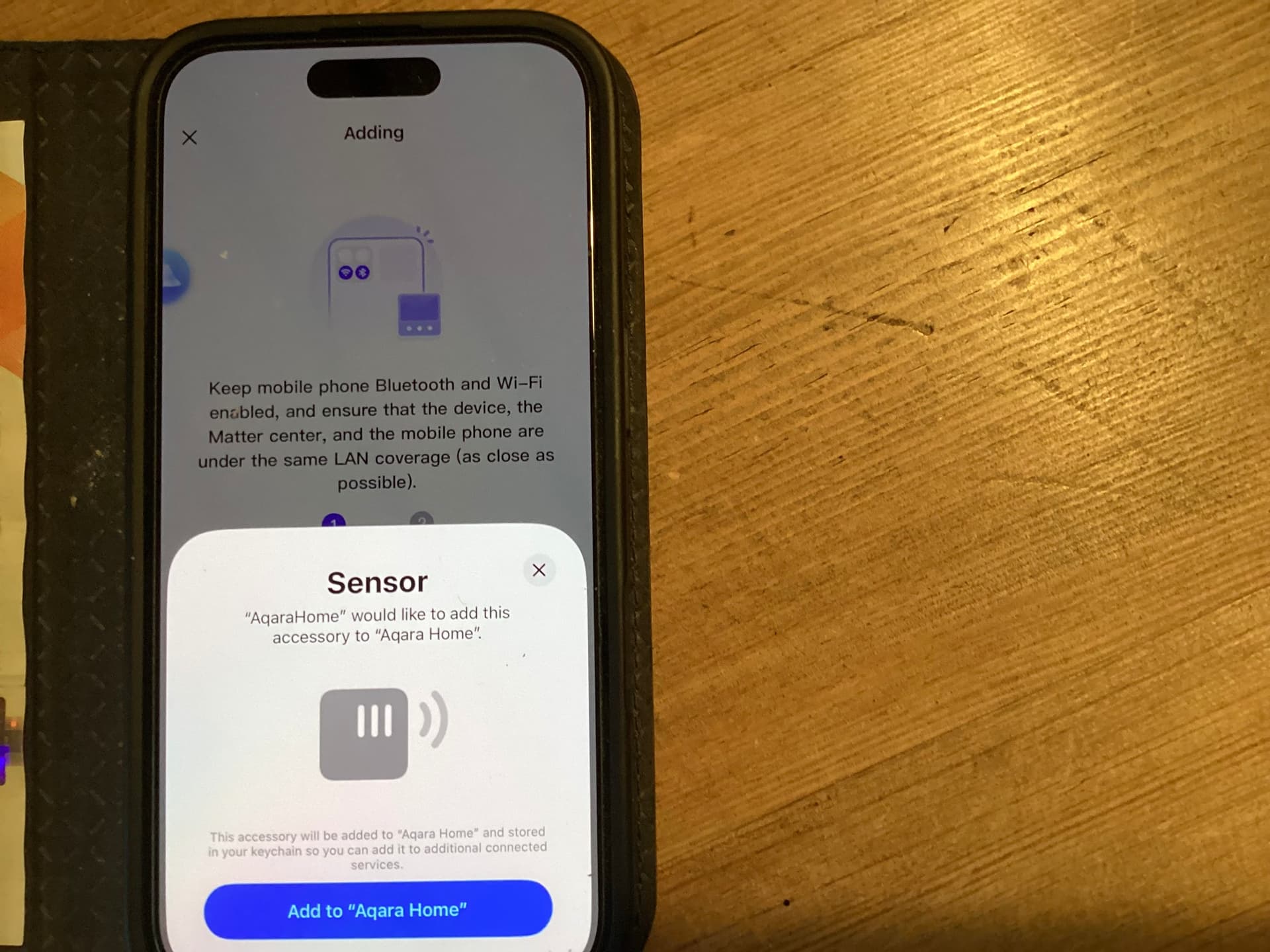
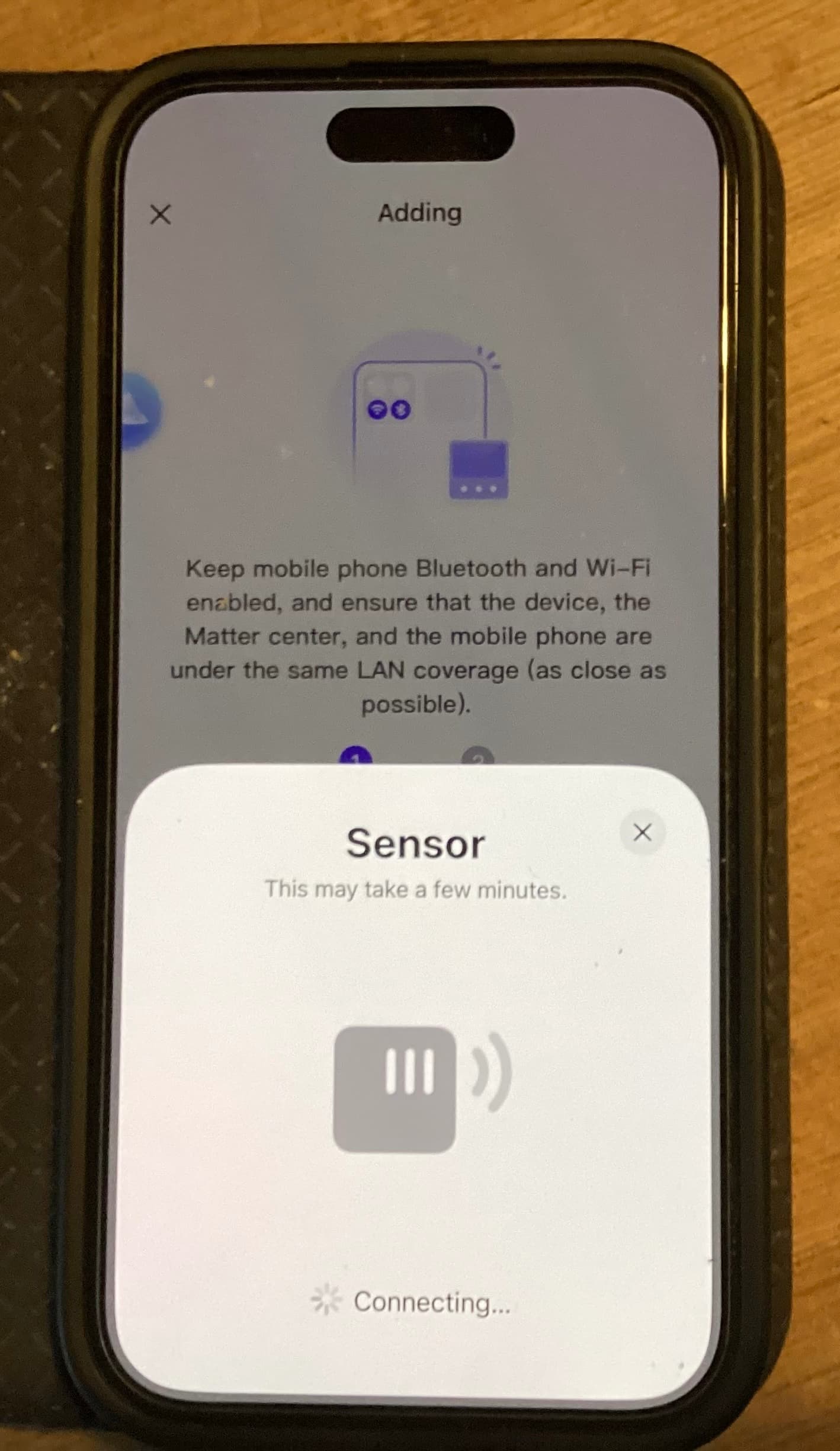
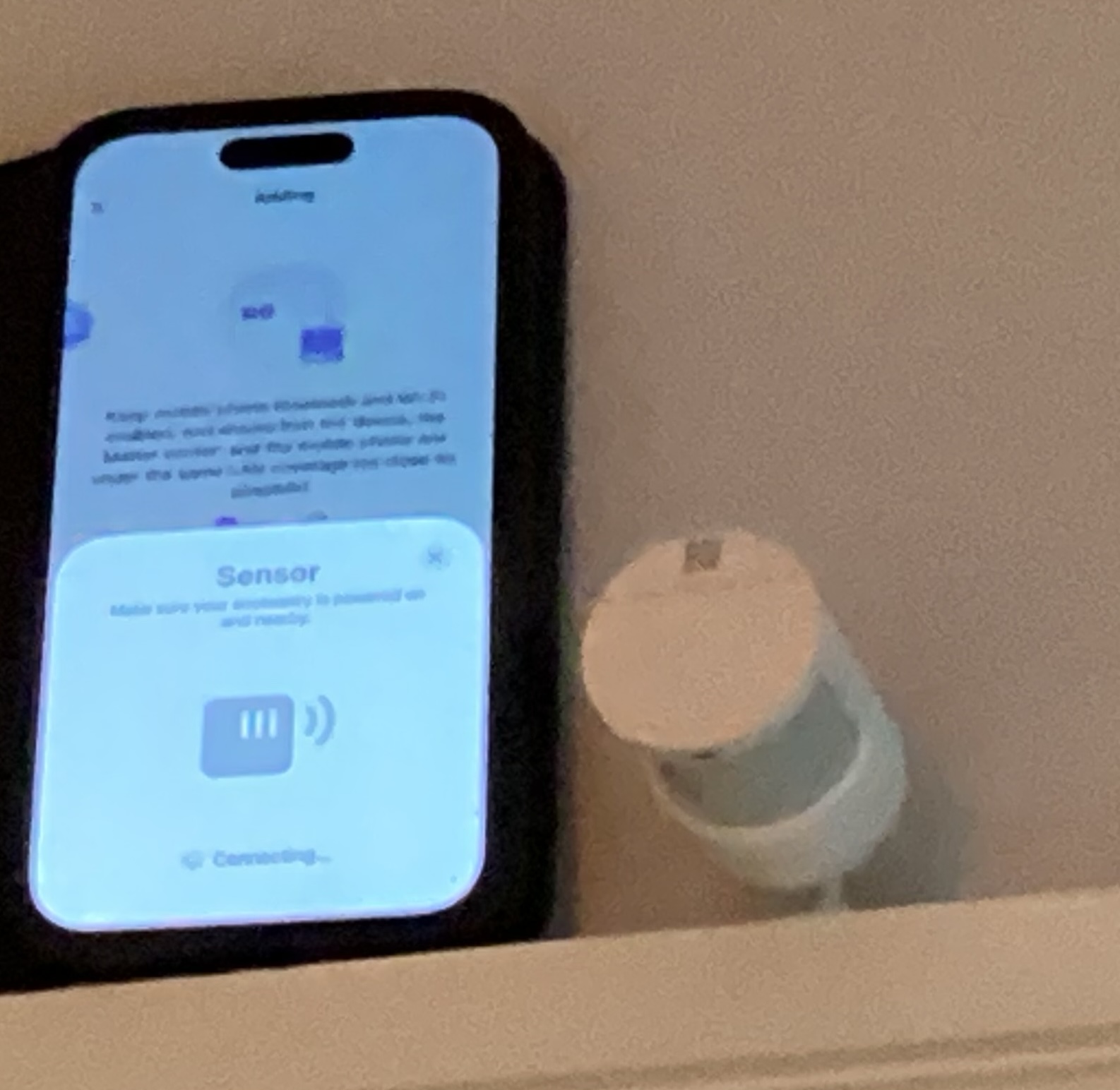
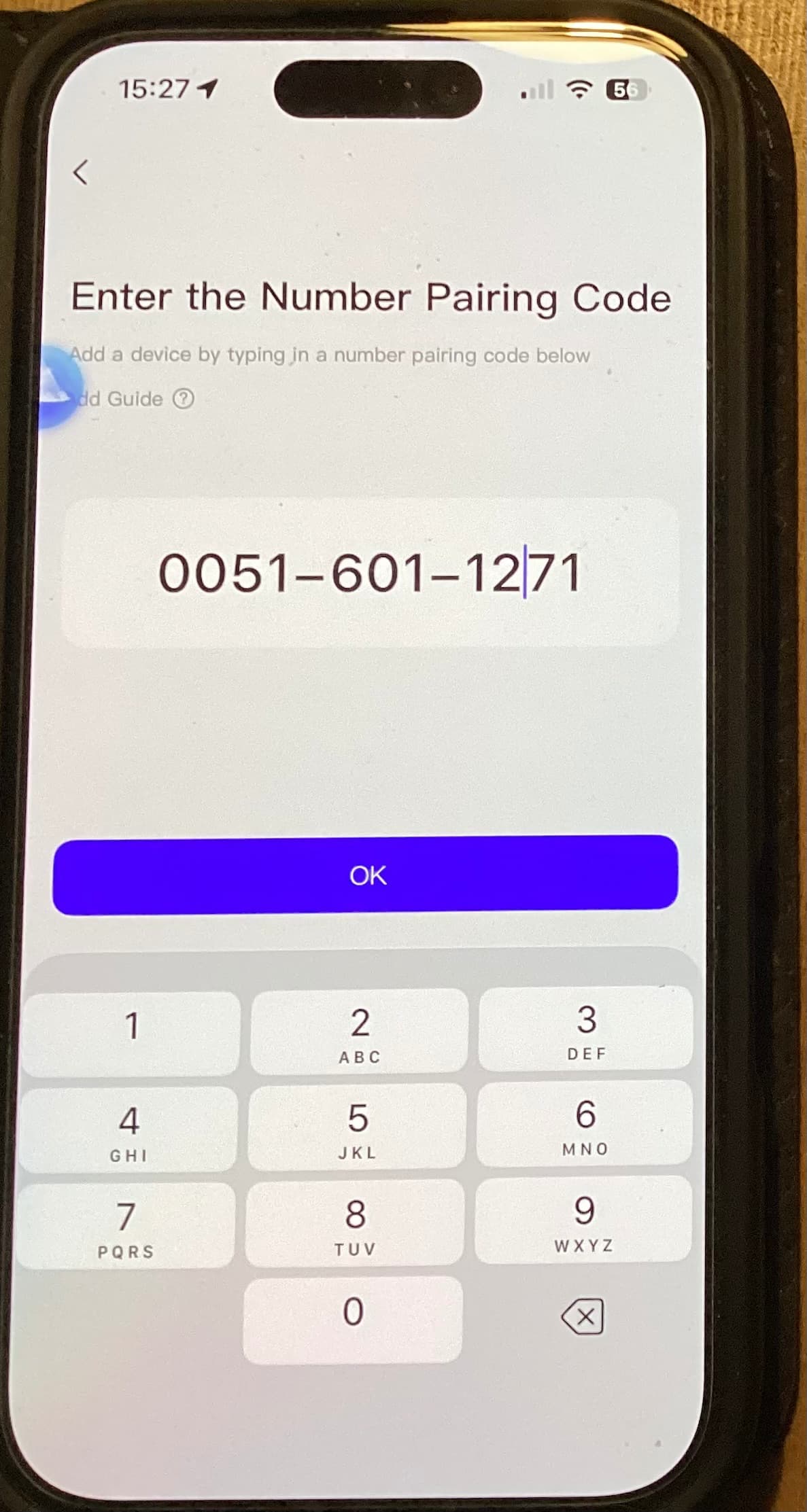
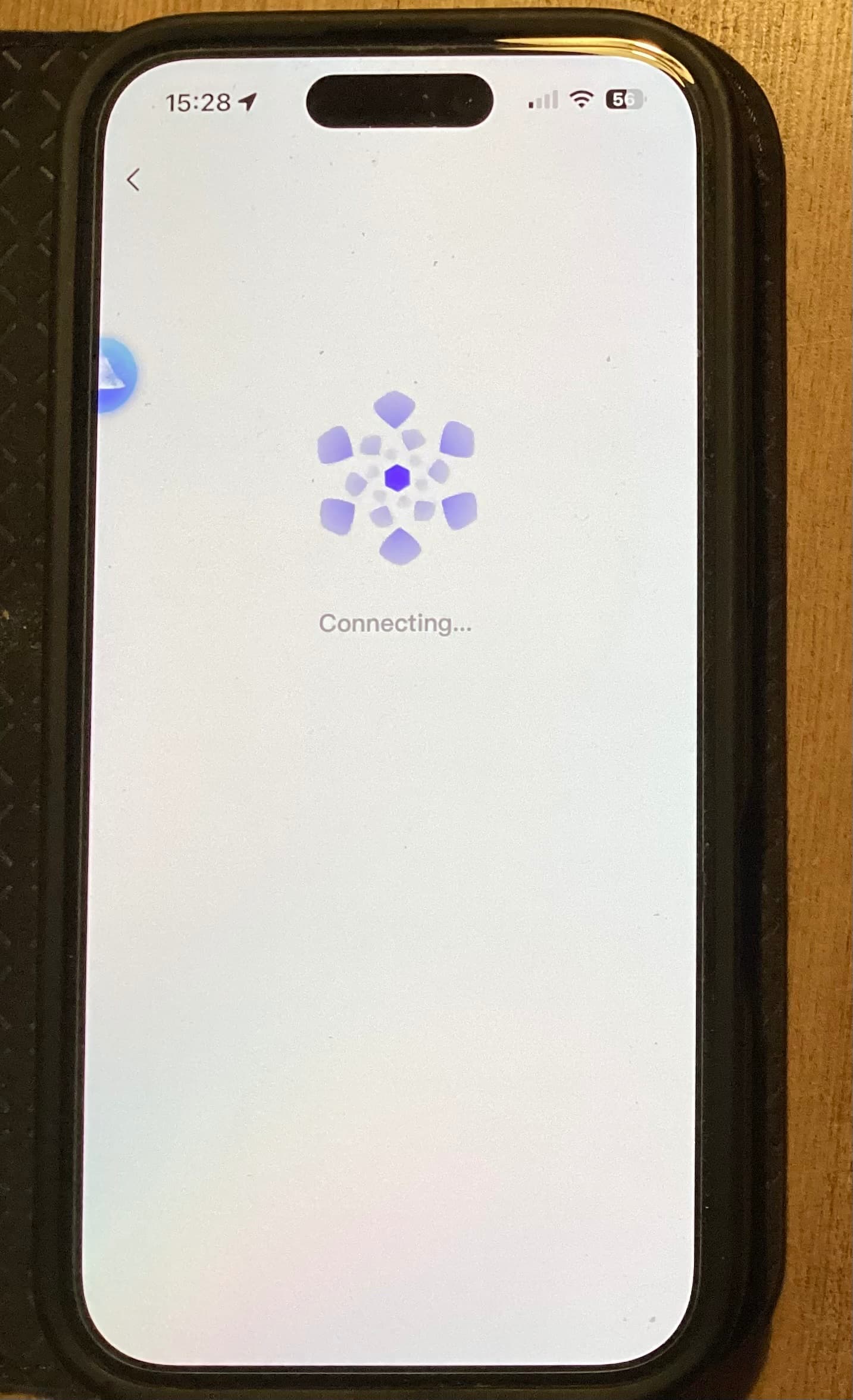
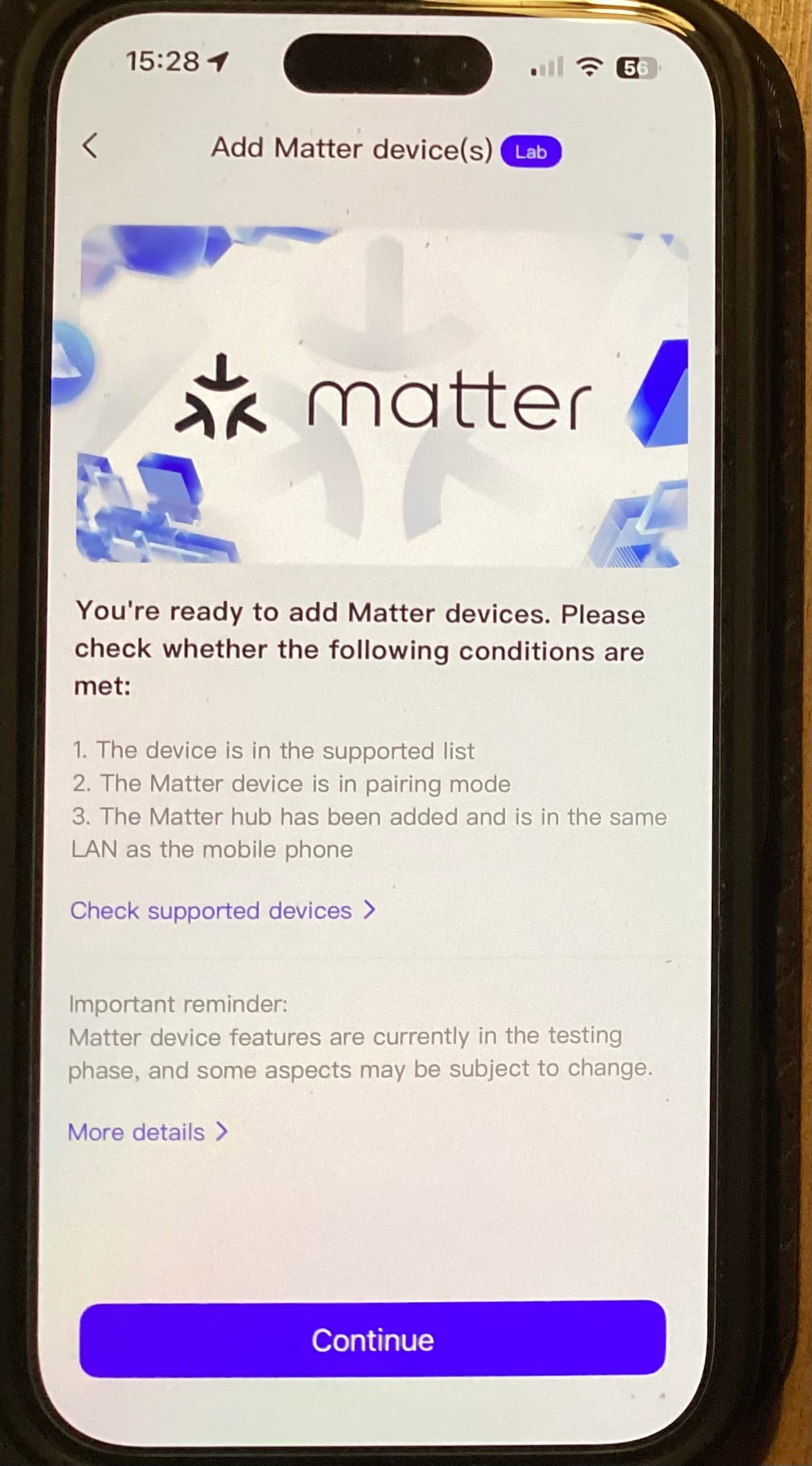
I was going to record the screen but wasn’t sure if I could post that so I’ve taken a number pop photos with my iPad as I didn’t want to disturb anything in the process by taking screen shots.
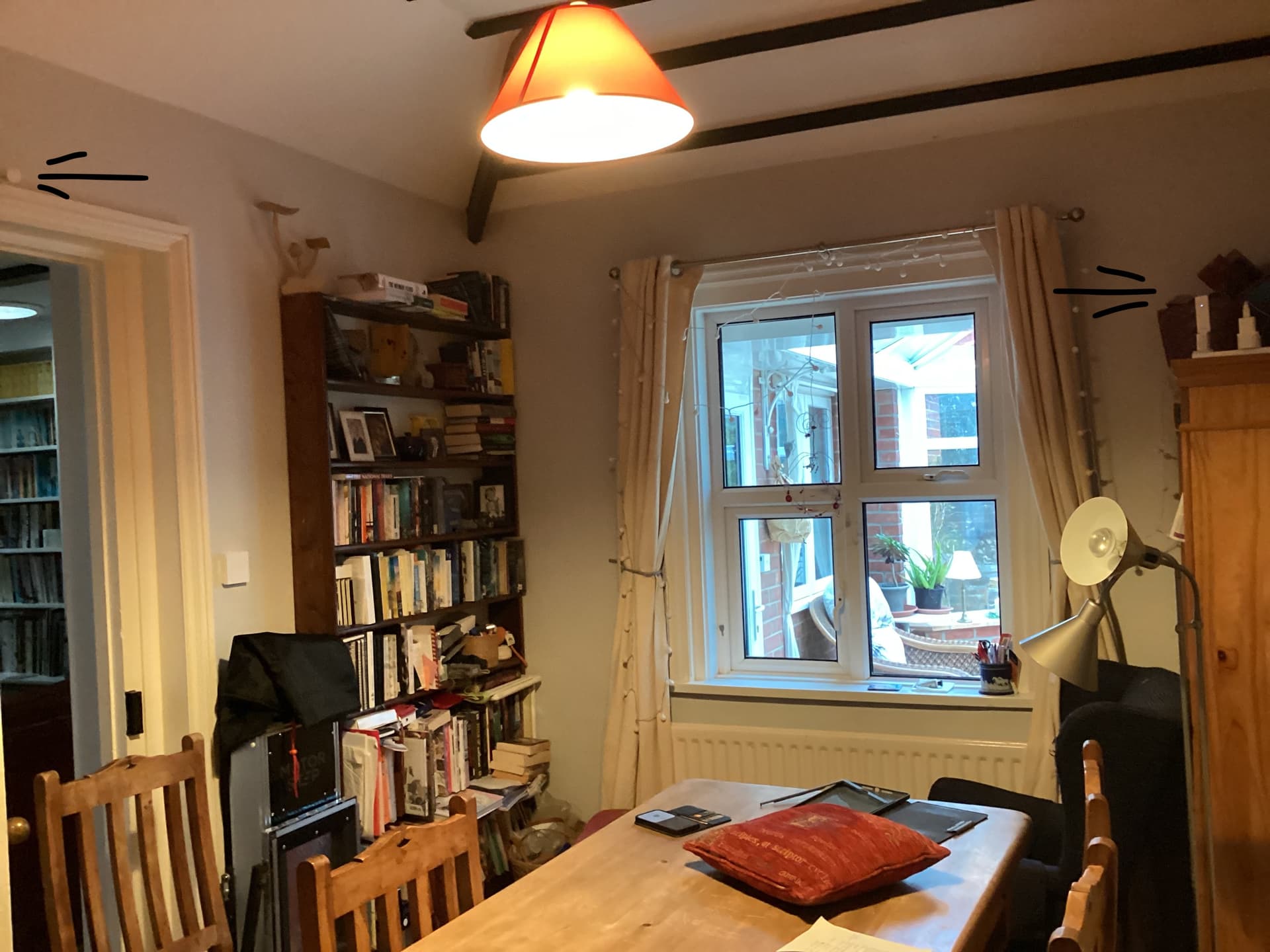
There is also a photo of the room where you can see the device installed above the door and the M100 in the other corner about 2m away.
The device was definitely on because it was working this morning in HomeKit.
After that failed I then added the P2 back in to HomeKit and tried pairing again.
I did these same steps a couple of days ago with the P2 on my desk alongside the M3 and WiFi station the the M3 is plugged in to with the same results.
Again I used my iPad, apologies but a couple of photos are blurred as I juggled with it.