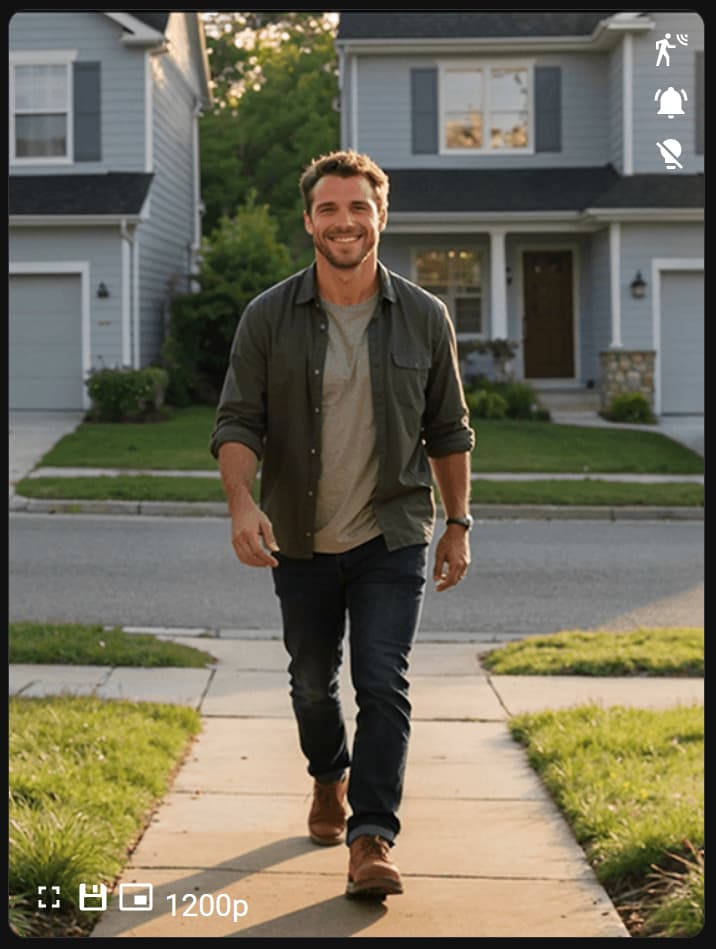
Here’s a guide to make an Aqara G400 Doorbell Home Assistant dashboard video feed card that’s more feature rich than the standard HomeKit version. Includes resolution selection, correct aspect ratio, snapshots, full screen & picture in picture buttons, digital PTZ, motion sensor indicator, doorbell/chime mute, and a toggle for an outdoor/hallway light.
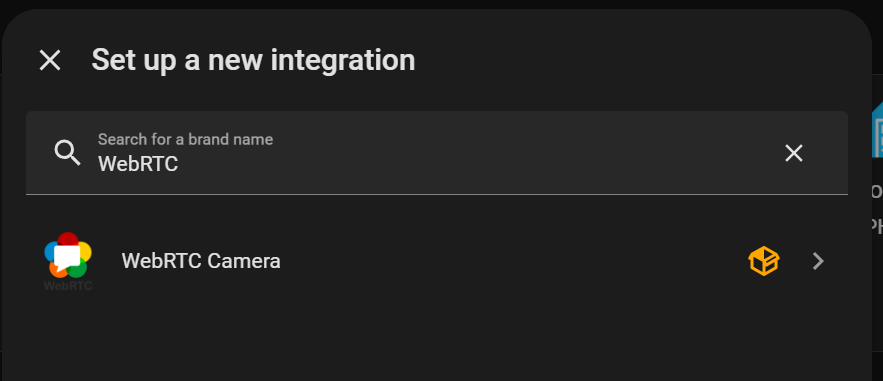
Now in Home Assistant, install WebRTC Camera via HACS (Home Assistant Community Store). Go to HACS and search for “WebRTC Camera”, download and then install via Settings-Devices & Services-Add Integration-Search for WebRTC Camera.
Edit the following lines with you own specific values:
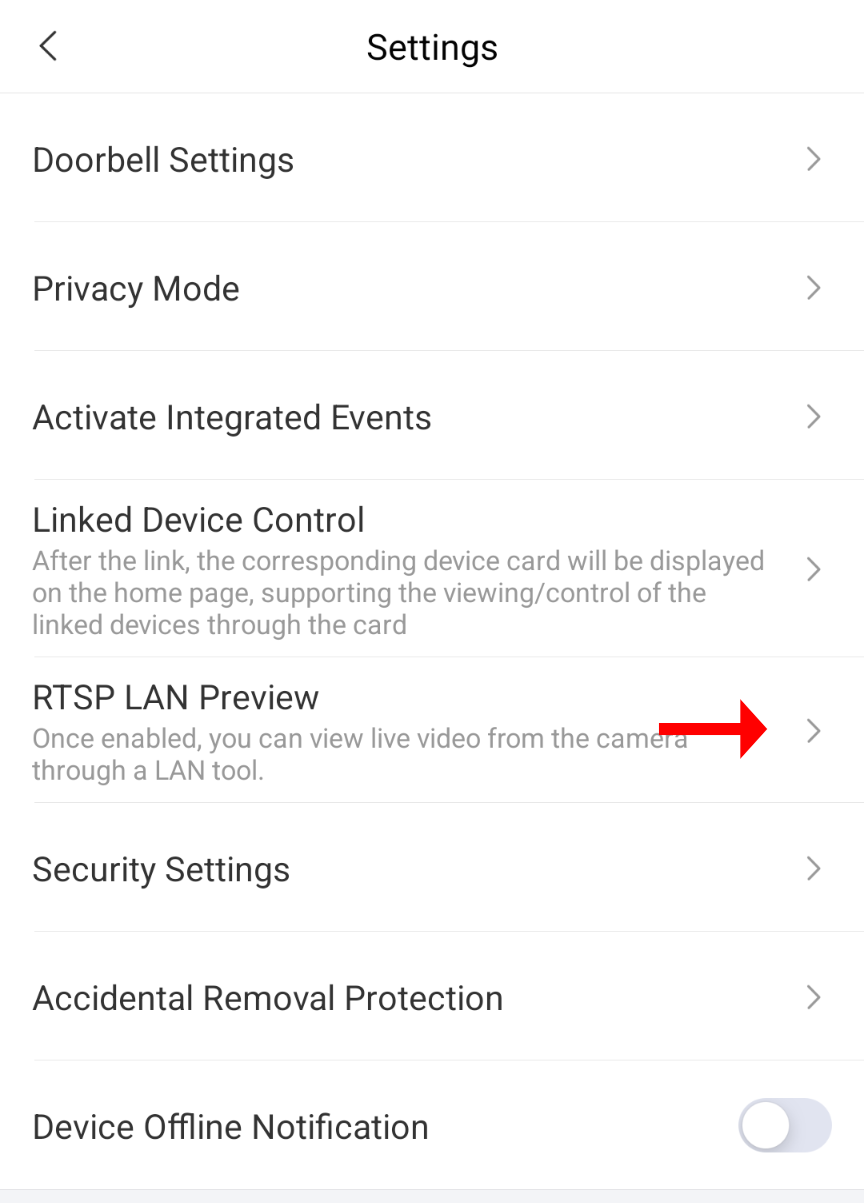
3 - user:pass@xx.xx.xx.xx - replace with the username/password/ip address noted down from the Aqara Home app before
6 - user:pass@xx.xx.xx.xx - as above
9 - user:pass@xx.xx.xx.xx - as above
13 -/media/local/myimage.jpg - replace with the path to an image to display whilst the camera feed loads (delete the lines if not wanted)
32 & 35 - binary_sensor.doorbell_camera_g400_1f75_motion_sensor - this is the name of the motion sensor for your doorbell, it will be slightly different but as you type it out Home Assistant should show an autocomplete suggestion with the correct name.
38 & 42 - switch.doorbell_camera_g400_1f75_mute_3 - this is the doorbell/chime mute switch, HomeKit makes 3 mute toggles for the G400. I haven’t figured out what 1 & 2 do, but number 3 is for the bell/chime mute.
45 & 50 - light.door_lamp - a light entity for the toggle button if you want to turn on an outdoor/hallway light whilst looking at the stream, delete the lines if not wanted.
You should now have a more feature rich G400 video feed in your Home Assistant dashboard.
As stated it’s digital PTZ, not on device. You can use touch/mouse to zoom/move about the image, the area you zoom/move to persists across views, so you can set the view to stay zoomed in on a particular area and it’ll still be focused on that area the next time you look at the feed.
You can stream RTSP to record to a NAS etc at the time as viewing a Homekit video feed in Home Assistant. But I’ve found the Homekit feed to be a bit flakey compared to RTSP.
Doorbell button press comes up in Home Assistant through Homekit as well as motion detection, but person detection etc isn’t available.
Thank a lot for this guide. Do know why it is working in the browser but not with the app on a mobile device? I just have a black picture on the Iphone while in the browser the video is showing live Image.
Hey, I’m having the exact same issue as @mail1177 where it’s working fine on the browser on my computer. But then just shows the black box on my iPhone. I tested this in both the brave mobile browser and the Home Assistant app. Same issue both ways. In the app I tried clearing the frontend cache and then force closing and re-opening the app. Still just shows the black box.
For @mail1177 and anyone else with the black screen problem on mobile devices. I found a fix. I had to setup a separate instance for go2rtc. Then browse it it’s config WebUI (default address is http://{LAN-IP}:1984. There you can create a config in it’s built in YAML config editor. My Config looks like this:
api:
  listen: ":1984"  # default public port for WebUI and HTTP API

ffmpeg:
  bin: "ffmpeg"    # default binary path for FFmpeg

log:
  level: "info"    # default log level
  output: "stdout"
  time: "UNIXMS"

rtsp:
  username: ${RTSP_USER:admin}   # "admin" if "RTSP_USER" not set
  password: ${RTSP_PASS:secret}  # "secret" if "RTSP_PASS" not set
  listen: ":8554"  # default public port for RTSP server
  default_query: "video&audio"

streams:
  camera1200p:
    - rtsp://user:pass@192.168.2.50:8554/ch1
    - "ffmpeg:camera1#video=h264#audio=aac" # Not sure if this line makes a difference
  camera960p:
    - rtsp://user:pass@192.168.2.50:8554/ch2
    - "ffmpeg:camera1#video=h264#audio=aac" # Not sure if this line makes a difference
  camera480p:
      - rtsp://user:pass@192.168.2.50:8554/ch3
      - "ffmpeg:camera1#video=h264#audio=aac" # Not sure if this line makes a difference

srtp:
  listen: ":8443"  # default public port for SRTP server (used for HomeKit)

webrtc:
  listen: ":8555"  # default public port for WebRTC server (TCP and UDP)
  ice_servers:
    - urls: [ "stun:stun.cloudflare.com:3478", "stun:stun.l.google.com:19302","192.168.2.191:8555" ]
Then on the go2rtc WebUI’s main page you should see your camera’s various resolutions listed there. Next to each one is some commands you can click near each camera and one is titled “links”. Click that. On that page you can find various different links that will stream the camera from G400. You then just have to find a link that works. For me the one that said “stream.m3u8 legacy HLS/TS / browsers: Safari all, Chrome Android / codecs: H264” is what worked when testing on my iPad and iPhone.
So then back in Home Assistant you still install the WebRTC integration but during it’s setup point it at your now already existing go2rtc instance. Then all you have to do is use ALMOST the same YAML that @absent posted. Only thing you change is for each camera’s URL you just copy the url that worked when testing in go2rtc. That way WebRTC pulls up that version of the stream.