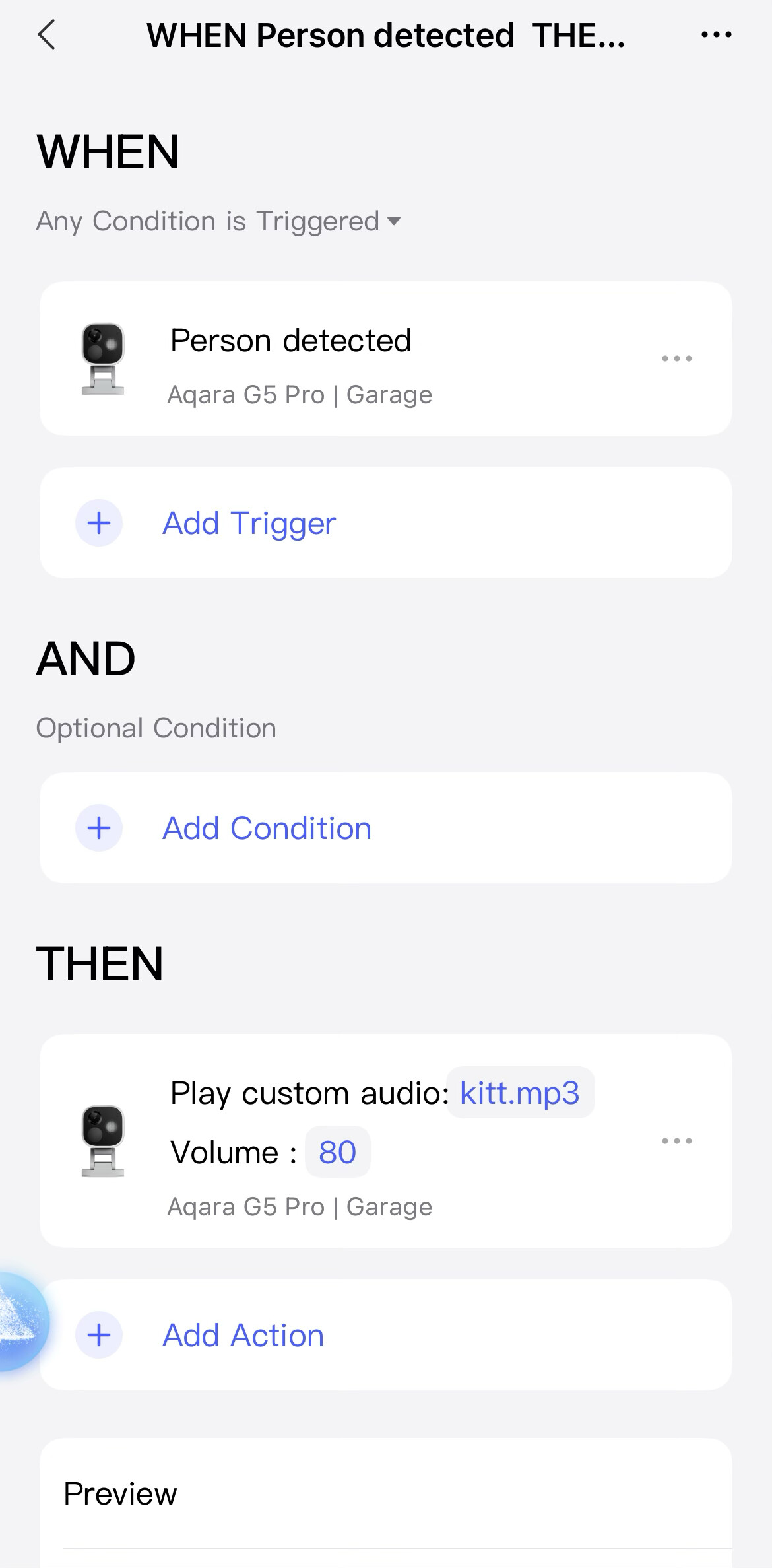
@hecscape Love this walkthrough — it’s a super practical way to get more “personality” (and usefulness) out of the G5 Pro. The G5 Pro does support uploading MP3 custom ringtones in-app and then using automations to play them, so your flow (import → Sync audio → build an automation like Person Detected → Play Custom Audio) is exactly the right idea.
A couple of extra fun angles people might want to try:
Use different files for different triggers (e.g., Person Detected vs Lingering) since the G5 Pro automation actions include Play custom ringtone and Stop ringtone playback.
Pair it with security-style automations too (custom audio can be used as part of automated surveillance / deterrence routines).
If anyone else tries this: what MP3 length/size worked best for you, and did you notice any delay after syncing before it shows up in the automation picker?