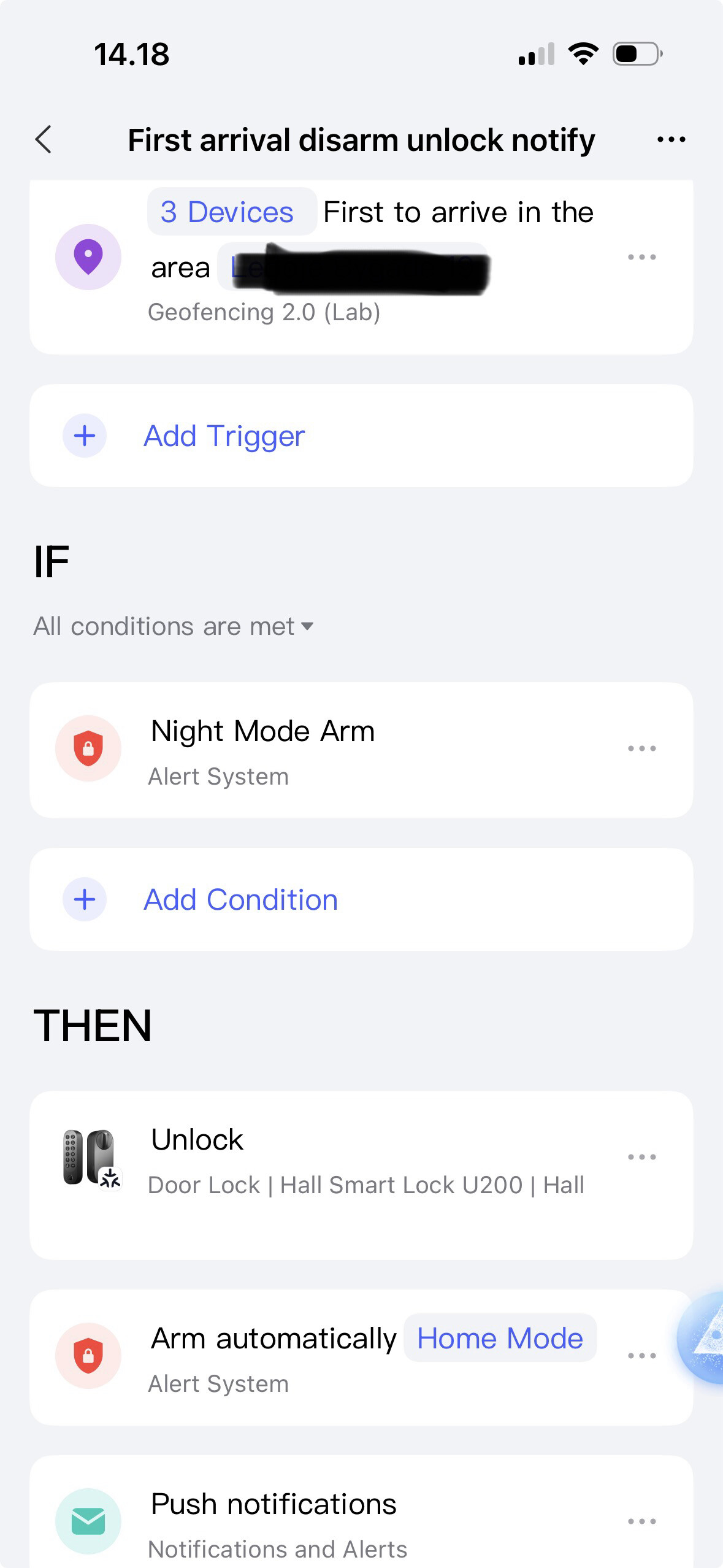
After getting my replacement U200 Doorlock I have been playing around with geofencing to make everything easier for my wife, who really hate new things  For that reason I made this automation that unlock the U200 and disable the Aqara Guard Alarm system as soon as one of my family members pulls into our driveway approximately 100m from our house. So this rule only act when the first of the phones in my family arrive. So if my wife are the first to get home it will unlock and disable the alarm, but then my son or I arrive later it will do nothing as it should.
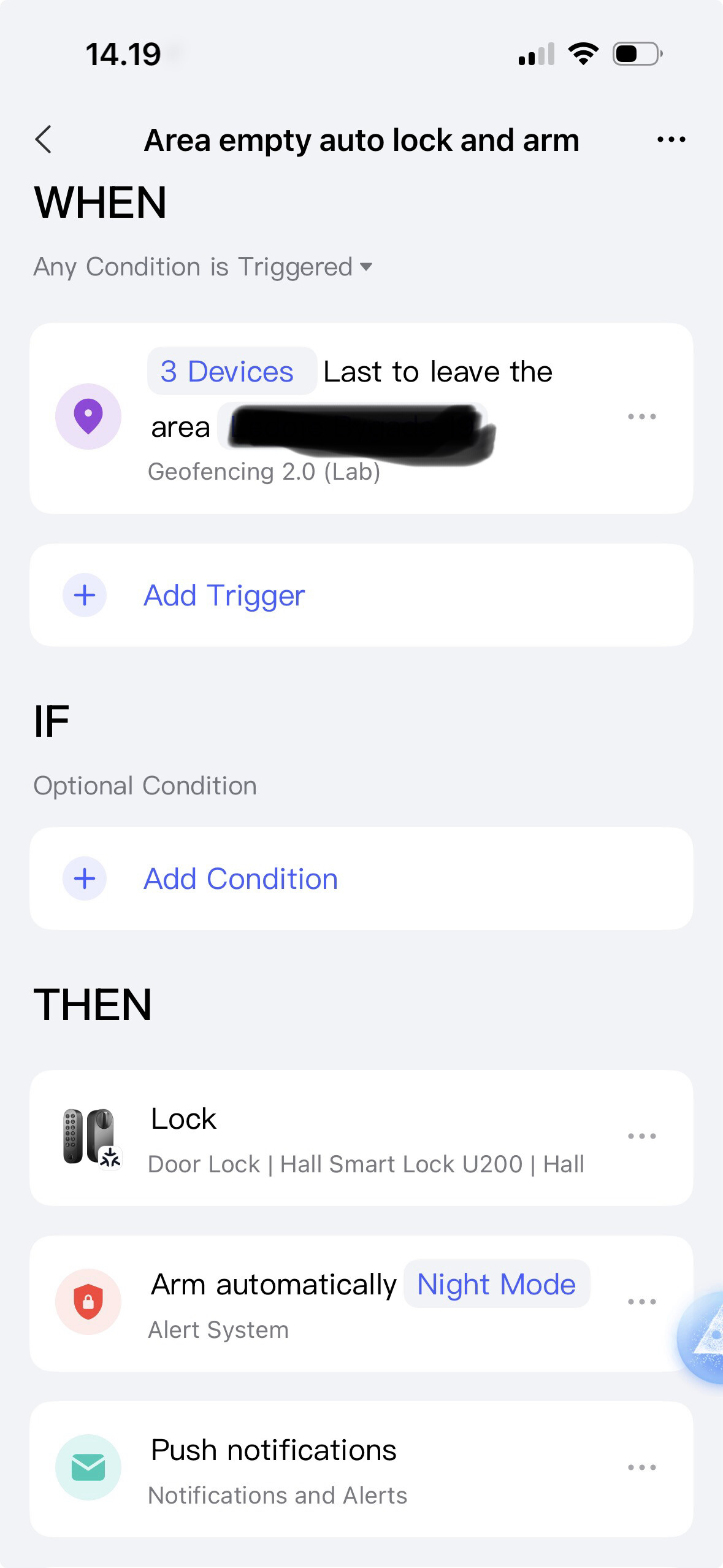
I have also made the same feature when the last family member leave the house the door and alarmsystem will auto arm and lock the U200.
If you want an added layer of security you can add that the G410 doorbell should recognise a stored fave working e.g. 5min witching arrival to unlock but I find that too much for now, also because the facial recognition can be cheated with a photo copy of the face anyway 
You can further add that upon unlock that the light should be turned on in the hall and in other places etc.
Just love the Geofencing capabilities and hope they will be extended so it can be used as an IF function as well in the future.
Hope some will be inspired and perhaps suggest other great functions for the Geofencing automations.
6 Likes
@mikkelgraverjensen What a fantastic and thoughtful setup! Your approach to using geofencing for seamless home entry and exit automation—especially considering your wife’s comfort with technology—is really inspiring. The way you’ve configured the U200 Doorlock and Aqara Guard Alarm to respond only when the first family member arrives (and to ignore additional arrivals) is a smart use of automation logic.
It’s worth noting that currently, geofencing automations in the Aqara system are tied to the phone that creates the automation. So, for multiple family members, each person needs to set up the same automation on their own device, even when logged into the same Aqara account. This means the automation will trigger only based on the phone that set it up, not on all devices collectively. For your “last to leave” scenario, you’ll want to ensure each family member has the appropriate automations configured so the system can respond as expected.
Your idea of further integrating devices, like having hallway lights turn on upon unlocking, showcases the flexibility of Aqara automations. And your thoughts about adding the G410 doorbell’s facial recognition as a security layer—while acknowledging its limitations—show a great balance between convenience and safety.
If you’d like to enhance the reliability of your geofence, consider setting the radius to 500 meters or more. This can help avoid delays caused by network or system limitations, ensuring actions trigger smoothly as you approach home. Additionally, geofencing relies on your phone’s location services, network connection, and permissions, so it’s always good to double-check those settings on each device.
Thank you for sharing your setup and workflow! Community insights like yours really help others get the most out of their smart home. If you have new automation ideas or suggestions for improving geofencing, feel free to share them or submit feedback via customer service in the Aqara Home app. Looking forward to seeing more creative uses from you and others!
7 Likes
Well I can inform that I don’t have to set it up on anything other than my phone. Tested it yesterday with my phone turned off and my wife’s unlocked everything like a charm when she arrived home, so not quite sure what you wrote is correct on that part
3 Likes
@mikkelgraverjensen Thank you for sharing your experience and clarifying your findings! According to the official Aqara documentation, geofencing automations are typically triggered only by the phone that sets up the automation, even if multiple devices are logged into the same account—so each family member would usually need to create the same automation on their own device for it to work as intended. However, your real-world testing suggests that, in your setup, the automation triggered for your wife even when your phone was turned off. This is a valuable observation and could indicate some differences in how geofencing behaves in certain scenarios or with specific device/account configurations.
It’s great to see hands-on experiences like yours, as they help the community better understand the real capabilities and possible variations of Aqara’s geofencing feature. If others in the community have noticed similar behavior or have tips to share, it would be fantastic to hear more perspectives!
If you encounter inconsistencies or want to provide suggestions for geofencing improvements, please submit feedback through customer service in the Aqara Home app. Your input helps everyone get the most from their smart home experience. Thank you again for contributing, and keep sharing your discoveries!
5 Likes
If you look at the automation I have given my wife and son user access and then added their phones to the automation. On my wife’s phone it triggered a notification that she had to accept and then everything worked like a charm on her phone as well, so again really have to recommend geofencing for automations as it’s VERY cool 

4 Likes
@mikkelgraverjensen That’s an awesome discovery! Your hands-on exploration and sharing are truly valuable to the community. By giving your wife and son user access and adding their phones to the automation, along with having your wife accept the notification, it’s great that the geofencing automation worked smoothly for her. This shows there are different ways to make geofencing automations function across multiple family members, which goes beyond the typical understanding.
Your enthusiasm for geofencing automations is contagious! It’s great to hear that you’re having such a positive experience with it. If you come across any other interesting findings or new ways to use geofencing in the future, don’t hesitate to share them with us. And if you have any suggestions for further improving geofencing, remember to submit them through customer service in the Aqara Home app. Keep up the great work!
5 Likes