How to view your Aqara cameras and doorbell on macOS?
I currently use three Aqara cameras and a G410 doorbell. Everything works perfectly from iPhone or iPad via the Aqara Home app or Home (HomeKit).
But since I spend most of my working time on my Mac, pulling out my phone for every notification wasn’t very practical. So I explored several ways to view video feeds directly on macOS.
Here are the three methods I use today, with a clear preference for the third if you’re looking for the most comfortable solution ;-).
1 — Use the Aqara Home app on Mac
If your Mac is equipped with Apple Silicon (M-series processor), you can install the Aqara Home app from the Mac App Store.
[App Aqara Home - App Store Aqara Home](App Aqara Home - App Store Aqara Home)
You’ll find exactly the same interface as on iPad, which means there is no learning curve. Everything feels immediately familiar.
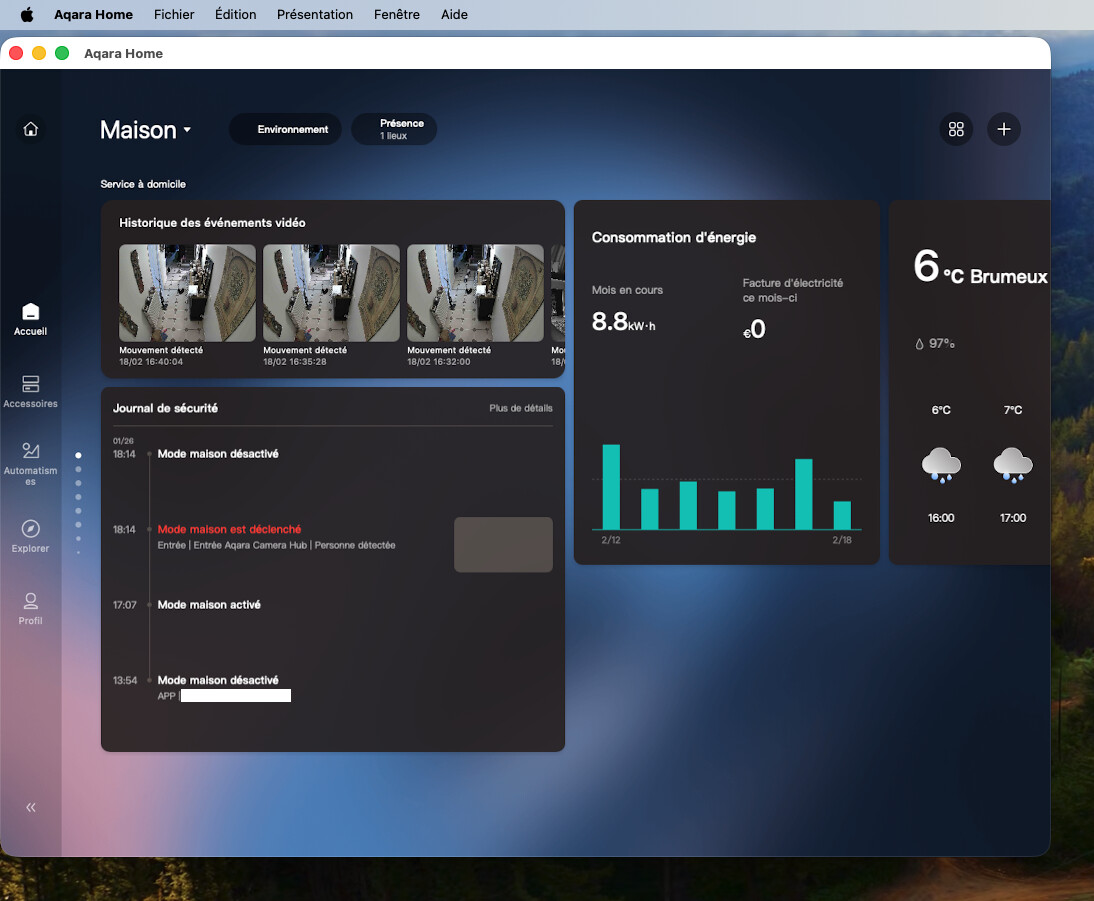
However, keep in mind that the app is still an iPad adaptation. It doesn’t fully follow macOS interface conventions. For example, you may notice small UI quirks like navigation buttons that are not very visible.
Despite these limitations, it remains a simple and perfectly functional way to quickly access your cameras.
2 — Use Apple’s Home (HomeKit) app
If you chose Aqara devices, chances are it was for HomeKit integration.
On macOS, the Home app lets you access cameras and the doorbell directly from your home dashboard. Video feeds appear as thumbnails at the top of the interface, and you can click them to view the stream in full size.
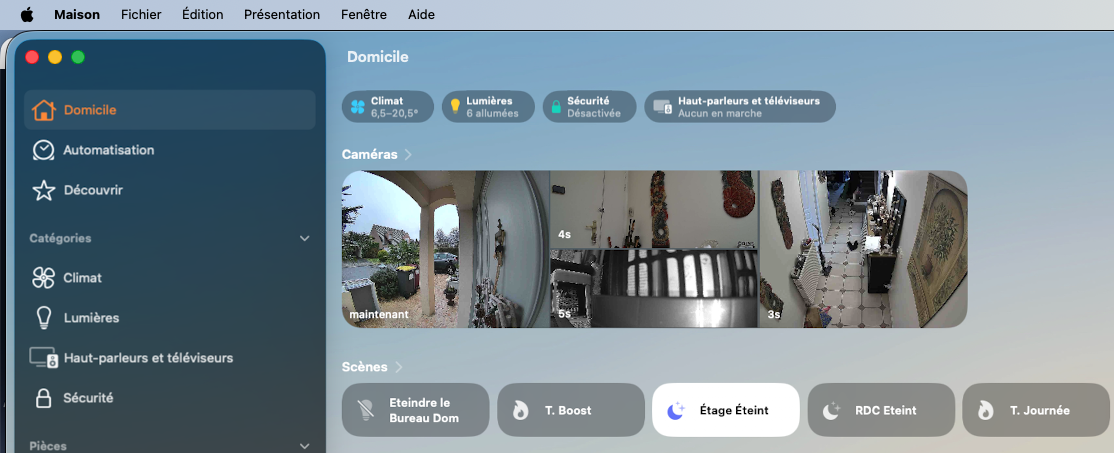
A useful tip is to organize the camera order from the “Security section in the left sidebar. The order you set there will be reflected in the overview.
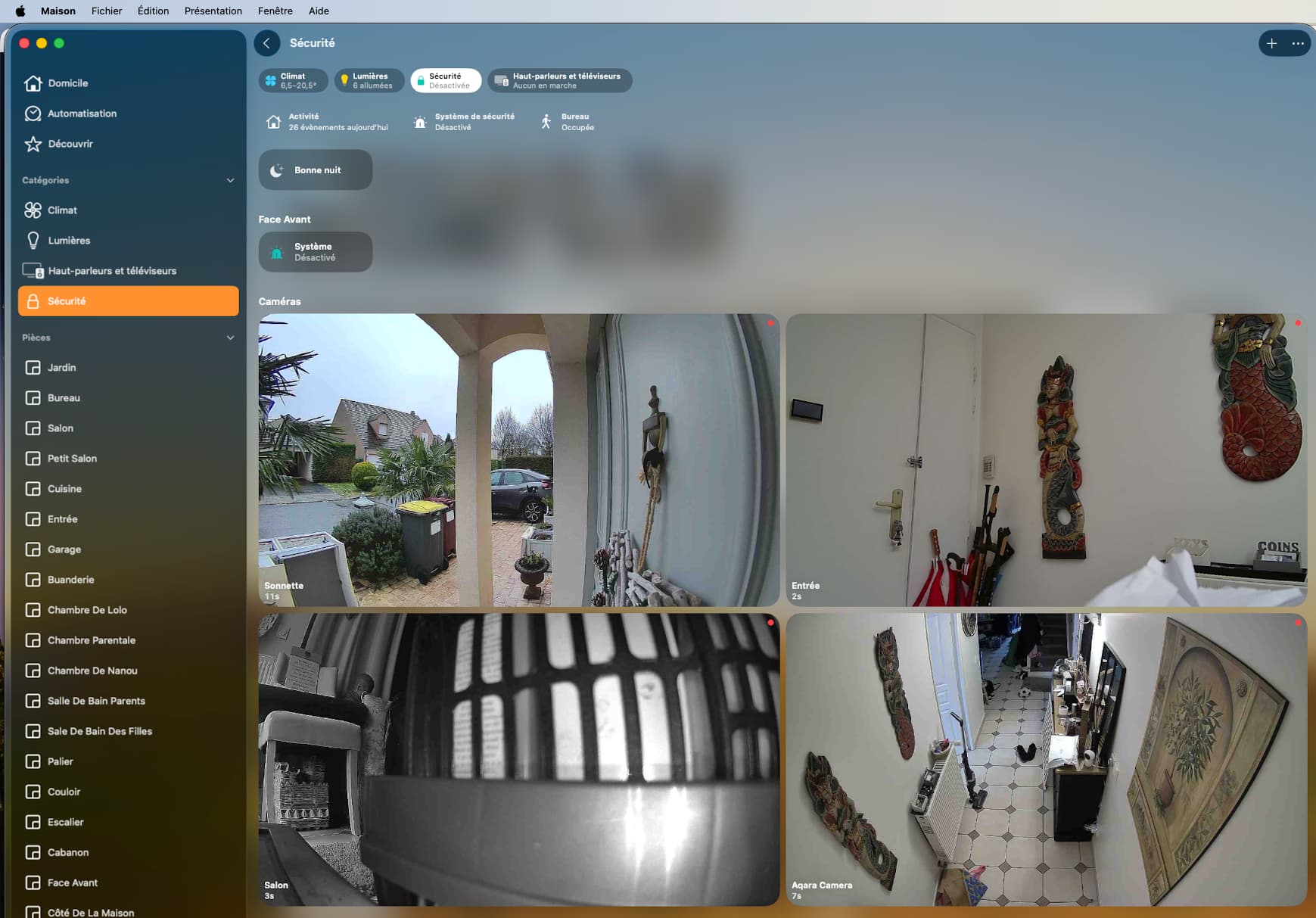
The interface is pleasant, but it requires opening the app to access the feeds. It is especially useful for reviewing video history when you use HomeKit Secure Video, which records detected events.
Apple doesn’t provide Widget for the Camera !
Some cameras like the G100 or G410 also offer an RTSP stream. This allows integration with third-party tools or platforms like Home Assistant or Homey. I did not choose this approach because one of my cameras does not support RTSP, which limits the benefit of a unified setup.
3 — My favorite solution: a menu bar utility: Itsyhome
After several tests, I adopted a dedicated HomeKit utility that lives in the macOS menu bar. It is by far the most comfortable solution for everyday use.
It’s free until you want to add camera. The Pro option cost 14 euros.
Itsyhome
With a single click on the menu bar, you instantly access all your cameras and the doorbell without opening a full application. Access is immediate and very unobtrusive.
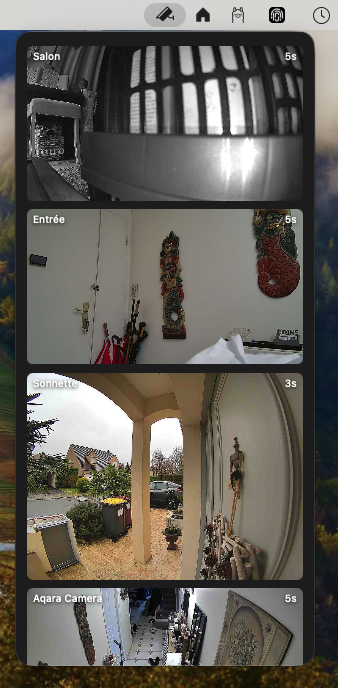
The app is particularly well designed. When a feed deserves special attention, you can open it in a separate window. A pin button lets you keep the video always on top, regardless of which apps you are using.
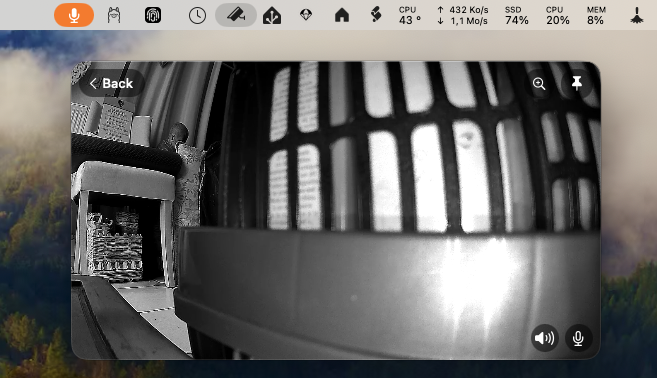
Two-way audio is supported, so you can talk to someone at the door directly from your Mac’s microphone.
Windows can be displayed in multiple sizes, including a large format that is very convenient for occasional monitoring.
The app is free for controlling HomeKit accessories, but adding video streams requires a purchase of about €14. Even without paying, it remains usable to control Aqara devices connected via HomeKit or Matter through a hub like the M3.
This led is from Aqara, I have all the option. Bellow you’ll find an Aqara Thermostat and a W100. All information are thiere.
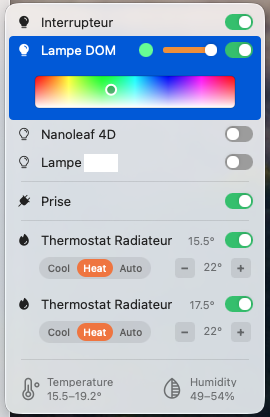
There are numerous advanced functions, such as grouping and webhooks, to control all your devices. Additionally, there’s a free remote for Apple TV.
One feature allows you to see the camera of the Aqara doorbell directly as soon as it rings.
Lastly, your Mac can be used as a doorbell sound! It plays a sound when the doorbell rings.
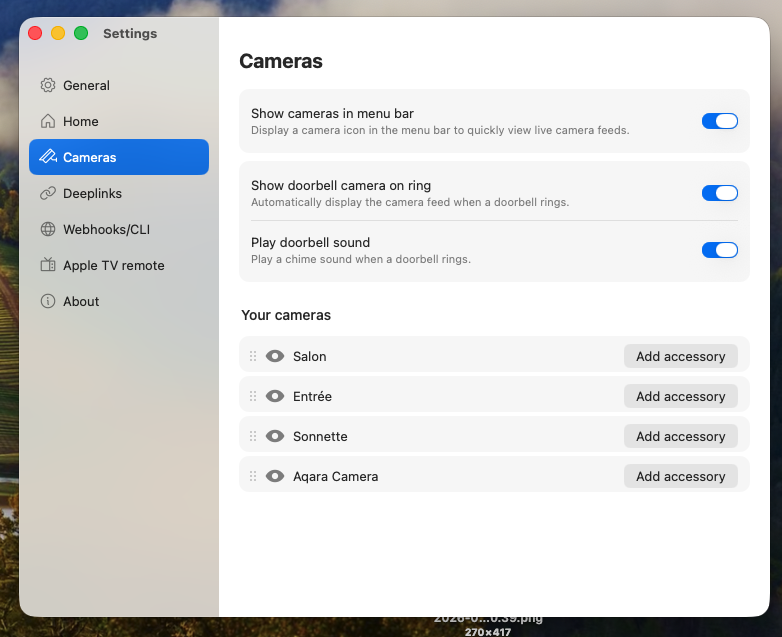
In a Mac working environment, the Itsyhome provides real comfort by letting you keep an eye on your home without interrupting your workflow.
Hope this helps.