Aqara Spatial Multi-Sensor FP400 — Matter Direct Pairing, Configuration & Third-Party Sharing Guide
1. Overview
The FP400 is Aqara’s mains-powered spatial sensor, built on 60 GHz mmWave radar. It supports up to 8 custom Monitoring Zones, tracks up to 10 targets, and reports whole-area occupancy and illuminance. The device is powered over USB-C (5V 1A DC) and supports two protocols — Zigbee and Thread (firmware Thread v1.1.9.6+ / Zigbee v0060+); Thread is recommended for overseas third-party Matter platforms.
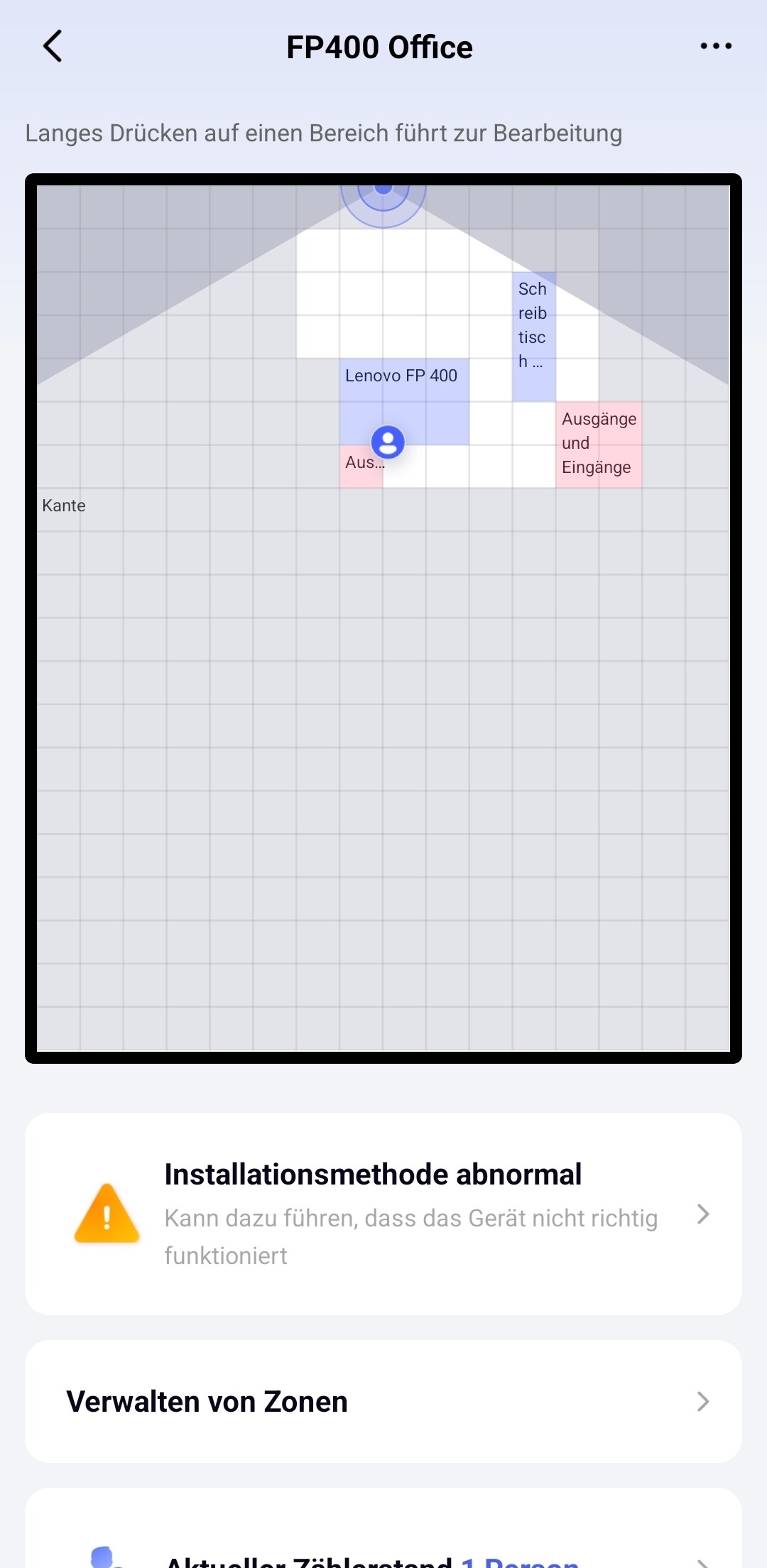
Zones, detection sensitivity, the Absence Confirmation Period and other advanced parameters can only be configured in Aqara Home (app v6.4.1+, plugin 3.0.40+). The recommended order is therefore: first add the FP400 to Aqara Home and complete all zone configuration, then share it to a third-party platform with a Matter pairing code. This guide is written for users without an Aqara hub; here Aqara Home is used only as a configuration app, and the FP400 joins the network through a Thread Border Router you already own (for example, a HomePod mini) — no additional Aqara hub is required.
With or without an Aqara hub, the sharing steps are the same. The only difference is how the FP400 first joins Aqara Home; from Step 2 (generate the sharing code and pair each platform) onward the flow is identical. If you have no Aqara hub, add the FP400 to Aqara Home by direct phone setup using a Thread Border Router you already own — this option appears only when your Aqara Home account has no compatible Aqara gateway (see Step 1, §3). If you already have an Aqara hub, the FP400 joins through that hub and the remaining steps are unchanged.
Adding the FP400 to Aqara Home first is required for full functionality. Scanning the original Matter code directly with a third-party app brings the device online only as one occupancy sensor plus one illuminance sensor, with no custom zones or zone automations; only the “add to Aqara Home first, then share” flow syncs each Monitoring Zone to third-party platforms as a separate occupancy sensor.
Secondary pairing code: For the second and any later platform, generate a new “secondary Matter pairing code” in Aqara Home. Do not reuse the original QR code on the device body or in the manual, or pairing will fail.
2. Before you start
2.1 What you need
| Item | Details |
|---|---|
| FP400 device | Aqara Spatial Multi-Sensor FP400 + USB-C cable |
| Power adapter | USB-C adapter with 5V 1A DC output (do not use a low-power charging port) |
| Aqara Home app | v6.4.1+, plugin 3.0.40+; installed and signed in with an Aqara account (used only as a configuration tool — no Aqara hub required) |
| Thread Border Router (home hub) | An existing Matter-compatible Thread Border Router is enough, for example HomePod mini / Apple TV 4K, Google Nest Hub, Amazon Echo (Thread-capable hub models), SmartThings Station, or Homey Pro. The FP400 joins the Thread network through it — no Aqara hub required. |
| Target platform app and account | Such as Apple Home / Google Home / Alexa / SmartThings / Homey / Home Assistant |
2.2 Put the FP400 into pairing mode
The FP400 is mains-powered and automatically enters pairing mode when powered on: the LED indicator blinks blue slowly, then enters a blue breathing state (Thread firmware).
- New device: connect USB-C power and turn it on, then wait until the LED enters the breathing state.
- If the pairing window has already passed (or the LED is not breathing): press and hold the reset button for 5 seconds until the LED blinks rapidly, then release; the device re-enters pairing mode.
Tip: Keep the device in the pairing (LED breathing) state throughout the process. If the LED is not breathing, press and hold the reset button for 5 seconds to re-enter pairing mode.
2.3 LED indicator and button quick reference
| Action / state | Meaning |
|---|---|
| Light on power-up / re-power / after factory reset | Power is normal |
| Blue breathing (Thread) / purple breathing (Zigbee) | In pairing mode, discoverable |
| Blue light keeps blinking fast | Pairing in progress |
| Single press of the reset button | Blue LED blinks for 2s |
| Press and hold the reset button for 5s | Reset the device and re-enable pairing mode |
| Quickly press the reset button 10 times | Restore factory settings (erases local and cloud data) |
3. Step 1 · Add the FP400 to Aqara Home by direct connection (no Aqara hub)
This section covers the no-Aqara-hub scenario, which is what this guide is written for. In this flow your phone acts as the Matter Controller (Commissioner) and brings the FP400 onto your Thread network through a Thread Border Router you already own (for example, a HomePod mini) — no Aqara hub is involved.
Prerequisites for direct connection: (1) Your phone’s Wi‑Fi and the Thread Border Router (home hub) must be on the same local network (LAN) — the phone commissions the FP400 over the local network, so it cannot direct-connect when the phone and the Thread hub are on different networks. (2) The “Direct Network Connection” option only appears when there is no compatible Aqara gateway under your Aqara Home account (the app then shows “No available Aqara Matter controllers”). If you do have an Aqara gateway, the FP400 is added through that gateway instead, and from Step 2 onward the sharing steps are exactly the same.
iOS and Android both support direct connection. The two flows are almost identical — the steps below simply show each platform’s own screenshots because the two UI styles look different, not because the feature is limited to one platform. The only minor differences are: iOS shows an extra “Add Matter device(s) [Lab]” checklist and a “Sensor Name” sheet, and the system prompt differs (iOS shows the Apple “Add to Aqara Home” sheet, Android asks “Allow Aqara Home to access your home network?”). Follow the sequence for your platform below.
3.1 iOS
-
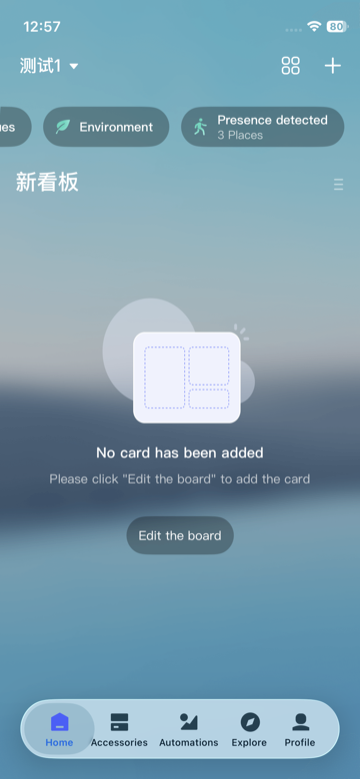
On the Home tab, tap “+” at the top-right.
Home tab → tap “+” -
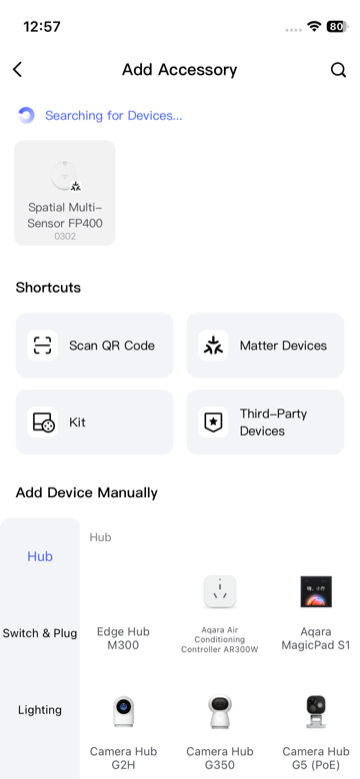
On Add Accessory, wait for the scan and tap the discovered Spatial Multi‑Sensor FP400 card.
Add Accessory → select FP400 -
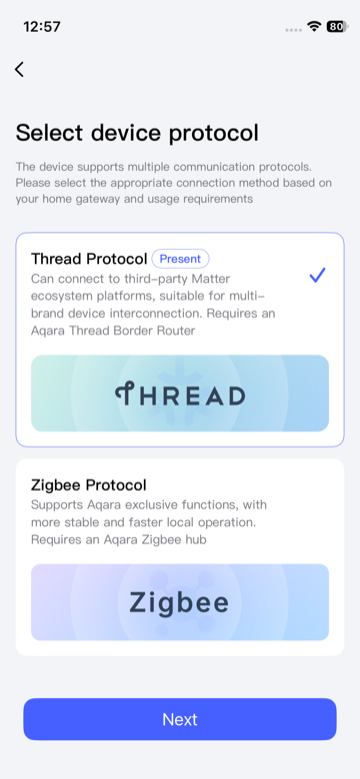
On Select device protocol, choose Thread Protocol (the Matter path — “Requires an Aqara Thread Border Router”; your existing Thread Border Router fulfils this), then tap Next.
Select Thread Protocol → Next -
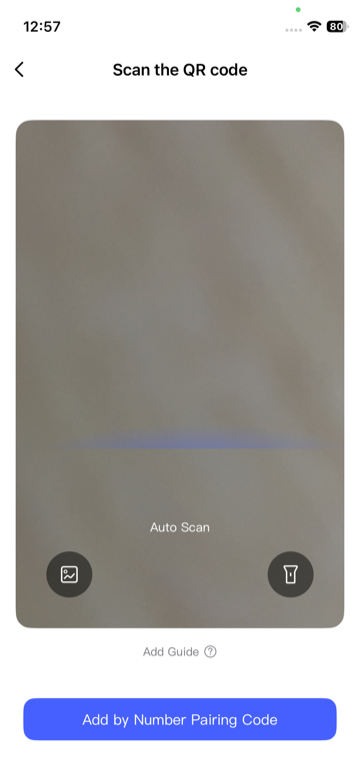
On the Scan the QR code screen, scan the Matter QR code printed on the FP400 or in the manual. If you prefer to type it instead of scanning, tap Add by Number Pairing Code. (The numeric code is optional — either path works.)
Scan the QR code, or tap “Add by Number Pairing Code” -
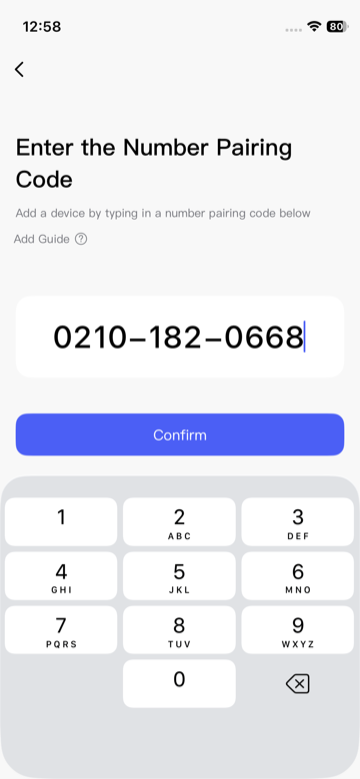
If you tapped Add by Number Pairing Code, on Enter the Number Pairing Code type the 11‑digit Matter pairing code (e.g.
0210‑182‑0668) printed below the QR code, then tap Confirm.
Enter pairing code → Confirm -
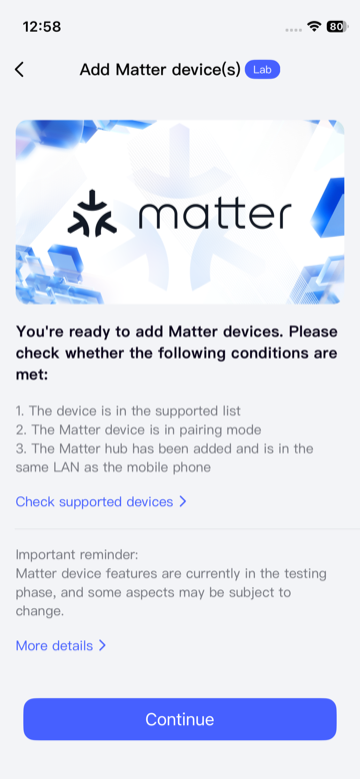
On Add Matter device(s) [Lab], review the checklist (device supported, in pairing mode, Matter hub on the same LAN) and tap Continue.
Matter pre‑conditions → Continue -
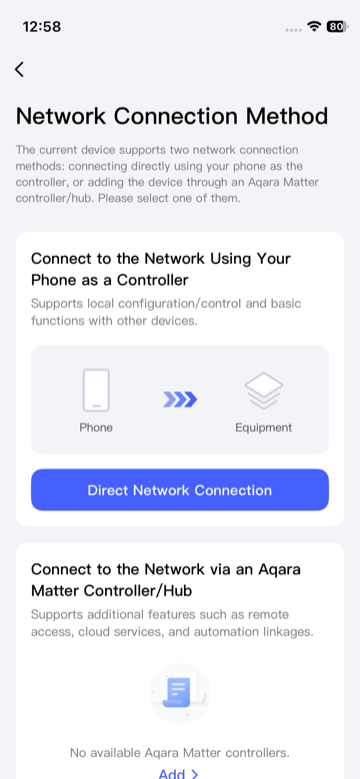
On Network Connection Method, tap Direct Network Connection under “Connect to the Network Using Your Phone as a Controller”. This is the no‑hub path — the other option (“via an Aqara Matter Controller/Hub”) is for when you own an Aqara hub.
Network Connection Method → Direct Network Connection -
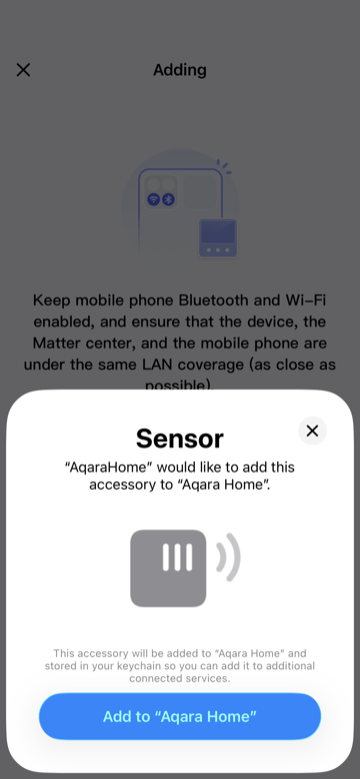
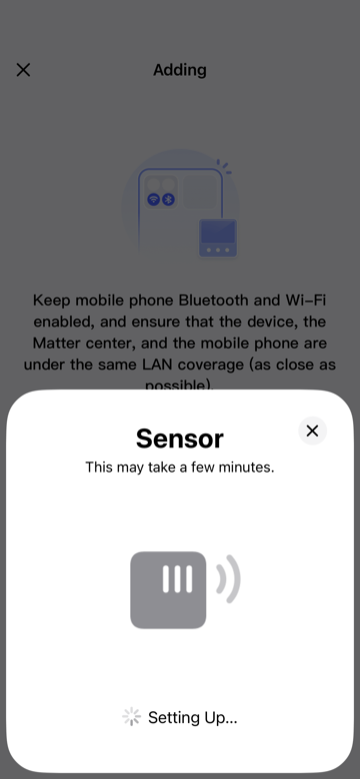
When the iOS system sheet appears, tap Add to “Aqara Home”, then wait while it shows Setting Up… This may take a few minutes.
System sheet → Add to “Aqara Home” → Setting up… -
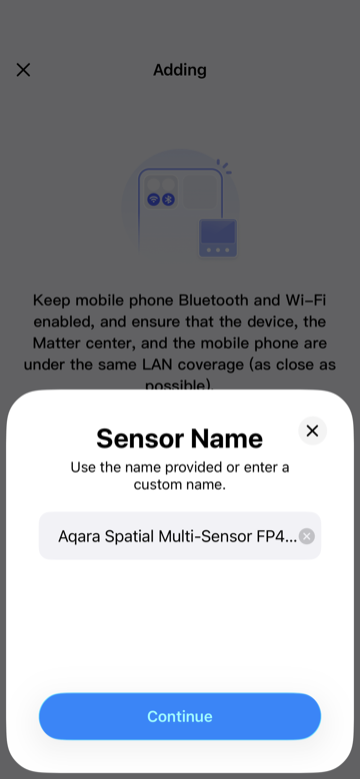
On the Sensor Name sheet, keep or edit the name, then tap Continue.
Name the sensor → Continue -
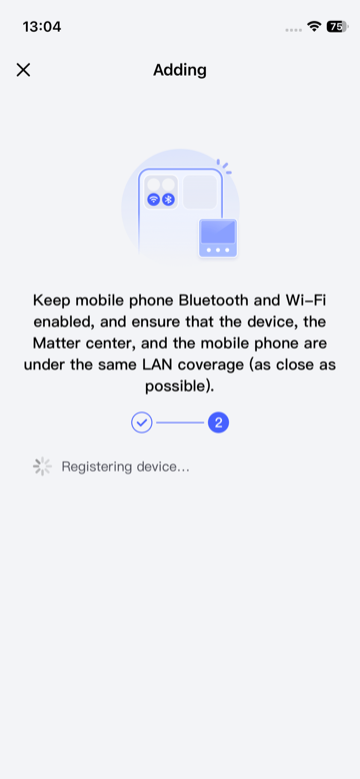
The Aqara app finishes with Registering device…
Registering device… -
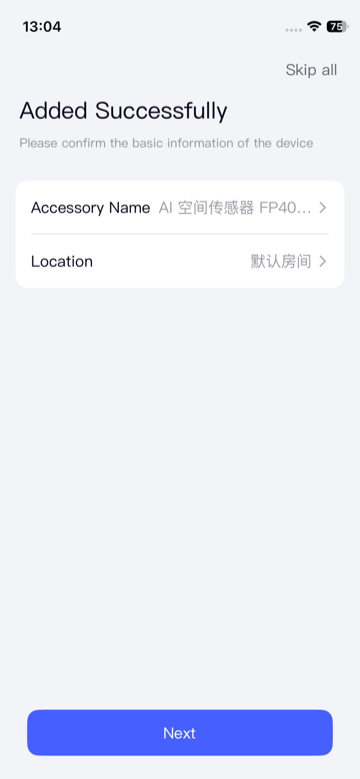
On Added Successfully, confirm the Accessory Name and Location, then tap Next. The FP400 is now in Aqara Home.
Added Successfully → Next
3.2 Android
-
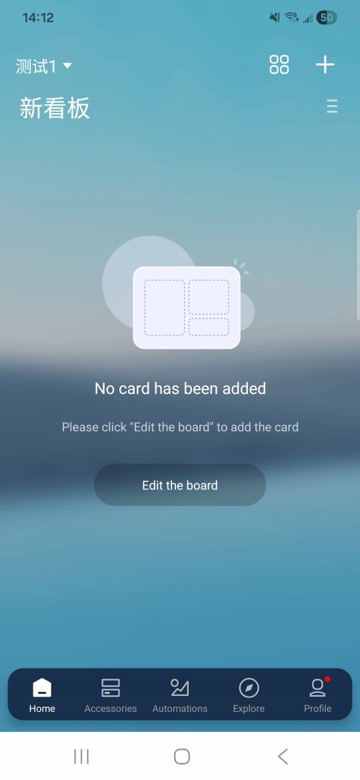
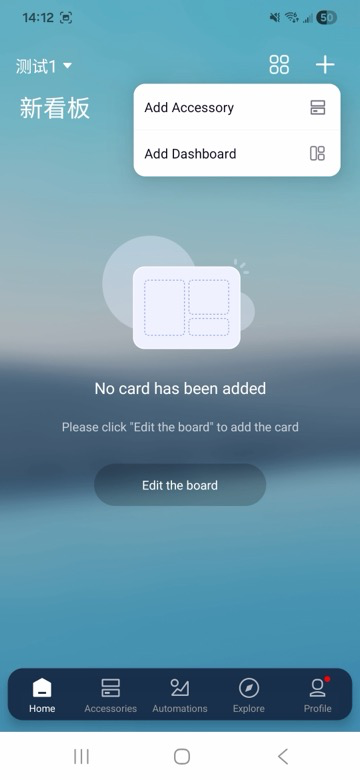
On the Home tab, tap “+”, then choose Add Accessory.
“+” → Add Accessory -
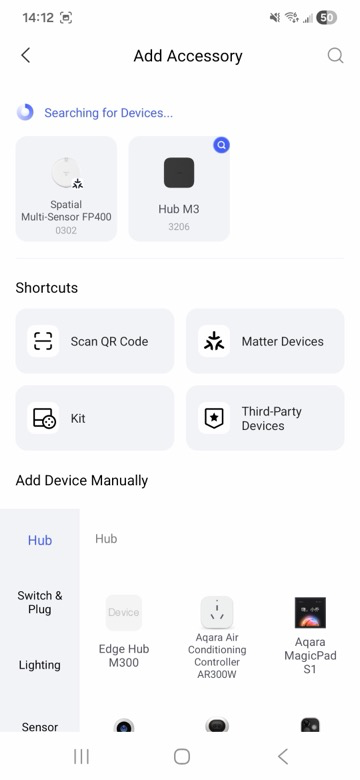
On Add Accessory, tap the discovered Spatial Multi‑Sensor FP400 card.
Select FP400 -
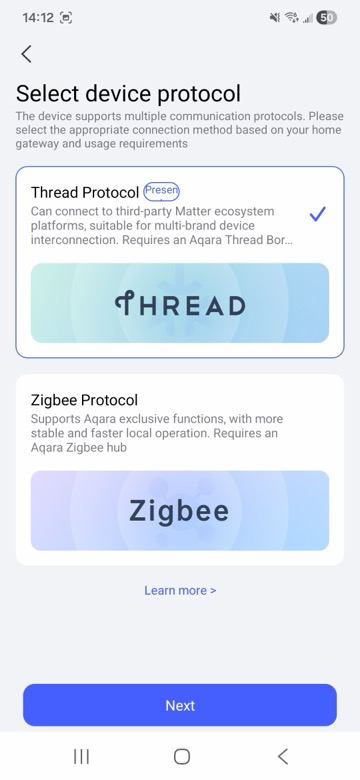
On Select device protocol, choose Thread Protocol, then tap Next.
Select Thread Protocol → Next -
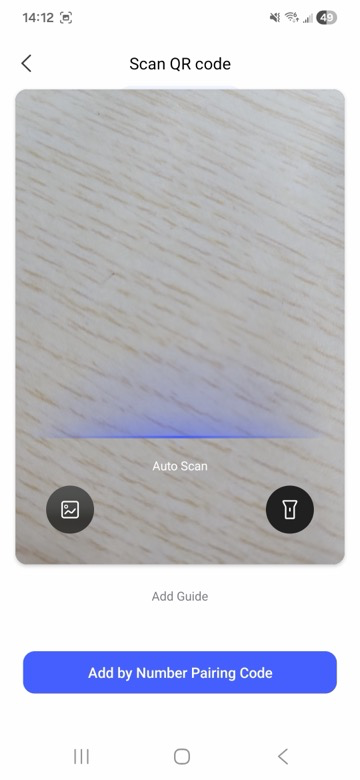
On the Scan QR code screen, scan the Matter QR code printed on the FP400 or in the manual. If you prefer to type it instead of scanning, tap Add by Number Pairing Code. (The numeric code is optional — either path works.)
Scan QR code, or tap “Add by Number Pairing Code” -
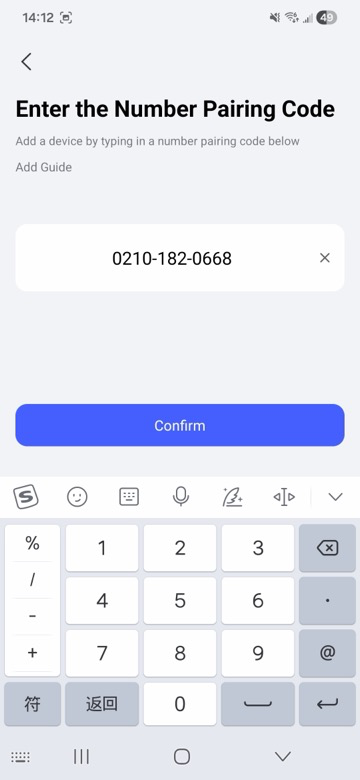
If you tapped Add by Number Pairing Code, enter the 11‑digit Matter pairing code (e.g.
0210‑182‑0668) printed below the QR code, then tap Confirm.
Enter pairing code → Confirm -
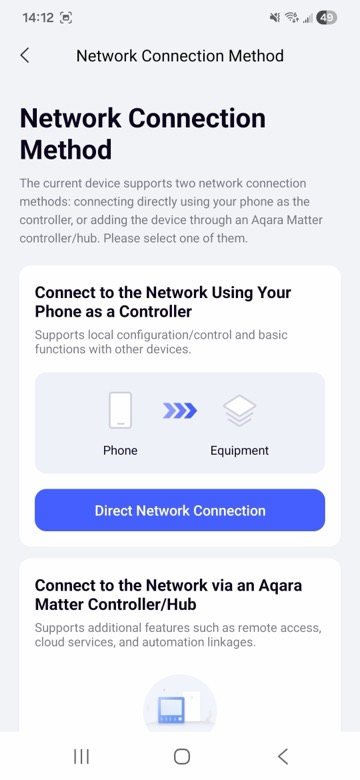
On Network Connection Method, tap Direct Network Connection (phone as controller — the no‑hub path).
Network Connection Method → Direct Network Connection -
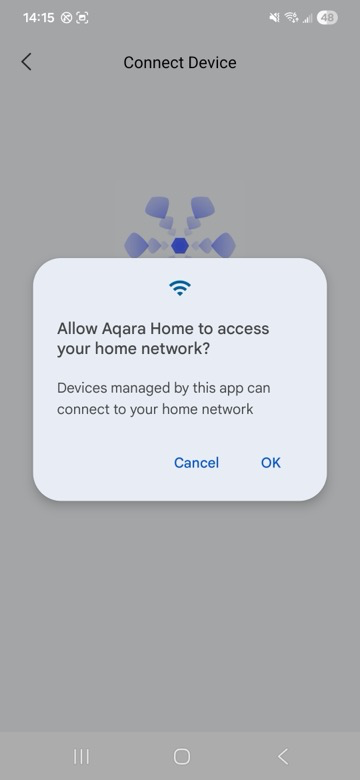
When the system dialog “Allow Aqara Home to access your home network?” appears, tap OK.
Allow network access → OK -
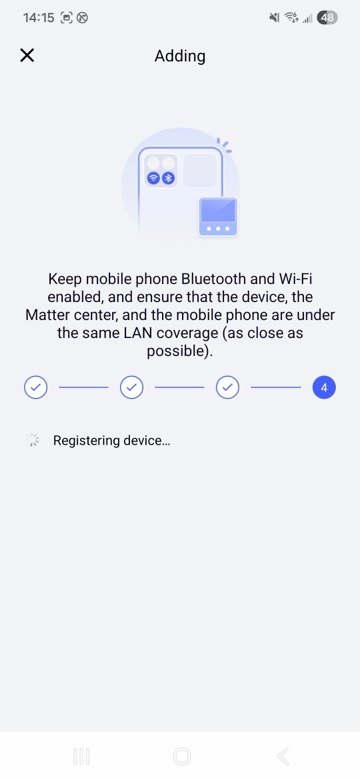
The Adding page runs through The device is connecting to the network…, then Registering device…
Connecting to network → Registering device -
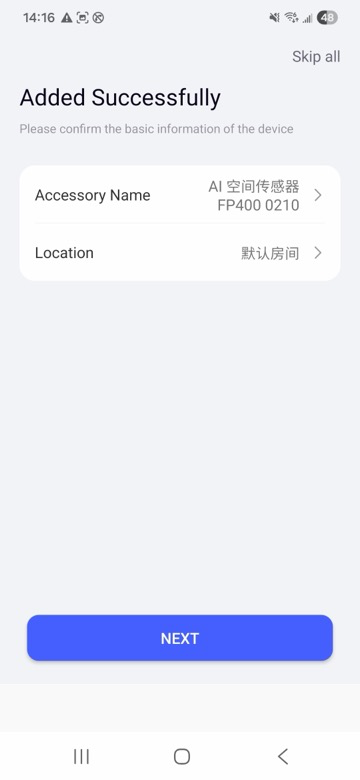
On Added Successfully, confirm the Accessory Name and Location, then tap NEXT. The FP400 is now in Aqara Home.
Added Successfully → NEXT

3.3 Configure Monitoring Zones and parameters (required, both platforms)
[IMPORTANT · REQUIRED] After the FP400 is added, stay in Aqara Home and finish dividing and naming all Monitoring Zones, and configure detection sensitivity, the Absence Confirmation Period, and other parameters. Zones and parameters must be configured inside Aqara Home first, then synced to third-party platforms — because most third-party platforms do not support creating, renaming, or deleting zones within the platform, so configuring first avoids the problem of being unable to modify zones on the platform side.
4. Step 2 · Generate the Matter sharing pairing code (common to all platforms)
In Aqara Home, open the FP400’s device plugin page and generate the Matter pairing code used to share the device to third-party platforms.
- Open the FP400 device plugin page and tap “…” at the top-right.
- Tap “Matter”.
- Tap “Matter Pairing Code” to generate a new pairing code.
- Tap “Copy pairing code” to copy it, or “Save QR code” to save the QR image, for use on the third-party platform later.
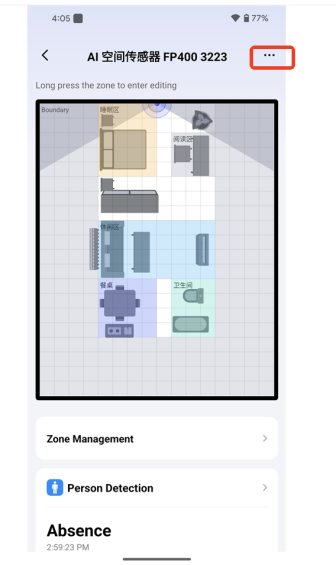
① device page top-right “…”
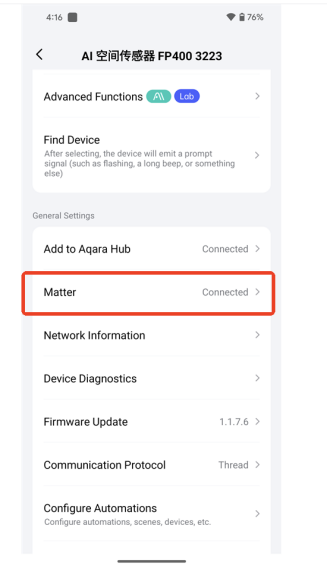
② tap “Matter”
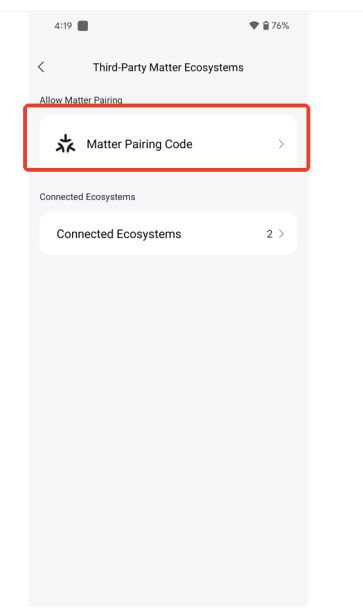
③ generate Matter Pairing Code
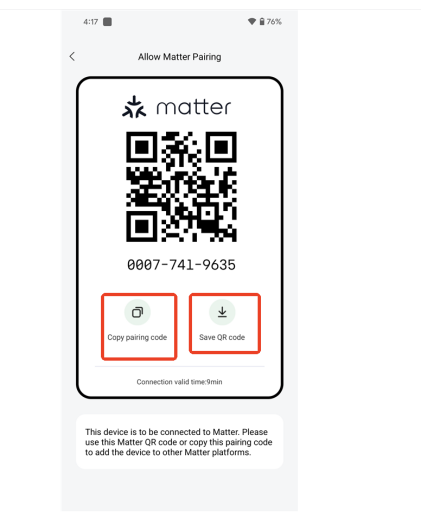
④ copy pairing code / save QR
Apple Home users can skip copying the code: the Matter sharing page above shows an Apple Home “Connect” button directly, so you can share to Apple Home in one tap — see 5.1.
5. Per-platform pairing steps
5.1 Apple Home (most complete support)
Prerequisites: iPhone/iPad running iOS 16.5 or later; a HomePod mini / HomePod / Apple TV 4K set up as the home hub and Thread Border Router; the FP400 already added to Aqara Home with its zones configured (steps 3–4).
- On the Aqara Home Matter sharing page, tap “Connect” in the Apple Home row.
- Choose the home where the HomePod / Apple TV is located, tap “Continue”, and wait for it to be added.
- Choose the device’s room, tap “Continue” repeatedly, then tap “Done”.
- Open the Apple Home app, tap “…” at the top-right, and select the home and room you set in Aqara Home to see the FP400.
- Tap “Occupancy” to view the individual zones; each Monitoring Zone appears as an independent occupancy sensor you can use in automations.
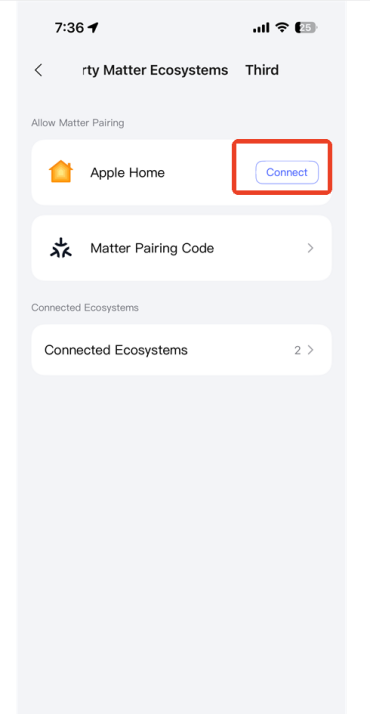
Tap Apple Home “Connect”
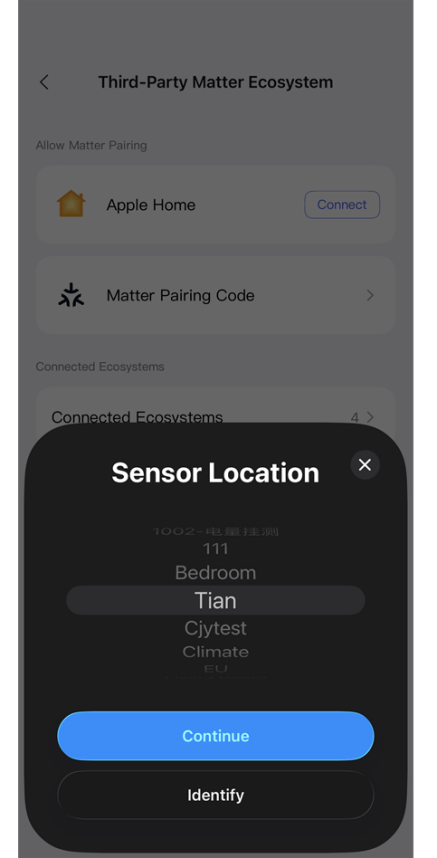
Choose home & room
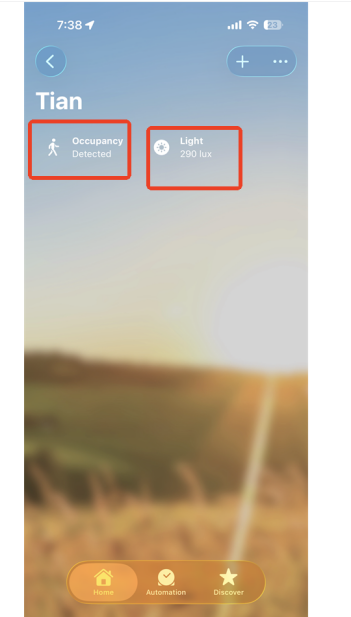
FP400 in the Home app
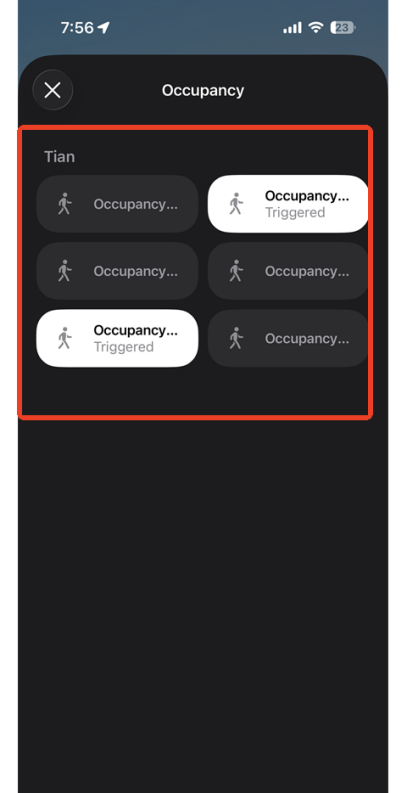
View zones via Occupancy
Note: Apple Home has the most complete support — all zones and illuminance work normally in automations.
5.2 Google Home
Prerequisites: Android 8.1+ or iOS 16.5+; the Google Home app installed and signed in; a compatible Thread Border Router configured in the home (Nest Hub 2nd gen, Nest Wi-Fi Pro, Nest Hub Max, etc.); Google Play services updated on Android. The FP400 has completed steps 3–4.
- Open the Google Home app, tap “+” at the top-right, then tap “Device”; if a prompt appears, tap “x” at the top-left or “Add a different way”.
- In the search box at the top, type “FP400” and select “Aqara Spatial Multi-Sensor FP400”.
- Tap “Use pairing code”, enter the code you copied in step 2, then tap “Continue”.
- Tap “Agree”, then “I’m ready”; wait for discovery, connection, and network setup, then tap “Done”.
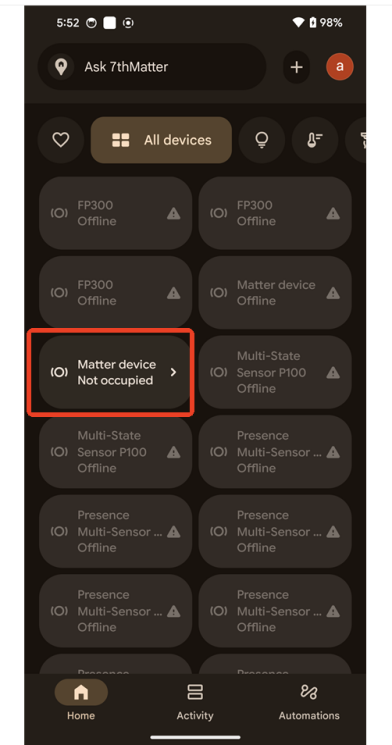
- You will then see each Monitoring Zone card and the illuminance card.
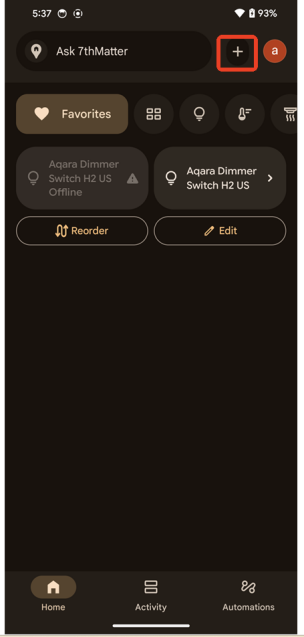
① top-right “+”
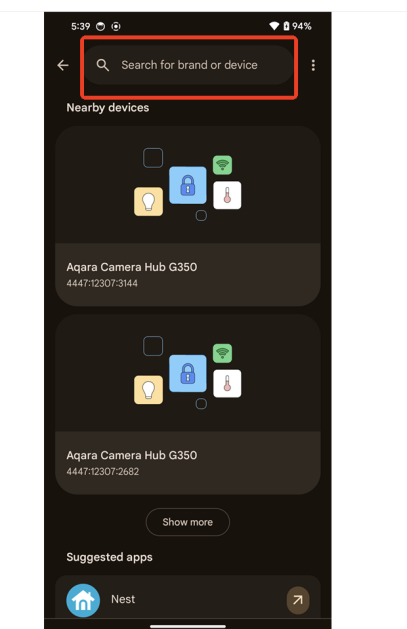
② search & select FP400
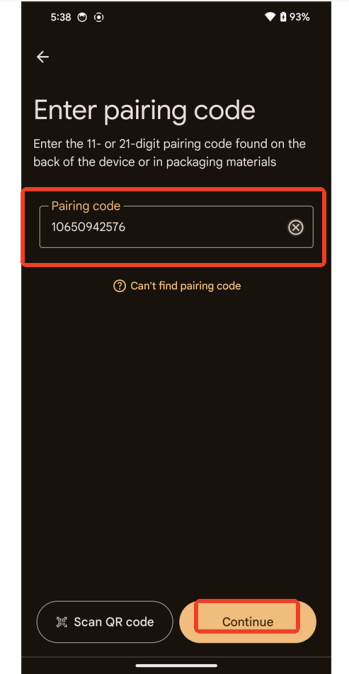
③ enter code → Continue
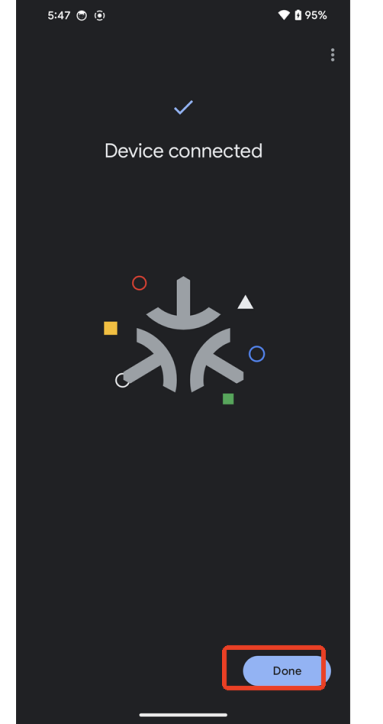
④ connected → Done
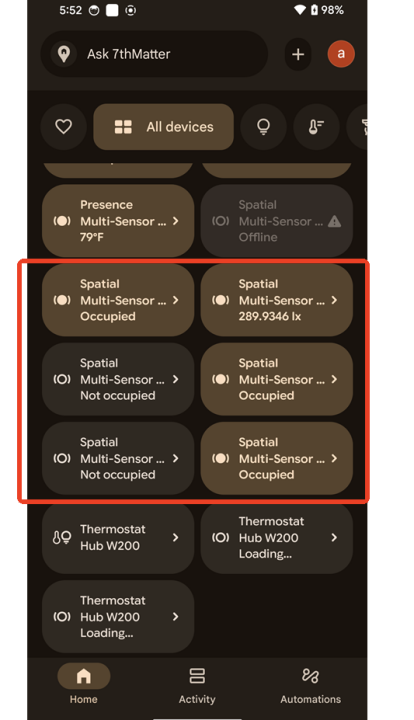
⑤ zone cards
⑥ illuminance card
Known limitation: Google Home does not support illuminance-based automations; zone names do not sync automatically, so rename them manually in Google Home to match their real locations.
5.3 Amazon Alexa
Prerequisites: a recent Alexa app; a Matter-compatible hub in the home (Echo 4th gen, Echo Dot 5th gen, Echo Studio, Echo Show series, or a compatible eero router); Alexa devices and your phone on the same Wi-Fi. The FP400 has completed steps 3–4.
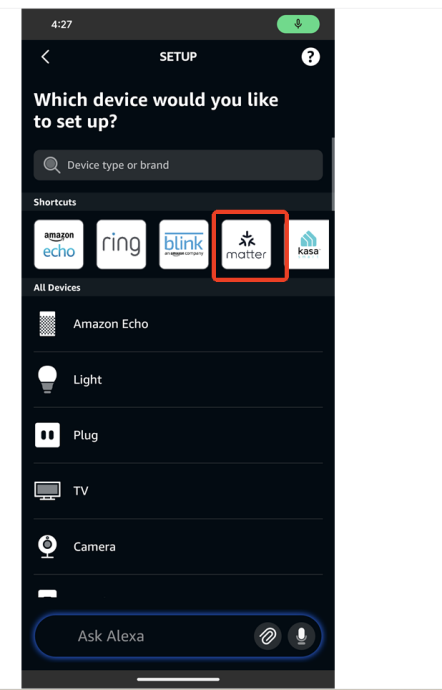
- Open the Alexa app, tap “Devices” at the bottom, then tap “+” at the top-right > “Add Device”, and choose “Matter”.
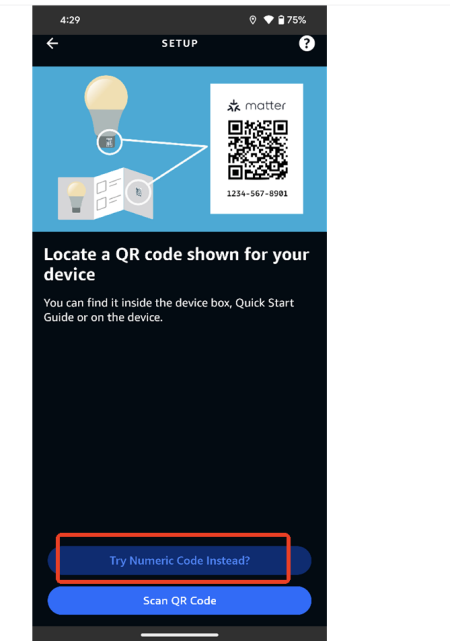
- On the confirmation page tap “Yes”, then “Try Numeric Code Instead”, then “Enter Code”.
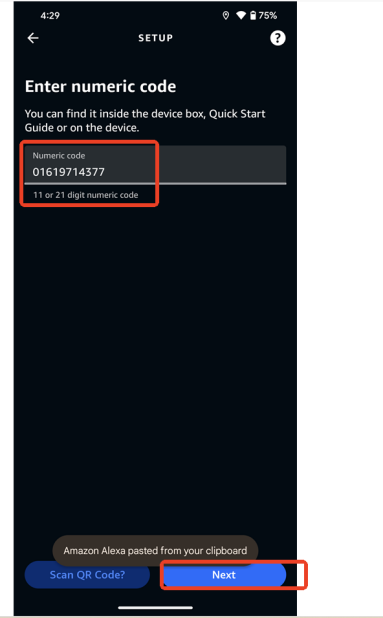
- Enter the code you copied in step 2, tap “Next”; once connected, tap “Next” again.
- On the device-selection page: “Aqara Spatial Multi-Sensor FP400” is the main device, “Sixth light sensor” is the illuminance card, and each “xxx motion sensor” is the occupied/unoccupied card for a Monitoring Zone (where “Sixth motion sensor” represents whole-space occupancy). Select each card one by one, tapping “Set Up Device” for each.
- Assign a room (where) and rename each card as needed (you must select a room and rename before “Next” works; tap “X” at the top-right to skip changes), then tap “Done”.
① choose “Matter”
② Try Numeric Code
③ enter code → Next
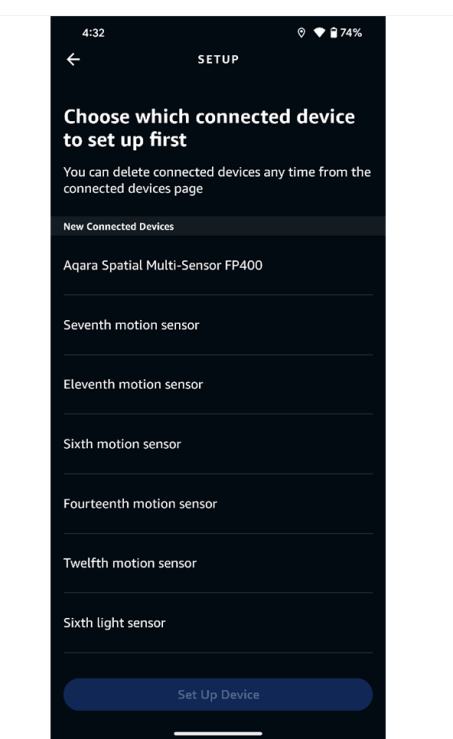
④ select zone / illuminance cards
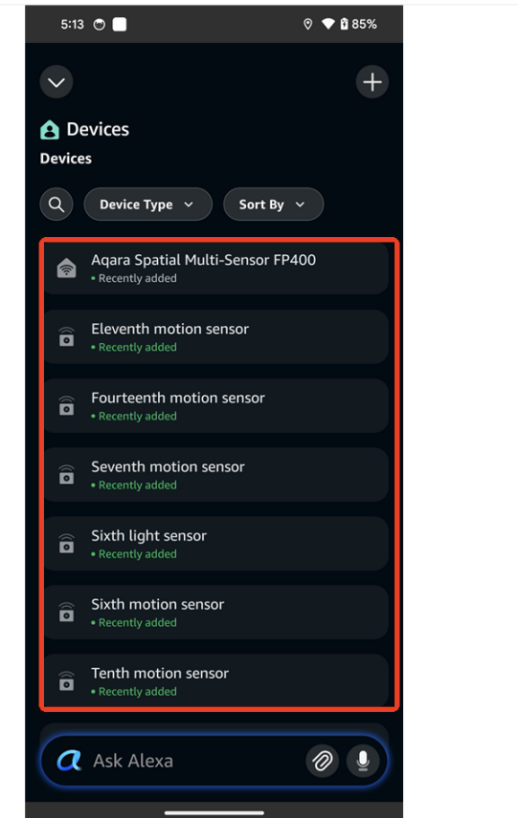
⑤ finished device list
Known limitation: Alexa does not support illuminance automations; zone names and zone add/delete do not sync automatically, so handle them manually in Alexa. Keep your Echo device firmware up to date for the best Matter support.
5.4 Samsung SmartThings
Prerequisites: the SmartThings app installed and signed in; a SmartThings Matter hub in the home (Aeotec Smart Home Hub, SmartThings Station, or a Samsung TV/monitor/fridge with a built-in hub); phone and device on the same Wi-Fi. The FP400 has completed steps 3–4.
- Open the SmartThings app, tap “+” at the top-right > “Add device”.
- Tap “Scan QR code” and scan the Matter pairing QR you saved in step 2; wait for the device to connect.
- Once connected, you enter the configuration page (adjust parameters as needed); tap “Done” and wait for the plugin to finish downloading.
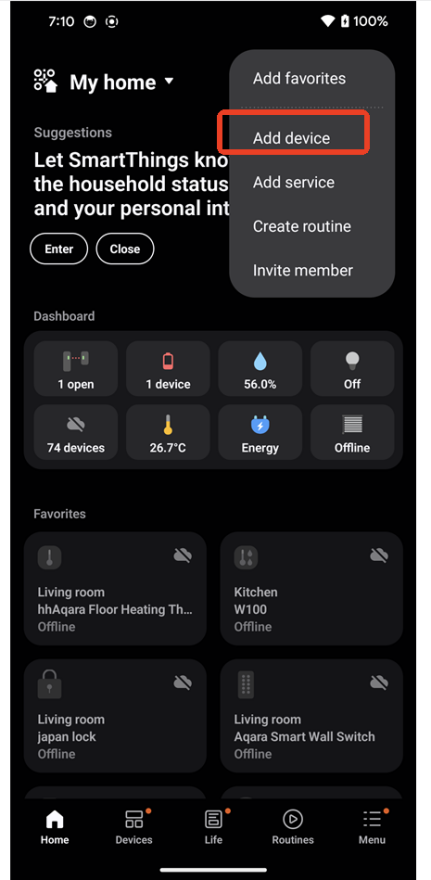
① Add device
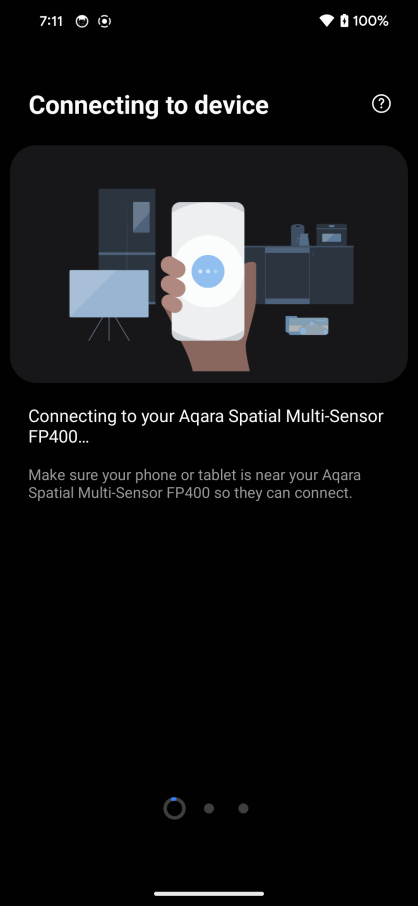
② scan code & connect
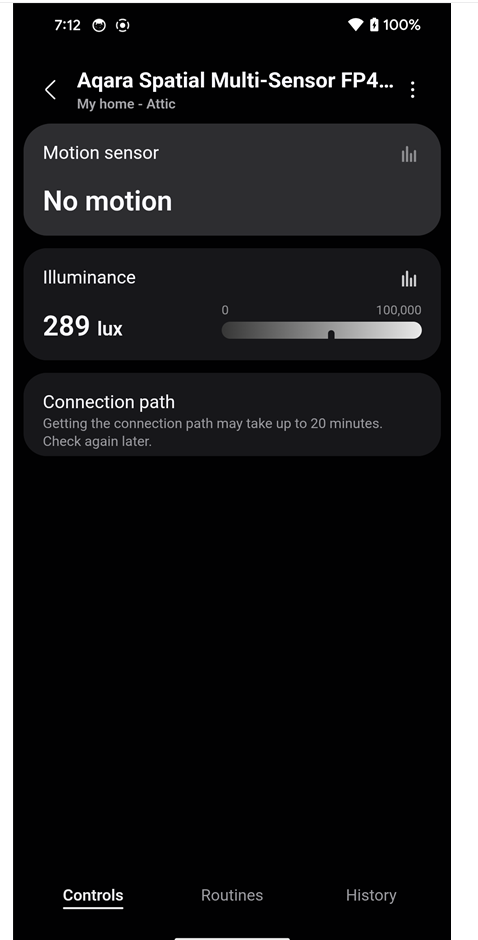
③ plugin downloaded
Known limitation: SmartThings now displays each Monitoring Zone as multiple occupancy sensors and supports zone-based automations; however, zone names and zone add/delete do not sync automatically, so rename them manually in SmartThings to match their real locations. Plan the zones and their names in Aqara Home before sharing.
5.5 Homey
Prerequisites: Homey Pro (2023) or Homey Pro Mini; Homey firmware v10.3.0+ and Homey app v7.1.0+; phone running iOS 16.5+ or Android 8+. The FP400 has completed steps 3–4.
- Open the Homey app, tap “Devices” at the bottom, then tap “+” at the top-right > “New Device”, and choose “Matter” under technologies.
- Tap “Connect via Homey” (recommended, uses Homey’s Thread network), then “continue”.
- Enter the code you copied in step 2 (or scan the QR), tap the arrow, and wait for the device to connect.
- Once connected, tap “Continue Setup →”, then “finish”, then “got it”.
- Long-press a card under “Devices” to view the device details and each capability, which you can use directly in Homey Flows.
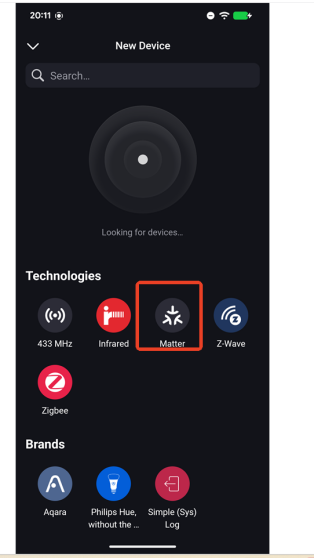
① choose “Matter”

② Connect via Homey
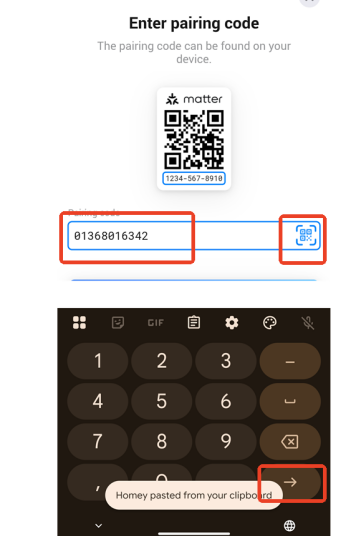
③ enter code
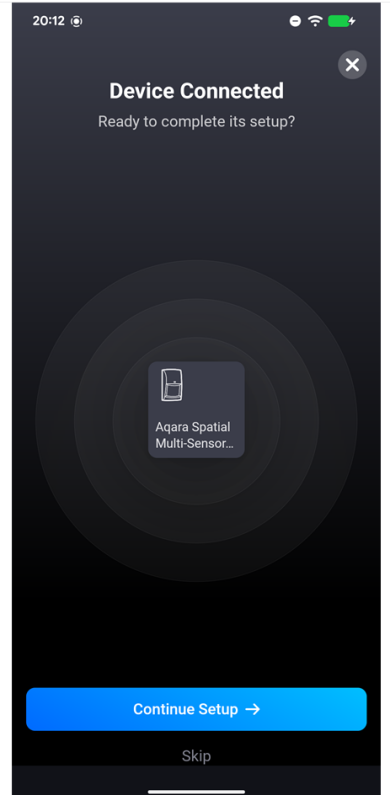
④ connected
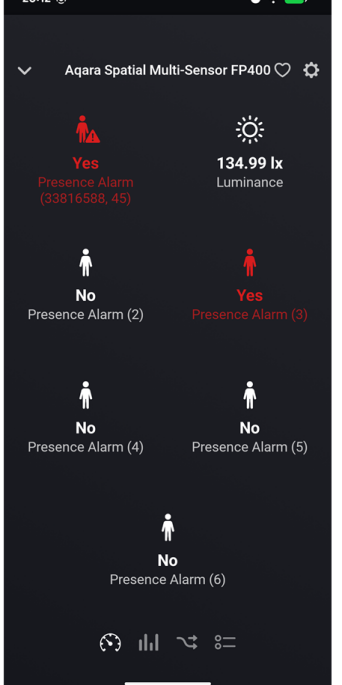
⑤ long-press card for details
Known limitation: In Homey the zones are named “Presence Alarm”, “Presence Alarm(1)”, “Presence Alarm(2)”… and cannot be customized. Using Homey together with Aqara Home is recommended.
5.6 Home Assistant
Prerequisites: a recent stable Home Assistant with the Matter integration installed and a Matter Server running; a Thread Border Router configured; the Home Assistant Companion app installed. The FP400 has completed steps 3–4.
- In the Companion app, tap the top-left menu > “Settings” > “Devices & services”.
- Tap “Devices”, then “ADD DEVICE” > “Add Matter device”, and choose “No, it’s new”.
- Choose “Set up without QR code”, enter the code you copied in step 2, tap the arrow, then “I’m ready”; wait for the device to connect.
- Once connected, each “Occupancy” entity represents a zone: “Detected” means the zone is occupied, “Clear” means unoccupied.
- To find the device later, type “FP400” in the “Devices” search box to see every FP400 added to this ecosystem.
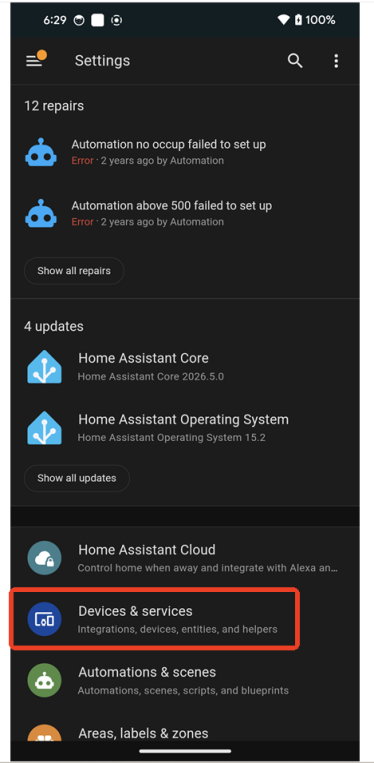
① Devices & services
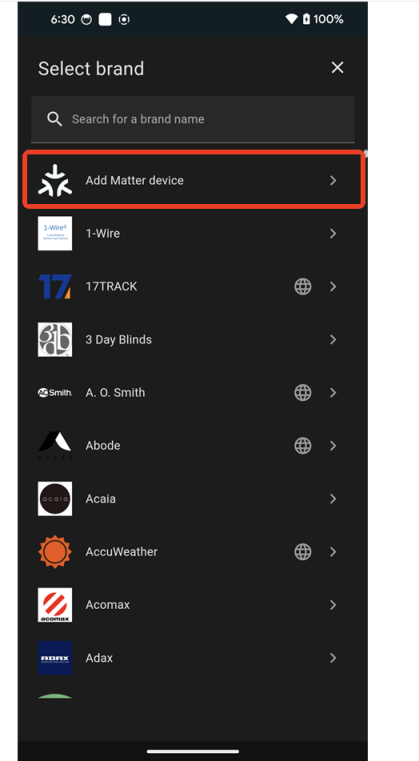
② Add Matter device
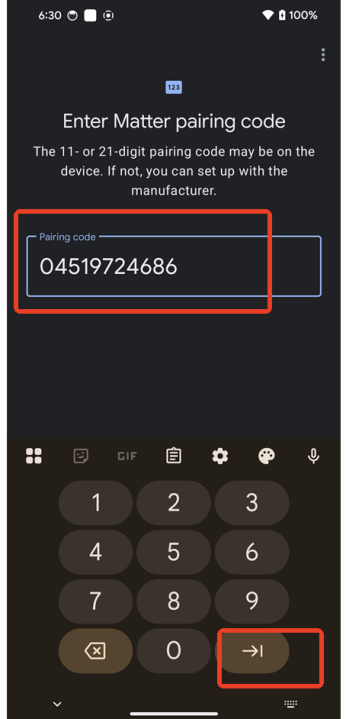
③ enter code
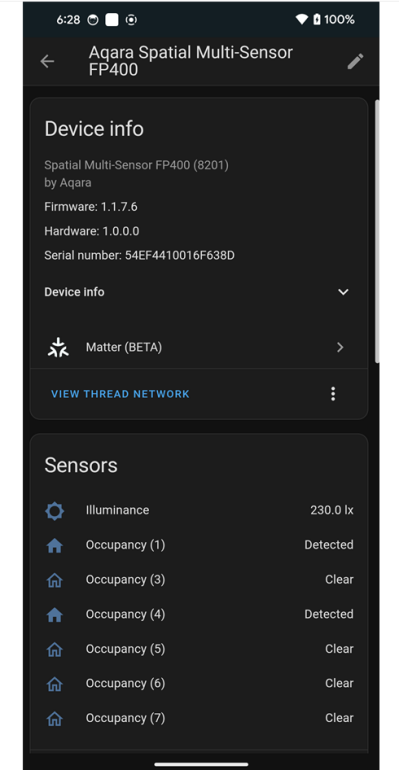
④ Occupancy zone entities
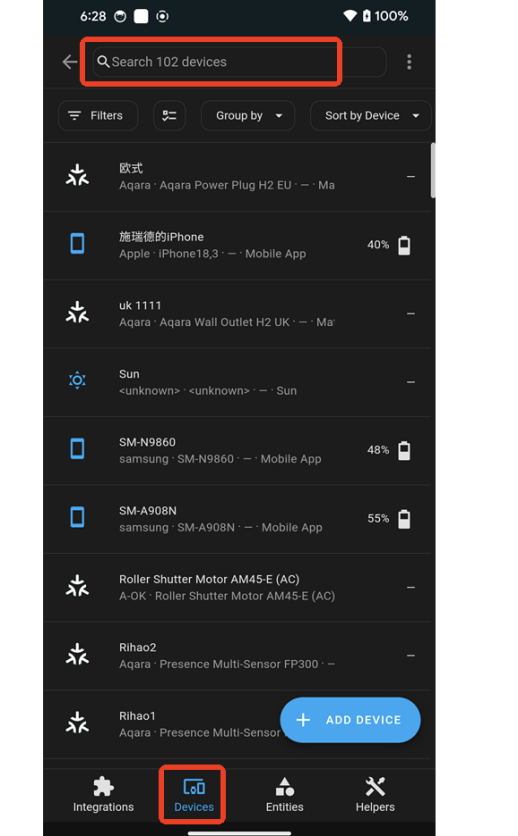
⑤ search FP400
Note: Home Assistant is fully supported and lets you adjust detection sensitivity, the Absence Confirmation Period, and other parameters on the platform side. Zone names do not sync automatically — rename them manually in Home Assistant.
6. Feature support by access method and platform
The FP400 (firmware Thread v1.1.9.6+ / Zigbee v0060+) supports different features depending on how it is connected. The first table compares the main features and configuration items across access methods; the second summarizes per-platform support for third-party Matter platforms.
6.1 Feature support by access method
Columns ① – ② are configuration done in the Aqara Home app; columns ③ – ⑤ are third-party Matter platform access methods.
| Feature / configuration item | ① Thread (default firmware) + Aqara Matter hub (recommended) | ② Zigbee protocol + Aqara hub | ③ Thread + Aqara Matter hub (recommended), configured in Aqara Home then shared via QR | ④ Thread, no Aqara hub, Matter Controller direct, configured in Aqara Home then shared | ⑤ Scan the body Matter code directly (limited, not recommended) |
|---|---|---|---|---|---|
| Whole-Area Presence Detection |  |
|
|
|
|
| Real-time Positioning Map | |
|
 |
|
|
| Zone Presence Detection (up to 8 custom zones) | |
|
|
|
Not supported |
| Ambient Light Detection | |
|
¹ |
¹ |
¹ |
| Real-Time Headcount | |
|
|
|
|
| AI High-precision Human Recognition | |
|
|
|
|
| Zone Management | |
|
|
|
|
| Absence Confirmation Period | |
|
|
|
only Home Assistant |
| Presence Detection Sensitivity Setting | |
|
|
|
only Home Assistant |
¹ Google Home & Alexa: no illuminance automation.
6.2 Per-platform support for third-party Matter platforms
Legend: = supported, — = not supported.
| Third-party platform | 8 custom zones | Zone name sync | Zone add/delete sync | Illuminance automation |
|---|---|---|---|---|
| Apple Home | |
|
|
|
| Home Assistant | |
— | — | |
| Homey | |
— | |
|
| Google Home | |
— | |
— |
| Amazon Alexa | |
— | — | — |
| Samsung SmartThings | |
— | — | |
Features available only in Aqara Home (not on third-party platforms): the real-time location map, Real-Time People Count, all data history curves, and Aqara automations are provided only within Aqara Home and are not synced to third-party Matter platforms.
Best practice: connect the FP400 to the Aqara Home app over Matter (Thread), finish all zone division and configuration in the Aqara Home app, then scan the Matter sharing code provided by the Aqara Home app to bring the device into third-party Matter platforms. The specific features supported and the experience may change as third-party platforms update.
7. FAQ
Q1: Scanning the QR code on the device body / in the manual only shows one sensor?
This is normal. Scanning the original Matter code directly with a third-party app brings the FP400 online only as 1 occupancy sensor + 1 illuminance sensor, with no zoning. Follow the “add to Aqara Home, configure zones, then share” flow described in this guide.
Q2: Pairing fails when adding the second platform?
Use the “secondary Matter pairing code” generated in Aqara Home. Do not repeatedly reuse the original QR code on the device body or in the manual — reusing it will fail.
Q3: Zone names are confusing or indistinguishable on a third-party platform?
Apart from Apple Home, most platforms do not sync zone names automatically. Plan your zones in Aqara Home first, then manually rename the corresponding occupancy sensors on the third-party platform to tell locations apart.
Q4: On SmartThings the zones show up, but the names don’t match?
SmartThings now displays each Monitoring Zone as multiple occupancy sensors, but because of the current state of the third-party app’s feature development, zone names and zone add/delete are not yet synced automatically. Plan your zones in Aqara Home first, then manually rename the corresponding occupancy sensors in SmartThings to tell locations apart.
Q5: Cannot pair, or the device is unresponsive?
- Confirm you are using a standard 5V 1A DC power supply and that the LED responds normally when powered on.
- Press and hold the reset button for 5 seconds to enter pairing mode (blue slow/fast blink).
- Move the device closer to your Thread Border Router (such as a HomePod mini), shorten the distance, and confirm it is online.
- If it still fails, quickly press the reset button 10 times to restore factory settings, then try again.
Q6: The “Direct Network Connection” option doesn’t appear, or direct setup fails to find the device?
Two things to check: (1) Direct connection requires your phone’s Wi‑Fi and the Thread Border Router (home hub) to be on the same local network (LAN) — the phone commissions the FP400 over the local network, so it cannot direct-connect when the phone and the Thread hub are on different networks (e.g. mobile data, or a different Wi‑Fi/SSID or VLAN). Connect your phone to that same LAN and try again. (2) The “Direct Network Connection” option only shows up when there is no compatible Aqara gateway under your Aqara Home account; if you already have an Aqara hub, add the FP400 through that hub instead (the sharing steps from Step 2 are the same).
The FP400 supports two protocols — Zigbee and Thread; Thread is recommended for connecting to overseas third-party Matter platforms. Product features are subject to the actual behavior in Aqara Home; because of protocol and third-party Matter implementation limits, features may differ across platforms.