Hello everyone!
I use the Aqara W100 all year round. During the winter months, it helps me to monitor the indoor and outdoor temperature and manage my heating more efficiently. In summer, however, I don’t need it for temperature control as my thermostats are turned off, so the W100 takes on a different role entirely.
It becomes my central controller for all the lighting in my living space. I’ve set up dedicated modes for different occasions: a cosy Cinema Mode for watching movies and a colourful Party Mode for more vibrant moments.
In the video below, I demonstrate how each of these modes works and how the W100 triggers the different scenes and automations.
Sequences in the video
1. Controlling the lights:
- Short press on the middle button: the LED strip turns on
- Long press on the middle button: the small lamp turns on
- Short press on the plus button: the light becomes brighter
- Short press on the minus button: the light becomes dimmer
2. Cinema mode triggered by long-pressing the plus button on the W100:
- The electric roller shutter lowers
- Apple TV turns on
- The LED strip turns on with dimmed light
- The small lamp turns on with dimmed light
3. Cinema mode reactions when Play/Pause/Stop is pressed on Apple TV:
- When the video is paused, the LED strip and the small lamp become brighter
- When playback continues, the LED strip and the small lamp dim again
- When the video ends, the LED strip and the small lamp brighten up
- When the Apple TV shuts down, the LED strip and the small lamp increase brightness all the way to 100%
4. Party mode triggered by long-pressing the minus button on the W100:
- The LED strip flashes in different colors
- The small lamp flashes in different colors
- A fireworks video plays on the Apple TV
 Here is the setup, with all scripts and automations in Home Assistant.
1. Controlling lights
Below is a brief overview of the automations in Home Assistant.
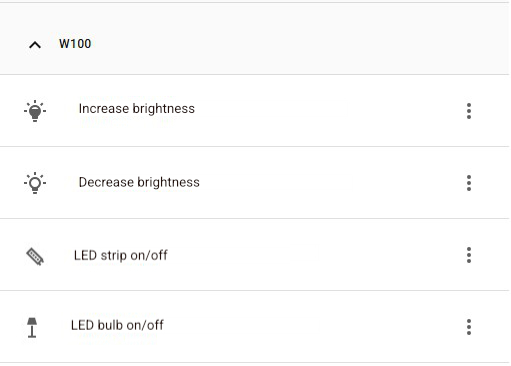
You will find the full setup below, complete with images and YAML.
 It is, of course, imperative that you adapt entity and device IDs.
1.1. Increase brightness
Whenever I press the W100 plus button (single or double press), this automation increases the brightness of my LED strip and small lamp. If both are off, the LED strip brightens first. If one or both lights are on, each light increases its brightness independently, giving smooth and responsive control.
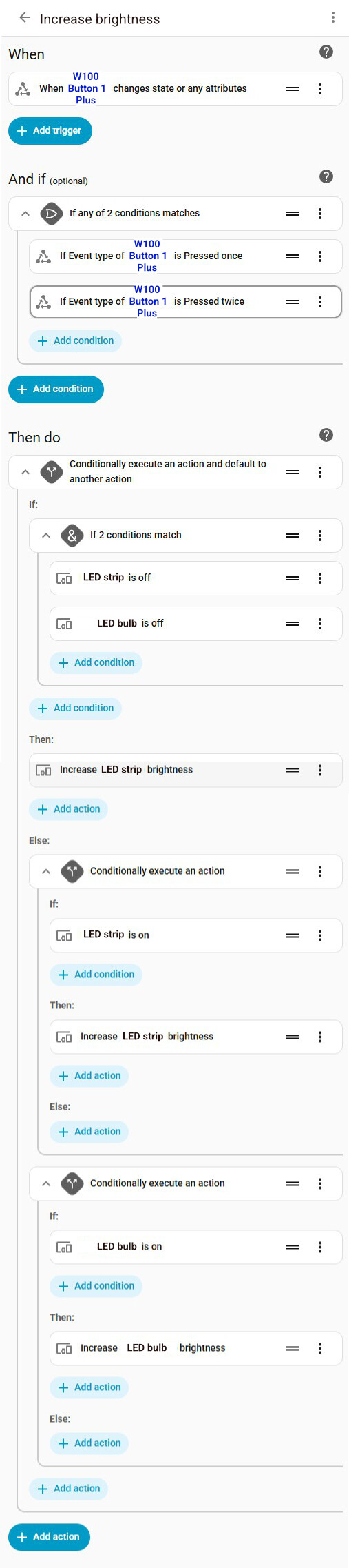
YAML of the automation in Home Assistant (click to view)
alias: Increase brightness
triggers:
  - trigger: state
    entity_id:
      - event.w100_button_1_plus
conditions:
  - condition: or
    conditions:
      - condition: state
        entity_id: event.w100_button_1_plus
        attribute: event_type
        state:
          - multi_press_1
      - condition: state
        entity_id: event.w100_button_1_plus
        attribute: event_type
        state:
          - multi_press_2
actions:
  - if:
      - condition: and
        conditions:
          - condition: device
            type: is_off
            device_id: aaaaaaaaaaaaaaaaaaaaaaaaaaaaaaaa
            entity_id: light.led_strip
            domain: light
          - condition: device
            type: is_off
            device_id: bbbbbbbbbbbbbbbbbbbbbbbbbbbbbbbb
            entity_id: light.led_bulb
            domain: light
    then:
      - device_id: aaaaaaaaaaaaaaaaaaaaaaaaaaaaaaaa
        domain: light
        entity_id: light.led_strip
        type: brightness_increase
    else:
      - if:
          - condition: device
            type: is_on
            device_id: aaaaaaaaaaaaaaaaaaaaaaaaaaaaaaaa
            entity_id: light.led_strip
            domain: light
        then:
          - device_id: aaaaaaaaaaaaaaaaaaaaaaaaaaaaaaaa
            domain: light
            entity_id: light.led_strip
            type: brightness_increase
      - if:
          - condition: device
            type: is_on
            device_id: bbbbbbbbbbbbbbbbbbbbbbbbbbbbbbbb
            entity_id: light.led_bulb
            domain: light
        then:
          - device_id: bbbbbbbbbbbbbbbbbbbbbbbbbbbbbbbb
            domain: light
            entity_id: light.led_bulb
            type: brightness_increase
mode: parallel
max: 3
1.2. Decrease brightness
Whenever I press the W100 minus button (single or double press), this automation decreases the brightness of my LED strip and small lamp.
Only lights that are currently on will dim, so each active light decreases its brightness independently.
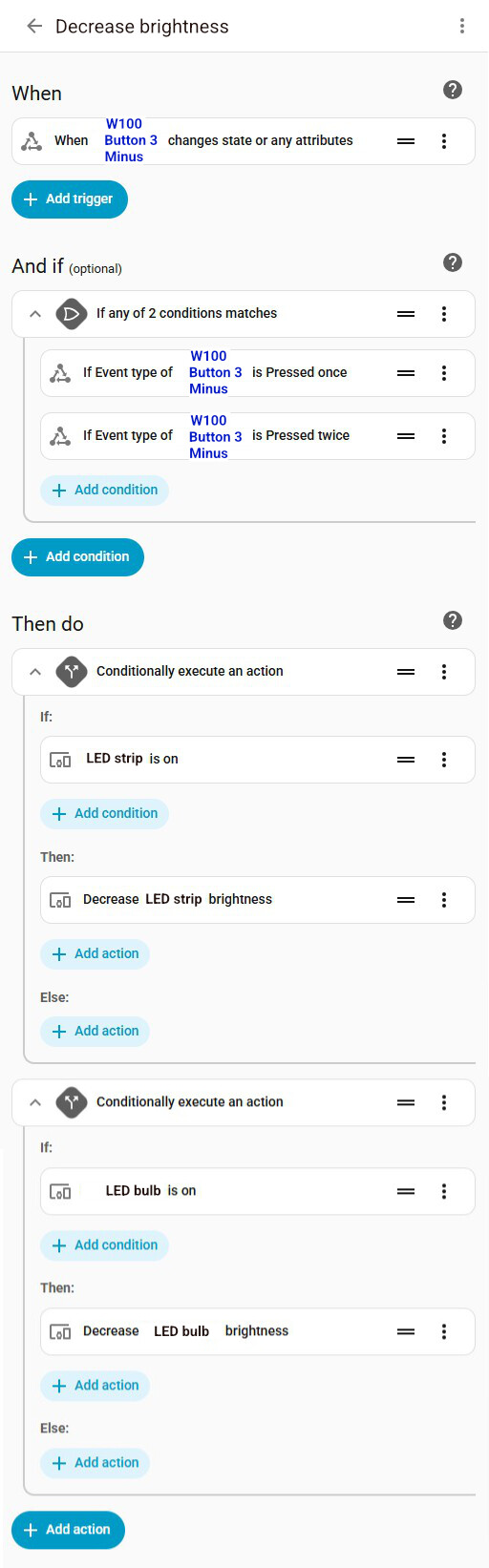
YAML of the automation in Home Assistant (click to view)
alias: Decrease brightness
triggers:
  - trigger: state
    entity_id:
      - event.w100_button_3_minus
conditions:
  - condition: or
    conditions:
      - condition: state
        entity_id: event.w100_button_3_minus
        attribute: event_type
        state:
          - multi_press_1
      - condition: state
        entity_id: event.w100_button_3_minus
        attribute: event_type
        state:
          - multi_press_2
actions:
  - if:
      - condition: device
        type: is_on
        device_id: aaaaaaaaaaaaaaaaaaaaaaaaaaaaaaaa
        entity_id: light.led_strip
        domain: light
    then:
      - device_id: aaaaaaaaaaaaaaaaaaaaaaaaaaaaaaaa
        domain: light
        entity_id: light.led_strip
        type: brightness_decrease
  - if:
      - condition: device
        type: is_on
        device_id: bbbbbbbbbbbbbbbbbbbbbbbbbbbbbbbb
        entity_id: light.led_bulb
        domain: light
    then:
      - device_id: bbbbbbbbbbbbbbbbbbbbbbbbbbbbbbbb
        domain: light
        entity_id: light.led_bulb
        type: brightness_decrease
mode: parallel
max: 3
1.4. LED strip on/off
Whenever I press the middle button on the W100 (single press), this automation toggles my LED strip on or off. If the LED strip turns on, the small lamp is automatically turned off. This lets me easily switch the main lighting on while keeping the small lamp off.
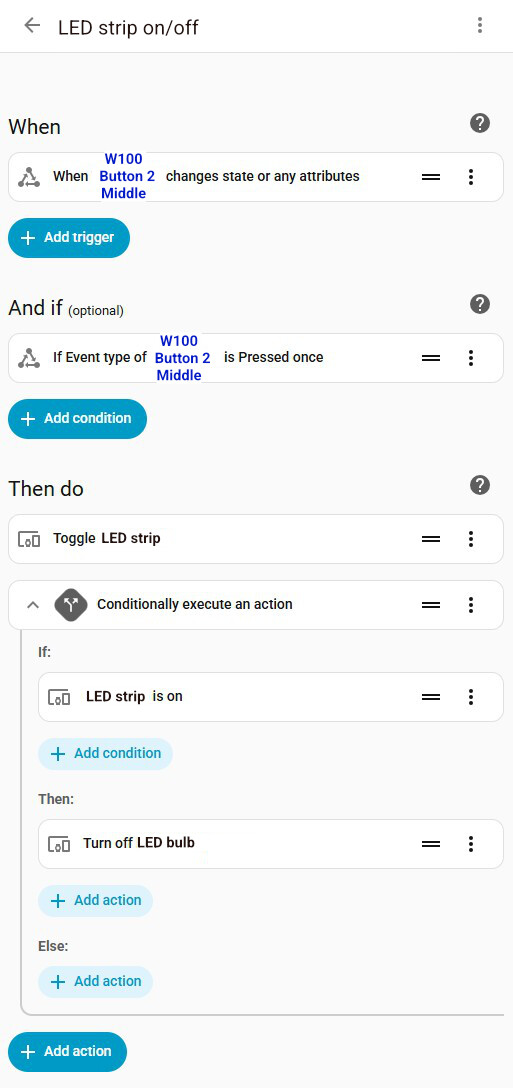
YAML of the automation in Home Assistant (click to view)
alias: LED strip on/off
triggers:
  - trigger: state
    entity_id:
      - event.w100_button_2_middle
conditions:
  - condition: state
    entity_id: event.w100_button_2_middle
    attribute: event_type
    state:
      - multi_press_1
actions:
  - type: toggle
    device_id: aaaaaaaaaaaaaaaaaaaaaaaaaaaaaaaa
    entity_id: light.led_strip
    domain: light
  - if:
      - condition: device
        type: is_on
        device_id: aaaaaaaaaaaaaaaaaaaaaaaaaaaaaaaa
        entity_id: light.led_strip
        domain: light
    then:
      - type: turn_off
        device_id: bbbbbbbbbbbbbbbbbbbbbbbbbbbbbbbb
        entity_id: light.led_bulb
        domain: light
mode: single
1.5. LED bulb on/off
Whenever I press the middle button on the W100 (long or double press), this automation toggles my LED bulb on or off. If the lamp is off, it turns on with a warm light at 2800 K and 30% brightness. If the lamp is already on, pressing the button turns it off.
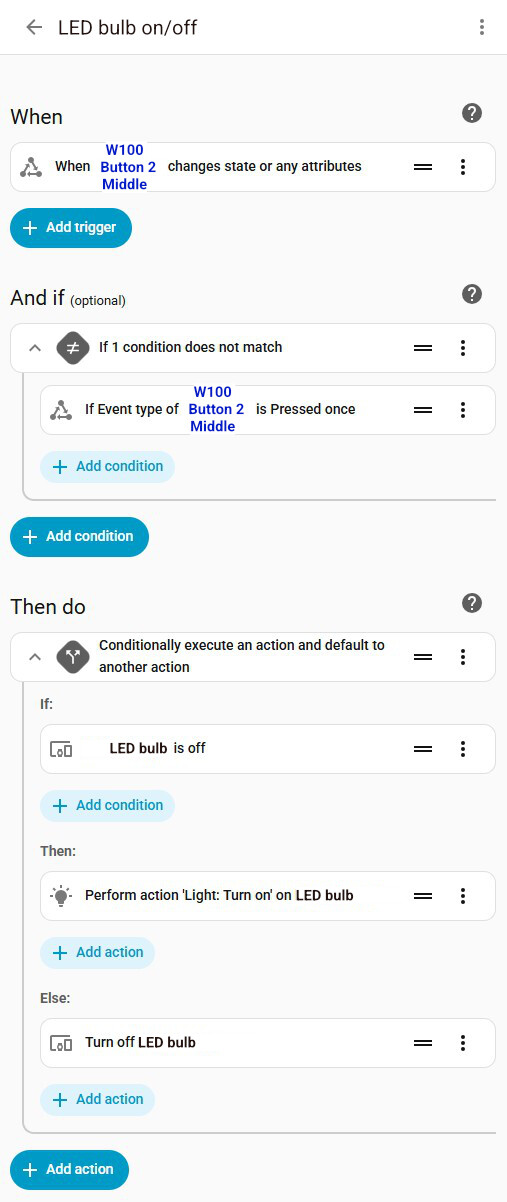
YAML of the automation in Home Assistant (click to view)
alias: LED bulb on/off
triggers:
  - trigger: state
    entity_id:
      - event.w100_button_2_middle
conditions:
  - condition: not
    conditions:
      - condition: state
        entity_id: event.w100_button_2_middle
        attribute: event_type
        state:
          - multi_press_1
actions:
  - if:
      - condition: device
        type: is_off
        device_id: bbbbbbbbbbbbbbbbbbbbbbbbbbbbbbbb
        entity_id: light.led_bulb
        domain: light
    then:
      - action: light.turn_on
        data:
          color_temp_kelvin: 2800
          brightness_pct: 30
        target:
          device_id: bbbbbbbbbbbbbbbbbbbbbbbbbbbbbbbb
    else:
      - type: turn_off
        device_id: bbbbbbbbbbbbbbbbbbbbbbbbbbbbbbbb
        entity_id: light.led_bulb
        domain: light
mode: single
2. Cinema mode
When I long-press the plus button on the W100, this automation activates my Cinema Mode. If the Apple TV is off, the electric roller shutter lowers to 80%, the Apple TV turns on, and both the LED strip and small lamp turn on with a warm, dimmed light (2700 K, 10% brightness) over a smooth 3-second transition. If the Apple TV is already on, pressing the button again will turn it off and gradually switch off the lights after a short delay. This creates a cozy, cinema-like atmosphere with minimal effort.
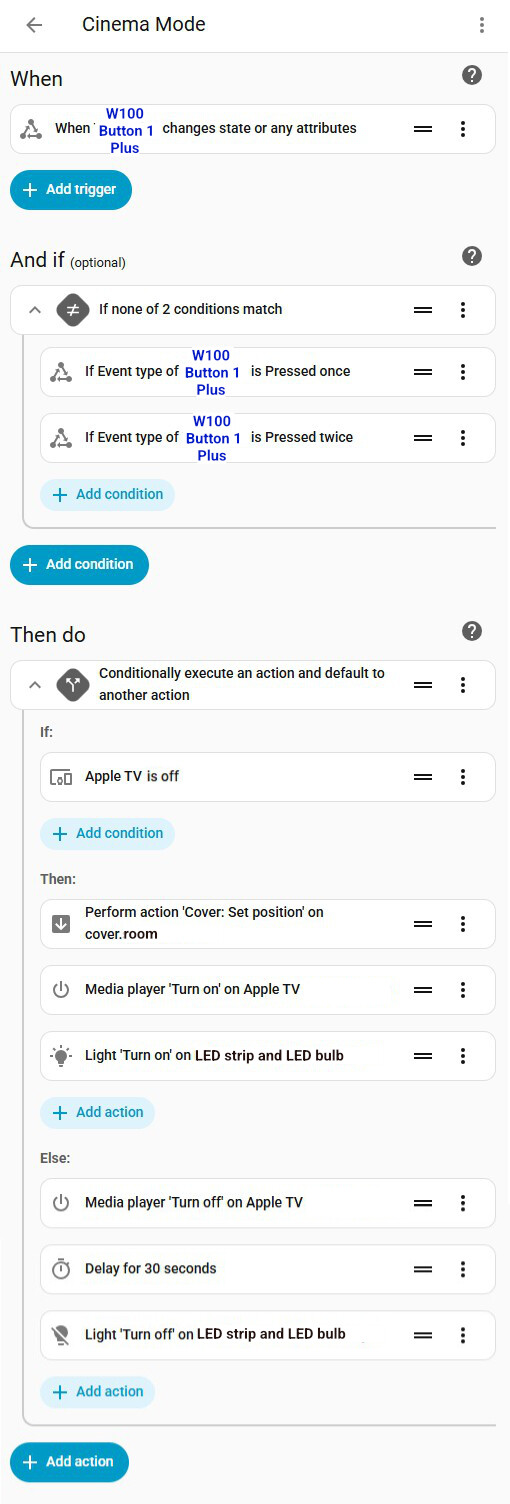
YAML of the automation in Home Assistant (click to view)
alias: Cinema Mode
triggers:
  - trigger: state
    entity_id:
      - event.w100_button_1_plus
conditions:
  - condition: not
    conditions:
      - condition: state
        entity_id: event.w100_button_1_plus
        attribute: event_type
        state:
          - multi_press_1
      - condition: state
        entity_id: event.w100_button_1_plus
        attribute: event_type
        state:
          - multi_press_2
actions:
  - if:
      - condition: device
        device_id: cccccccccccccccccccccccccccccccc
        domain: media_player
        entity_id: media_player.apple_tv
        type: is_off
    then:
      - data:
          position: 80
        target:
          entity_id: cover.room
        action: cover.set_cover_position
      - action: media_player.turn_on
        target:
          entity_id: media_player.apple_tv
      - action: light.turn_on
        data:
          transition: 3
          color_temp_kelvin: 2700
          brightness_pct: 10
        target:
          entity_id:
            - light.led_strip
            - light.led_bulb
    else:
      - action: media_player.turn_off
        target:
          entity_id: media_player.apple_tv
      - delay:
          hours: 0
          minutes: 0
          seconds: 30
          milliseconds: 0
      - action: light.turn_off
        data:
          transition: 3
        target:
          entity_id:
            - light.led_strip
            - light.led_bulb
mode: single
3. Syncing with Apple TV
Below is a brief overview of the automations in Home Assistant.
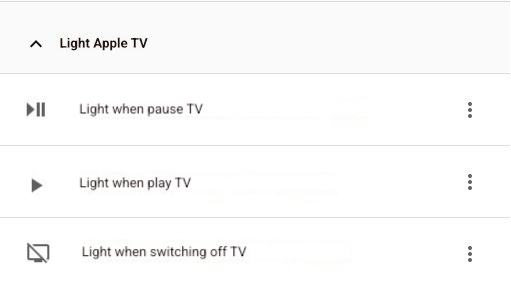
You will find the full setup below, complete with images and YAML.
3.1. Light when pause TV
Whenever I pause a video on the Apple TV, this automation adjusts the lights to create a more comfortable viewing experience. If the LED strip is already on at a moderate brightness, it temporarily brightens the strip to 80% and the small lamp to 30% with smooth transitions, creating a subtle ambient light for the paused scene. If the lights were off or dim, the strip turns on to 65% and the small lamp to 10%, so the room isn’t completely dark while watching or pausing late at night. This way, the lighting responds naturally to pausing the TV, enhancing comfort without being too bright.
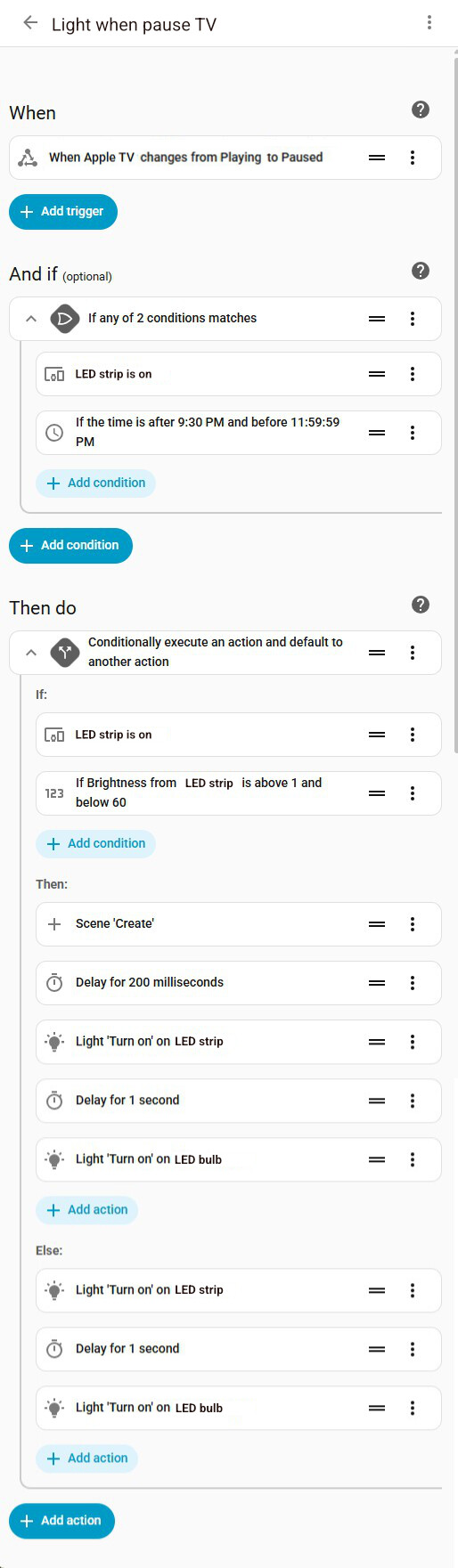
YAML of the automation in Home Assistant (click to view)
alias: Light when pause TV
triggers:
  - trigger: state
    entity_id:
      - media_player.apple_tv
    from:
      - playing
    to:
      - paused
    for:
      hours: 0
      minutes: 0
      seconds: 0
conditions:
  - condition: or
    conditions:
      - condition: device
        type: is_on
        device_id: aaaaaaaaaaaaaaaaaaaaaaaaaaaaaaaa
        entity_id: light.led_strip
        domain: light
      - condition: time
        after: "21:30:00"
        before: "23:59:59"
        enabled: true
    enabled: true
actions:
  - if:
      - condition: device
        type: is_on
        device_id: aaaaaaaaaaaaaaaaaaaaaaaaaaaaaaaa
        entity_id: light.led_strip
        domain: light
      - condition: numeric_state
        entity_id: light.led_strip
        attribute: brightness
        above: 1
        below: 60
    then:
      - action: scene.create
        data:
          snapshot_entities:
            - light.led_strip
            - light.led_bulb
          scene_id: temp_apple_tv_restore_after_paused
      - delay:
          hours: 0
          minutes: 0
          seconds: 0
          milliseconds: 200
      - action: light.turn_on
        data:
          brightness_pct: 80
          transition: 3
          color_temp_kelvin: 3000
        target:
          entity_id:
            - light.led_strip
      - delay:
          hours: 0
          minutes: 0
          seconds: 1
          milliseconds: 0
      - action: light.turn_on
        data:
          brightness_pct: 30
          transition: 3
          color_temp_kelvin: 2700
        target:
          entity_id:
            - light.led_bulb
    else:
      - action: light.turn_on
        data:
          brightness_pct: 65
          transition: 3
          color_temp_kelvin: 3000
        target:
          entity_id:
            - light.led_strip
      - delay:
          hours: 0
          minutes: 0
          seconds: 1
          milliseconds: 0
      - action: light.turn_on
        data:
          brightness_pct: 10
          transition: 3
          color_temp_kelvin: 2700
        target:
          entity_id:
            - light.led_bulb
mode: single
3.2. Light when play TV
Whenever I resume playback on the Apple TV, this automation restores the lights to their previous state. If the LED strip was very bright before pausing, both the strip and the small lamp are turned off. If a snapshot of the previous lighting exists, the lights gradually return to that saved state over a smooth 3-second transition. This ensures that when the video continues, the lighting seamlessly adapts, maintaining the perfect cinema-like atmosphere.
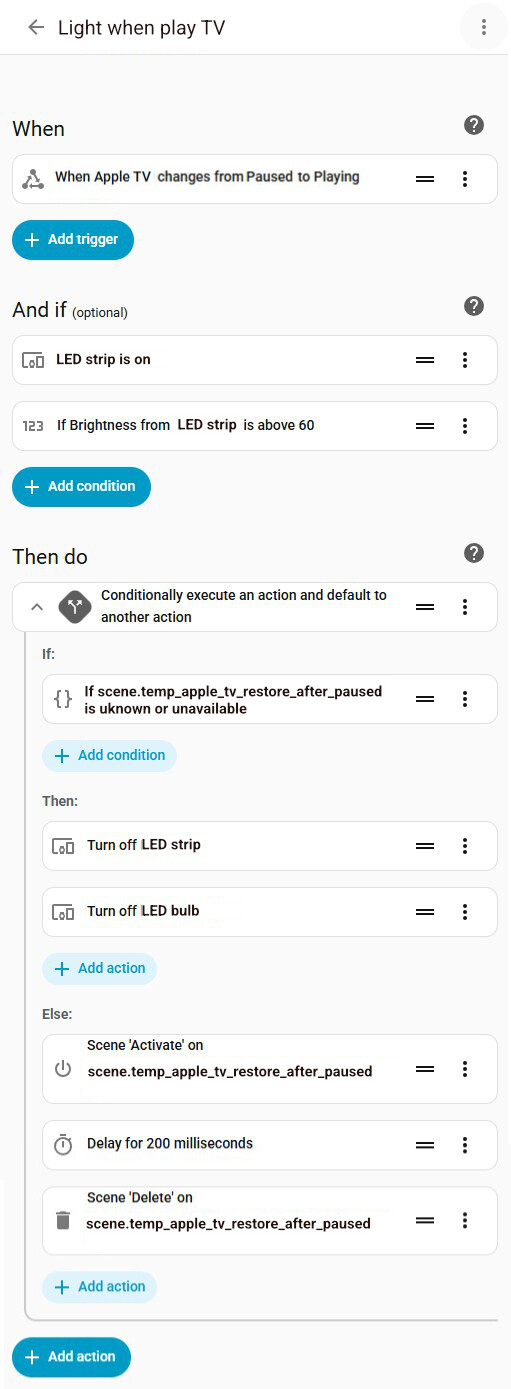
YAML of the automation in Home Assistant (click to view)
alias: Light when play TV
triggers:
  - trigger: state
    entity_id:
      - media_player.apple_tv
    to:
      - playing
    from:
      - paused
conditions:
  - condition: device
    type: is_on
    device_id: aaaaaaaaaaaaaaaaaaaaaaaaaaaaaaaa
    entity_id: light.led_strip
    domain: light
  - condition: numeric_state
    entity_id: light.led_strip
    attribute: brightness
    above: 60
actions:
  - if:
      - condition: template
        value_template: >
          {{ states('scene.temp_apple_tv_restore_after_paused') in
          ['unknown', 'unavailable'] }}
    then:
      - type: turn_off
        device_id: aaaaaaaaaaaaaaaaaaaaaaaaaaaaaaaa
        entity_id: light.led_strip
        domain: light
      - type: turn_off
        device_id: bbbbbbbbbbbbbbbbbbbbbbbbbbbbbbbb
        entity_id: light.led_bulb
        domain: light
    else:
      - action: scene.turn_on
        data:
          transition: 3
        target:
          entity_id: scene.temp_apple_tv_restore_after_paused
      - delay:
          hours: 0
          minutes: 0
          seconds: 0
          milliseconds: 200
      - action: scene.delete
        target:
          entity_id: scene.temp_apple_tv_restore_after_paused
mode: single
3.3. Light when switching off TV
Whenever I turn off the Apple TV, this automation gradually brightens the lights to a comfortable level. The LED strip ramps up to 100% and the small lamp to 50% over smooth 5-second transitions, creating a gentle, well-lit environment after watching. This ensures the room is comfortably illuminated, perfect for putting away snacks or finding lost popcorn.
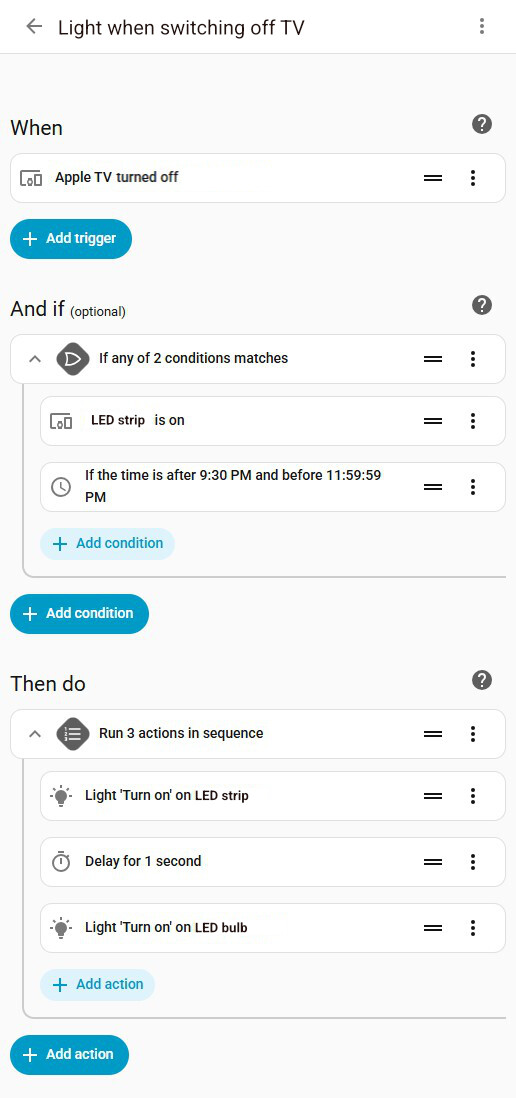
YAML of the automation in Home Assistant (click to view)
alias: Light when switching off TV
triggers:
  - device_id: cccccccccccccccccccccccccccccccc
    domain: media_player
    entity_id: media_player.apple_tv
    type: turned_off
    trigger: device
conditions:
  - condition: or
    conditions:
      - condition: device
        type: is_on
        device_id: bbbbbbbbbbbbbbbbbbbbbbbbbbbbbbb
        entity_id: light.led_strip
        domain: light
      - condition: time
        after: "20:30:00"
        before: "23:59:59"
actions:
  - sequence:
      - action: light.turn_on
        data:
          brightness_pct: 100
          transition: 5
          color_temp_kelvin: 3000
        target:
          entity_id: light.led_strip
      - delay:
          hours: 0
          minutes: 0
          seconds: 1
          milliseconds: 0
      - action: light.turn_on
        data:
          brightness_pct: 50
          transition: 5
          color_temp_kelvin: 2700
        target:
          entity_id: light.led_bulb
mode: single
4. Party mode
When I long-press the minus button on the W100, this automation toggles Party Mode on or off.
When Party Mode is activated:
- The Apple TV turns on, selects YouTube, and starts playing a fireworks video.
- Both the LED strip and small lamp flash in random colors repeatedly, creating a dynamic party atmosphere.
When Party Mode is deactivated:
- The Party Mode script stops, the Apple TV turns off, and after a short delay, both lights are switched off.
This setup enables me to start or stop fun, colourful lighting effects instantly. It’s perfect for entertaining or celebrating!
4.1. Create Toggle “PartyTime”
Under Devices & services > Helpers > Create Helper > Toggle
create a Toogle as the image illustrates:
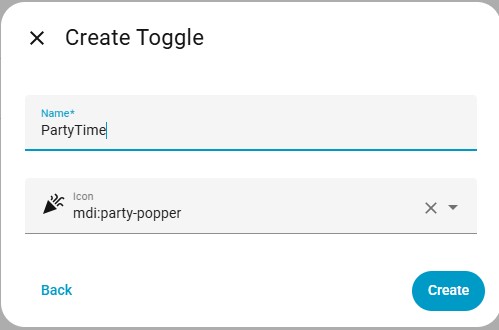
4.2. Create Script “Party Mode”
Under Automations & scenes > Scripts > Create script > Create new script
add the following script:

YAML of the script in Home Assistant (click to view)
alias: Party Mode
sequence:
  - repeat:
      while:
        - condition: state
          entity_id: input_boolean.partytime
          state:
            - "on"
      sequence:
        - parallel:
            - sequence:
                - delay:
                    hours: 0
                    minutes: 0
                    seconds: 0
                    milliseconds: 200
                - action: light.turn_on
                  data:
                    brightness_pct: 100
                    rgb_color:
                      - "{{ range(0, 255) | random }}"
                      - "{{ range(0, 255) | random }}"
                      - "{{ range(0, 255) | random }}"
                  target:
                    entity_id:
                      - light.led_bulb
            - sequence:
                - delay:
                    hours: 0
                    minutes: 0
                    seconds: 0
                    milliseconds: 300
                - action: light.turn_on
                  data:
                    brightness_pct: 100
                    rgb_color:
                      - "{{ range(0, 255) | random }}"
                      - "{{ range(0, 255) | random }}"
                      - "{{ range(0, 255) | random }}"
                  target:
                    entity_id: light.led_strip
4.3. Create a “Party Mode” automation
Under Automations & scenes > Automations > Create automation > Create new automation
add the following automation:
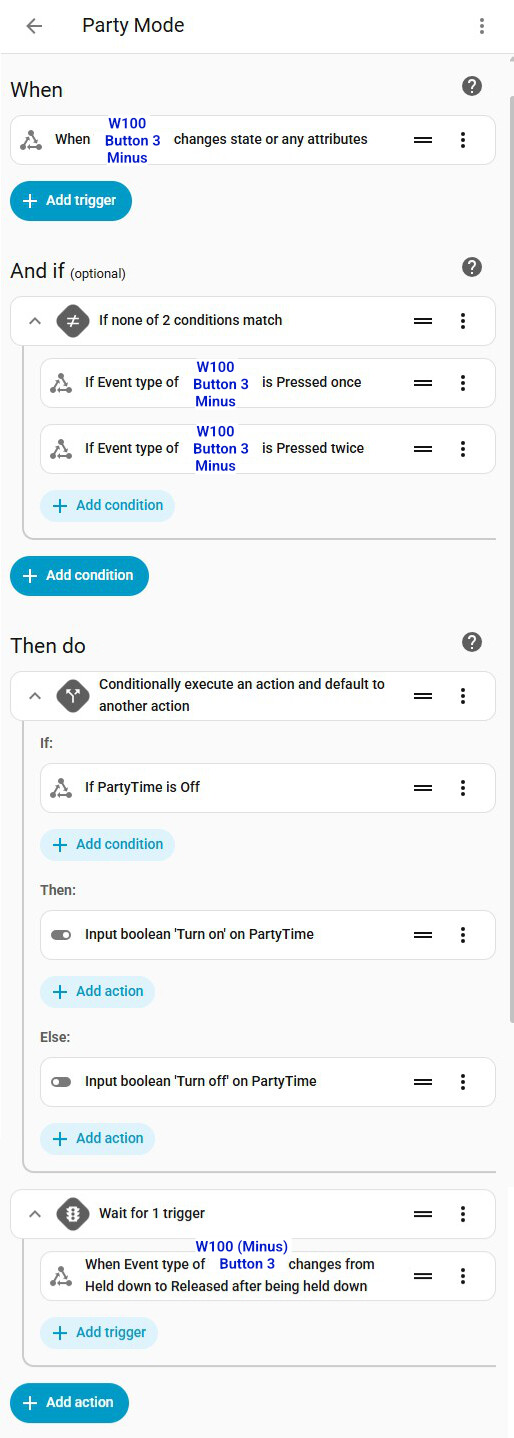
YAML of the automation in Home Assistant (click to view)
alias: Party Mode
triggers:
  - trigger: state
    entity_id:
      - event.w100_button_3_minus
conditions:
  - condition: not
    conditions:
      - condition: state
        entity_id: event.w100_button_3_minus
        attribute: event_type
        state:
          - multi_press_1
      - condition: state
        entity_id: event.w100_button_3_minus
        attribute: event_type
        state:
          - multi_press_2
actions:
  - if:
      - condition: state
        entity_id: input_boolean.partytime
        state:
          - "off"
    then:
      - action: input_boolean.turn_on
        target:
          entity_id: input_boolean.partytime
    else:
      - action: input_boolean.turn_off
        target:
          entity_id: input_boolean.partytime
  - wait_for_trigger:
      - trigger: state
        entity_id:
          - event.w100_button_3_minus
        attribute: event_type
        from:
          - long_press
        to:
          - long_release
mode: single
4.4. Create a “Party Mode on” automation
Under Automations & scenes > Automations > Create automation > Create new automation
add the following automation:
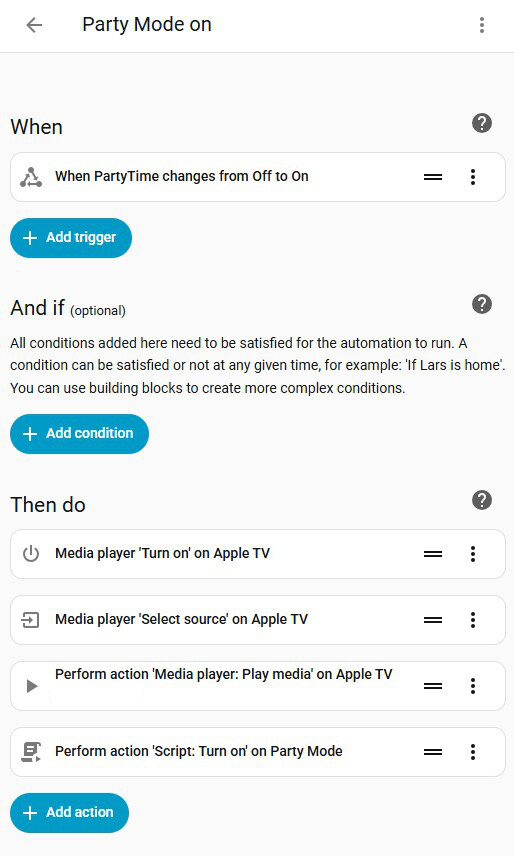
YAML of the automation in Home Assistant (click to view)
alias: Party Mode on
triggers:
  - trigger: state
    entity_id:
      - input_boolean.partytime
    from:
      - "off"
    to:
      - "on"
actions:
  - action: media_player.turn_on
    target:
      entity_id: media_player.apple_tv
  - action: media_player.select_source
    data:
      source: YouTube
    target:
      entity_id: media_player.apple_tv
  - action: media_player.play_media
    data:
      media:
        media_content_id: youtube://www.youtube.com/watch?v=eZWv_Dvyz38
        media_content_type: url
    target:
      entity_id: media_player.apple_tv
  - action: script.turn_on
    target:
      entity_id: script.party_mode
mode: single
4.5. Create a “Party Mode off” automation
Under Automations & scenes > Automations > Create automation > Create new automation
add the following automation:
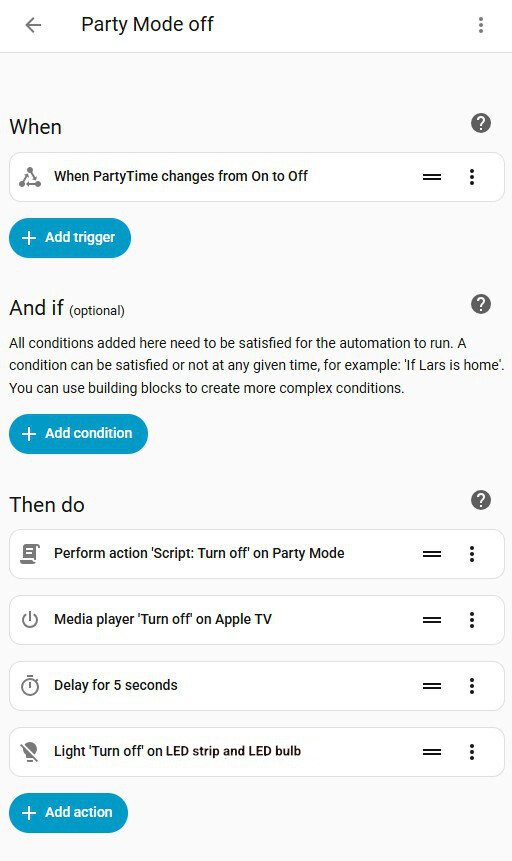
YAML of the automation in Home Assistant (click to view)
alias: Party Mode off
triggers:
  - trigger: state
    entity_id:
      - input_boolean.partytime
    from:
      - "on"
    to:
      - "off"
actions:
  - action: script.turn_off
    target:
      entity_id: script.party_mode
  - action: media_player.turn_off
    target:
      entity_id: media_player.apple_tv
  - delay:
      hours: 0
      minutes: 0
      seconds: 5
      milliseconds: 0
  - action: light.turn_off
    target:
      entity_id:
        - light.led_strip
        - light.led_bulb
mode: single
I hope I haven’t overlooked or forgotten anything.
If you have any questions, please get in touch.
