Aqara camera setup tutorial/explanation (for beginners). PART 4: "More Settings" (Turn off the Indicator Light, 10-Minute Timed Snapshot, RTSP LAN Preview, Integrated Events, Self-Healing Mode, Unlock via Automations, Restart the Device)
Hello! Let’s continue the tutorial using the E1, G3, and G350 cameras—models that feature PTZ mode (360° camera movement)—for users who have purchased an Aqara camera for the first time and often find the settings confusing. As always, I’ve included plenty of images to illustrate the lesson.
I will cover a specific settings section for PTZ cameras; this section located in the standard spot within the app.
Fig. 1.
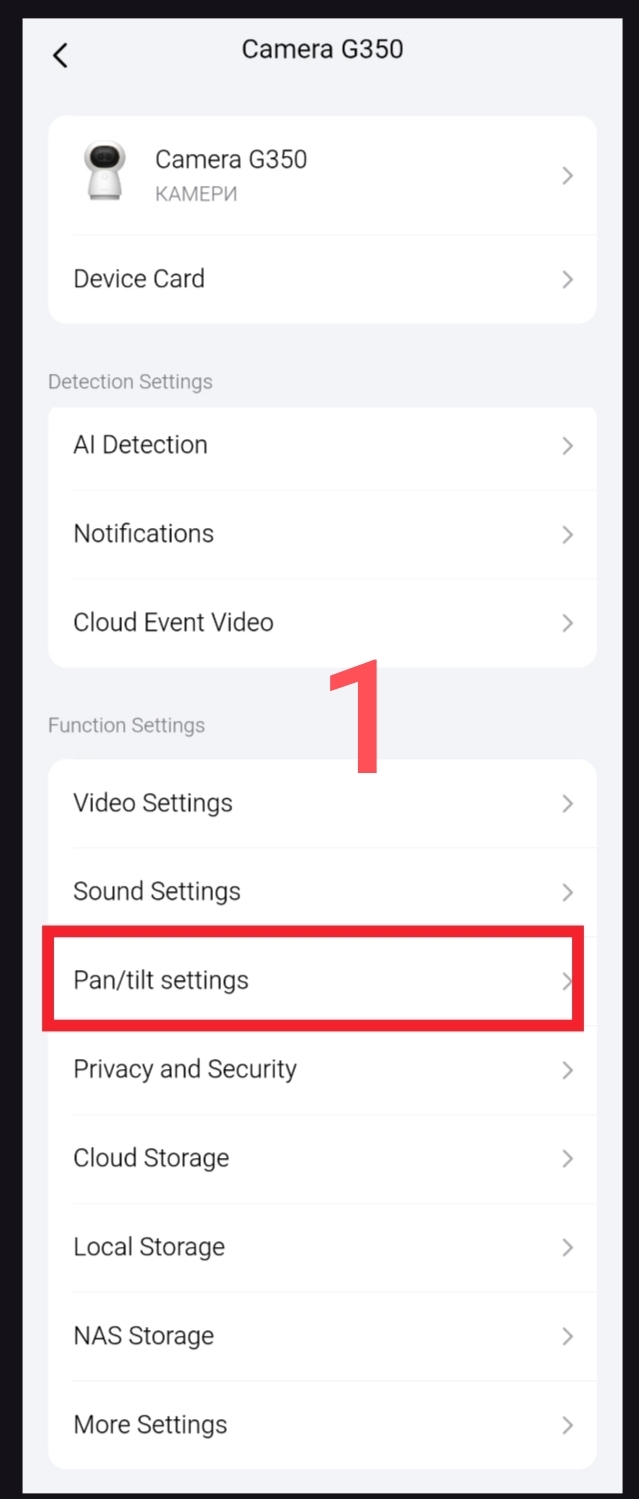
This section contains the following settings.
Note: I have circled the settings exclusive to the G510 camera in red.
Fig. 2.

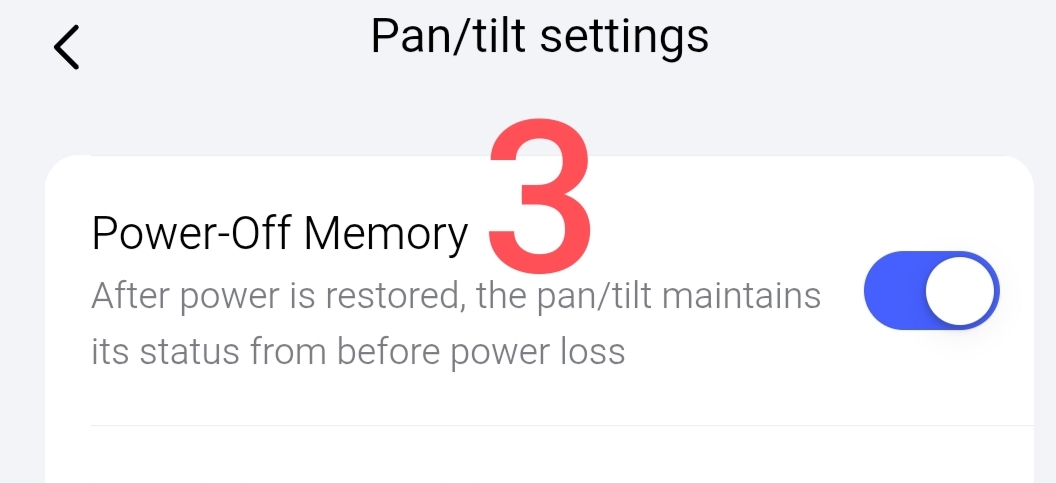
The first section (E1, G3, G350), “Power-Off Memory,” restores the camera’s position after power is restored. There are two options: the last position and a preset position.
Fig. 3.
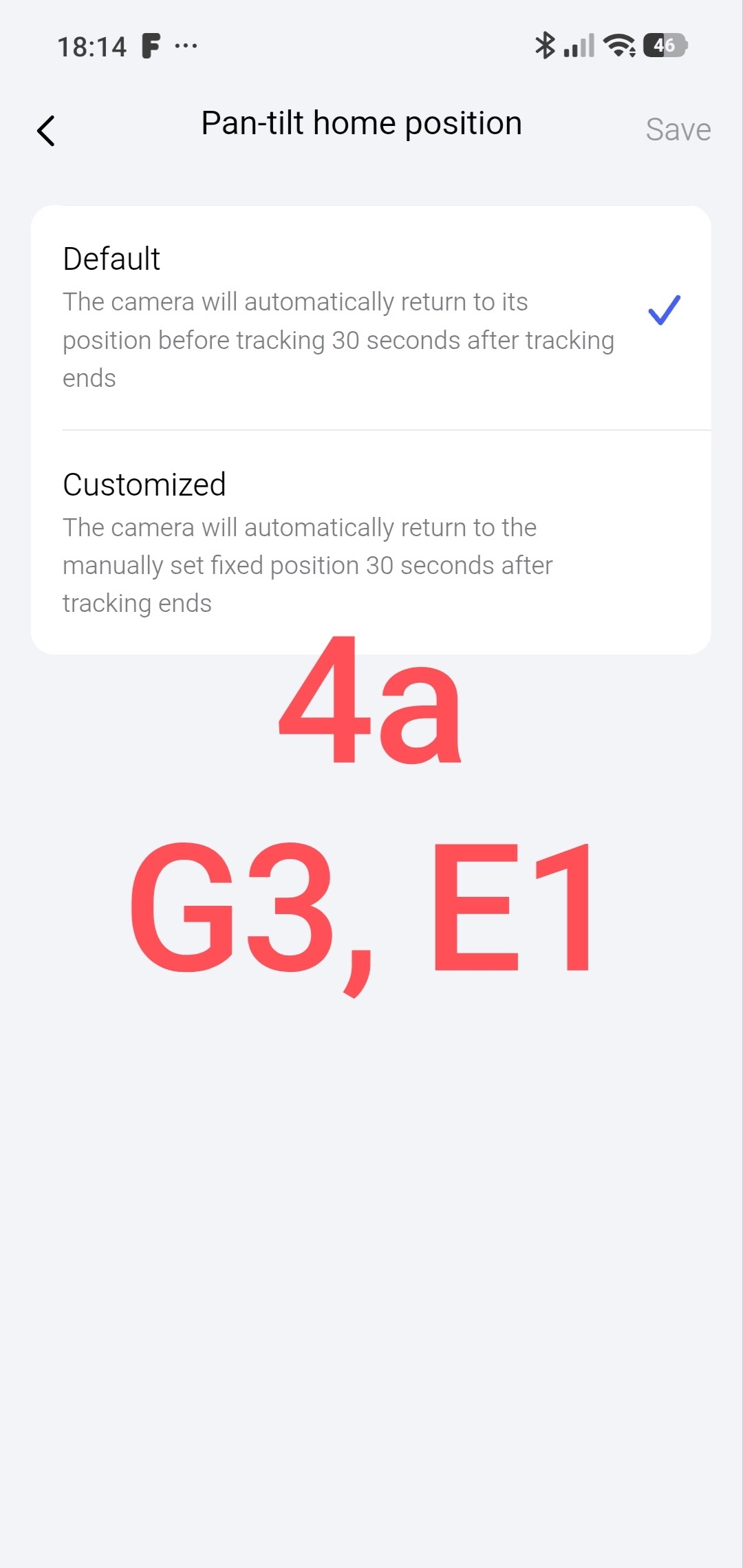
The second section (G350), “Pan-tilt home position” offers more advanced settings compared to the E1 and G3 models. Fig. 4
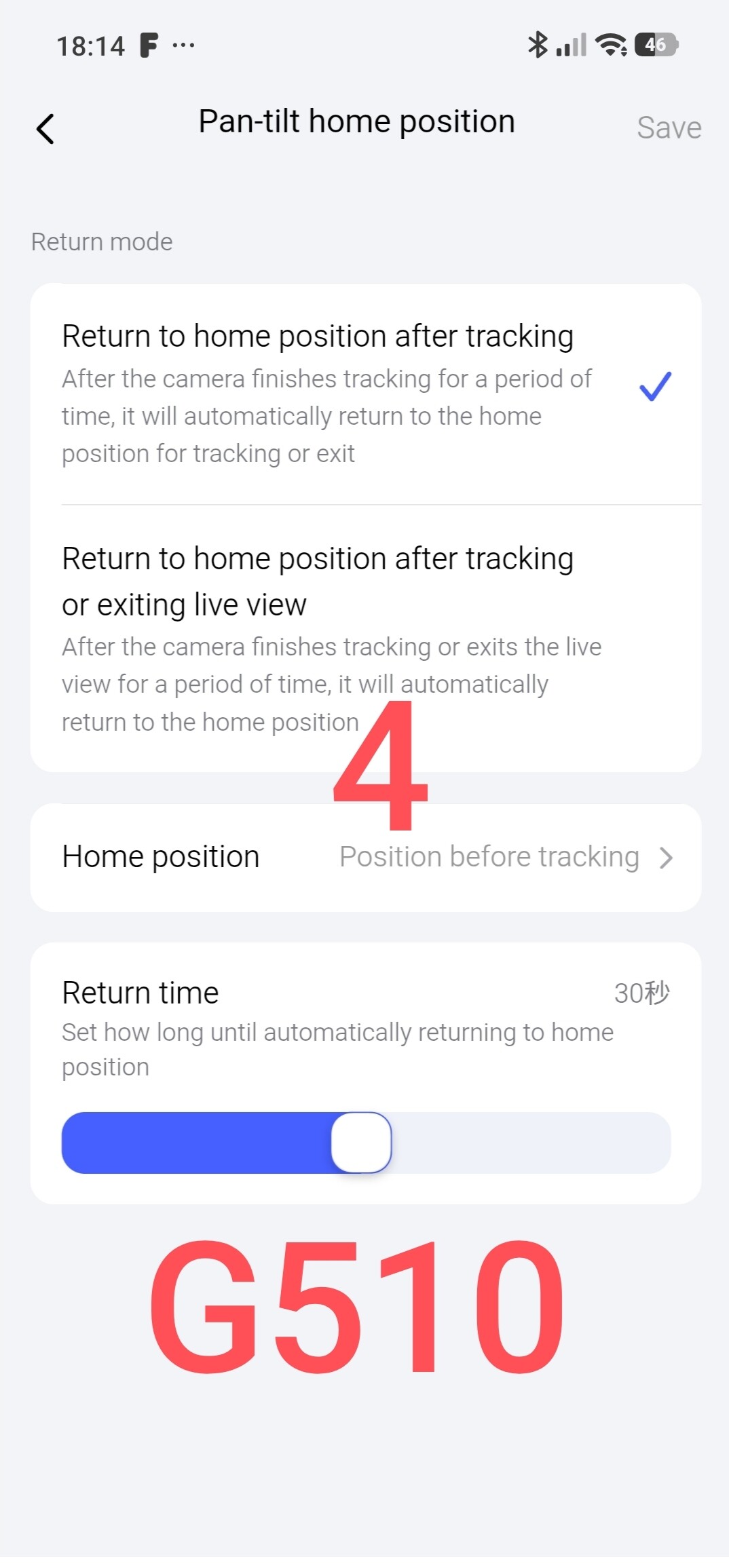
The section for the G510 offers various settings for returning after tracking.
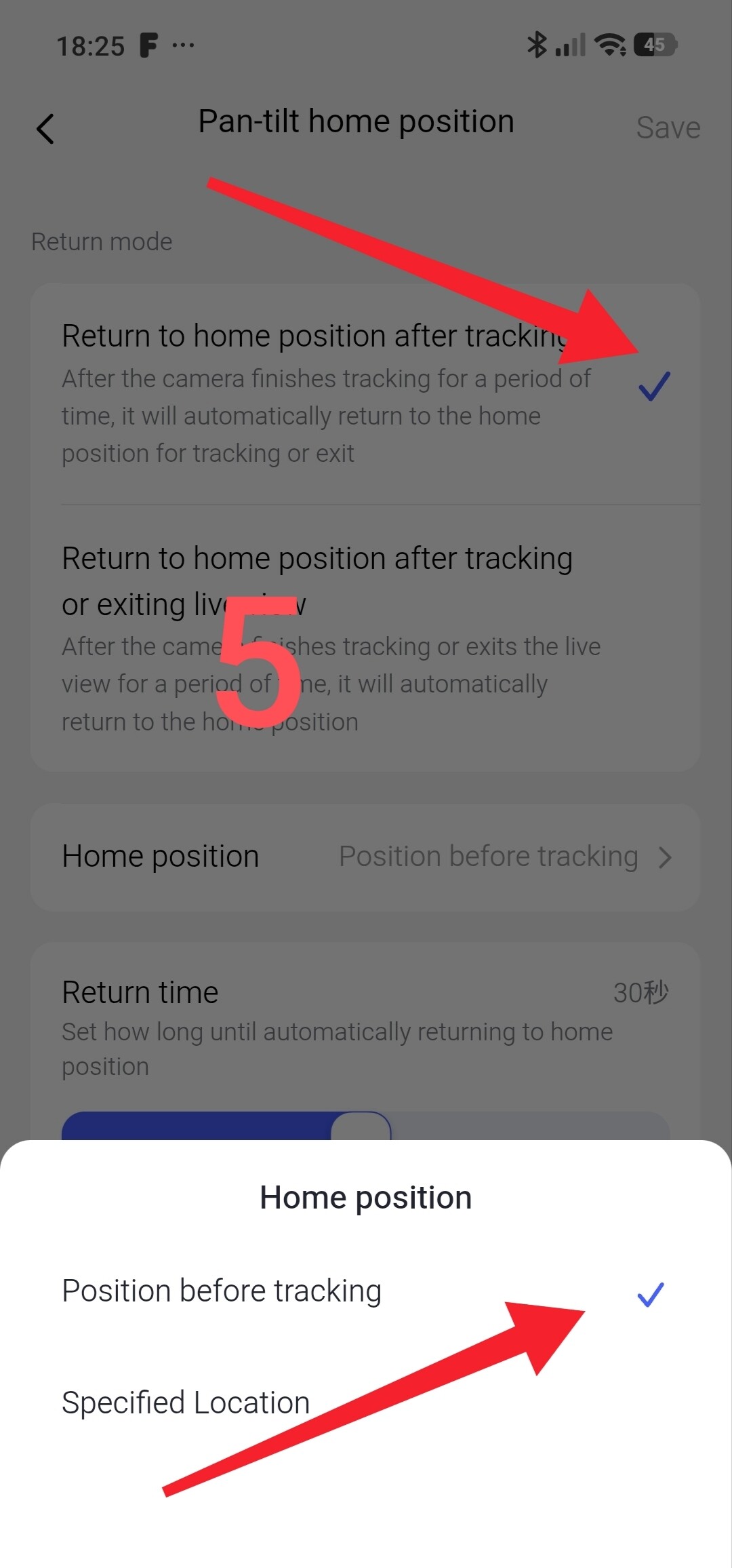
The first option: after tracking concludes, the camera automatically returns to the initial tracking position or exits (automatic monitoring mode) (see Fig. 4). If “Pre-tracking position” is selected, the camera returns to the position originally set.
Fig. 5
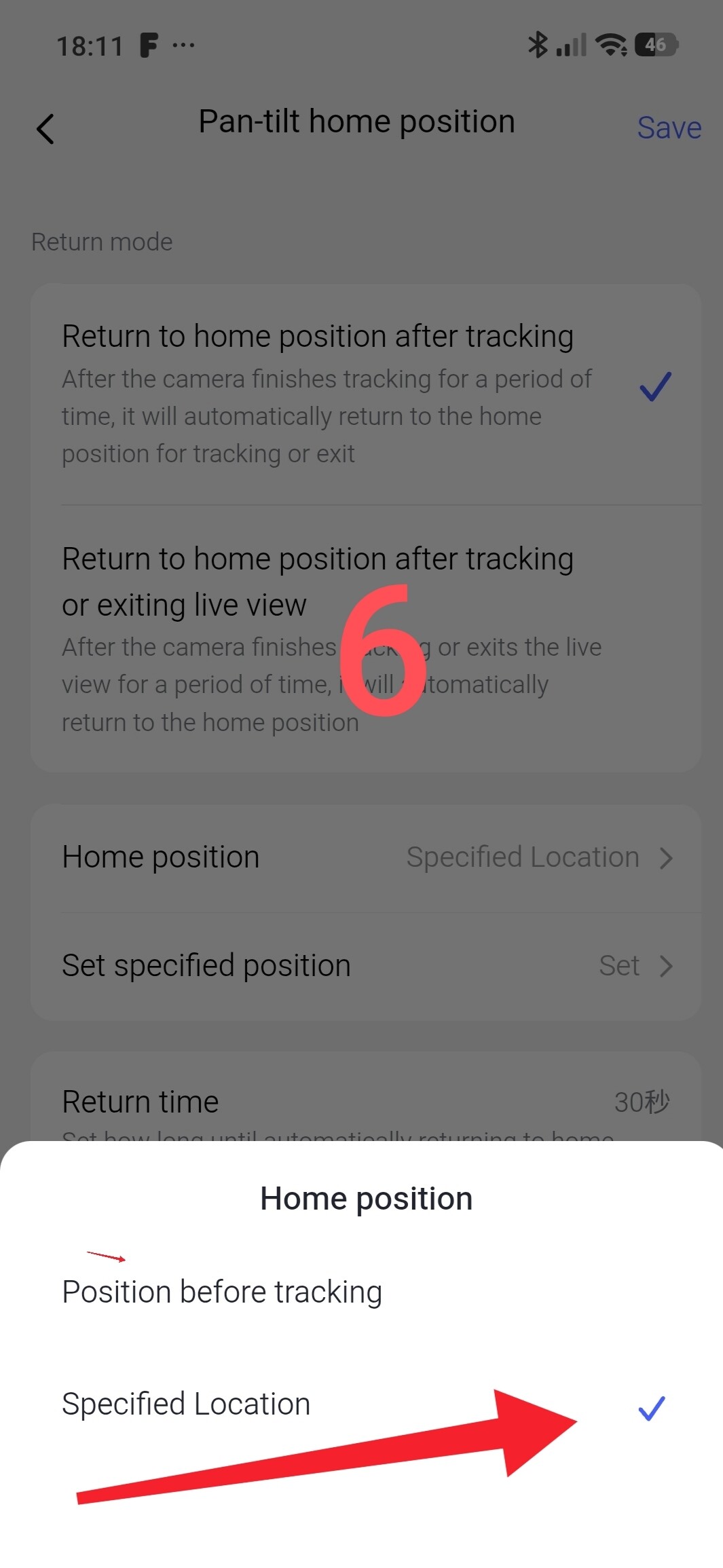
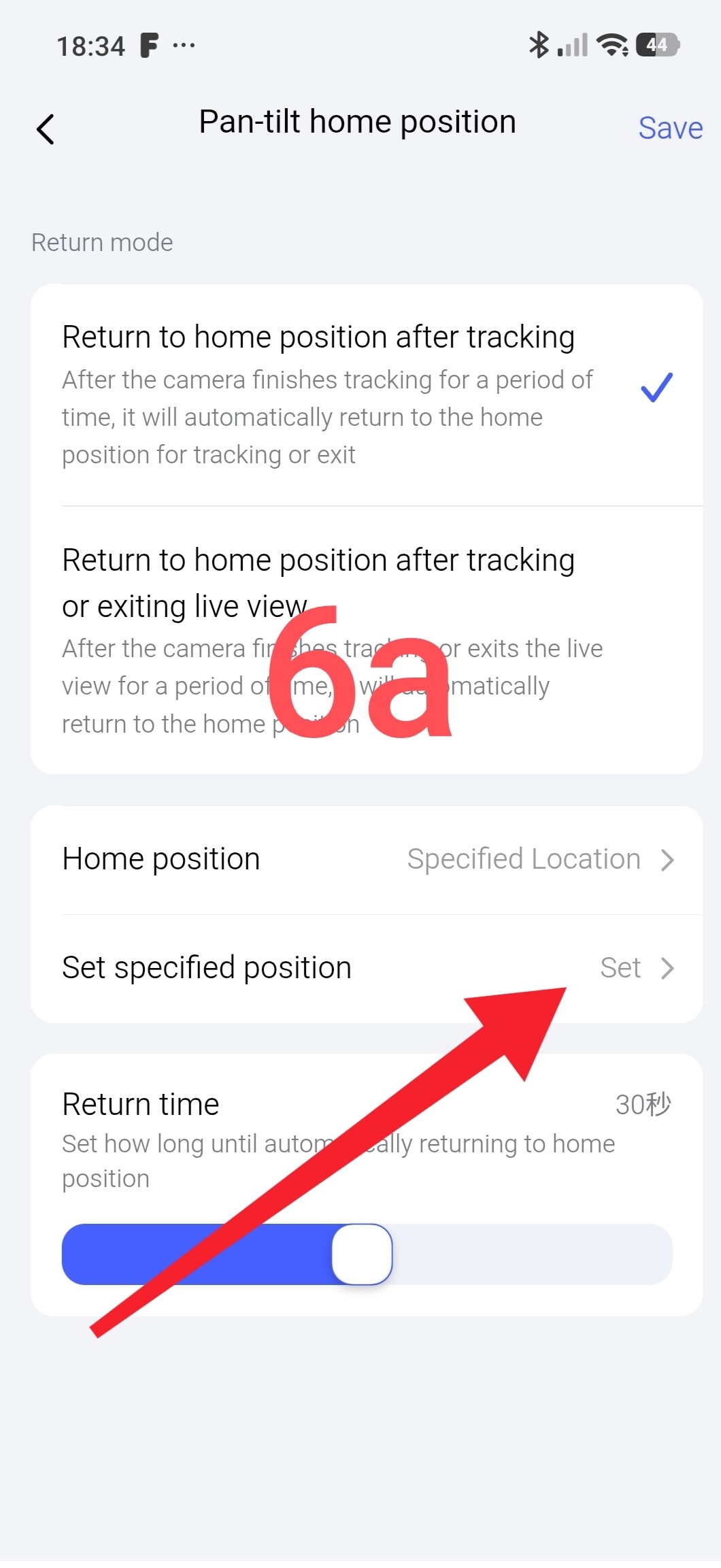
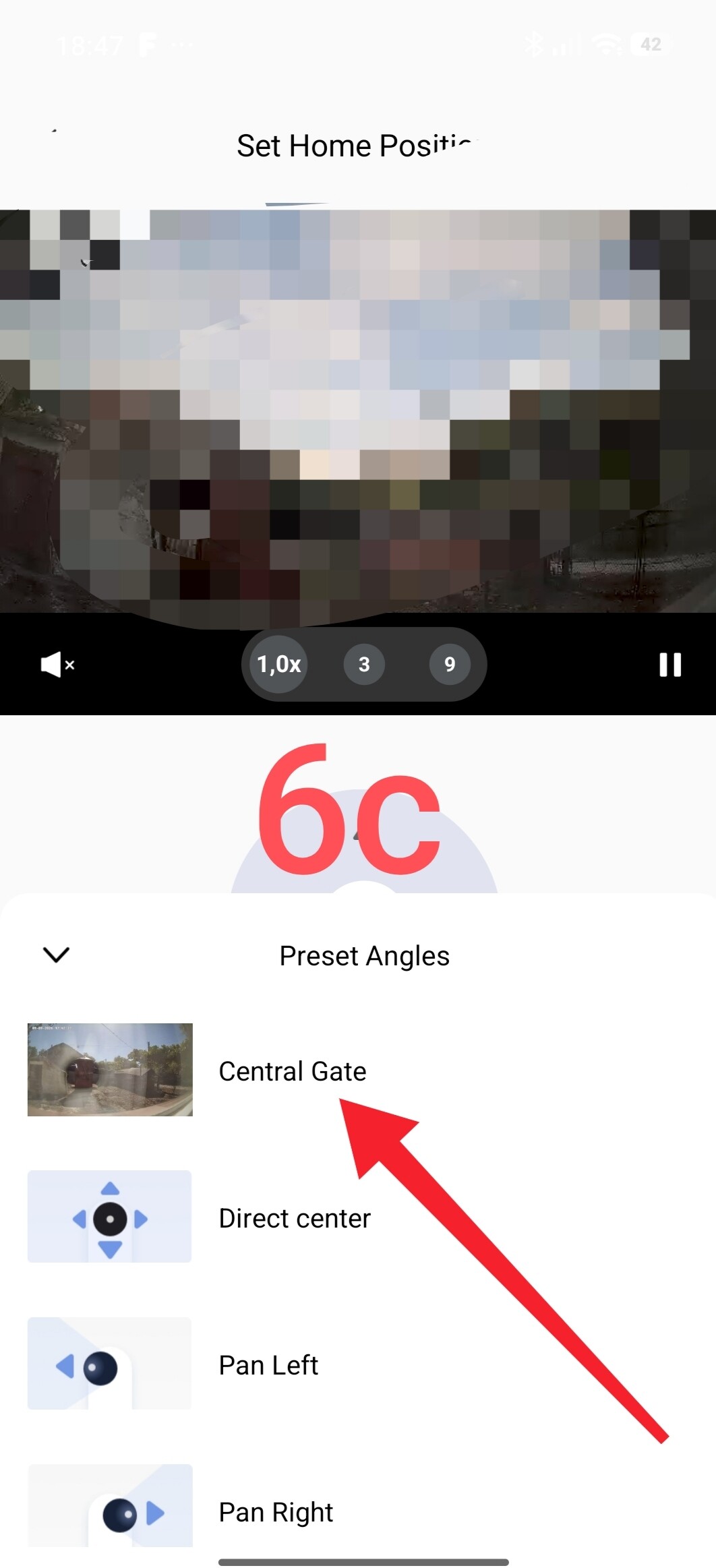
Selecting the “Specified location” option provides an additional setting where you can choose the specific zone the camera returns to (e.g., “main gate”).
Fig. 6
ATTENTION!!! ATTENTION!!!
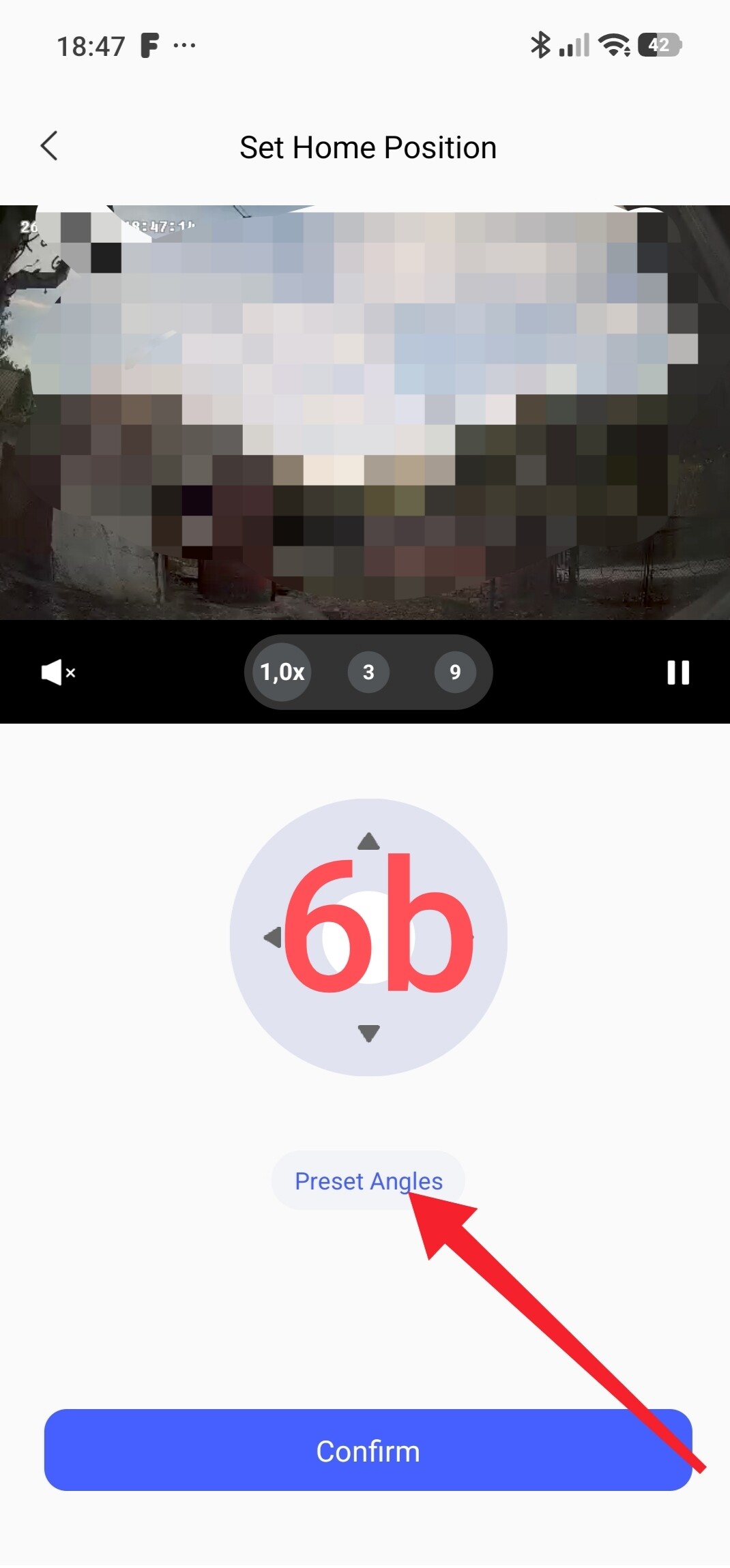
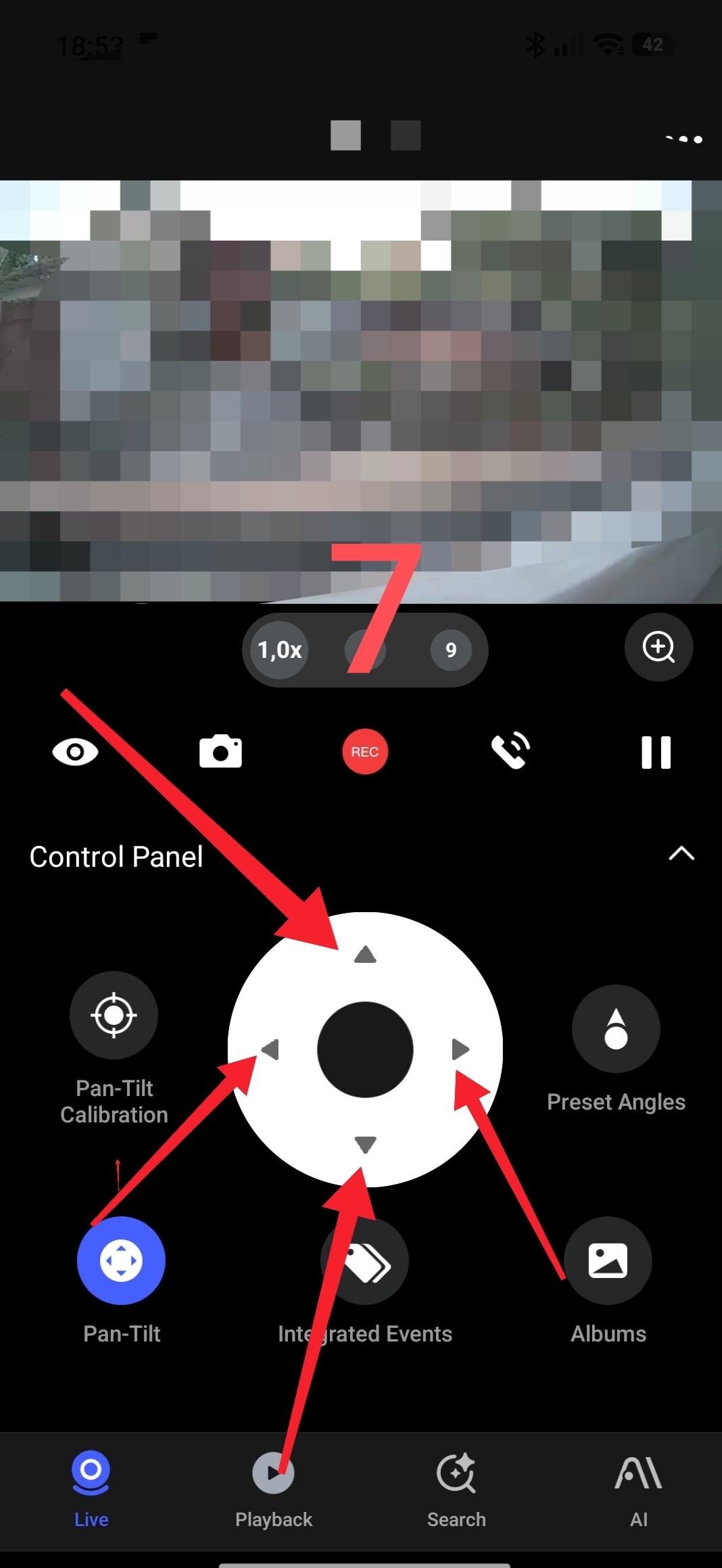
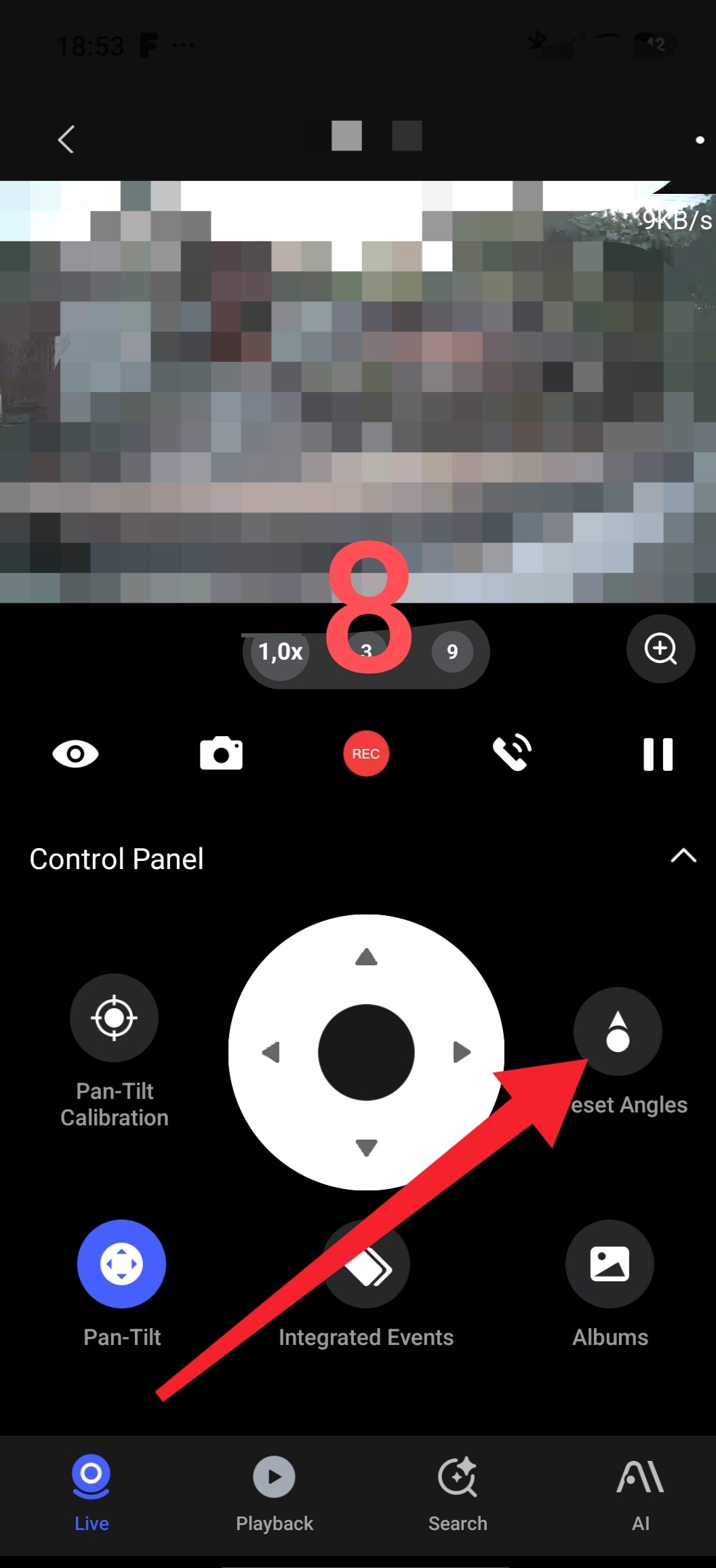
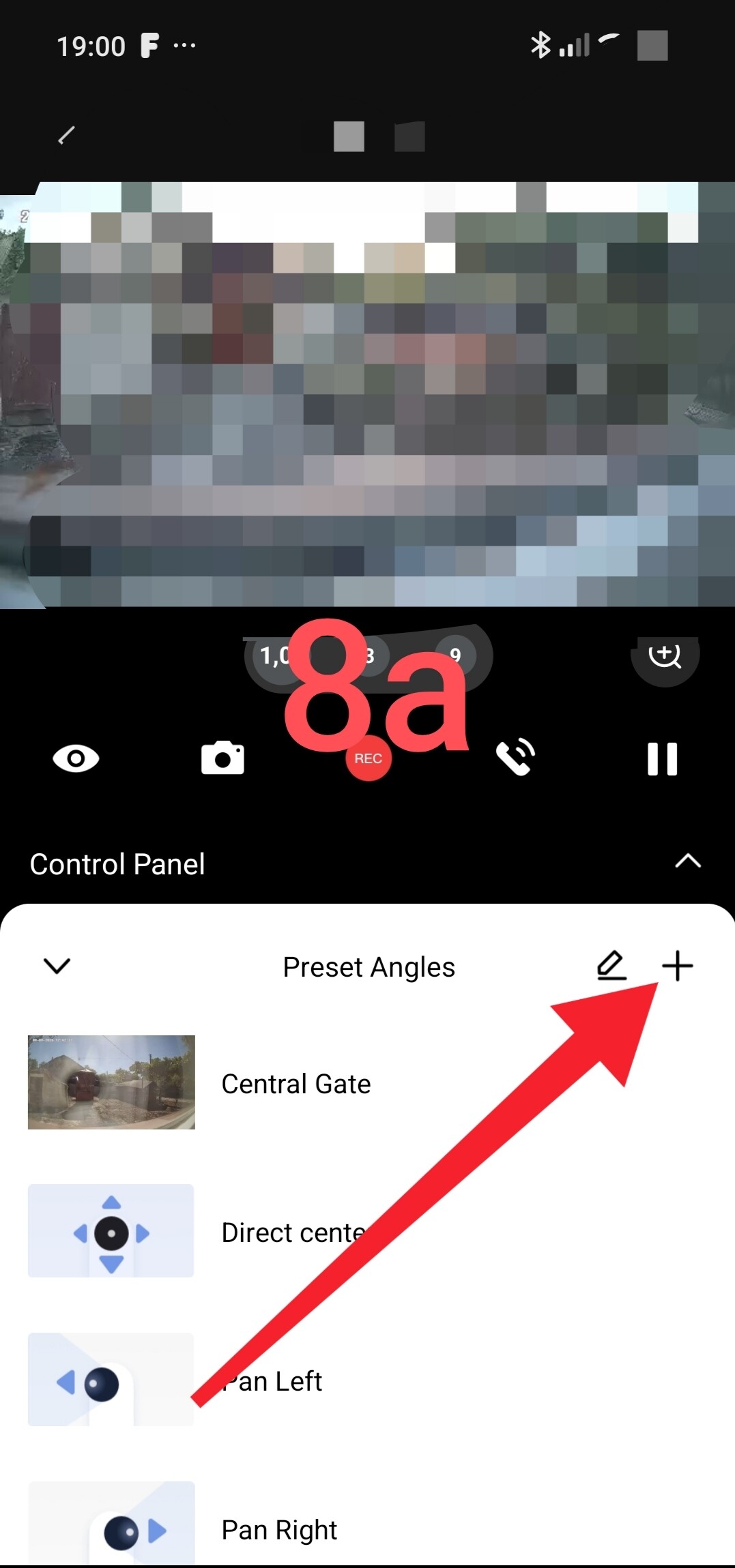
Please note that the preset viewing zone can be configured from the camera’s main view window (G510, G3, E1). The setup process is shown in the images below.
Adjust the zone using the up, down, right, and left controls.
Fig. 7.
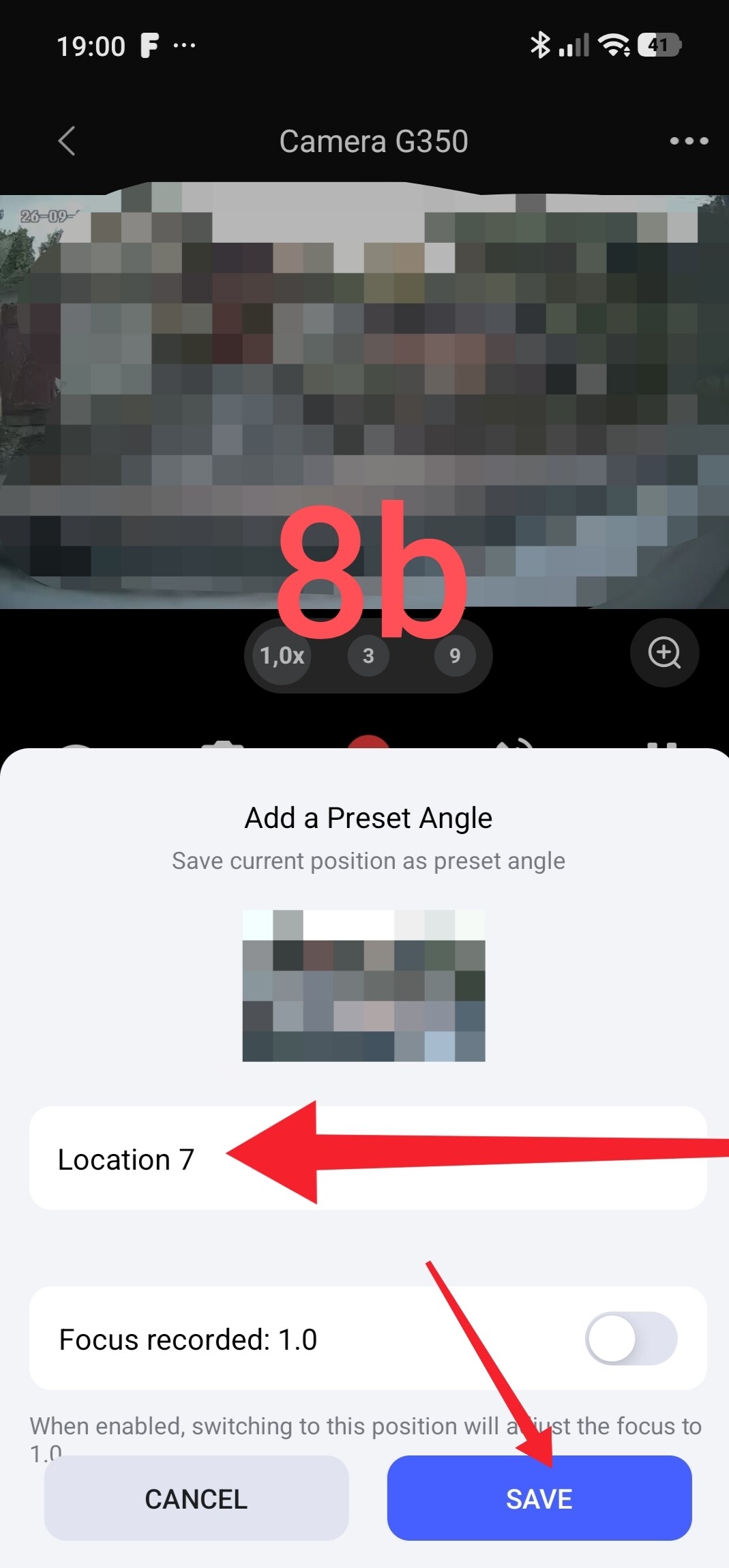
Save the position with a custom name. This saved position becomes available in the settings described above. These positions also appear in the automation settings.
Fig. 8.
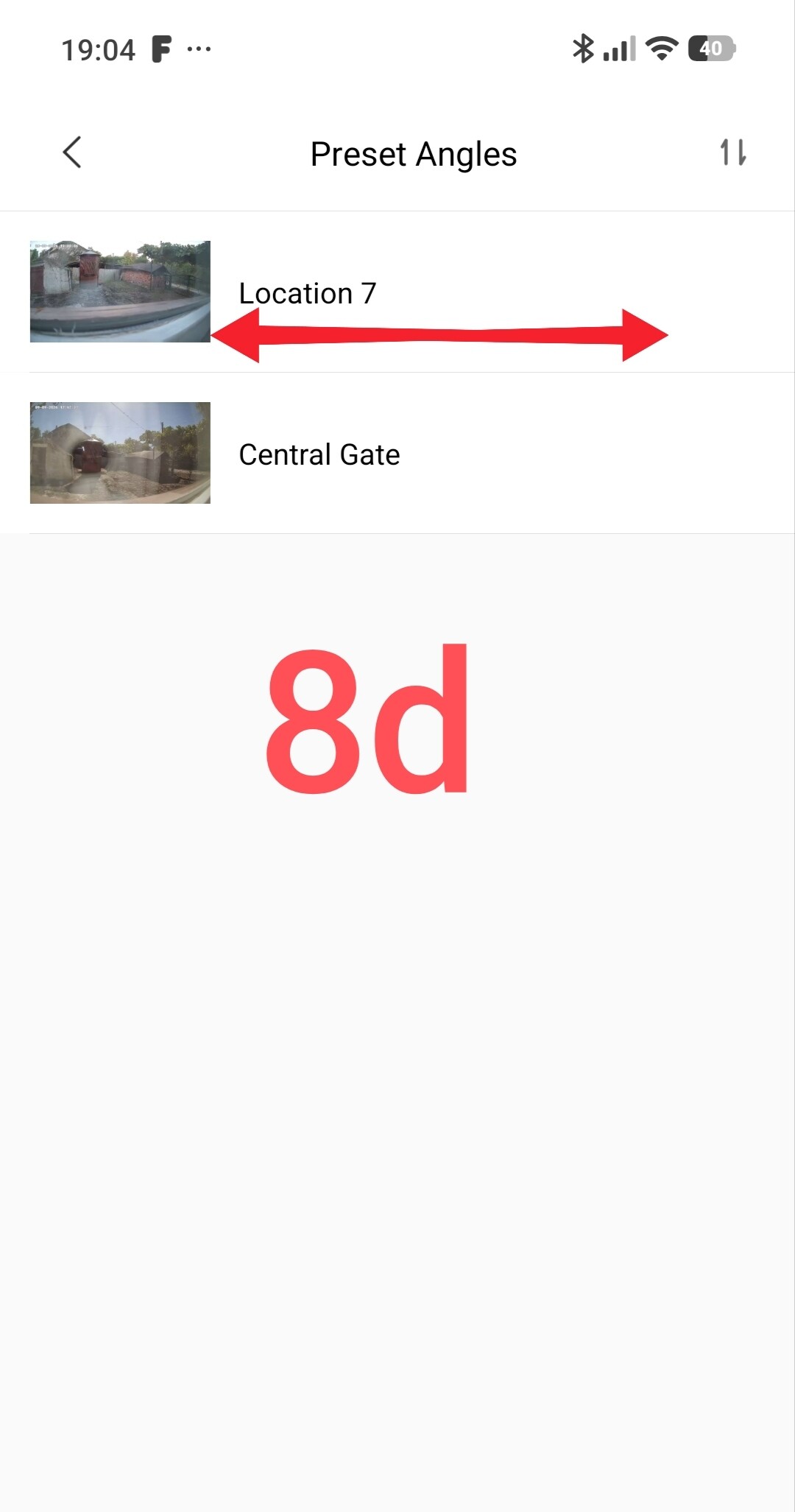
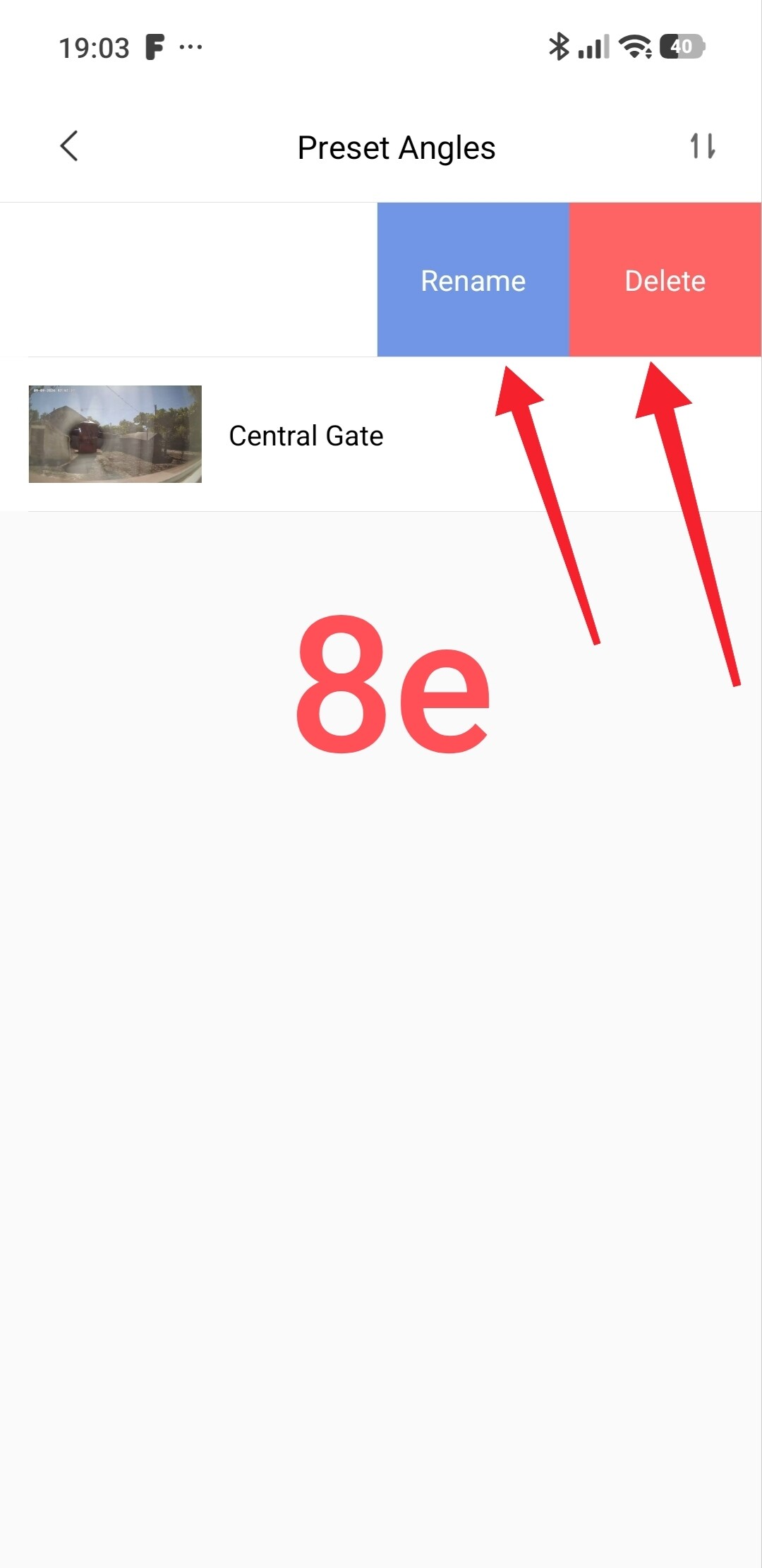
The “Return to home position after tracking or exiting live view” section is similar to the one shown in Fig. 4, but it activates when you manually move the camera (during direct monitoring). The automatic return settings are similar to those shown in Fig. 5.
Fig. 9
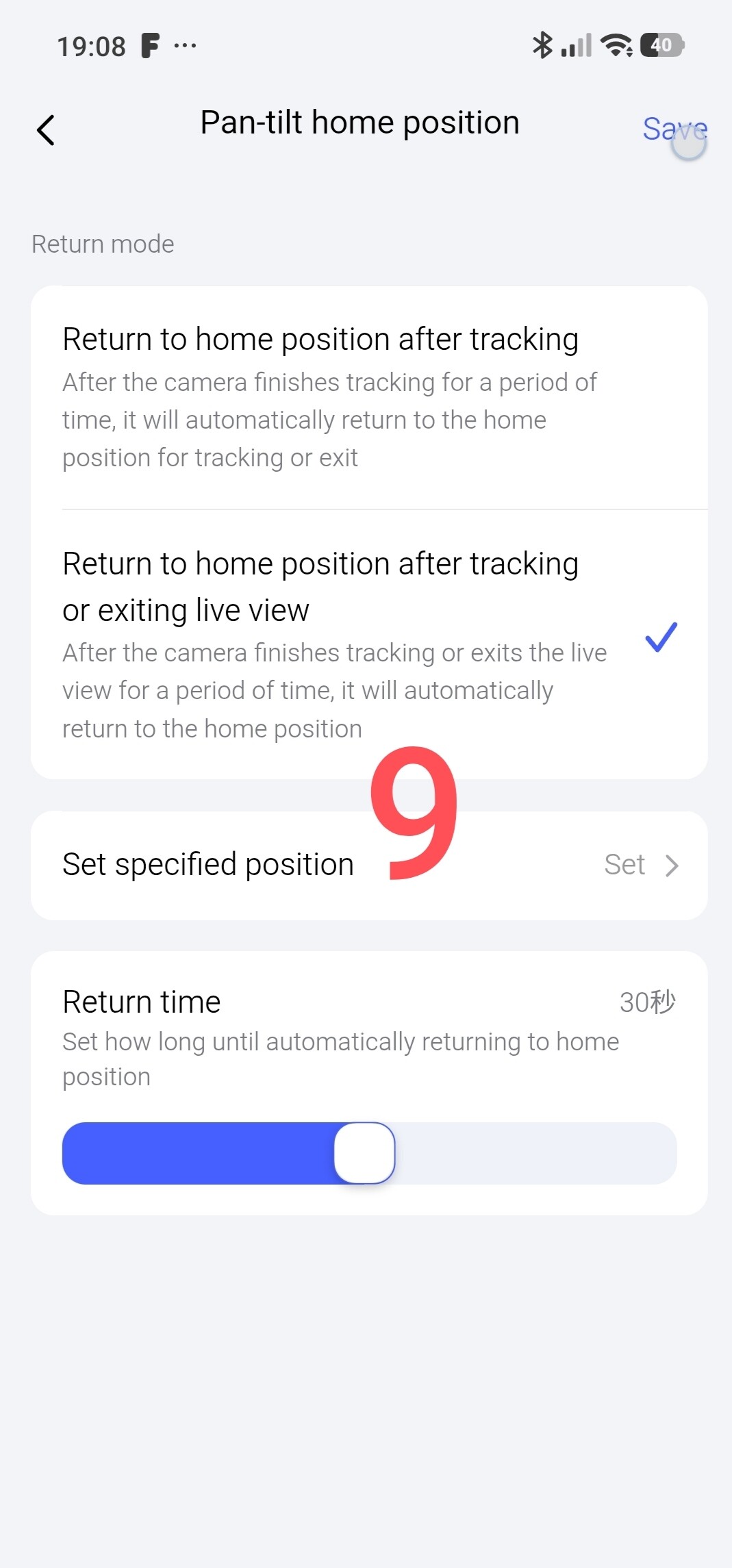
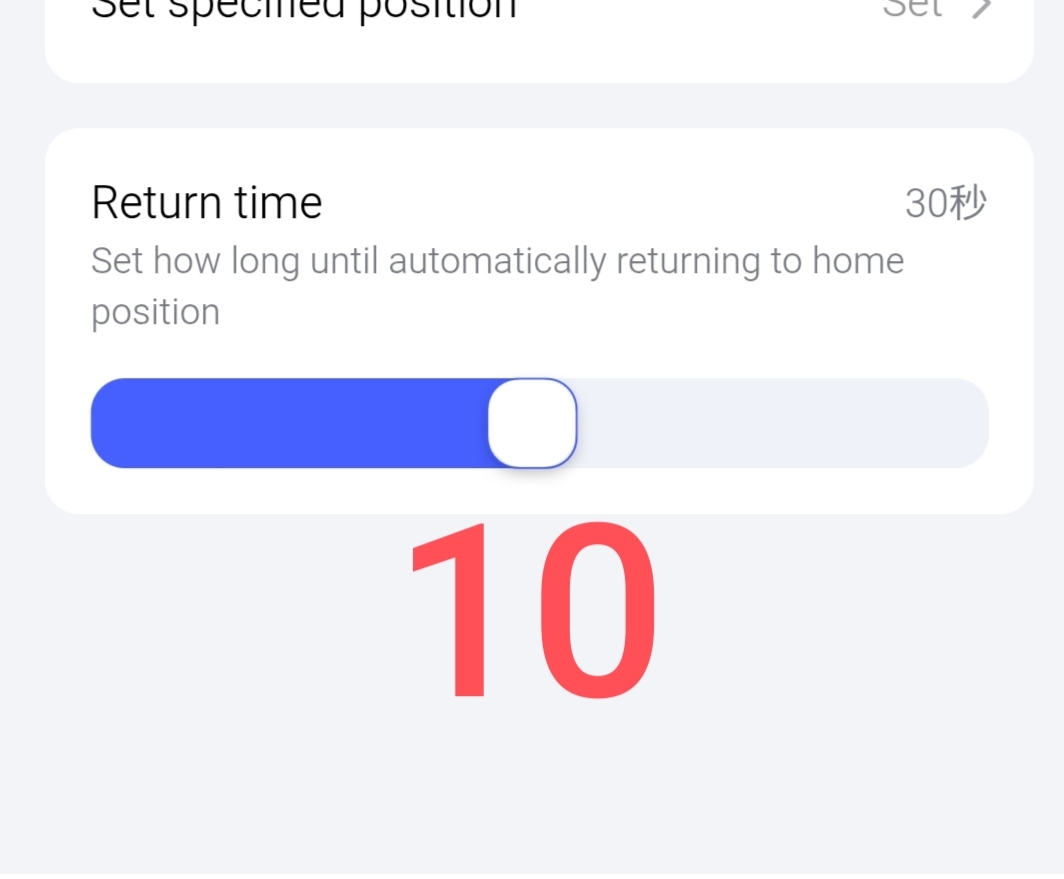
“Return time”: setting the time delay for returning to the specified position.
Fig. 10.
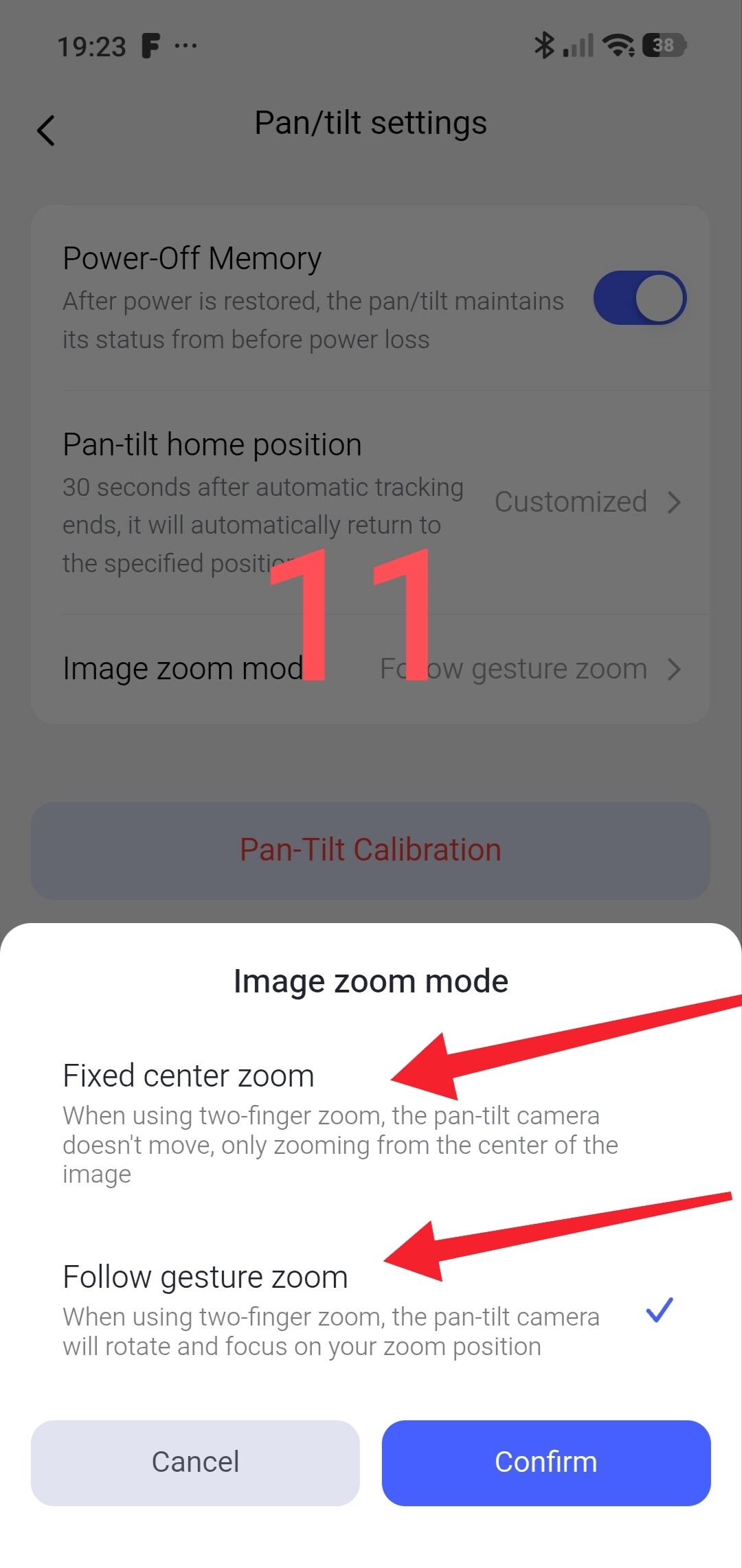
The “Image zoom mode” section applies only to G510 cameras. First setting – When using two-finger zoom, the pan-tilt camera does not move; it simply zooms in from the center of the image.
Second setting – When using two-finger zoom, the pan-tilt camera rotates to focus on the area you are zooming in on.
Fig. 11.
That concludes this lesson/explanation. To be honest, I hadn’t expected it to turn out so extensive.
In the next lesson, we will look at how to save video files from the camera.
Thank you for reading.
Lesson __Aqara camera setup tutorial/explanation (for beginners). PART 6: Saving video files from all types of Aqara cameras