Hi
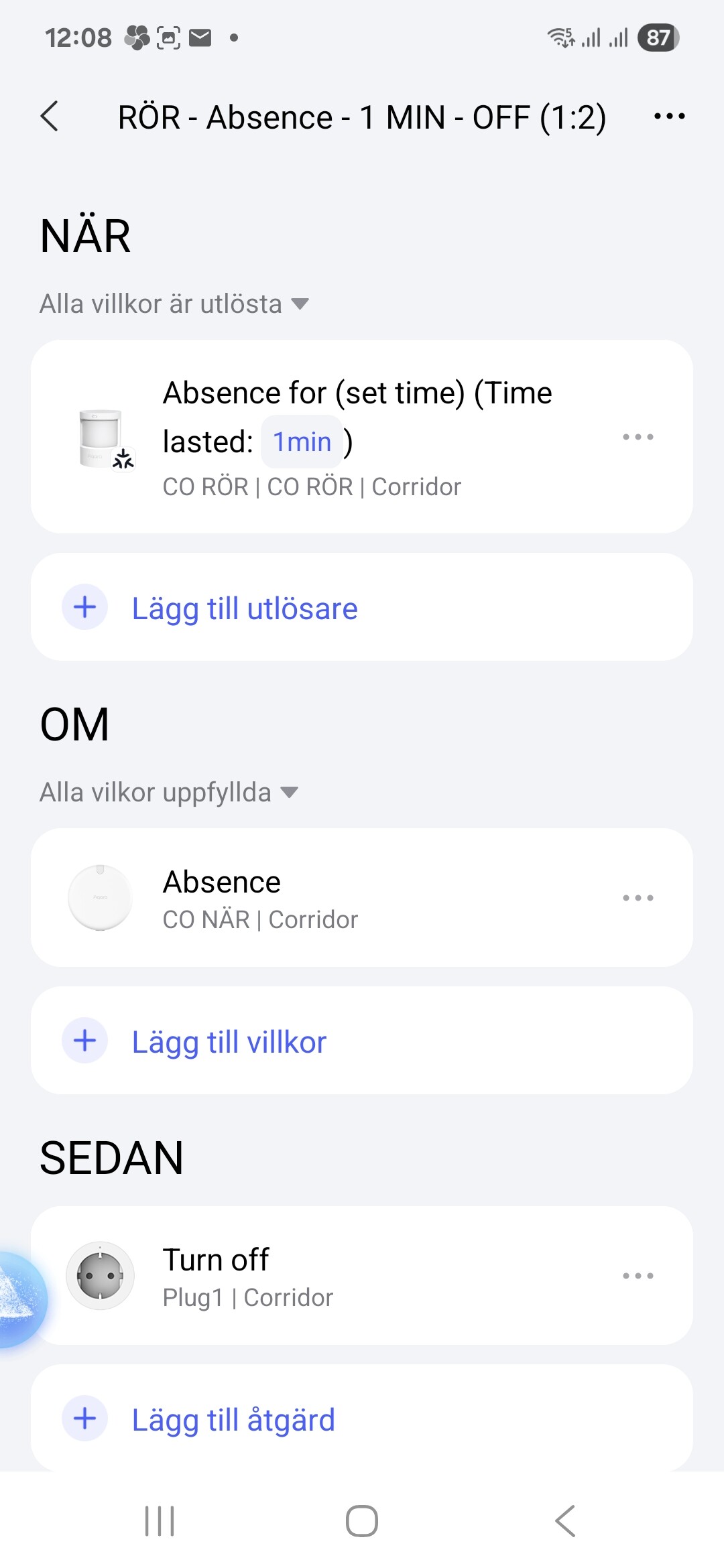
Is there somebody who can explain how to create an automation to turn off lights in a room using a presence sensor and a motion sensor who works?
I want the lights to turn off after 1 min of no presence and motion detection.
Hi
Is there somebody who can explain how to create an automation to turn off lights in a room using a presence sensor and a motion sensor who works?
I want the lights to turn off after 1 min of no presence and motion detection.
Hello @migu17
Thanks, but it doesn’t work.
The lights turned of after 2 min and I was still present and detected by Presence sensor FP2.
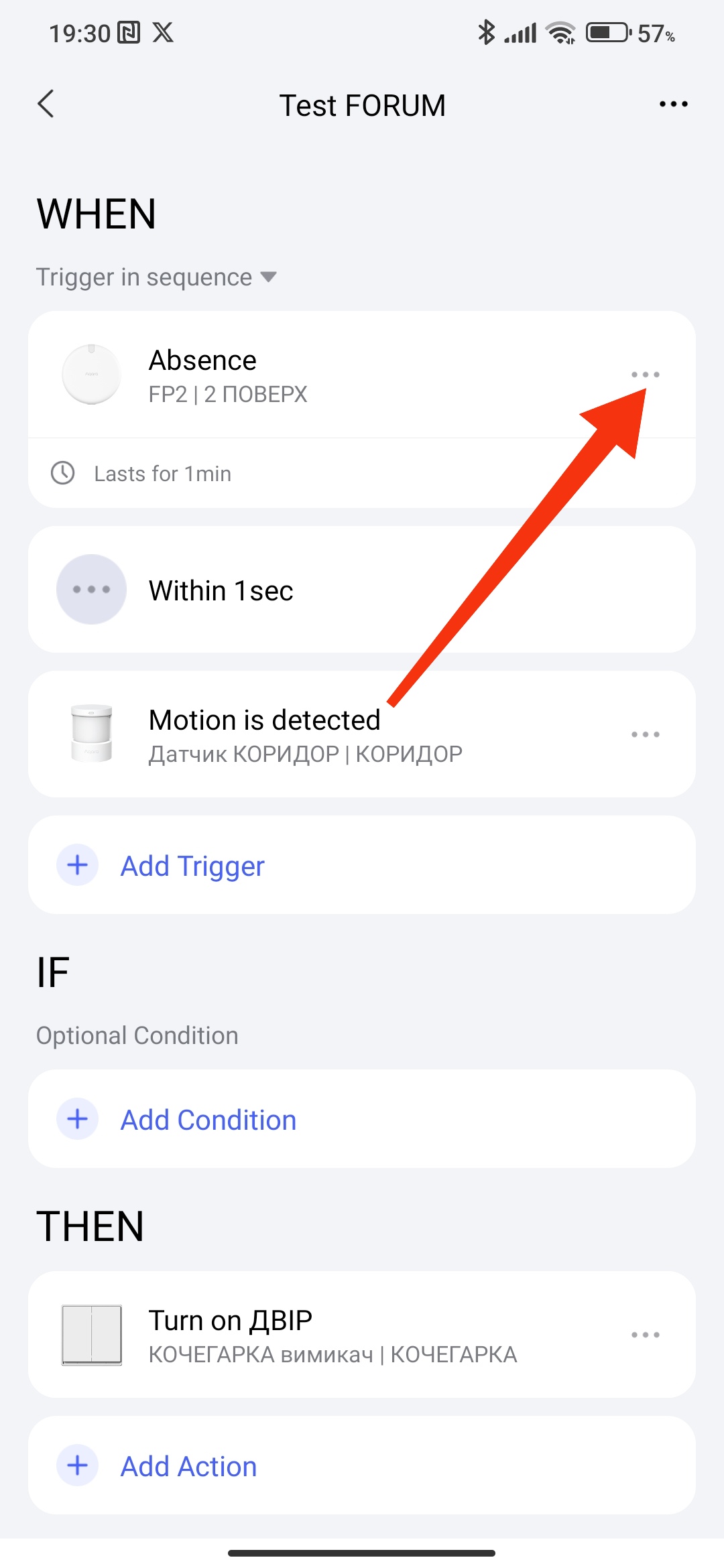
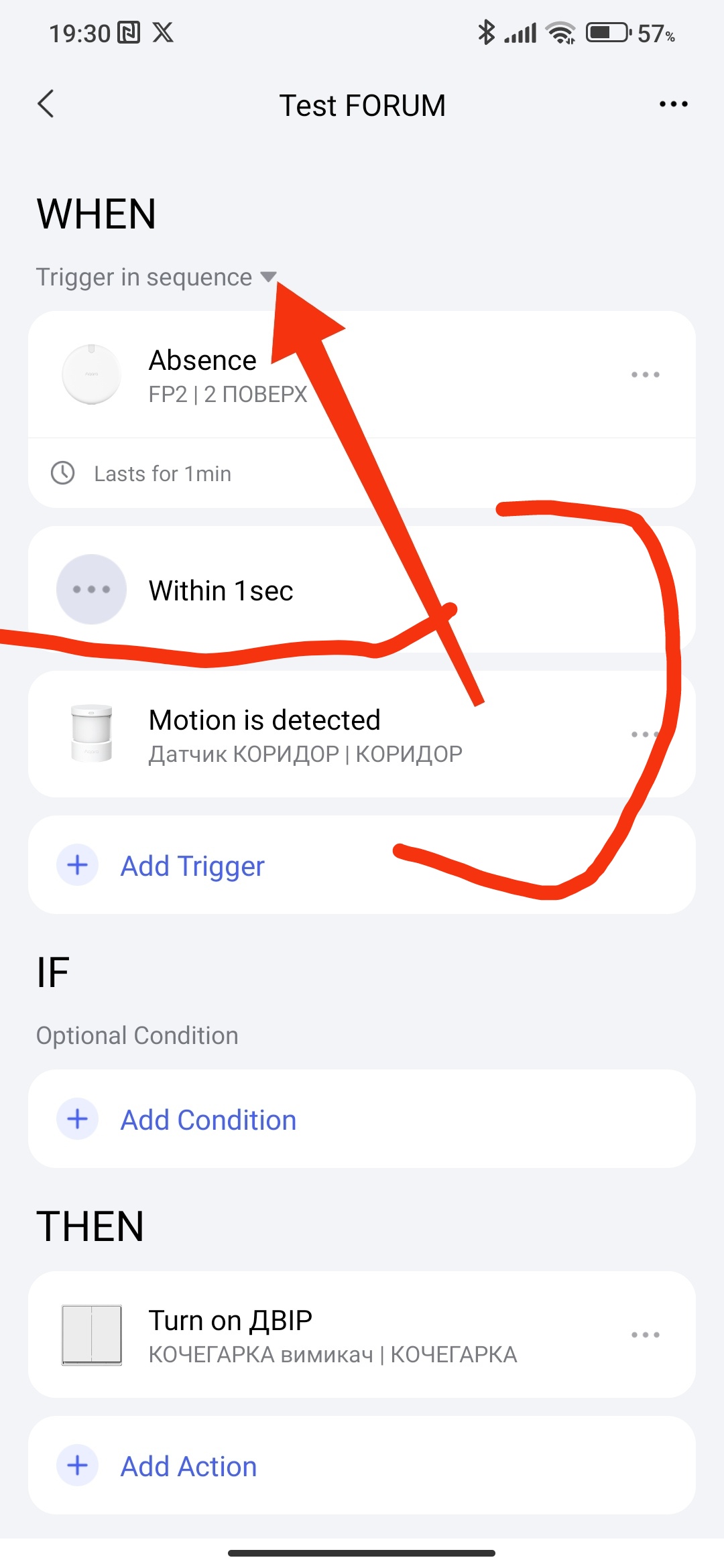
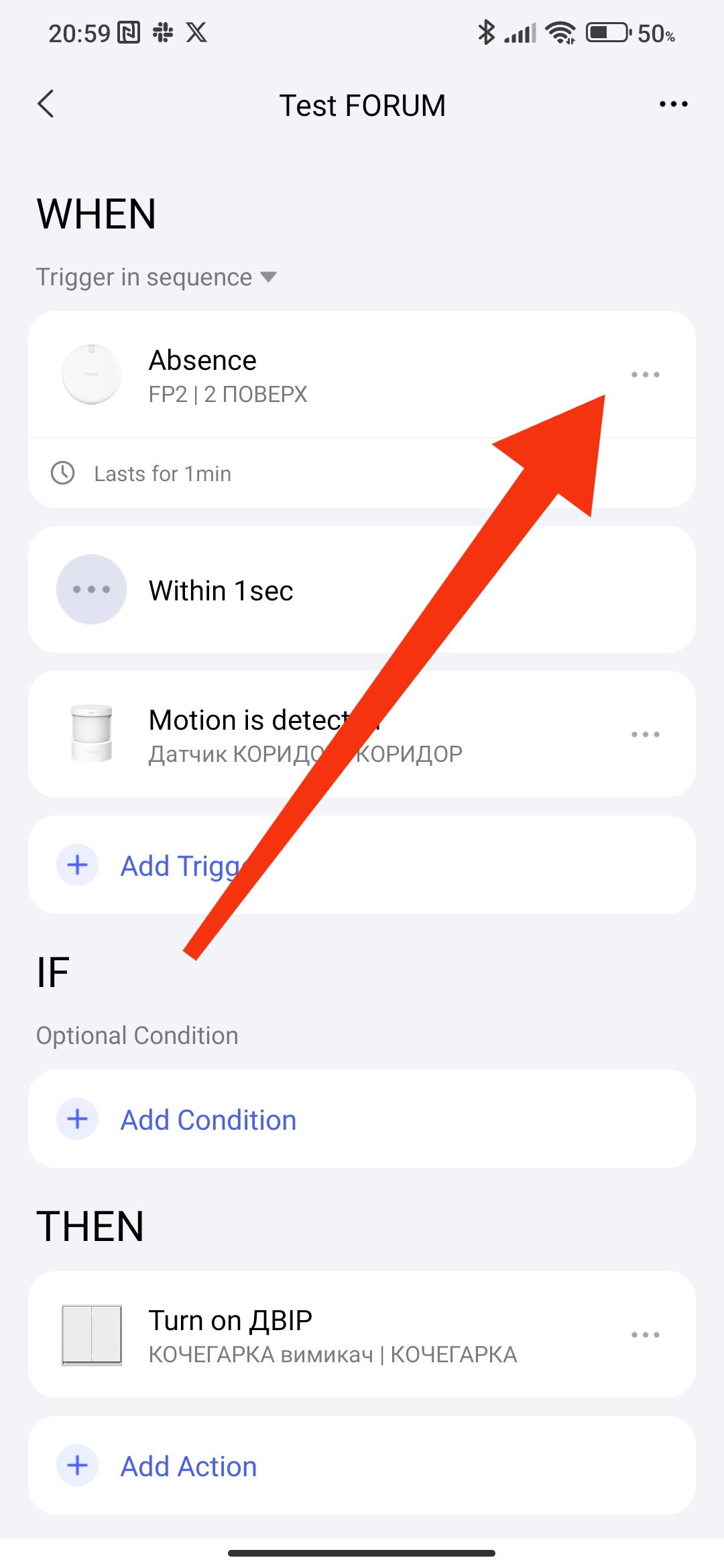
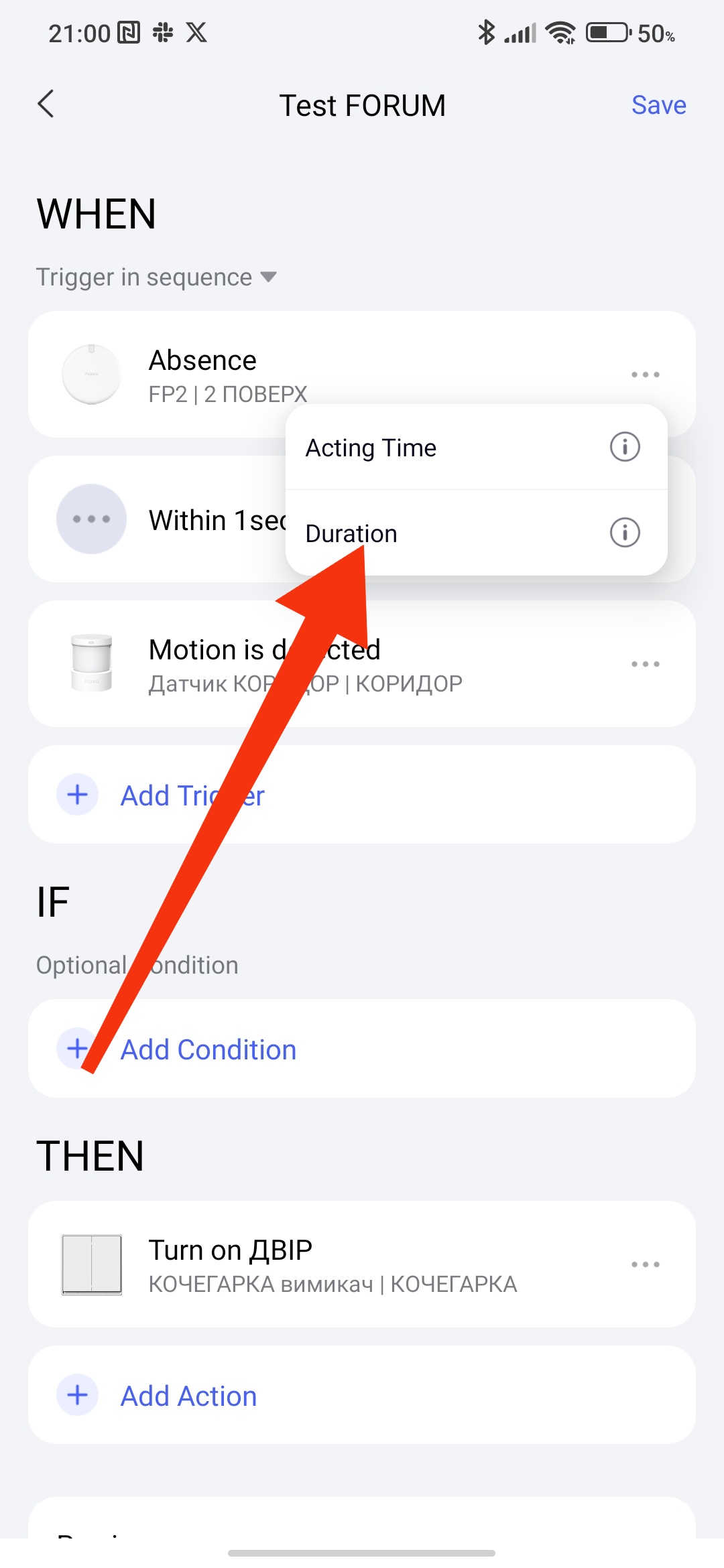
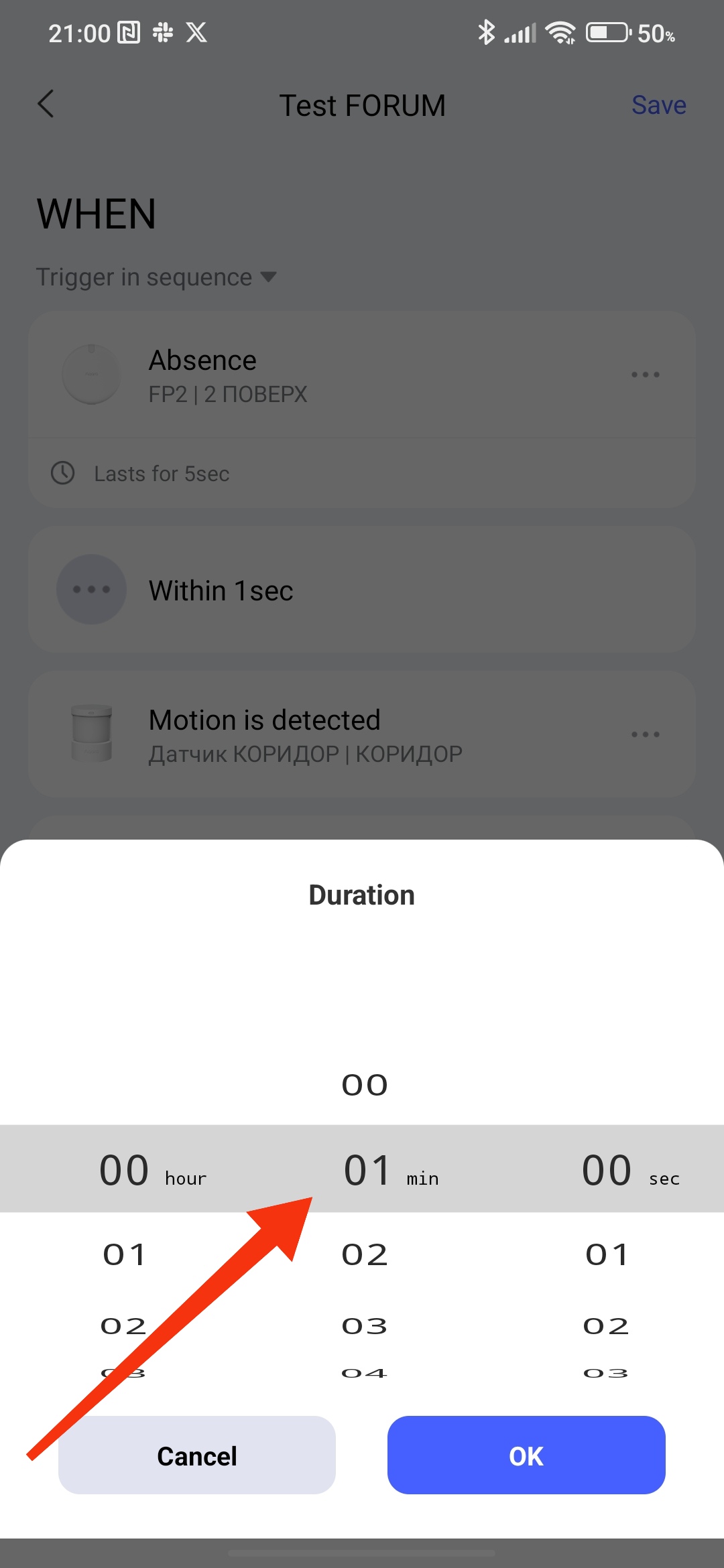
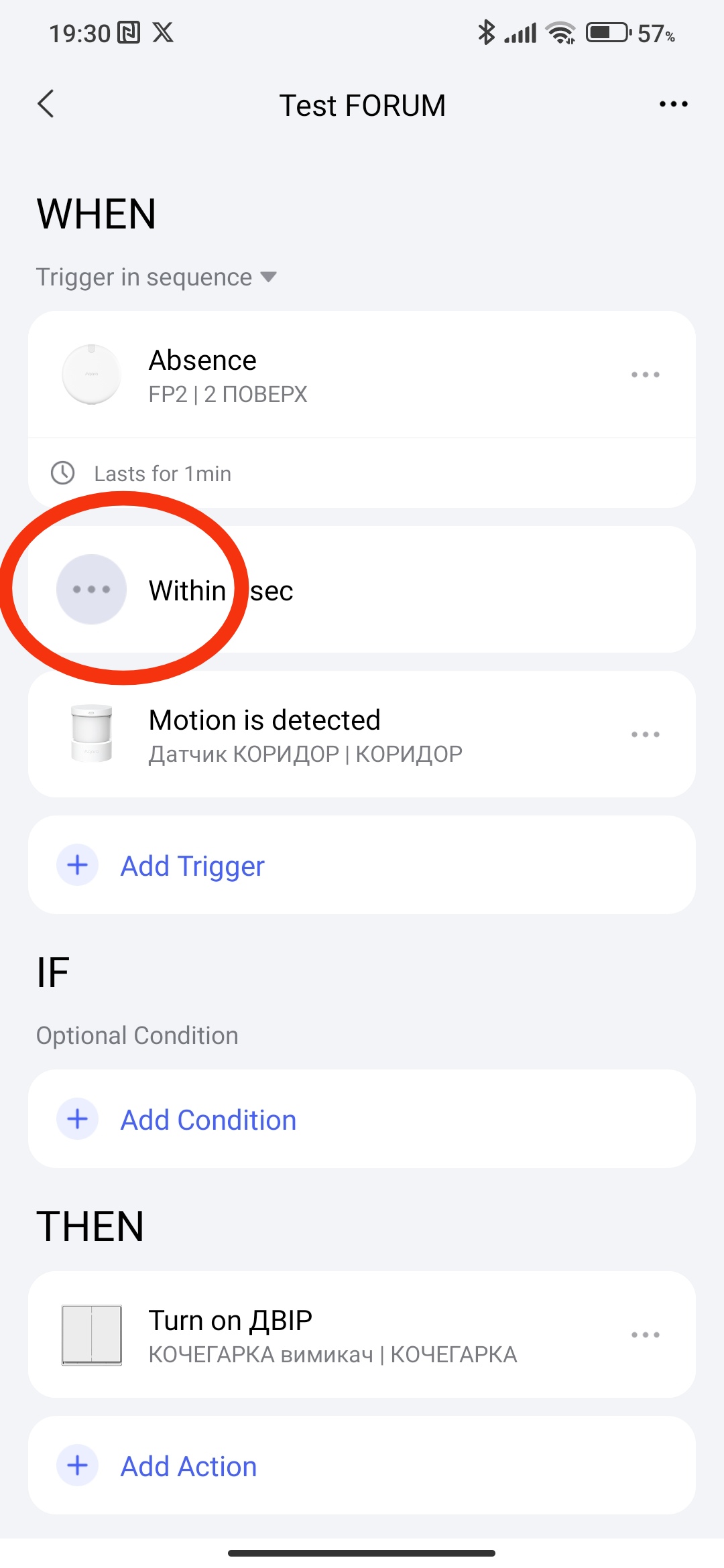
Hello, this is how it is done. Explanation, if there is no movement, we delay 1 minute, then 1 second for the period of triggering the next event (we can set a longer time) and check the condition for movement. My lesson 2, where I explain this. Automation 2.0. Lesson2. Advanced settings "..." (Execution time, delay of conditions, reversal of conditions) is
I mistakenly put On instead of Off🙂
Sorry, I can’t figure out how to create the “…Within one sec” setting, I have read intensively your lesson 2 don’t get it.
I also tried this Automation using the delay on IF but didn’t work either.
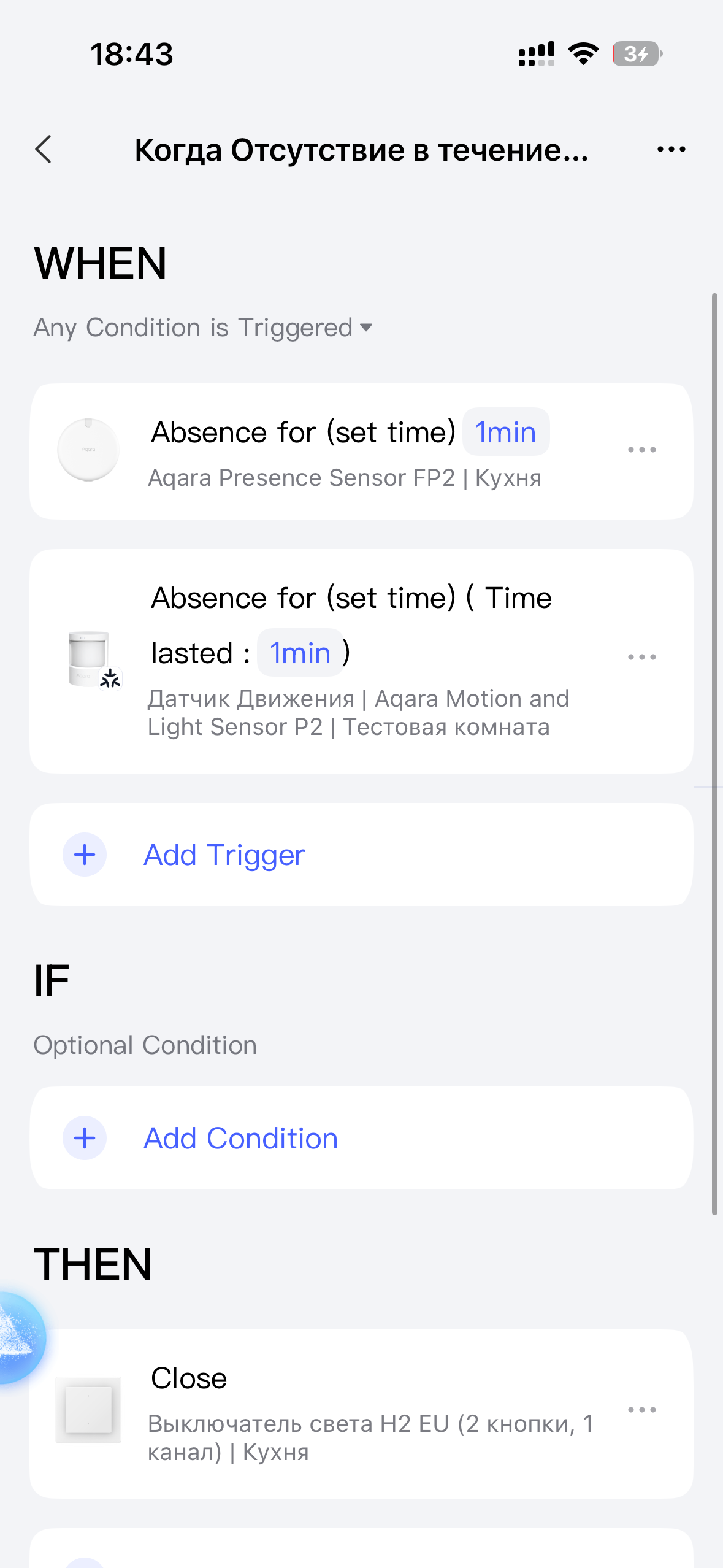
When:
Presence Sensor FP2
Absence for (Set time) 1 min,
Motion and Light Sensor P2
Absence is detected
IF
Absence for (set time) 1 min 5 sec
THEN
Turn OFF Plugg
The delay in IF conditions has a different purpose. After this selection, the condition will “disappear” after the selection time. In WHEN - this condition simply gives a delay and then triggers the IF control or continuation of the sequence (as we did for your automation).
Unfortunately, It didn’t work either. Thanks although to learn me how to trigger the delay function 
I guess there is perhaps a misunderstanding on what I want to achieve with the automation or… maybe it’s not possible to do.
I’ll try to explain it more in detail:
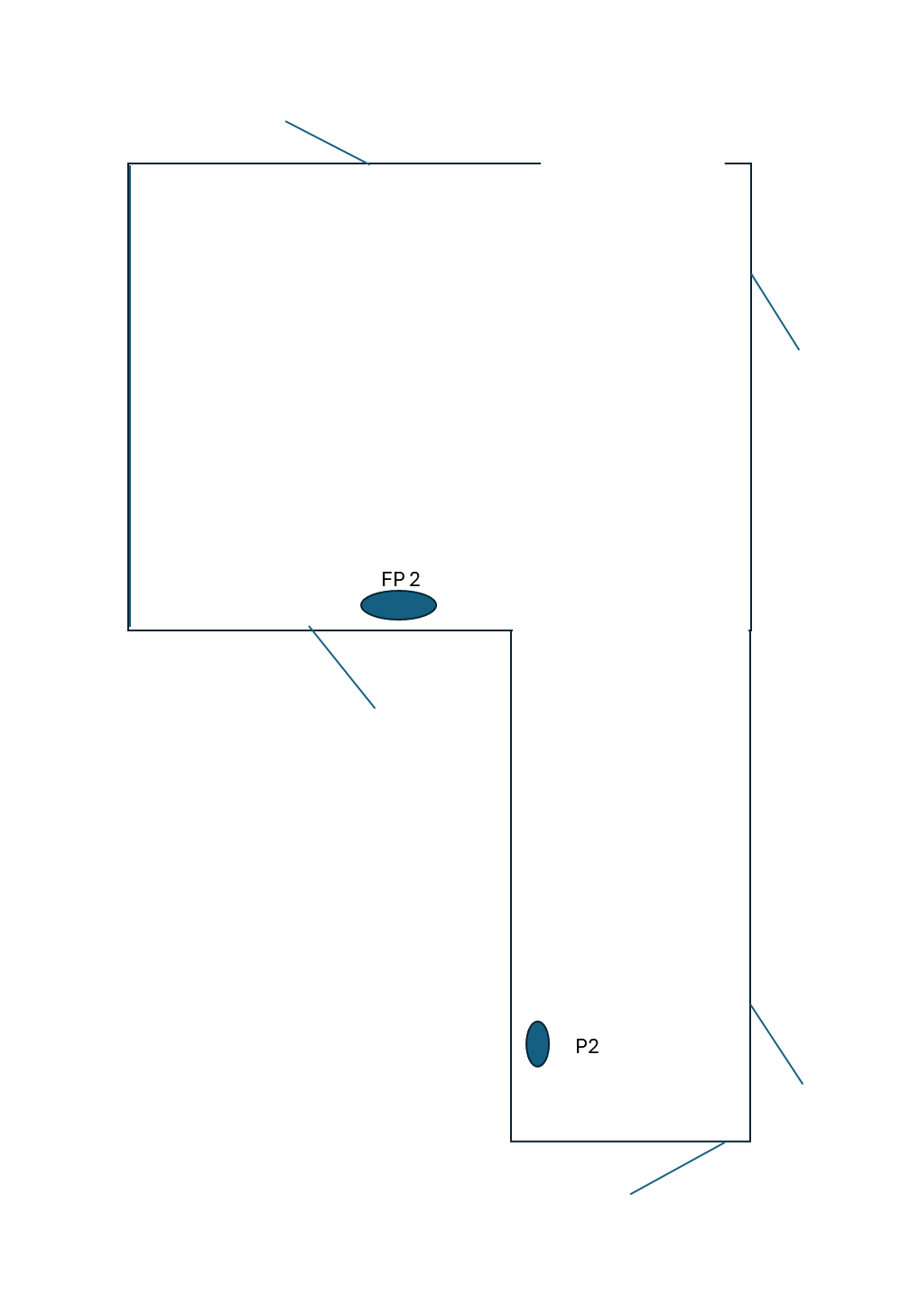
This is a pic of the placement of the sensors. On the area where FP2 are placed, there is most of the movement in and out of rooms and sitting etc.
People are not going to pass trough both sensors at all time. In most of the case they are in this area.
On the area there P2 is placed there is a transit area, eg. coming in the apartment or going in/out to the room in front of the sensor.
What I need is a turning off light automation taking in account that there is nobody present (for 1 min) in all the area (FP2 and P2) and not taking in account that people need to pass both sensors to perform it.
There are several things I can’t do.
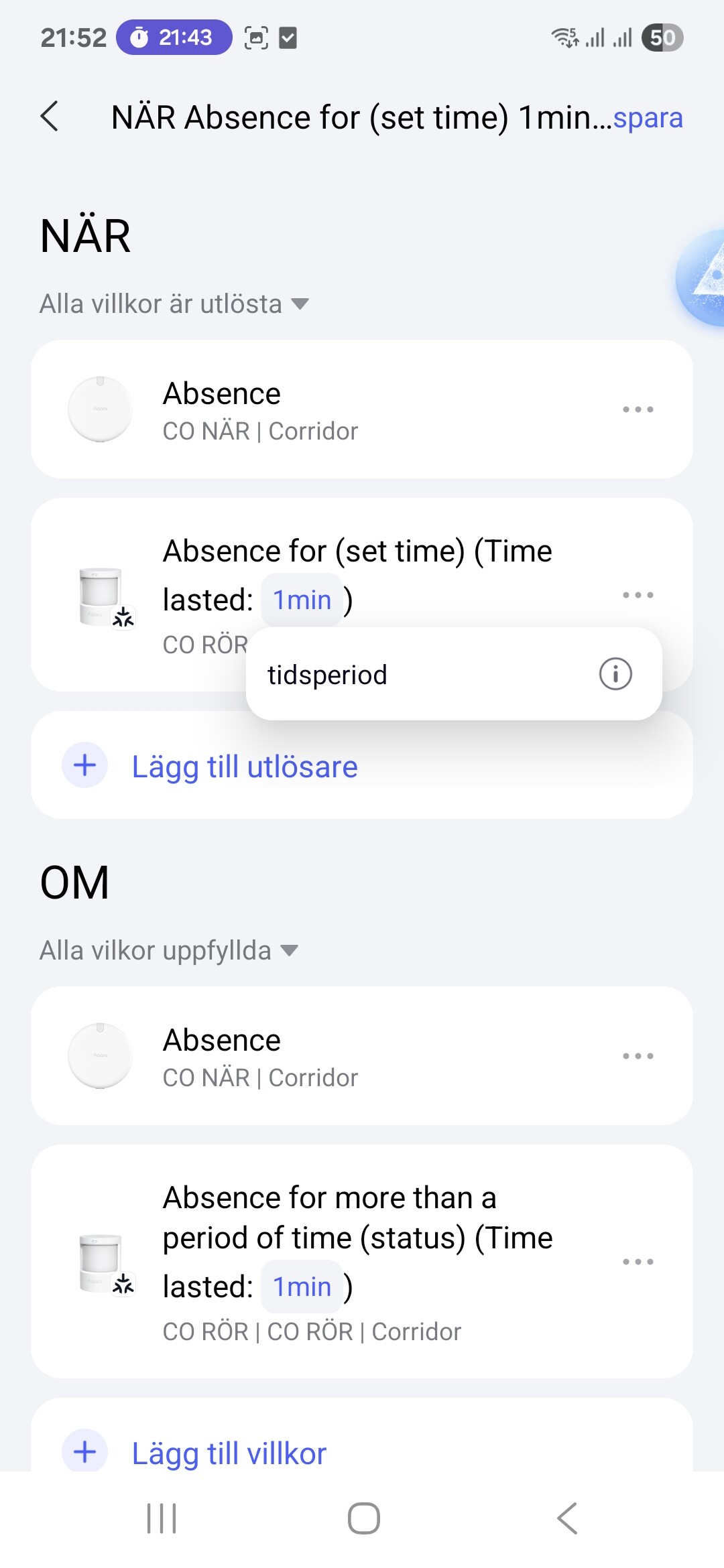
in WHEN I can’t choose Any conditions… I only have:
I have the P2 not the P1 mening I have to choose
in IF:
I have the same problem regarding the P2. Cant use No motion detected in over…
Sending you a pic:
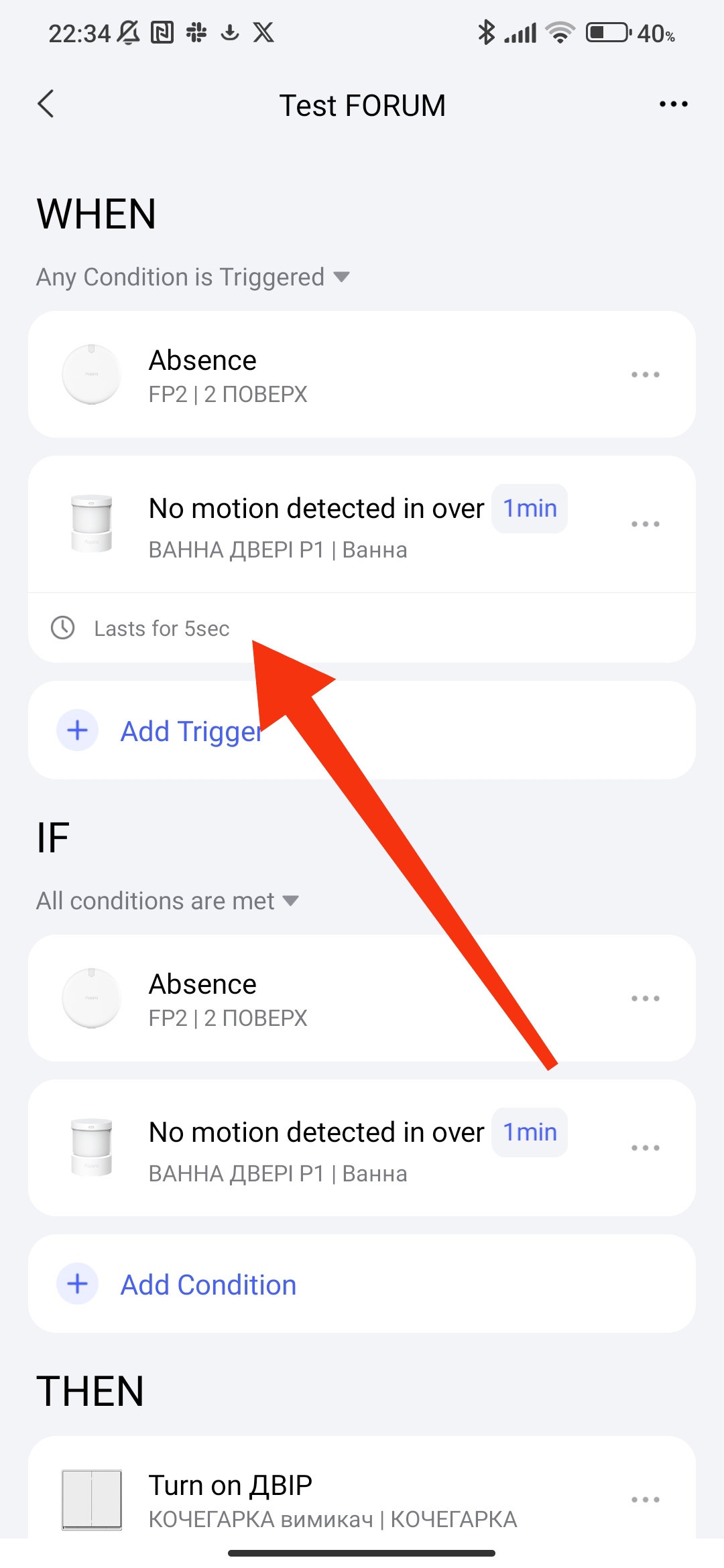
Hello. In WHEN, the option “all conditions are met” means “do whatever” (this is most likely a translation problem). There is no such option on your screen, so everything is OK (do whatever). Fig.
Regarding “5 seconds”, this option is not available for all sensors (you have a matter motion sensor, I have Zigbee), check the operation without this setting (5 seconds). If it does not work, write here with a screenshot of the automation.
Thanks.
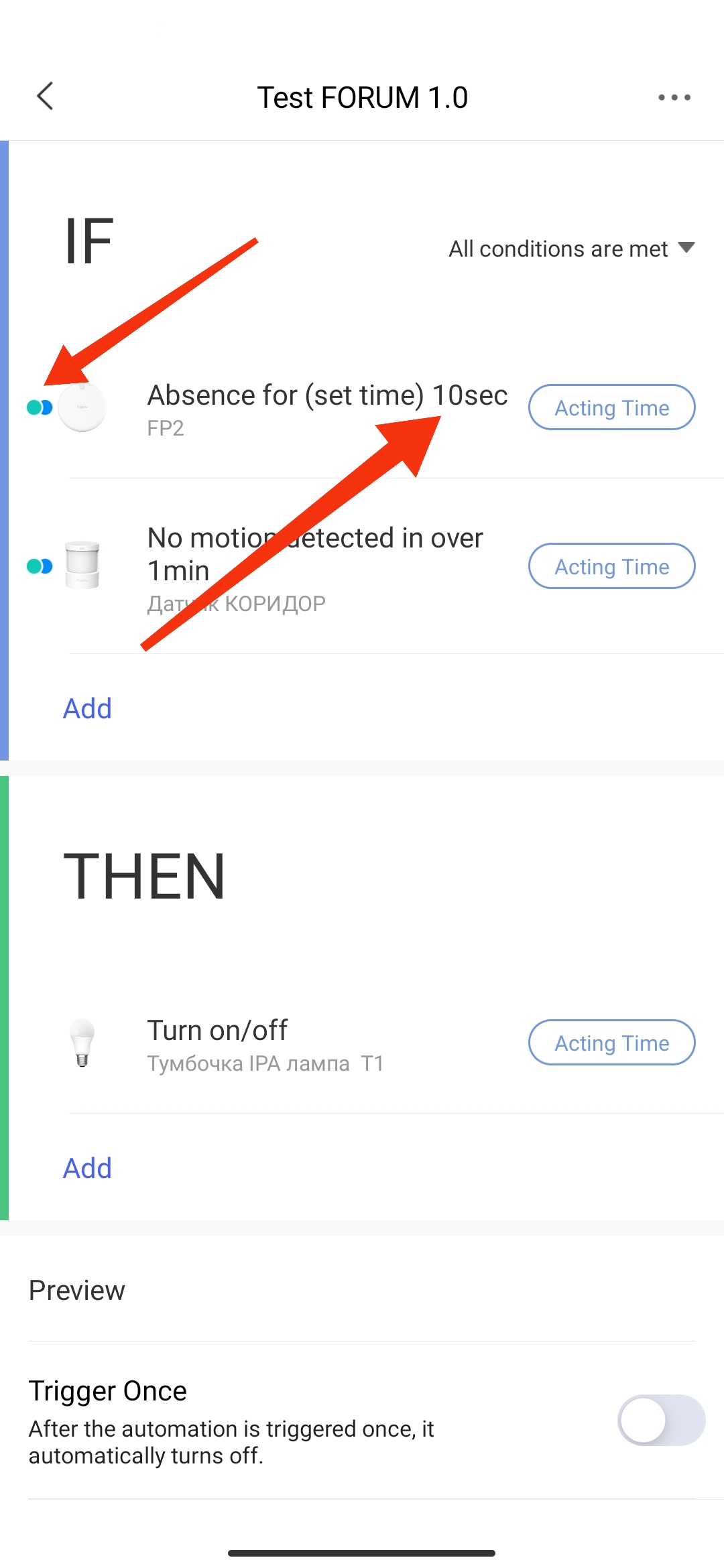
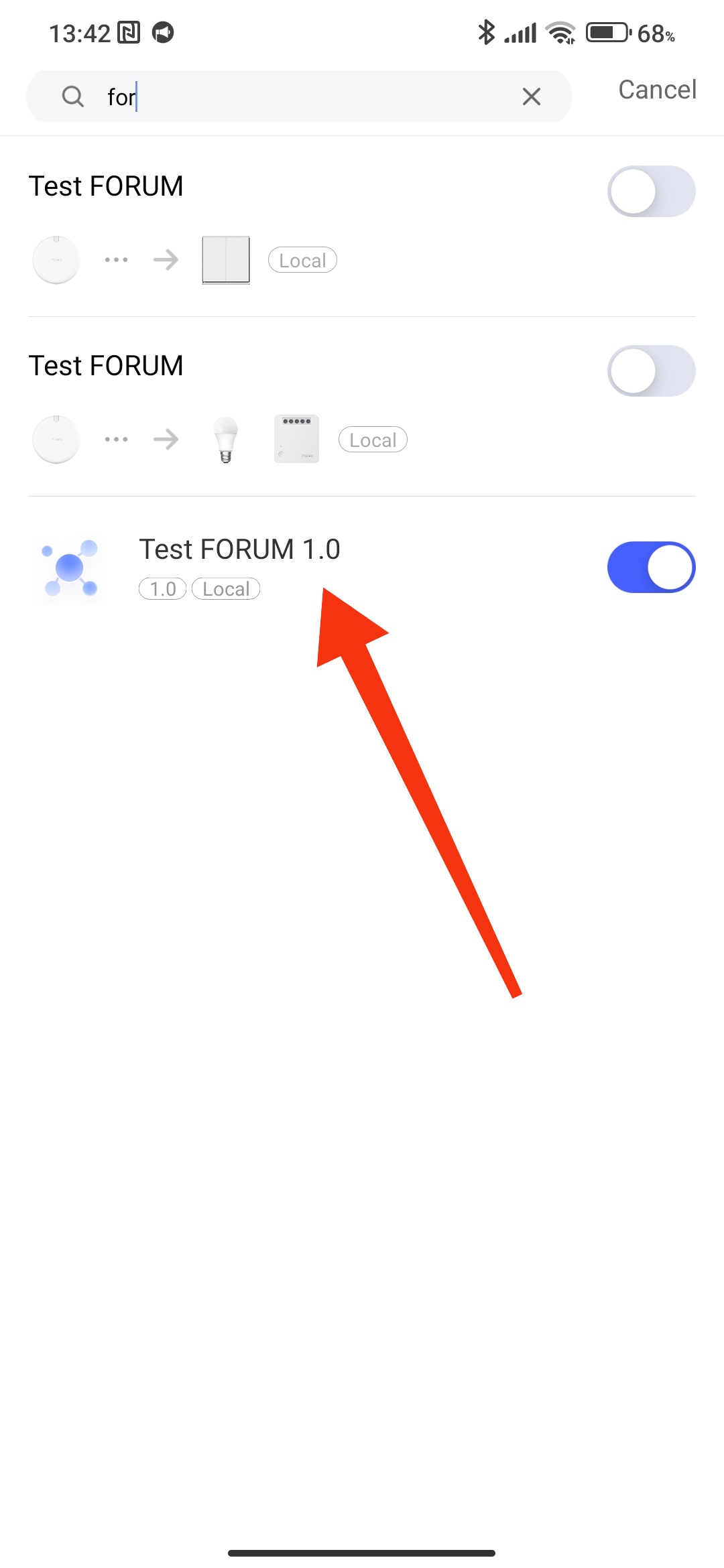
Hello, my recommendations, use automation 1.0 for your needs (tested by me, working version). Use in FP2 the option where the absence time is indicated (this is the condition with “°°” constant). Fig.
Hi
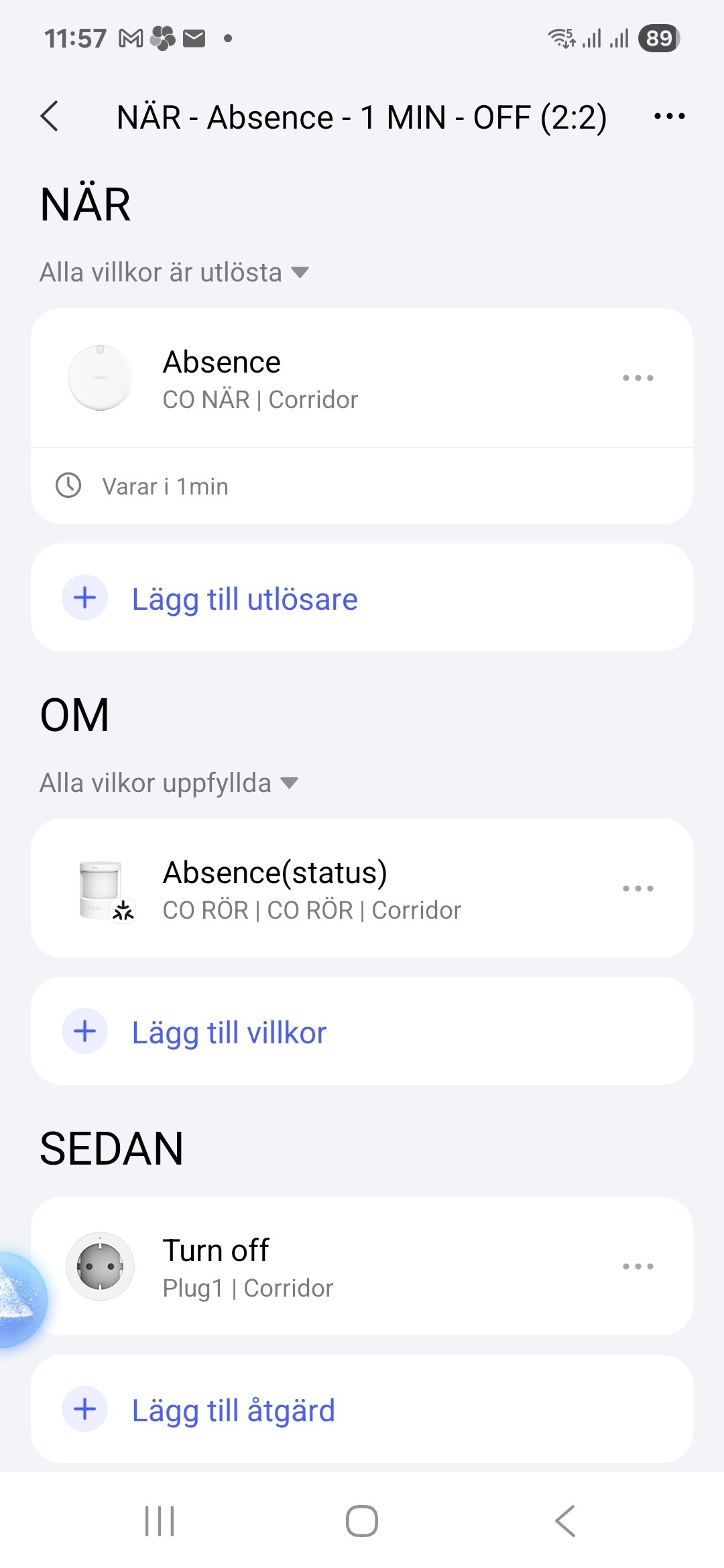
It didn’t worked, however I fund the solution who at least works with two sensors, I’m unsure if it is applicable if using more sensors.
The solution is making 2 automations working at the same time, that way it overview the status “Absence” on booth sensors separately and activate the countdown (1 min) on the sensor who registered “Absence” last.
This solution is not the best, it would obviously be better using only one automation to perform this action but after many hours trying I give upp.
Thanks for your assistance and during this problem solving I did learned a lot, 
I checked this option right away, but I want everything to be in one automation, so I didn’t suggest it to you. For information, to make automation 1.0, go to settings (lesson 1), toggle the switch to 2.0, make automation 1.0. It will be saved in 1.0. If you want a new one in 2.0, turn it on again. Automation 1.0 and 2.0 work in parallel.
My credo in a smart home is to have fewer duplicate automations, I also use part of 1.0. For example, I have more than 250 automations.
Thanks, I’ll try it