Dear Aqara Users,
In this guide, we will walk you through the detailed steps to connect your Aqara U400 to the Apple Home app and the Aqara Home ecosystem, including how to bind it to an Aqara hub.
We want this guide to be as helpful as possible. If you find any steps unclear or if you have questions that aren’t covered here, please leave a comment below. We are committed to assisting you and resolving any issues you may encounter. Your feedback is invaluable to us; it helps us understand real-world experiences and allows us to continuously improve our products for everyone.
Thank you for your support!
Before You Begin: Our Recommended Setup Order
For the most stable connection and the best user experience, we recommend following these steps in order:
- Initialize the Lock: Start with the lock in its factory default state.
- Step 1: Bind the lock to the Apple Home app first.
- Step 2: Bind the lock to the Aqara Home app via Bluetooth.
- Step 3: Finally, connect the lock to an Aqara Thread-enabled Matter Controller (such as the Hub M3) for full smart home integration.
Chapter One: Binding to Apple Home
Pre-Connection Checklist
Before you begin, please verify that your hardware and software meet the following requirements. This ensures the Matter-over-Thread connection works correctly.
1. Device & Software Requirements
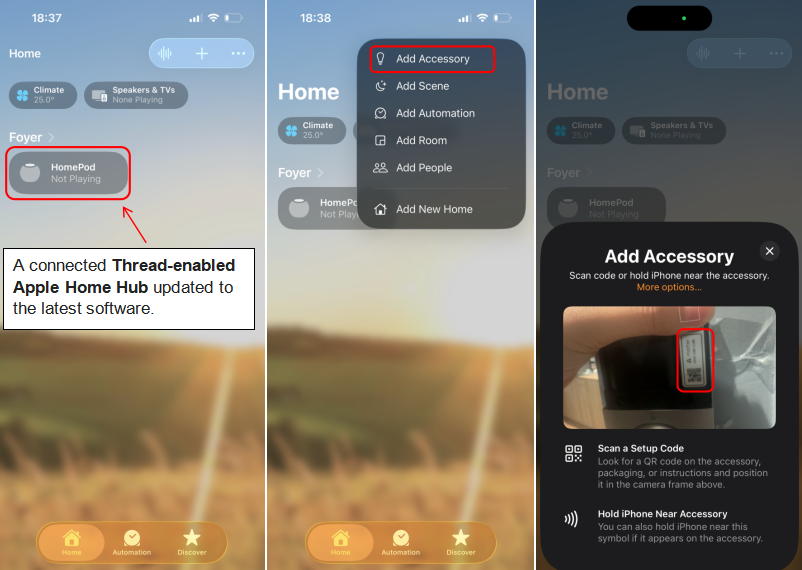
To use the U400 with Apple Home, you need a Thread-enabled Apple Home Hub updated to the latest software. Compatible hubs include:
- Apple HomePod (2nd generation)
- Apple HomePod mini
- Apple TV 4K (2nd generation)
- Apple TV 4K (3rd generation, Wi-Fi + Ethernet)
Supported Apple Devices:
- iPhone 11 and later, excluding iPhone SE (2nd and 3rd generation) and iPhone 16e, running iOS 18.5 or later.
- Apple Watch Series 6 and later, excluding Apple Watch SE, running watchOS 11.5 or later.
- For the smoothest performance, we highly recommend updating to iOS 26 and watchOS 26.
2. Networking & Environment
- Enable IPv6: Ensure IPv6 is enabled on your Wi-Fi router (this is required for Matter).
- Same Network: Your iPhone and Apple Home Hub must be on the same Wi-Fi network.
- Bluetooth: Keep Bluetooth ON on your phone during the entire process.
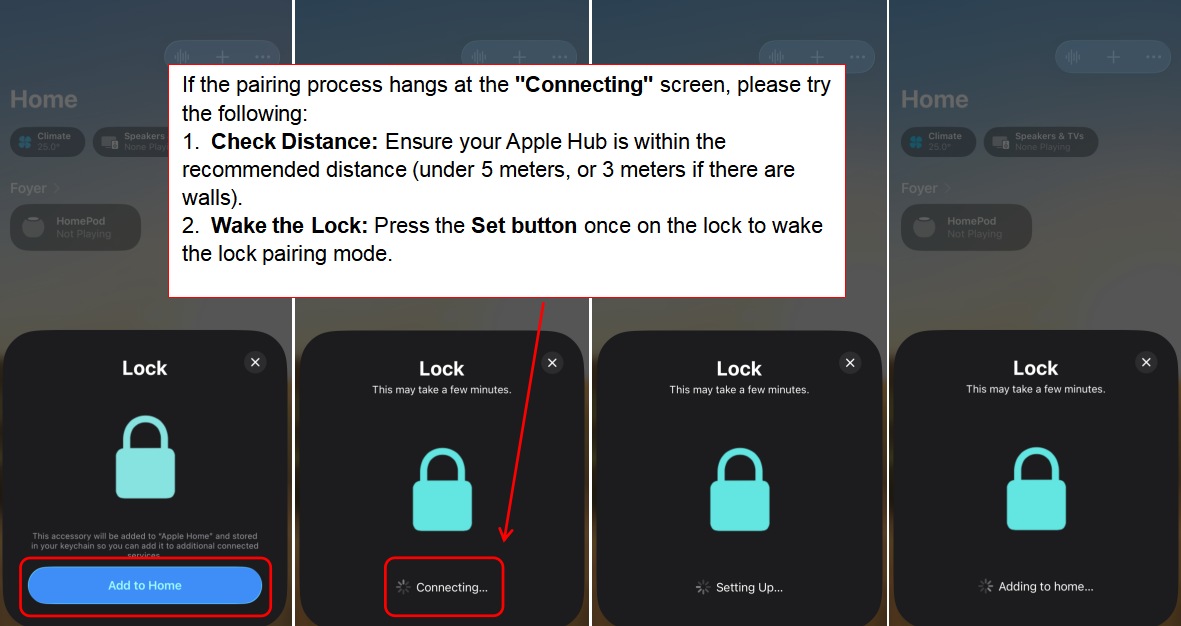
- Proximity: Stay close! Keep the lock within 5 meters of your Thread Border Router (HomePod/Apple TV). If there are walls in between, try to stay within 3 meters.
- Home Setup: Ensure your Apple Home Hub is already set up and visible in the Apple Home app.
The Step-by-Step Binding Procedure
We recommend setting up Apple Home first. Once this is complete, you can easily add the lock to the Aqara Home app via Bluetooth (using the Aqara MagicPair code) to access advanced settings.
- Reset the Lock: Press and hold the Reset button on the lock for 5 seconds.
- Enter Pairing Mode: Press the Set button once to wake the lock and activate pairing mode.
- Add to Apple Home: Open the Apple Home app, tap the “+” icon, select “Add Accessory,” and scan the Matter Pairing Code located on the lock.
Troubleshooting: What to do if pairing fails
Don’t worry if it doesn’t connect on the first try. Here is how to get back on track:
- Check device compatibility and software versions:: Please verify that your Thread-enabled Apple Home hub, iPhone, and Apple Watch are compatible and running the latest supported software.
- Retry the Basics: Repeat the steps above one more time. Small signal interruptions can sometimes cause a timeout.
- The “Deep Reset” Method: 1. Reset the U400 lock. 2. Reset your Apple Home Hub. 3. Re-add the Hub to your “Home” in the app. 4. Wait until the HomePod status shows “Not Playing” in the Home app (this indicates it is fully booted and idle). 5. Attempt the binding process again.
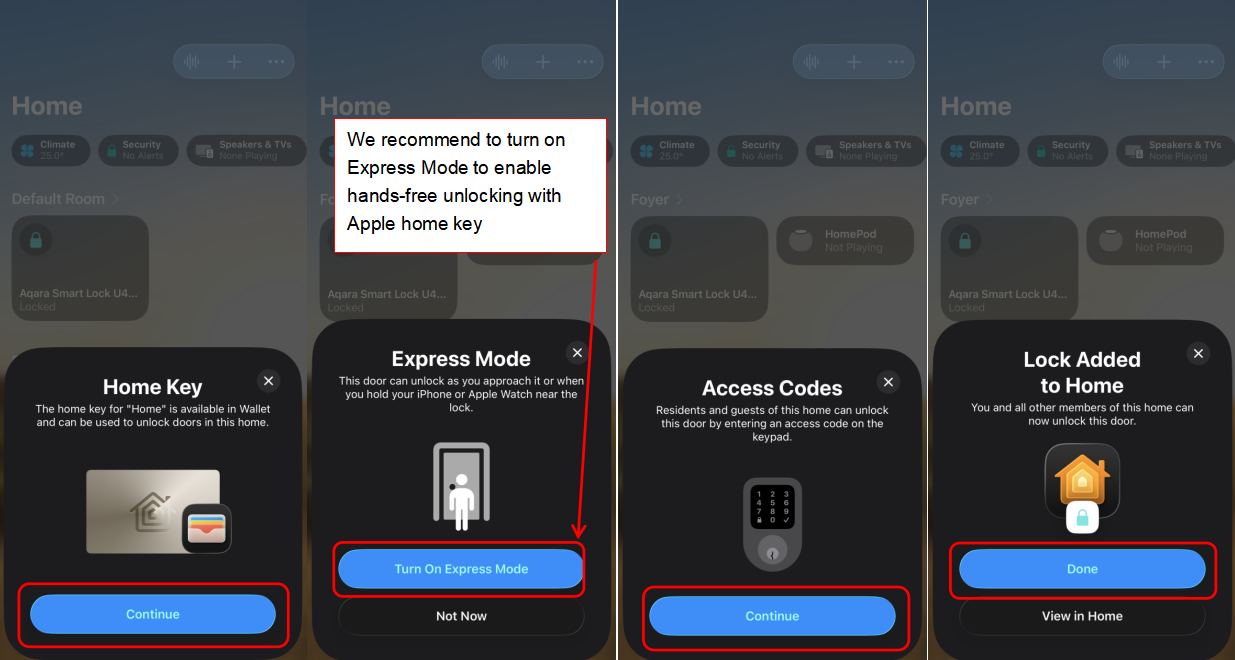
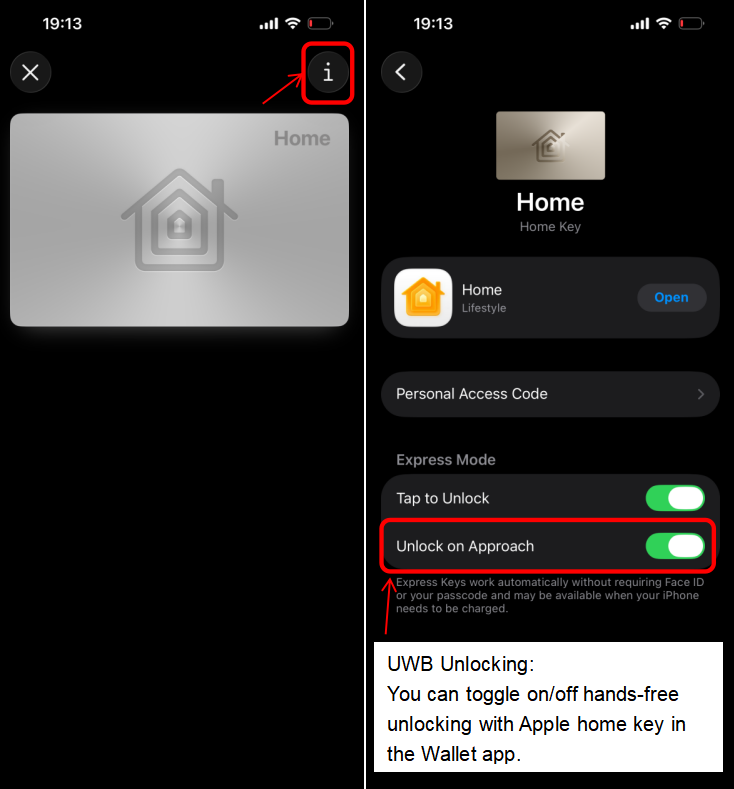
Visual Guide: Binding to Apple Home
Chapter Two: Binding to the Aqara Home App & Add an Aqara Hub
Once your U400 is connected to Apple Home, the next step is to bind it to the Aqara Home app. This unlocks advanced configuration options and allows for Matter-over-Thread integration via an Aqara Hub.
Note: An Aqara Thread-enable Matter Hub is required for Matter-over-Thread integration
Pre-Connection Checklist
1. Device & Software Requirements
As of late 2025, the following Aqara hubs support this integration:
- Aqara Hub M3
- Aqara Hub M100
- Aqara Hub M200
- Aqara Doorbell Camera Hub G410
- Aqara Camera Hub G5 Pro
More devices will be supported in 2026. Stay tuned.
2. Networking & Environment
- Bluetooth: Must be enabled on your phone.
- Network: Your phone and Hub must be on the same Wi-Fi network.
- Proximity: Ensure the lock is within 5 meters of the Hub M3 (or 3 meters if there are walls in between).
- Hub Readiness: Your Aqara Hub should already be added to your Aqara Home app and updated to the latest firmware.
- Region Check: Ensure your Aqara account region is set to a supported location (US, Canada, Singapore, Australia, or New Zealand).
- Path: Profile > Settings > Region.
The Step-by-Step Binding Procedure
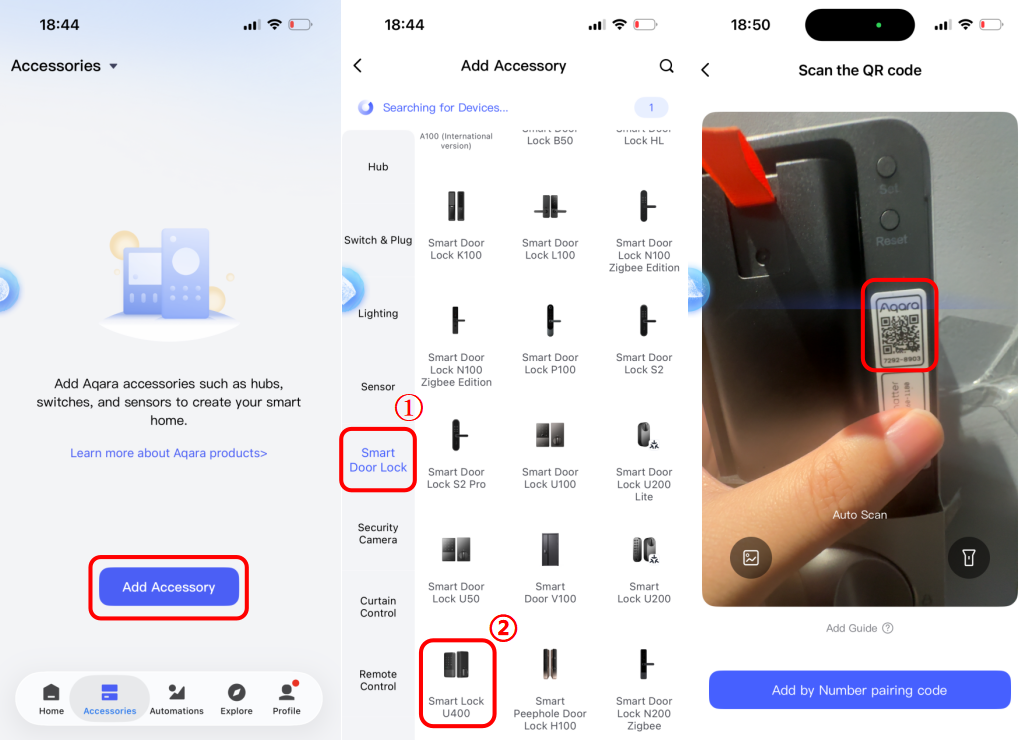
Step 1: Bind to Aqara Home via Bluetooth (No Aqara Hub required)
- Press the Set button once on the lock to enter pairing mode.
- Open the Aqara Home app, tap “Add Accessory,” and select Smart Lock U400.
- Scan the Aqara MagicPair code on the lock.
 Pro-Tip: Use your finger to cover the Matter Pairing Code while scanning to ensure the app reads the correct code.
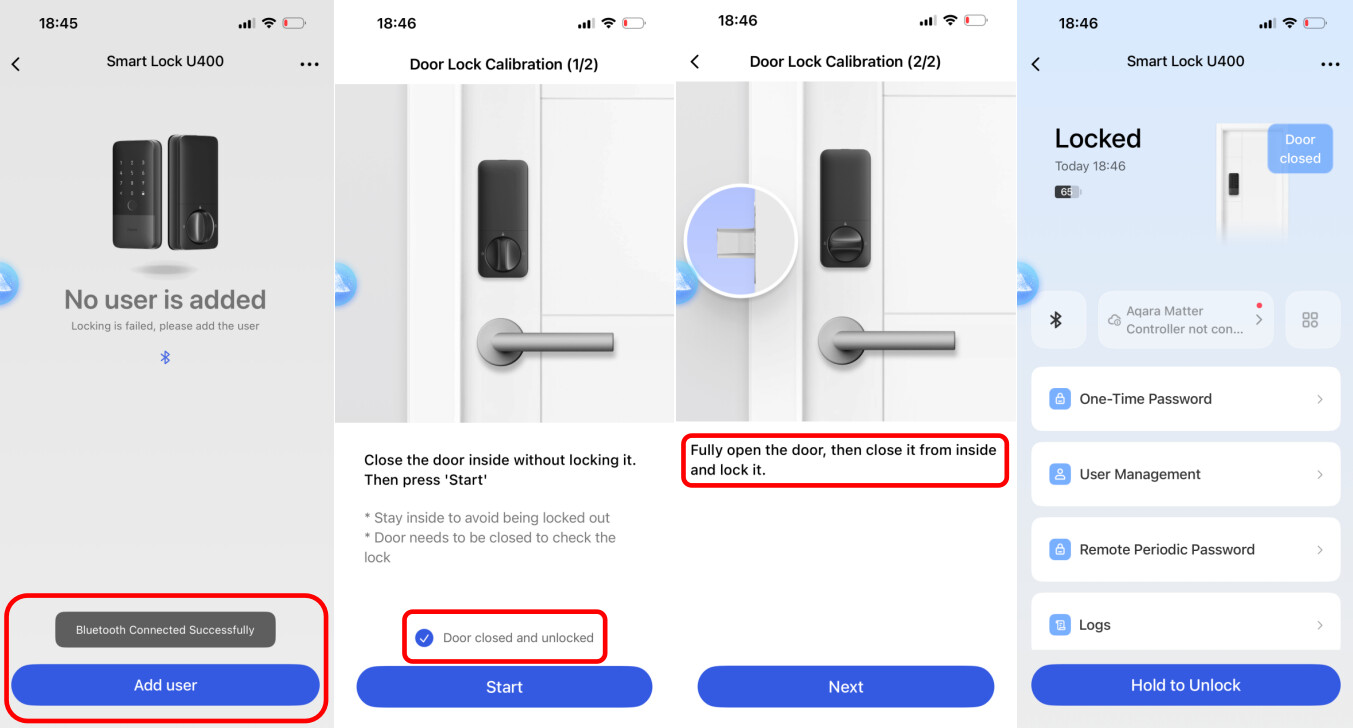
- Follow the on-screen prompts to complete the Bluetooth setup.
Visual Guide: Binding to Aqara Home via Bluetooth
Step 2: Connect to the Aqara Hub (Matter Integration)
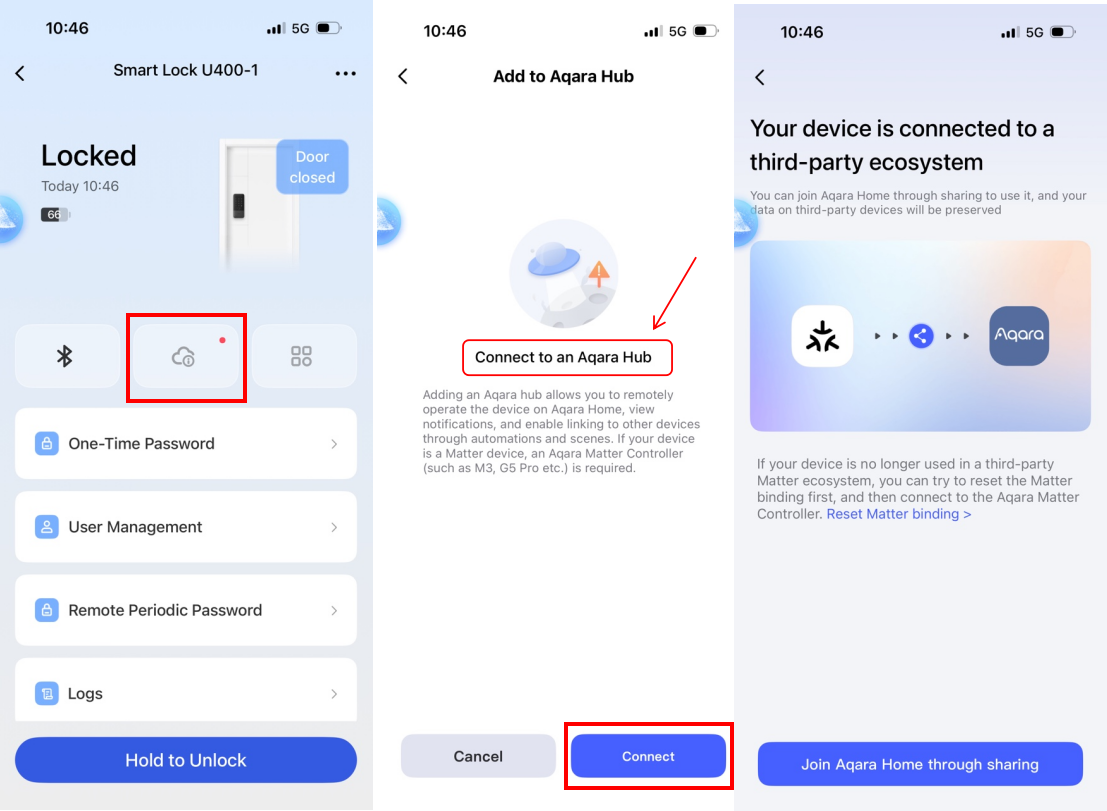
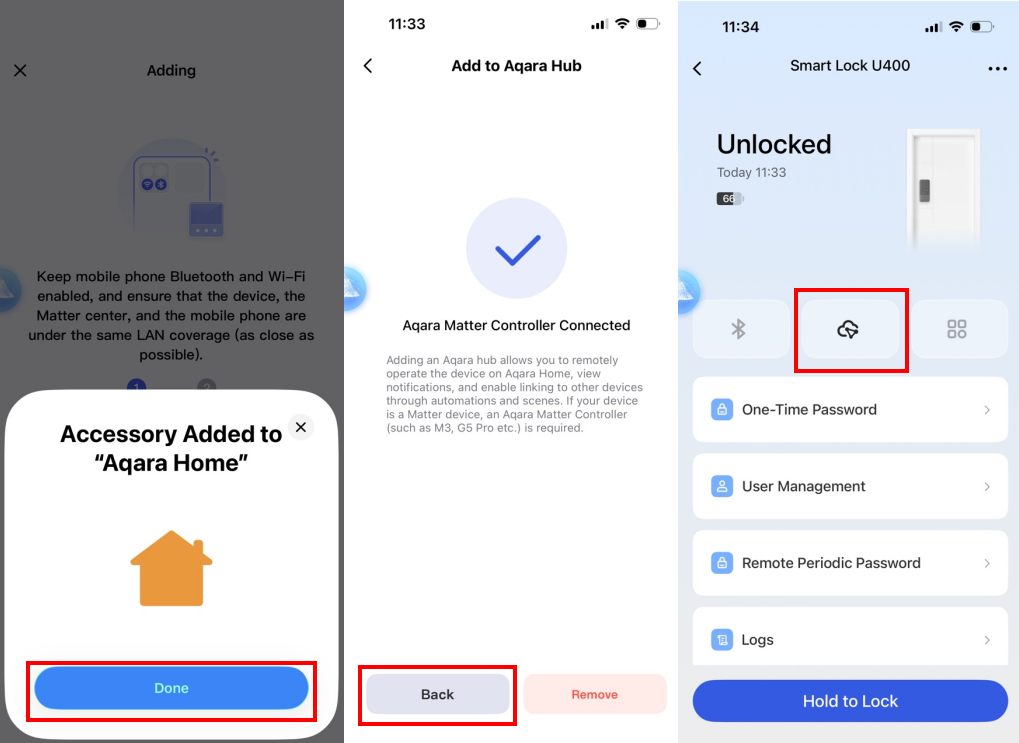
- In the Aqara Home app, open the U400 device page and tap the Cloud icon.
- Tap “Connect” and select “Join Aqara Home through sharing.”
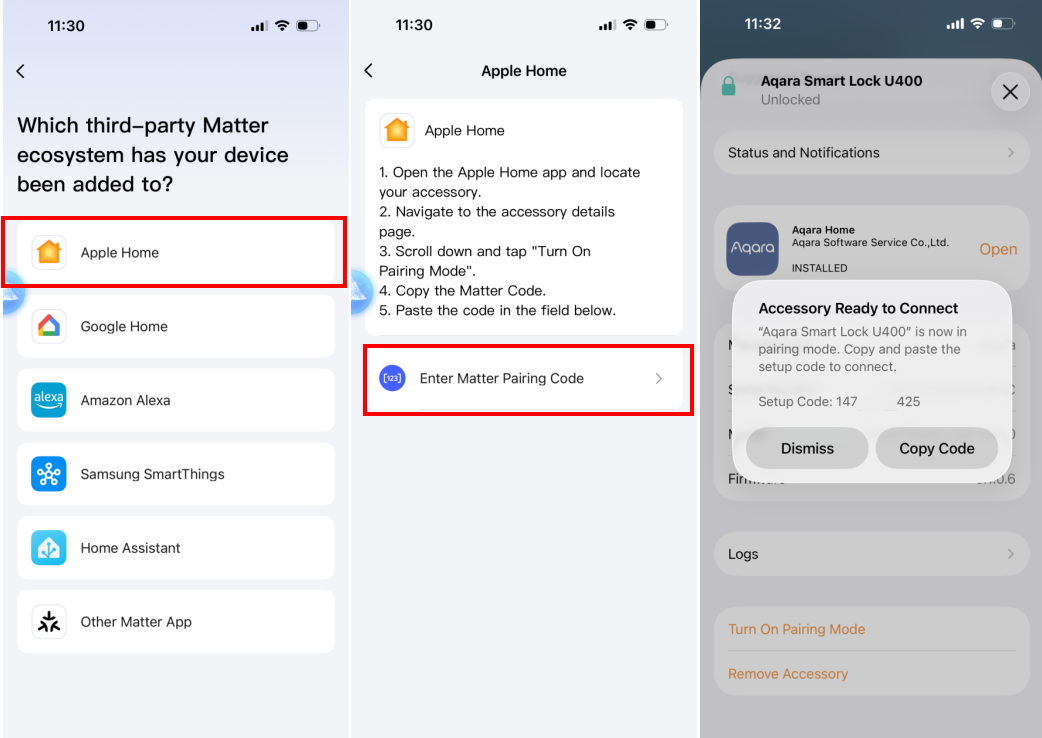
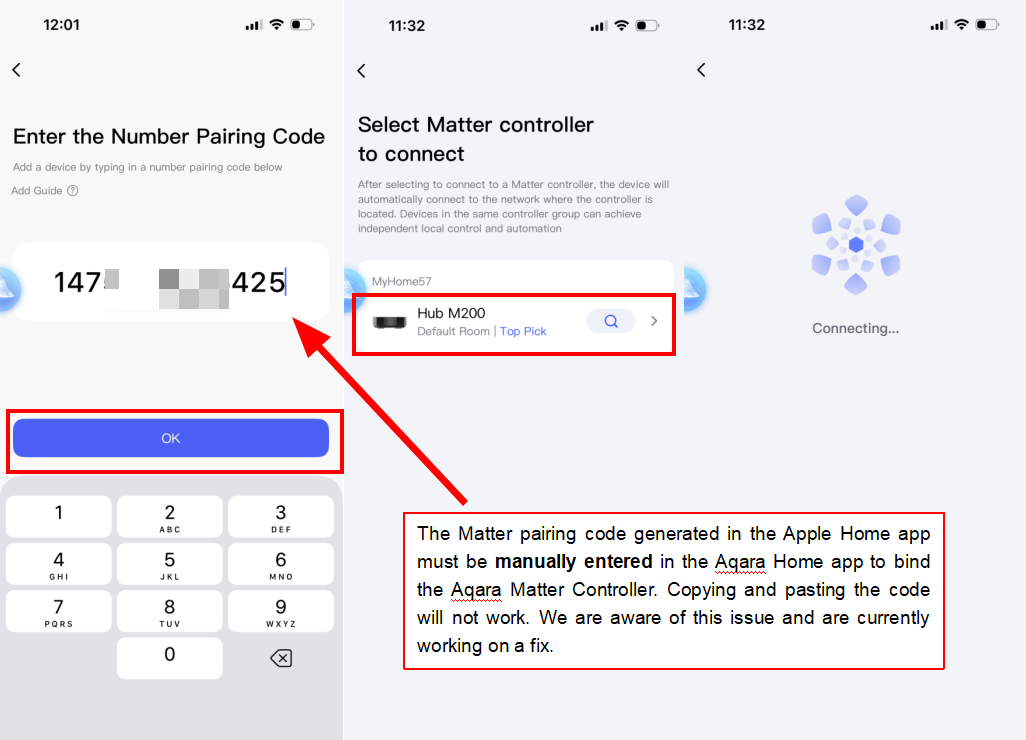
- Select “Apple Home,” then tap “Enter Matter Pairing Code.”
- Switch to the Apple Home app: Go to the U400 settings and tap “Turn On Pairing Mode” to generate a code.
- Manual Entry (Important): Switch back to the Aqara Home app and manually type in the code generated by Apple Home.
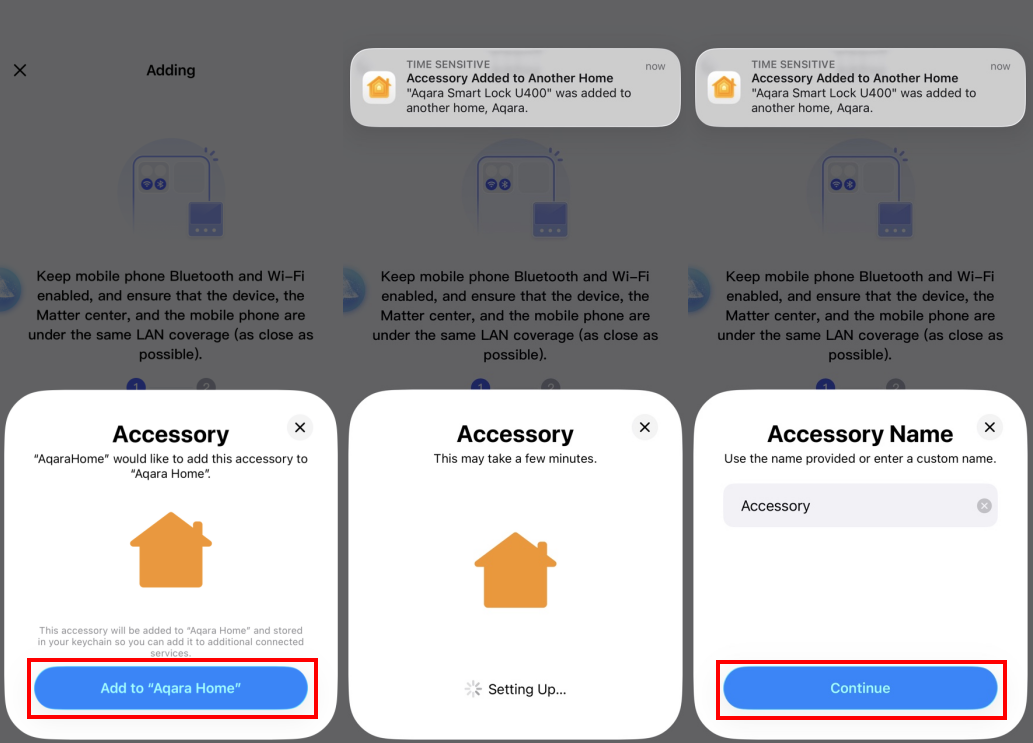
- Press the Set button once on the lock, select your bound Aqara Hub, and follow the final prompts to complete the binding.
Note on Pairing Codes: Currently, you must manually type the Matter pairing code into the Aqara Home app. The “Copy and Paste” function is not supported for this specific step at this time. We are working on a fix to make this easier in a future update!
Visual Guide: Binding Your Aqara Hub
Remote Features & Automations
After everything is set up, you’ll be able to remotely control the Smart Lock U400 and create automations that suit your personal preferences.
we currently support the following remote features, please check:
- Remote Periodic Password
- Locking/Unlocking
- Check Lock status
- Check Battery level
- Automations
- Set Linked Devices
PS: I’m actively working on more onboarding guides and will continue updating them step by step. Thanks for bearing with me.