Lesson 1 Setting up the security system APP (adding a card with a security panel) .
Good afternoon.
/I want to emphasize that I make a large number of screenshots as an introductory material for users who have not decided to purchase this security system, and also as a visual guide for users./
Let’s start our lesson with the security control panel.
Fig. 1
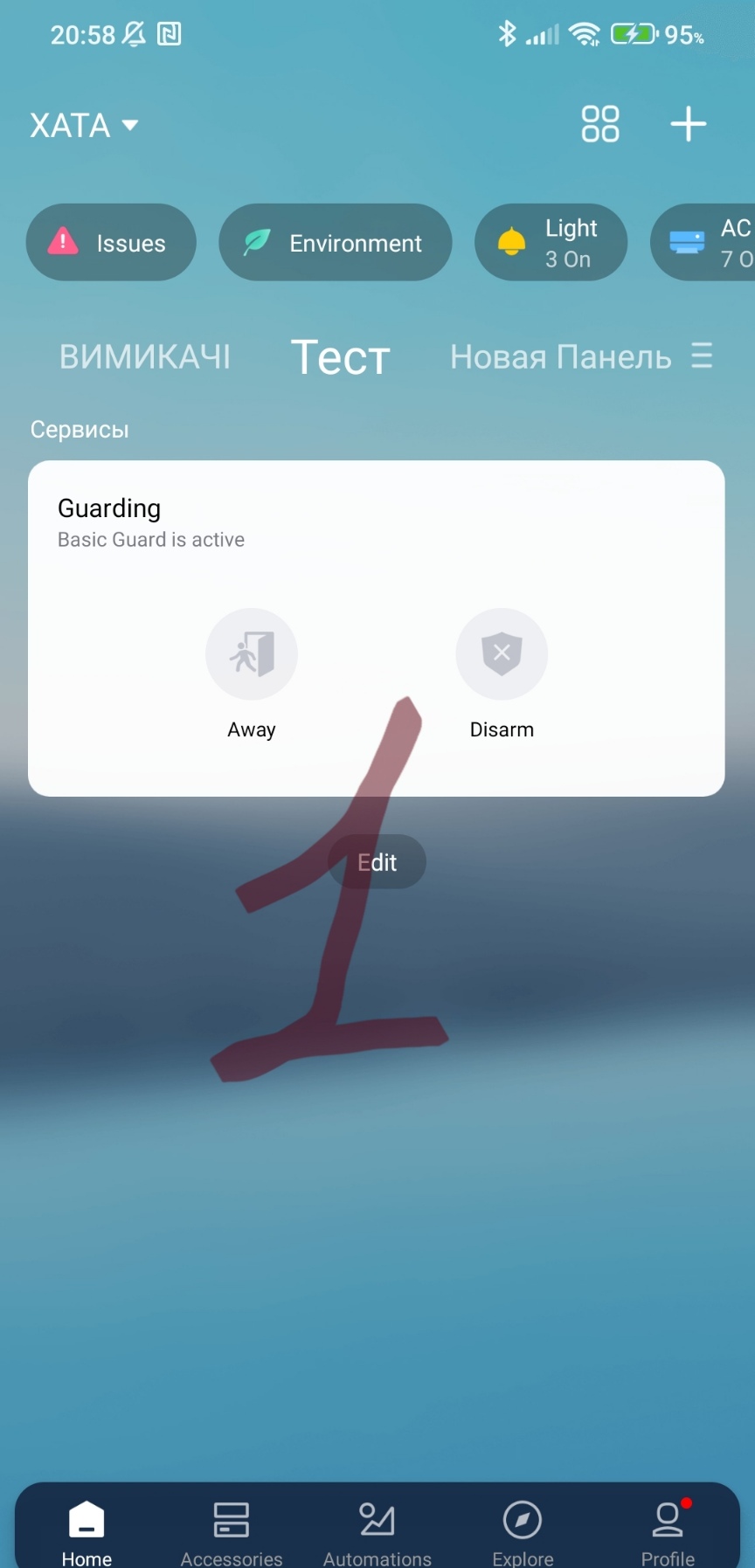
If you click on the control panel with a mouse, we will get into the settings.
Fig. 2
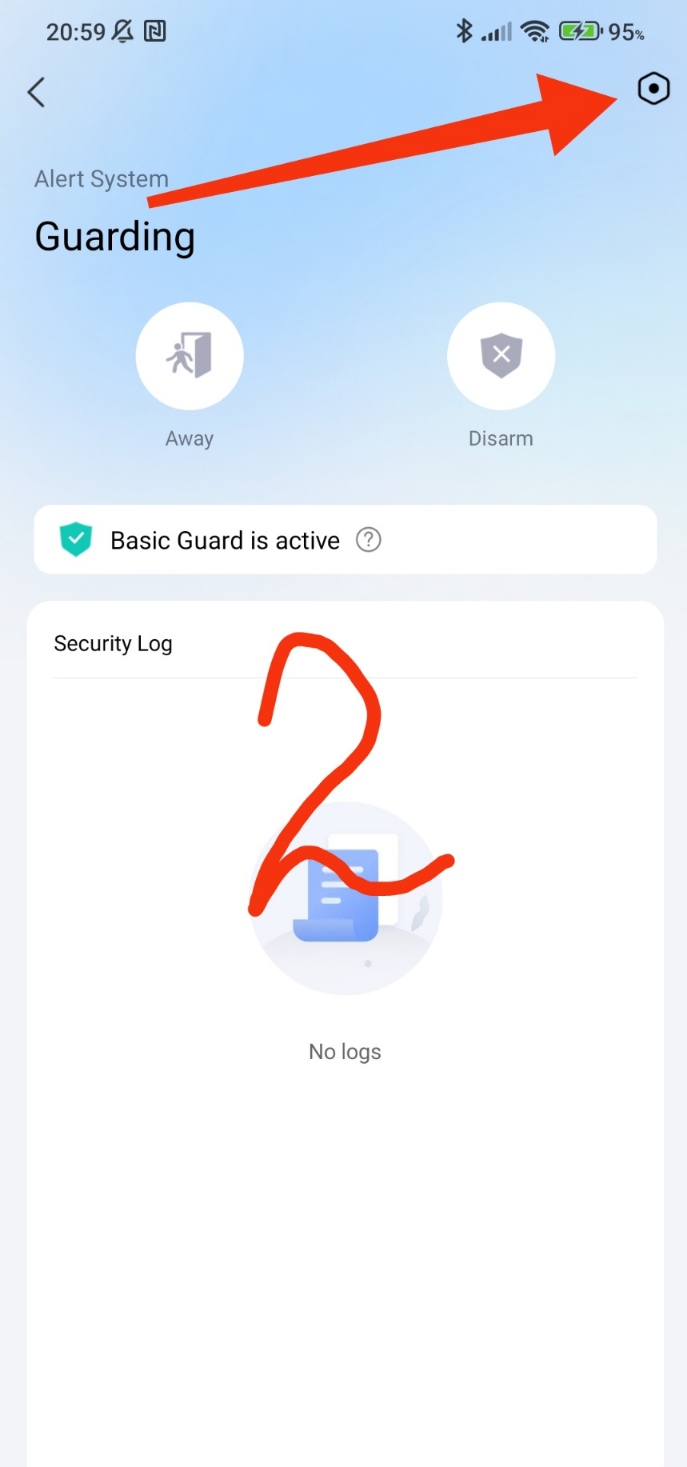
There are four settings options.
Basic - 24x7 alarm about the state of the house, notification options are set by the user.
Is at home (came home) - actions and alarms when the user is (came) home. Settings options are also set by the user.
Away home (outside the house) - actions and alarms when the user is not at home (the house is under guard).
Night mode (sleep) - actions and alarms during the night period. Settings options are also set by the user.
Please note - if no option is selected in a mode, then this mode is not highlighted in the quick panel. Also, the “basic” mode (24/7) is also not highlighted even if options are selected, this mode does not have an On/Off function.
Fig. 3
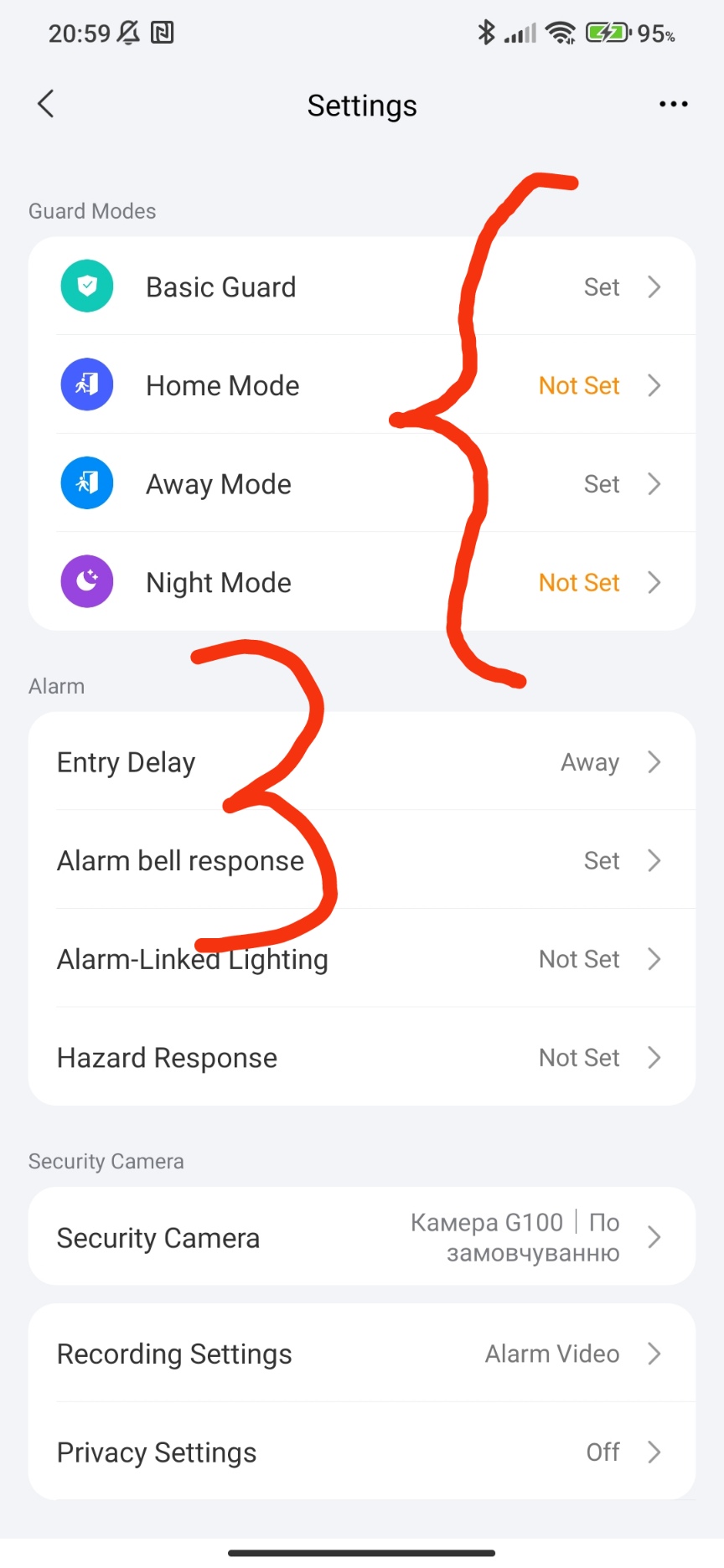
Next, I showed screenshots of each control mode. I made a long screenshot specifically so that you could see that all devices that can be used in a certain security mode are opened by default. There are many sensors in my house (Fig. 4a), so there are so many devices.
Fig. 4,5,6,7
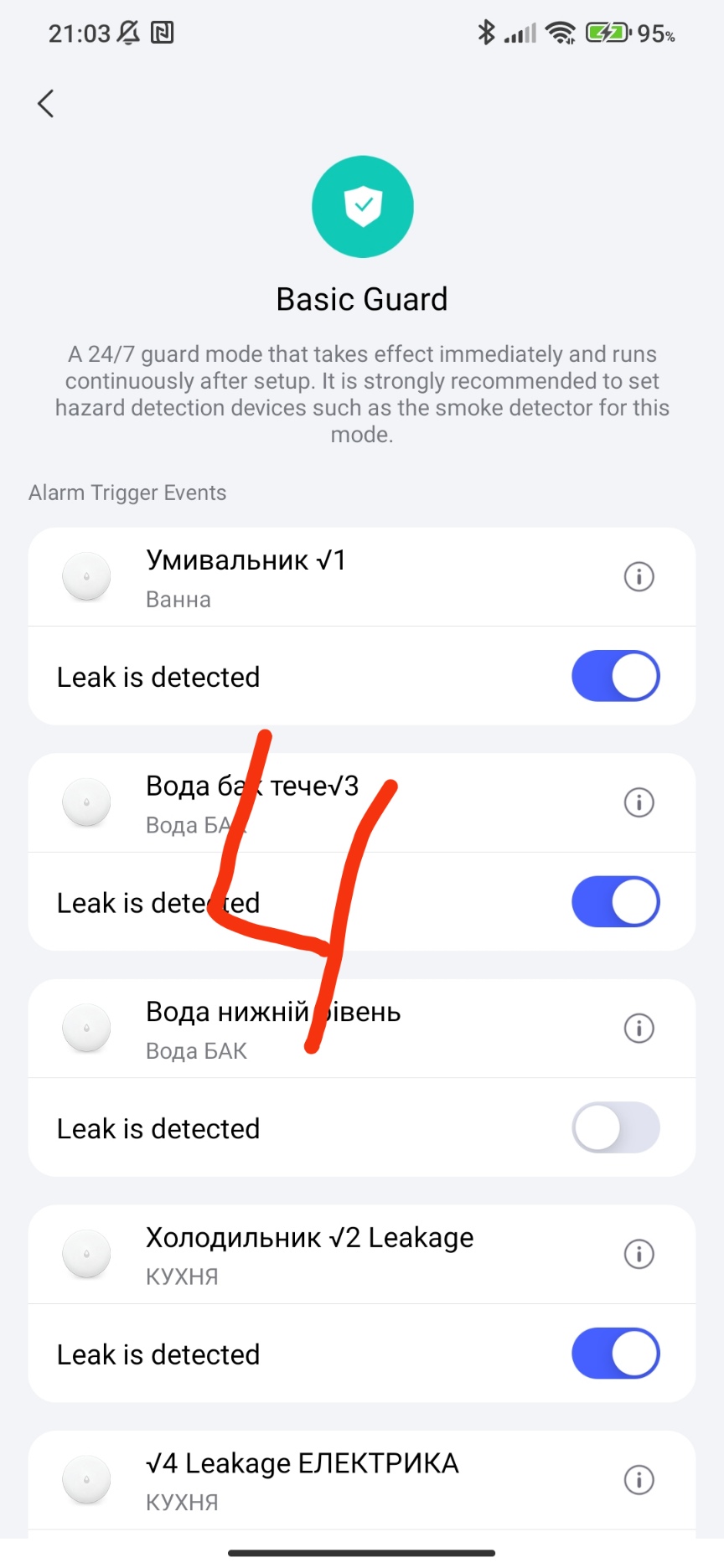

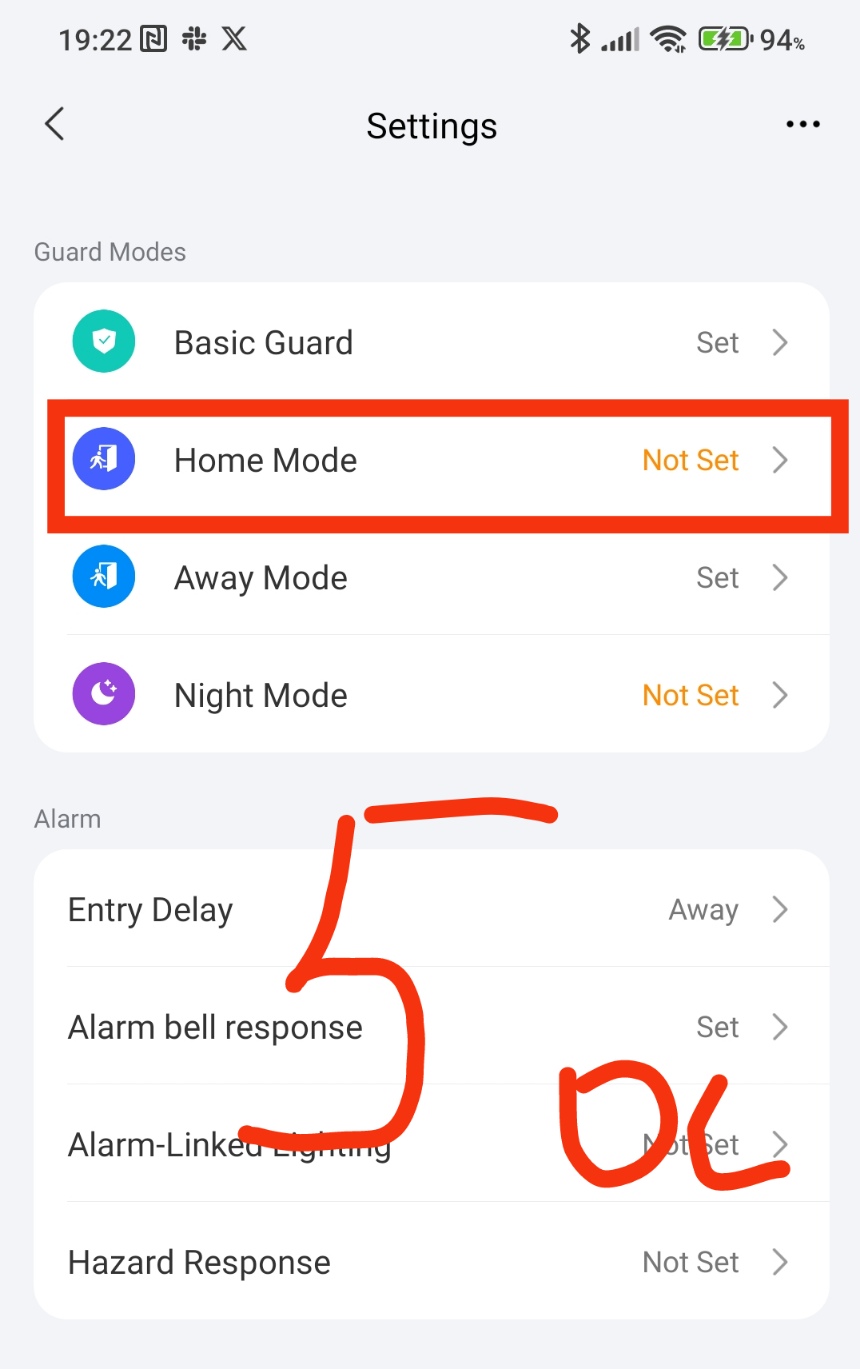
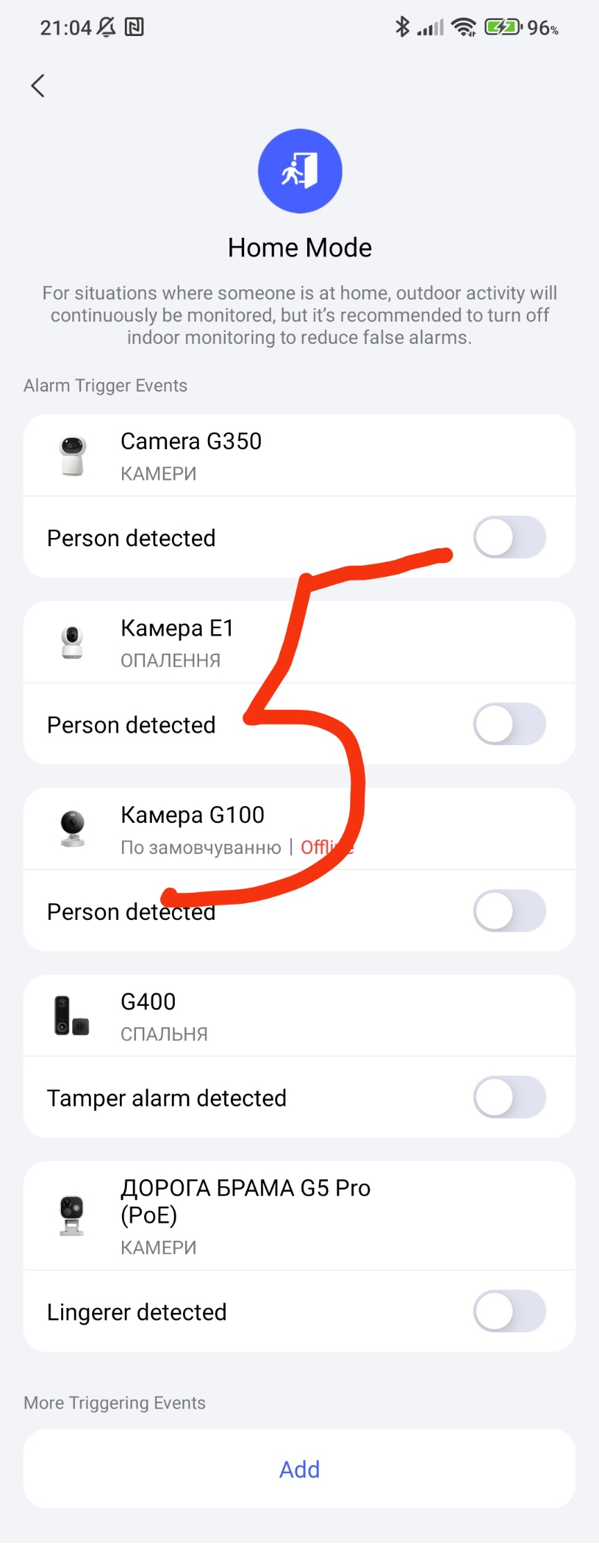
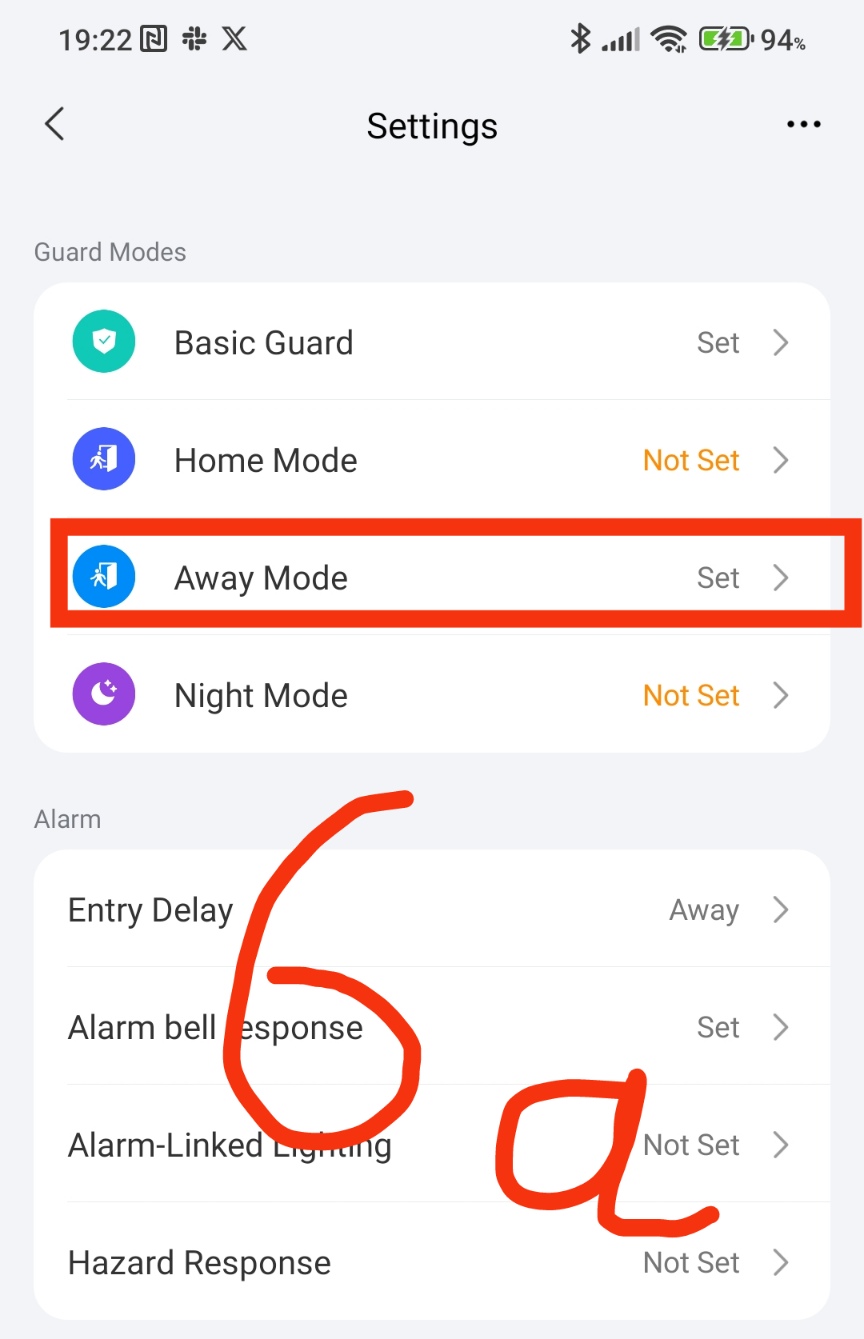

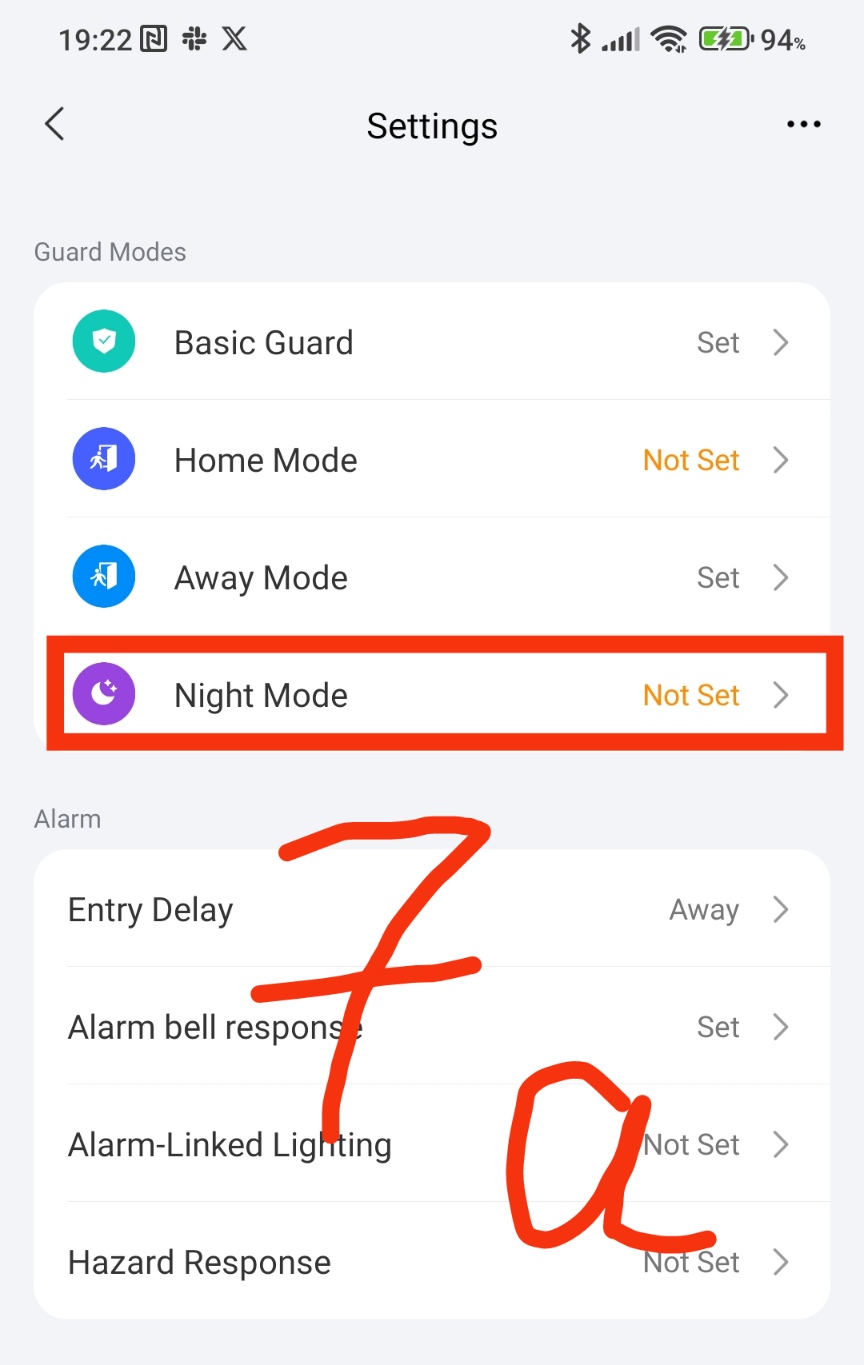

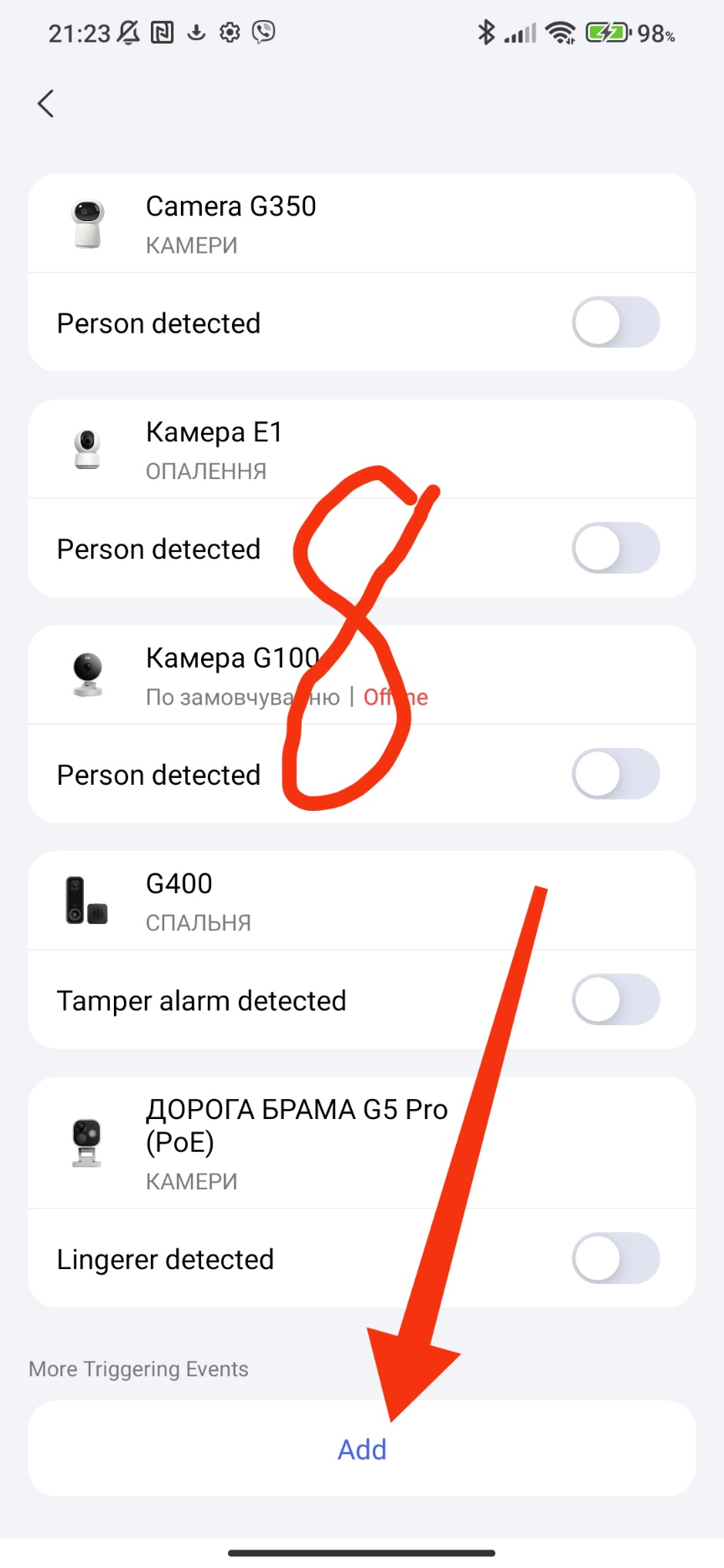
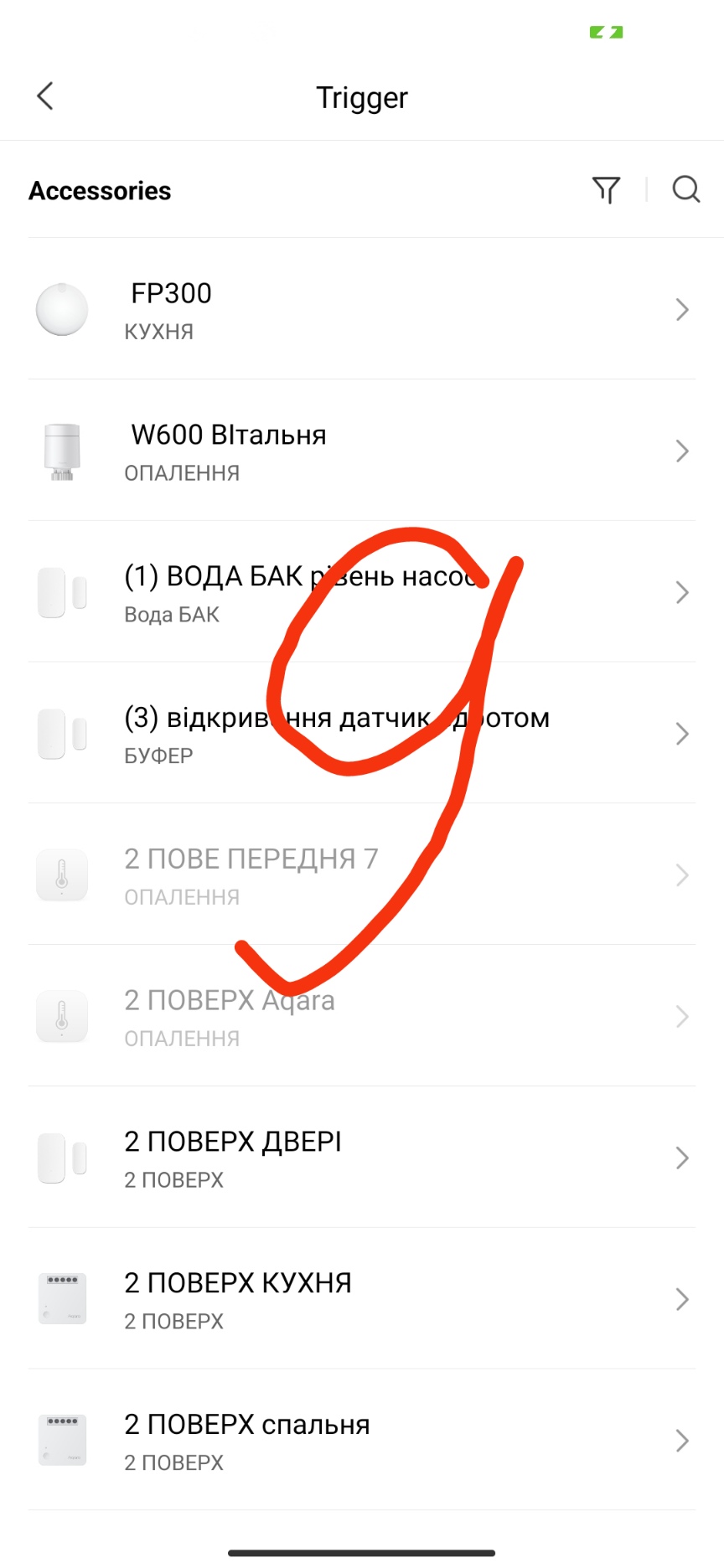
At the end of each setting, there is an opportunity to add a device that is not there by default.
Fig. 8,9
This concludes this lesson 2.
To be continued later.
Lesson 3 Setting up the APP security system (alarms)