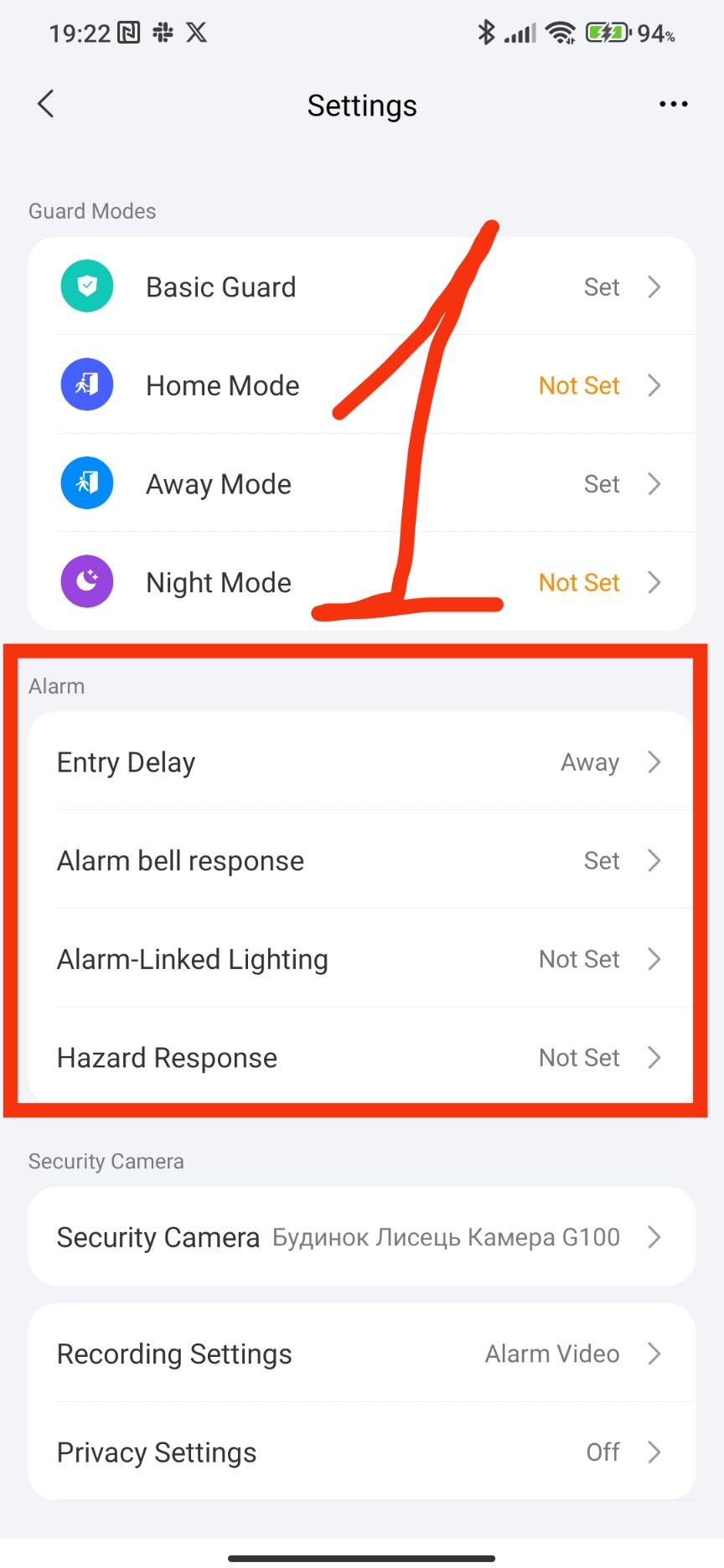
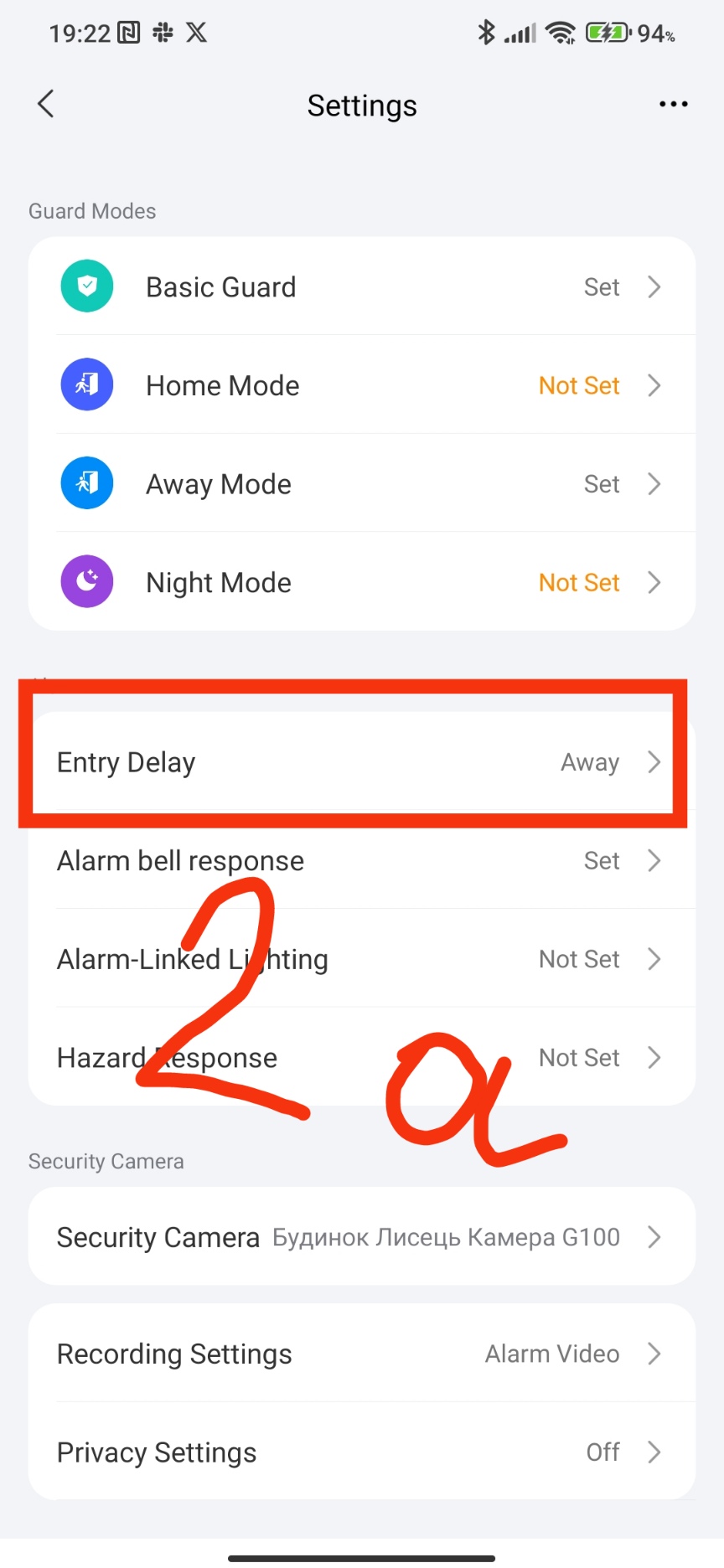
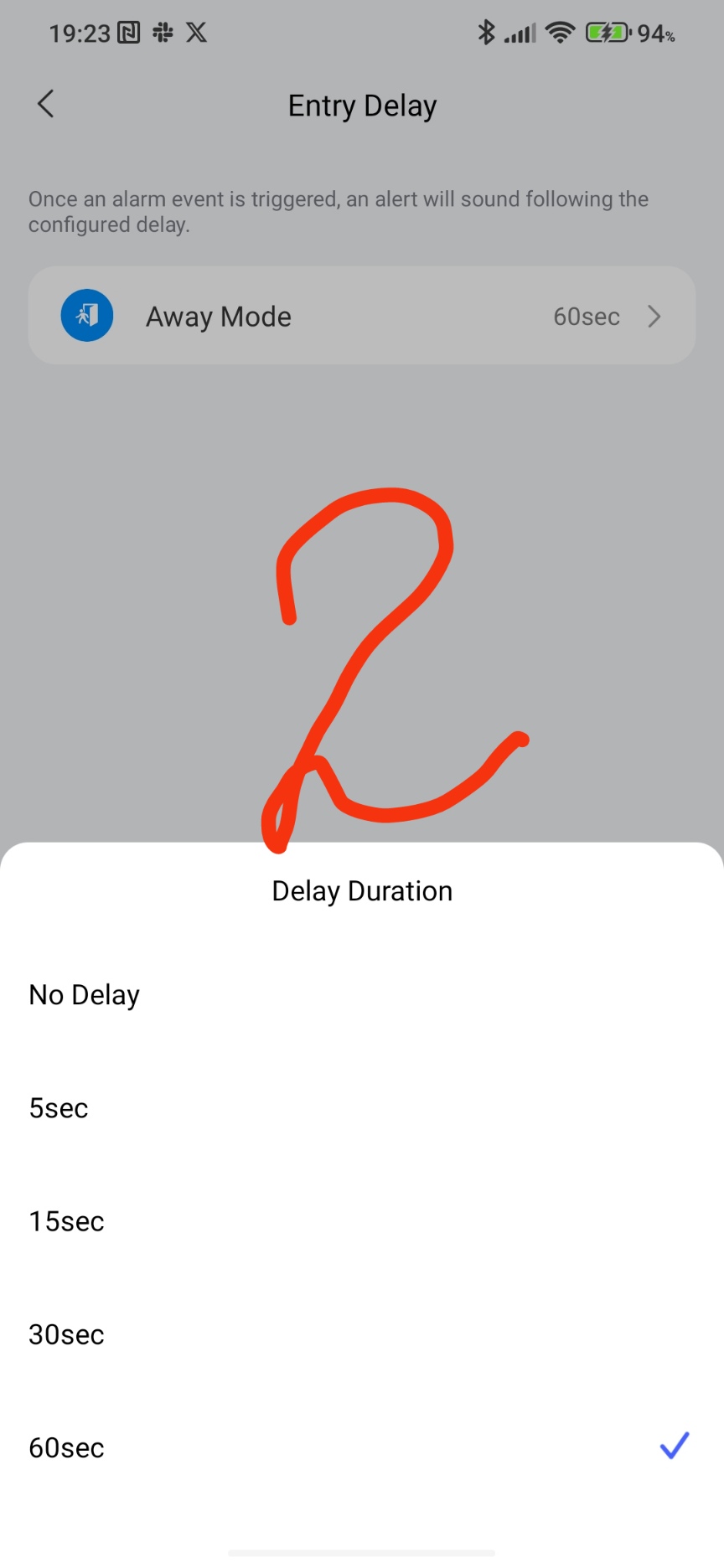
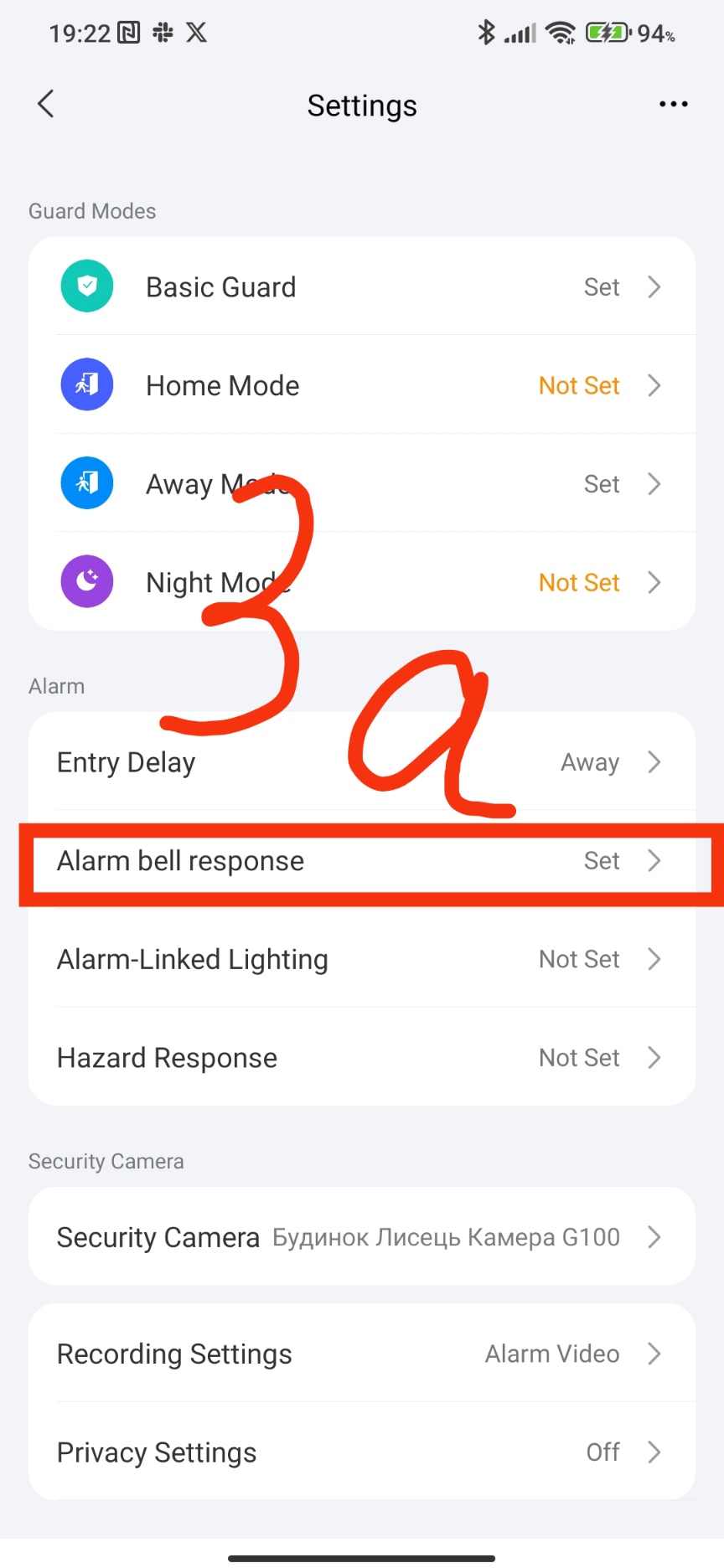
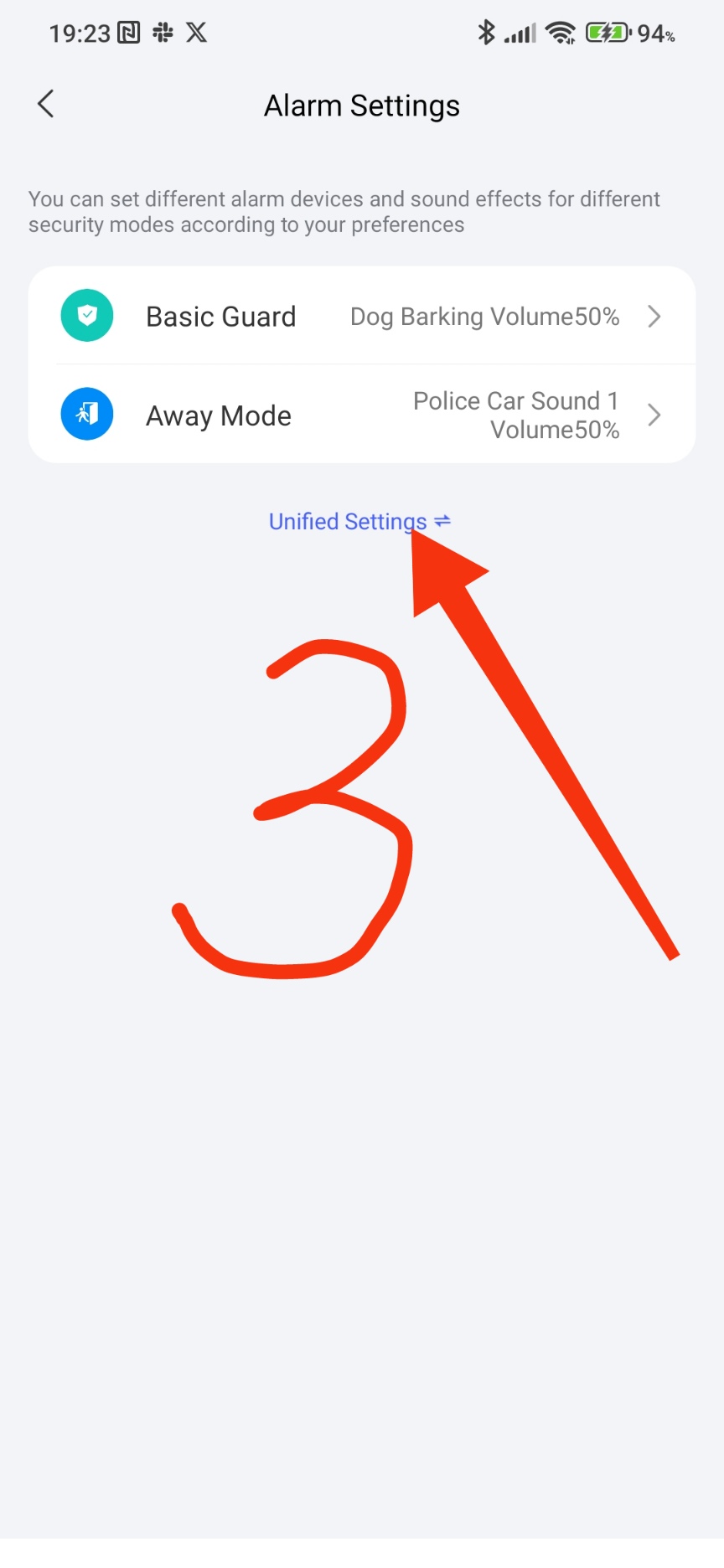
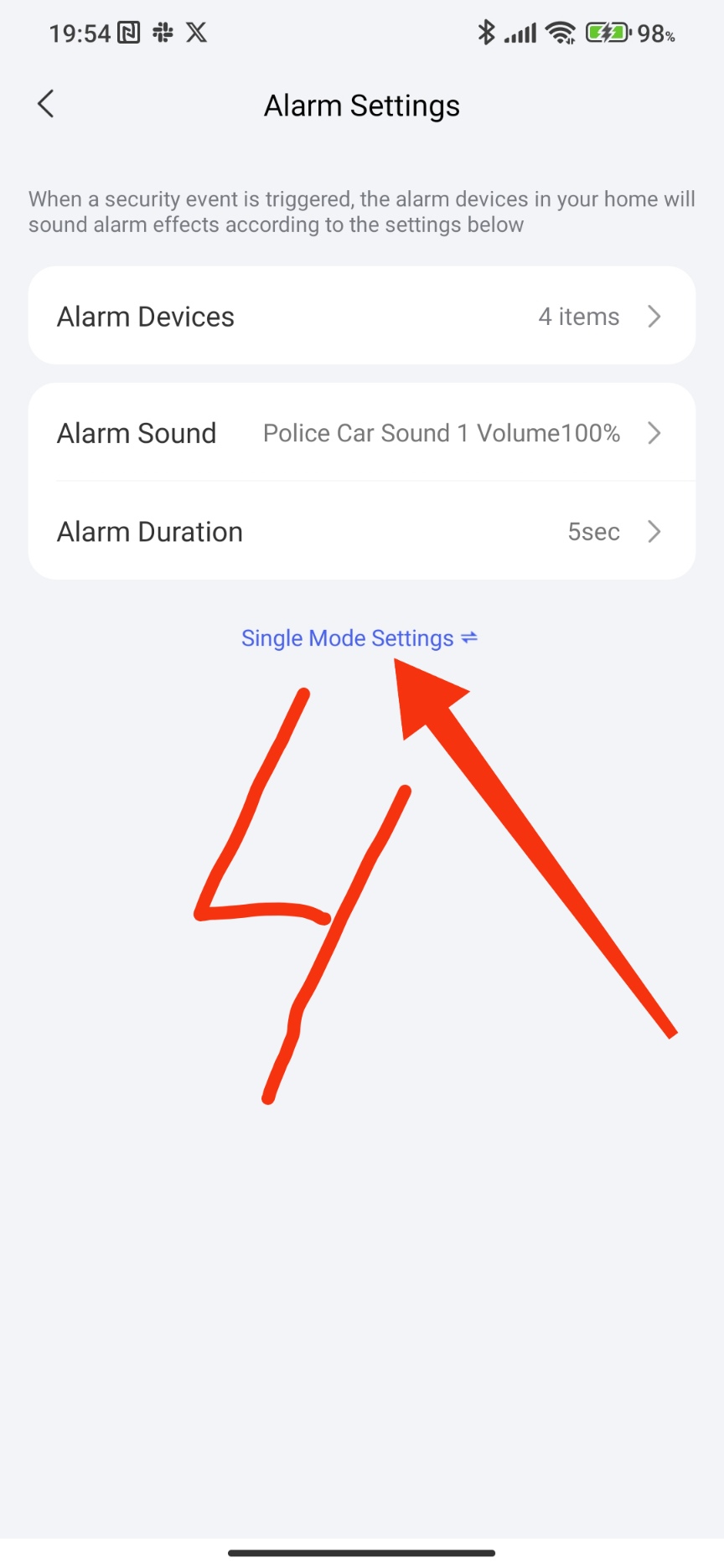
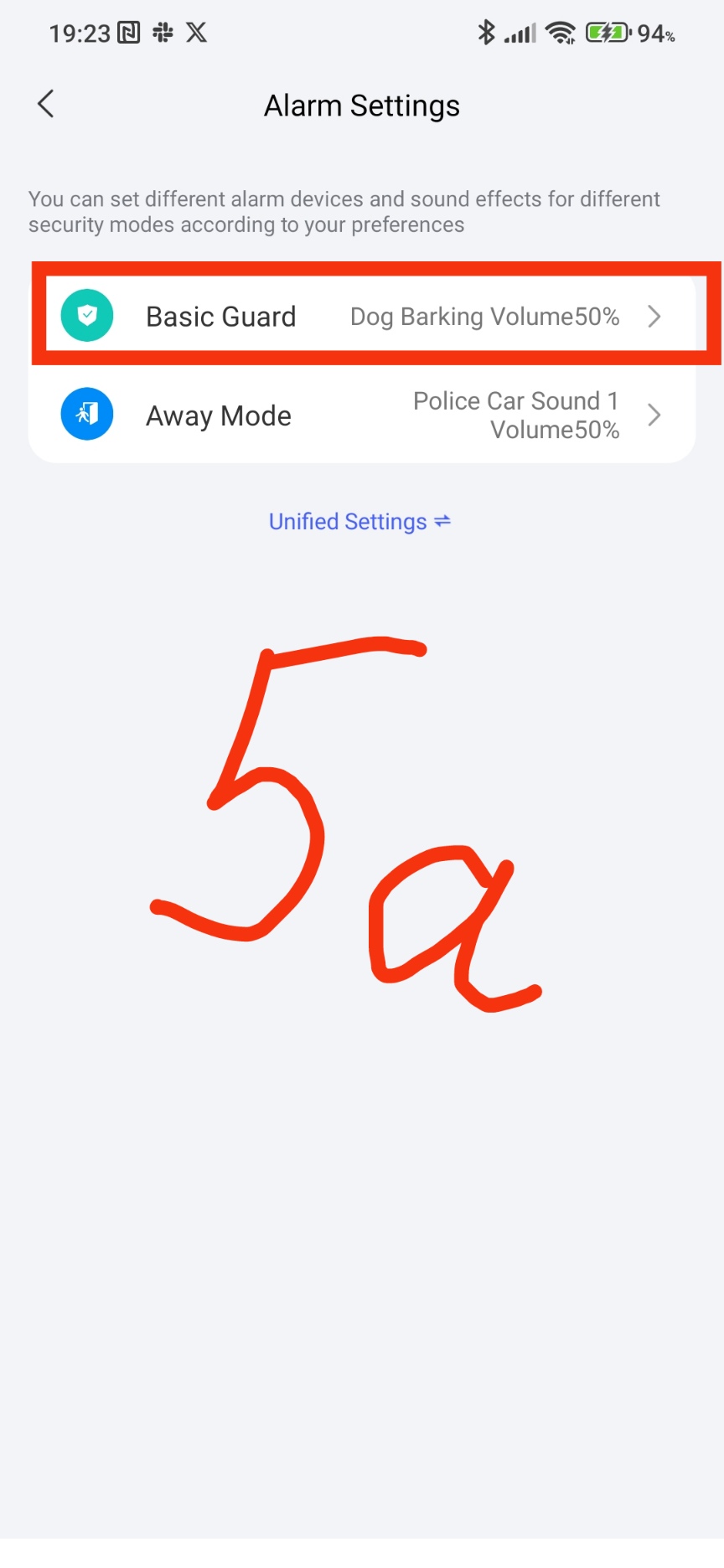
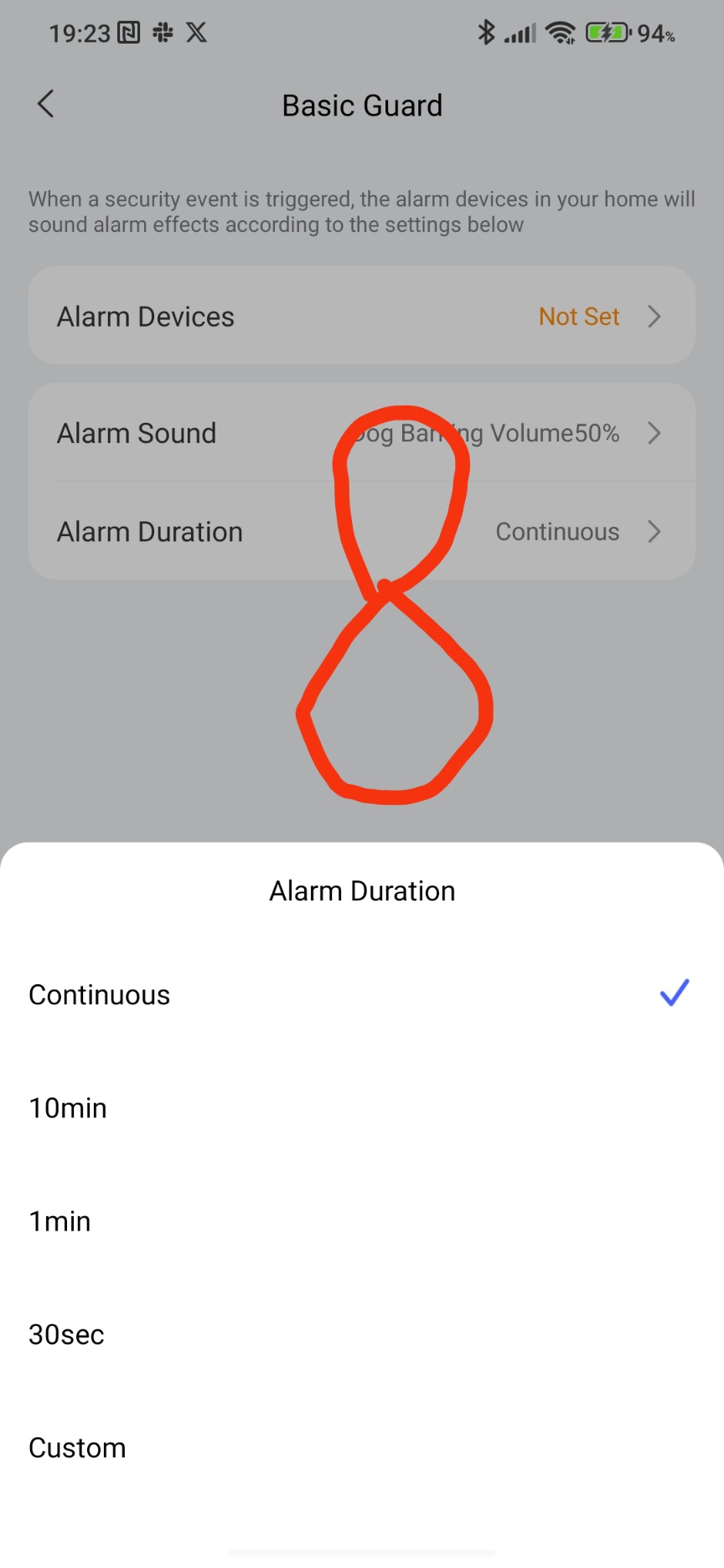
The “alarm response” section. This is an interesting section because it hides settings for different types of security (lesson 2.). In order for the corresponding line to appear in this section (basic, at home, away from home, night), you need to set the corresponding triggers for the corresponding security from lesson 2 (in simple words, turn it on).
Fig.3
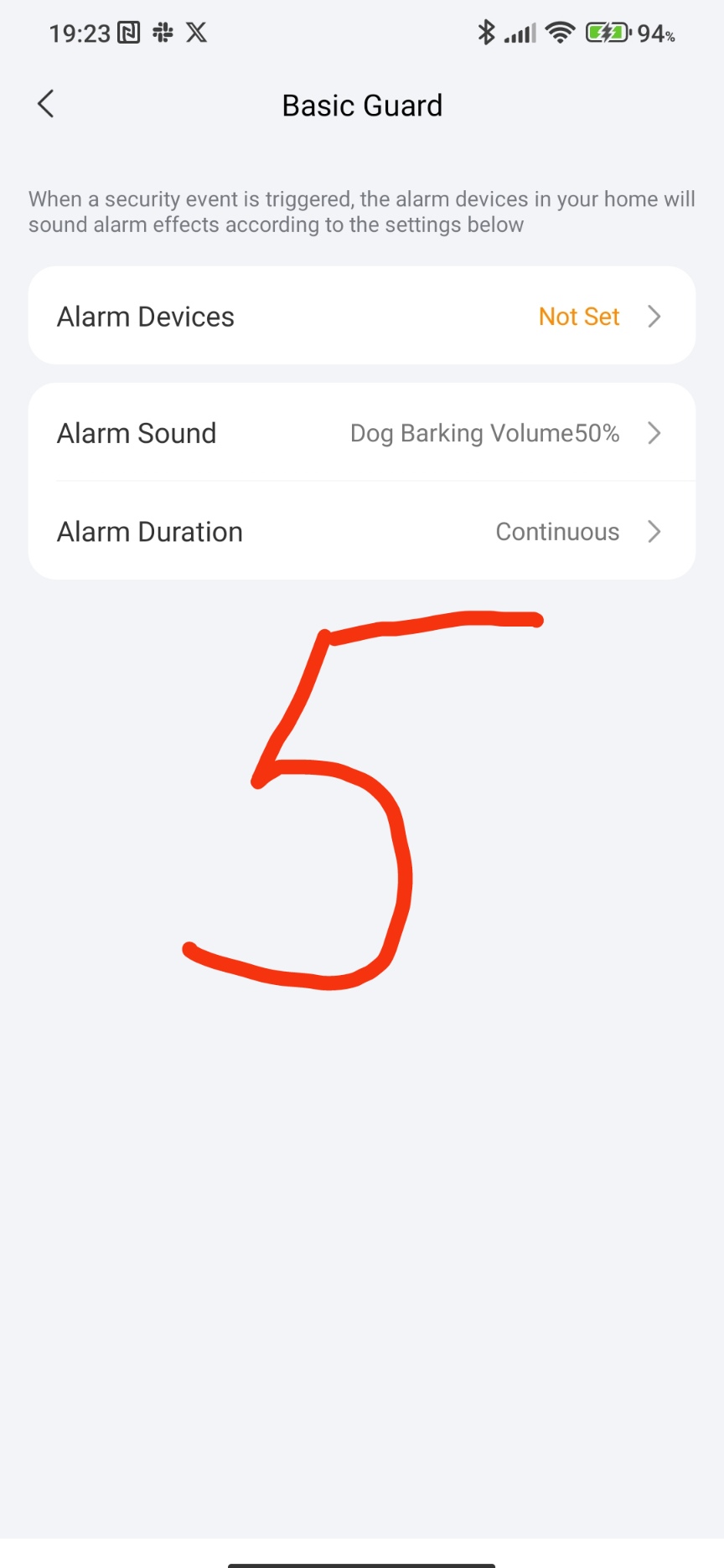
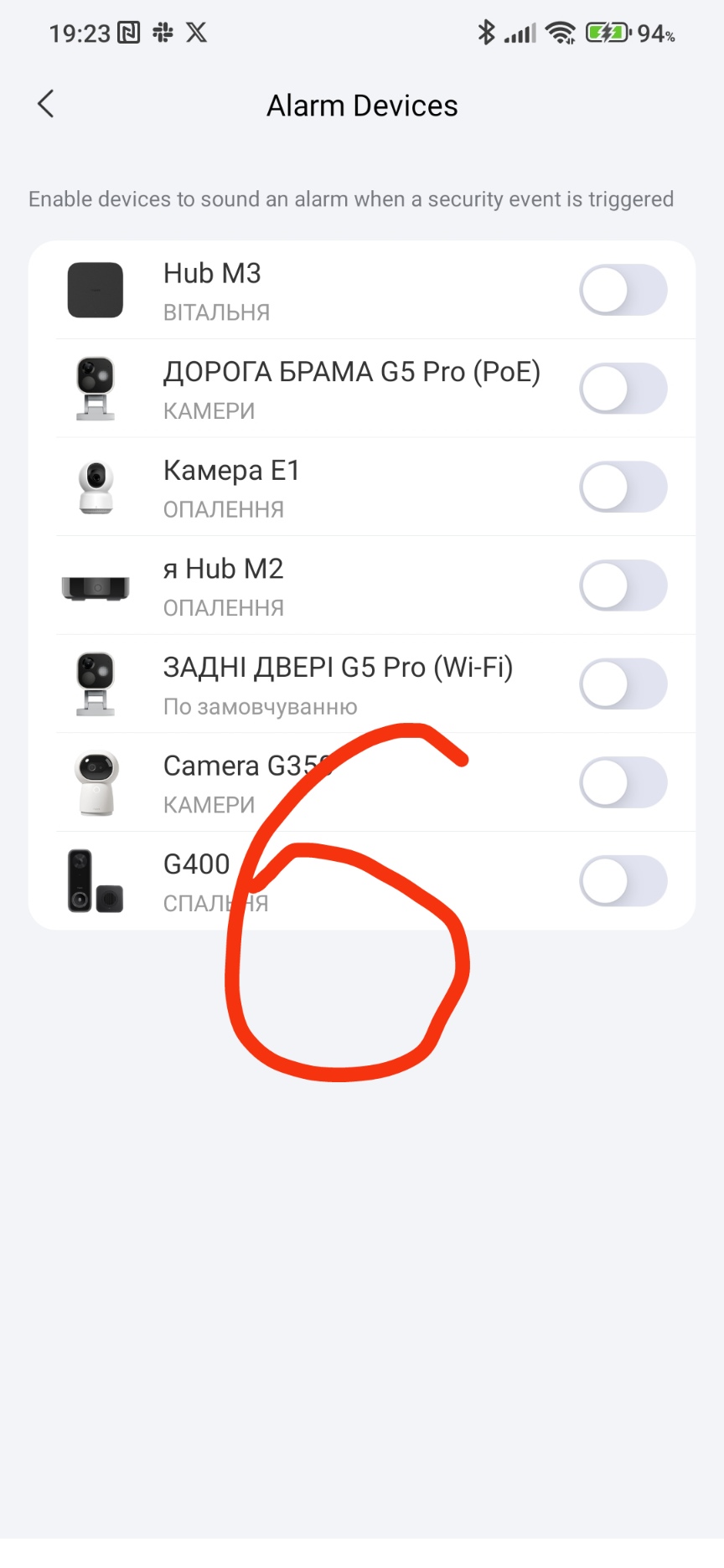
The first setting “alarm equipment”. This is the selection of the loudspeaker (group of loudspeakers) that will play the sound signal. Often users do not know where this setting is located.
Fig.6
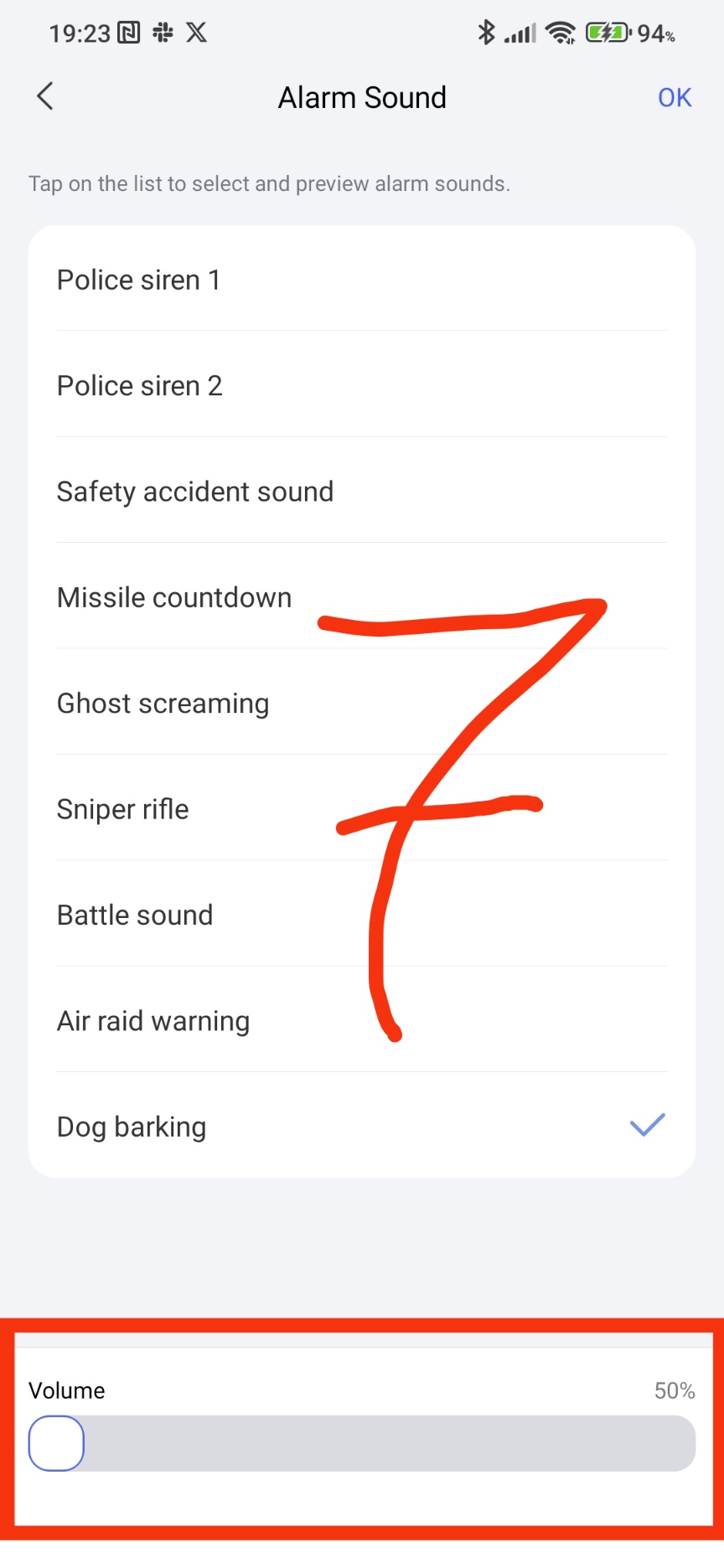
The second setting “alarm sounds”, here you can choose your favorite sound signal. Pay attention!!! The sound is adjustable from 50÷100 percent. Unfortunately, 50% of the percentage is quite loud when the security sound is triggered in the middle of the night.
Fig.7
Let’s return to the following settings from the general section.
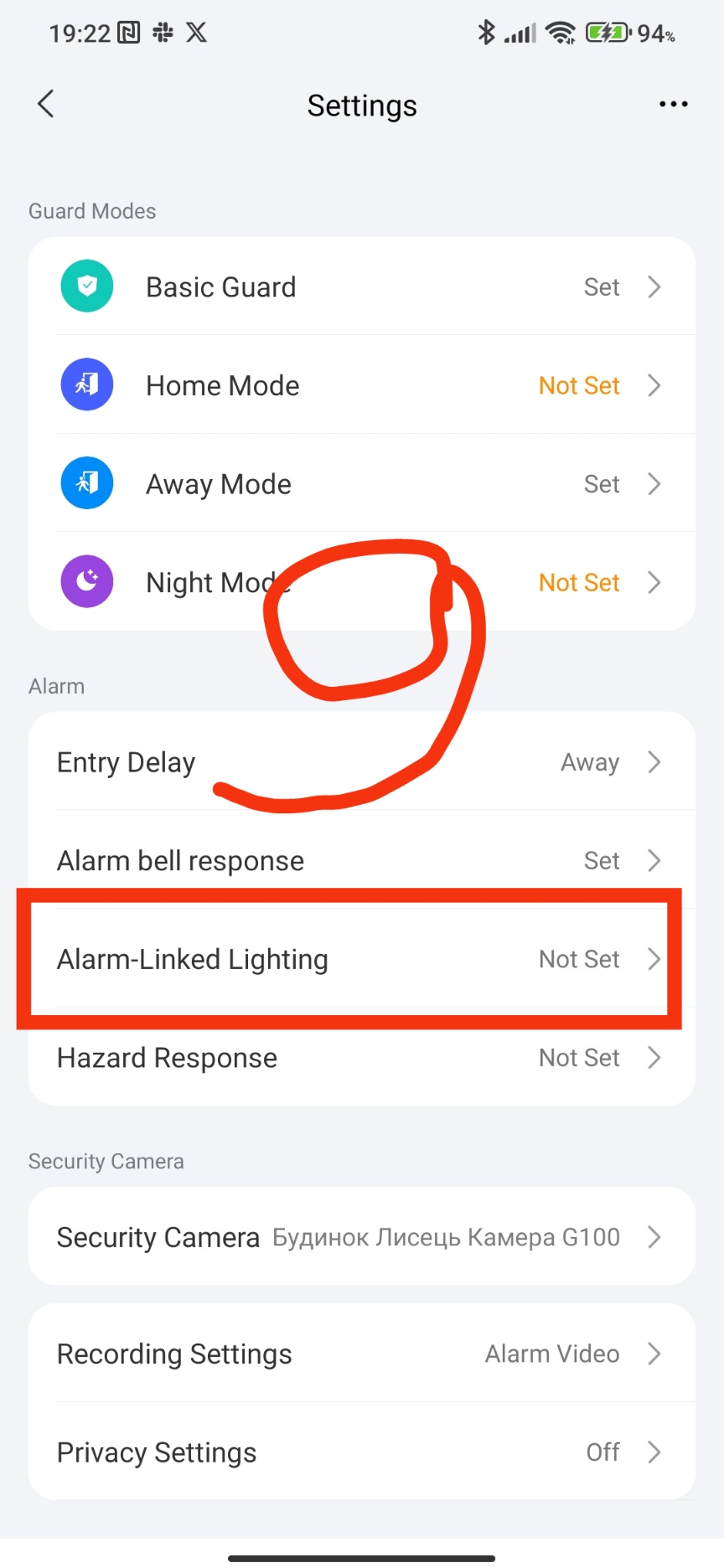
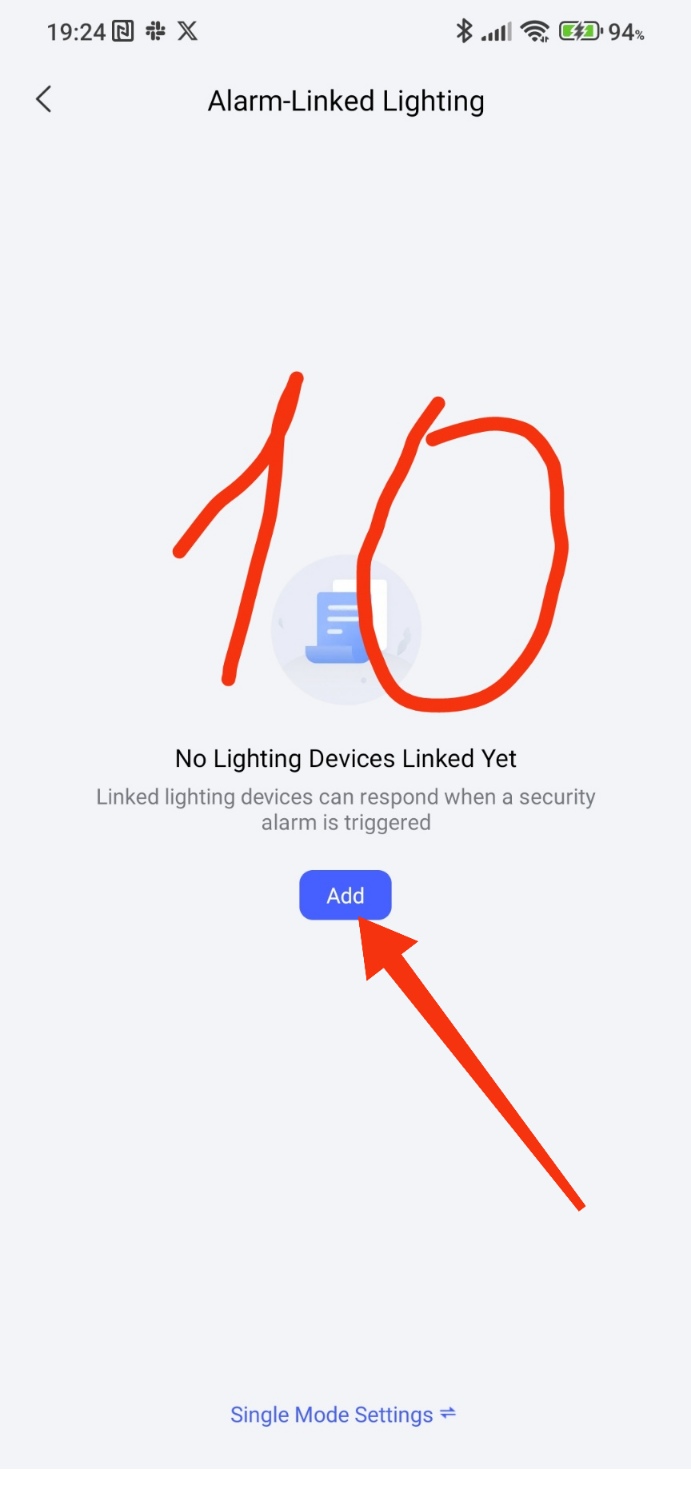
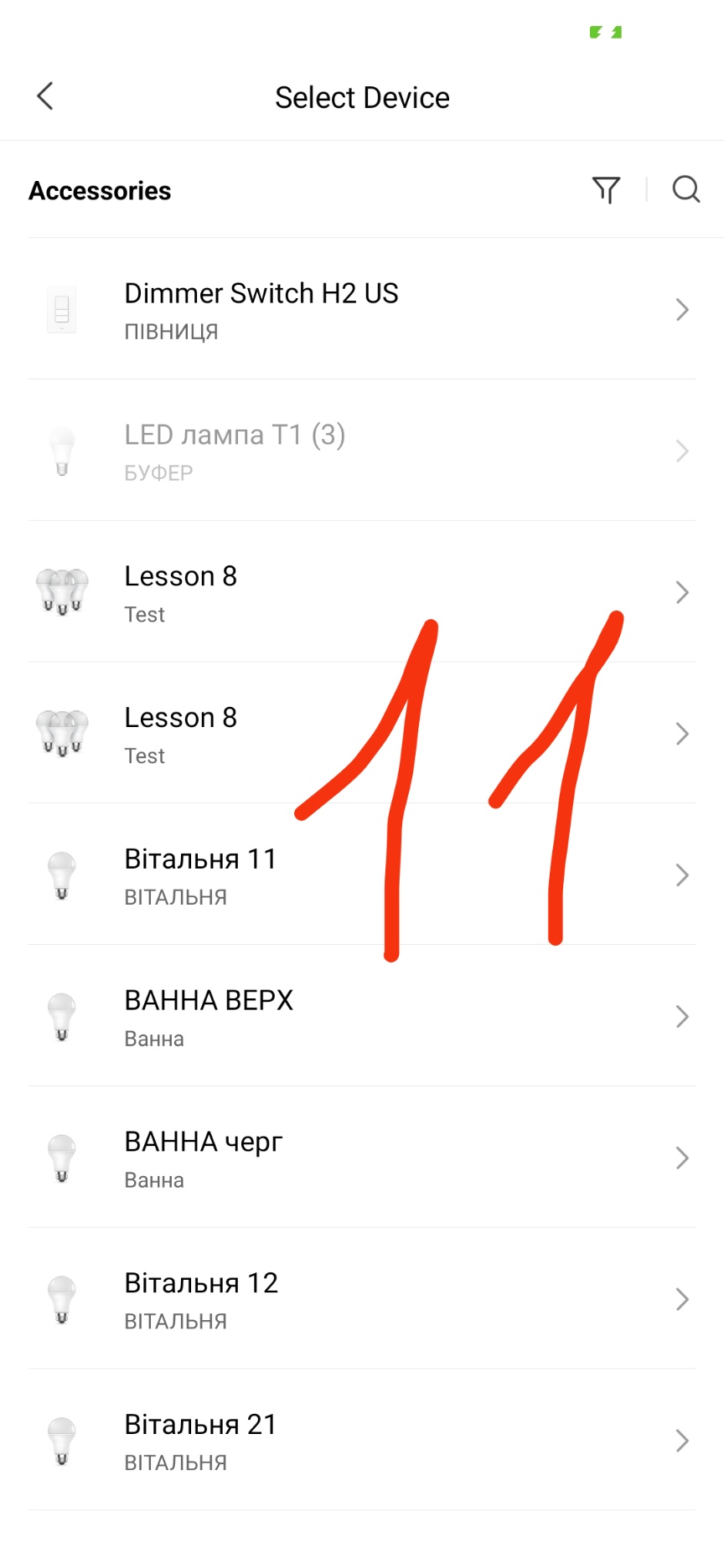
Section “warning light warning response”. This section allows you to turn on light devices when the alarm is triggered. Please note, this all works without AUTOMATION.
Fig. 9,10,11
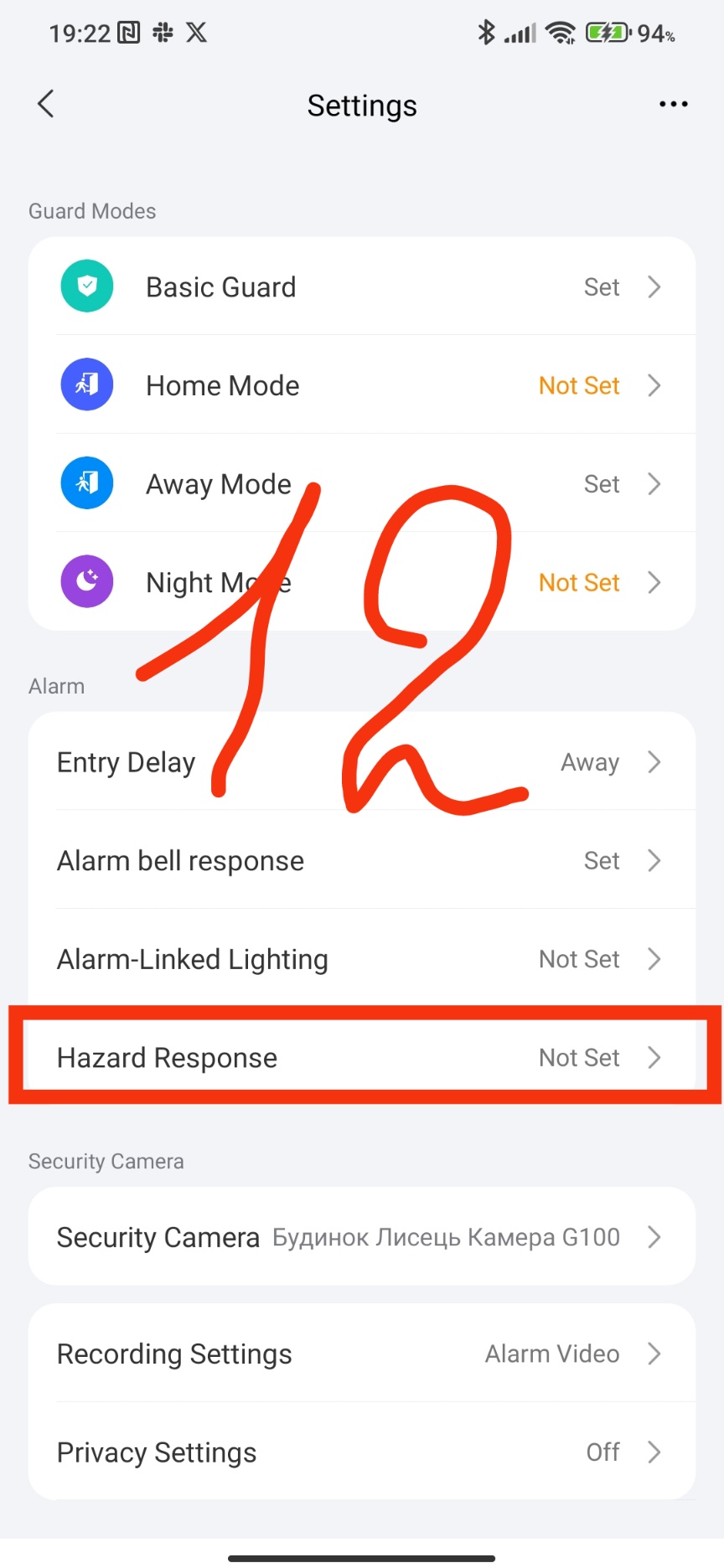
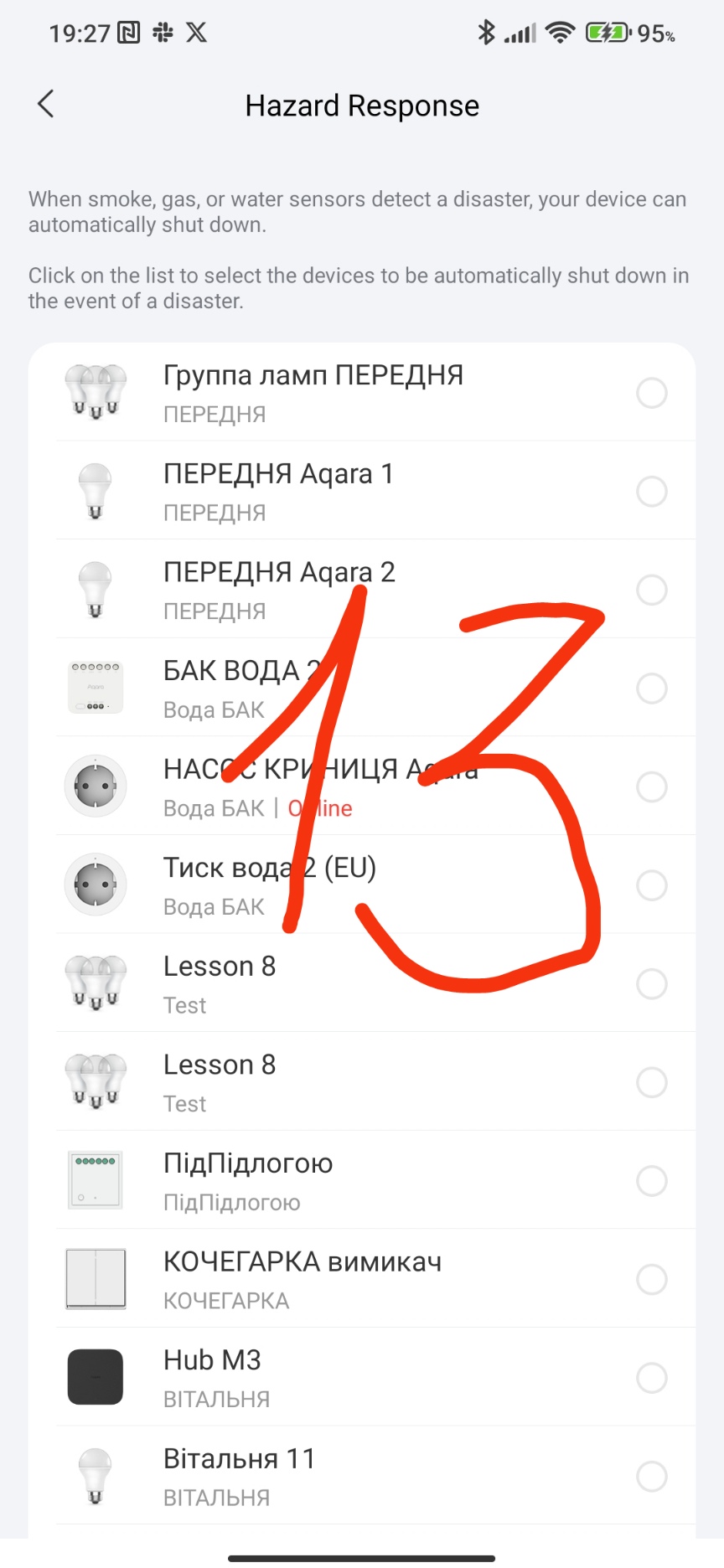
The last setting of the block “emergency alarm response”. This setting allows you to turn off the device you have selected. I EMPHASIS, only the “Off” mode.
Fig.12, 13
Hello, @nzjrs, thank you for your question.
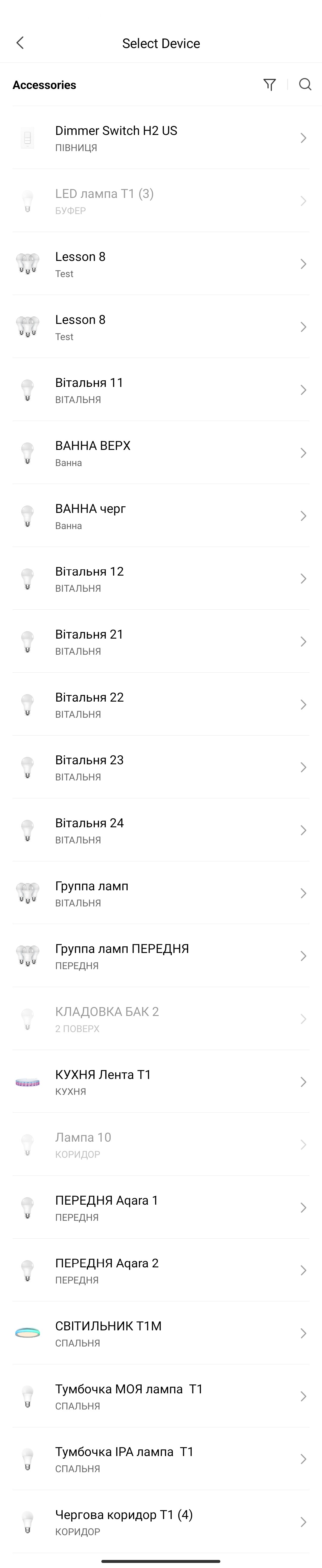
Unfortunately, there is nothing except for lighting devices (switch, relay, socket is not accessible). In my case, there is access only to the US dimmer.
This is a serious problem for users who want to use additional devices without using additional automation.
Fig. 1
thermostat that turns on in case of critical temperature;
other user options.
This is a serious problem that is in the settings, @nzjrs, thank you for drawing attention to this.
I will have one more remark.
According to Figure 7, the volume adjustment is limited, the adjustment range is 50÷100%. This problem forced me to disable the 24/7 sound alarm (basic) and leave only the notification. This happened after a nightly operation (non-critical, refrigerator leak), my wife and I did not know what was happening, such a loud sound in the middle of the night (during the day it sounds much quieter). Suggestion - give a range of 20÷100%, this will be more acceptable.
Good afternoon, @AqaraOfficial, @Caroline_Zzz, please pass this problem on to the developers of the Aqara control system, thank you.
Hi there, the purpose of the security alarm is to wake us up if something actually happens, so I don’t think setting the alarm below 50% volume is a good choice.
Hello, @Caroline_Zzz, if possible, try turning on the security sound at 50% at night. Especially if the gateway is in the room where you sleep. It’s very loud.
That’s a fair point about the volume - no use having a security system if you sleep right through it! I usually keep mine cranked up, but it’s always a bit nerve-wracking testing the sirens inside the house.
I actually found a simple online alarm tool that I use to compare decibel levels and see what’s actually ‘wake-up’ loud versus just ‘annoying’ loud before I finalize my Aqara settings.