__Aqara camera setup tutorial/explanation (for beginners). PART 6: Saving video files from all types of Aqara cameras
Hello! Let’s continue our tutorial/guide on setting up various Aqara cameras. This is for users who have purchased an Aqara camera for the first time and often find the configuration process confusing. As always, I’ve included plenty of images to help illustrate the guide.
In this lesson, I will explain how to add human faces for AI-powered monitoring.
Introduction.
First, I want to clarify that the face recognition feature operates natively (locally) on the following camera models: G5, G3, and G350. This is due to the hardware capabilities of these surveillance cameras; the recognition process takes place directly on the device itself.
Fig. 1

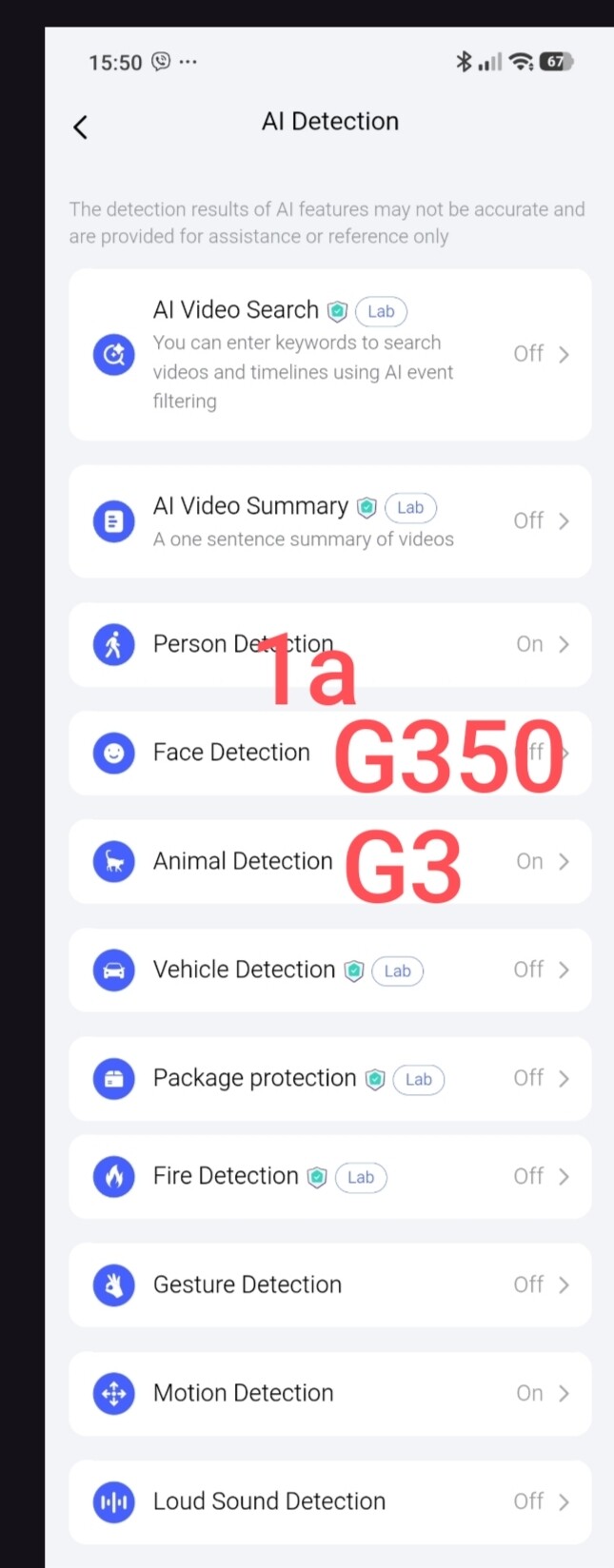
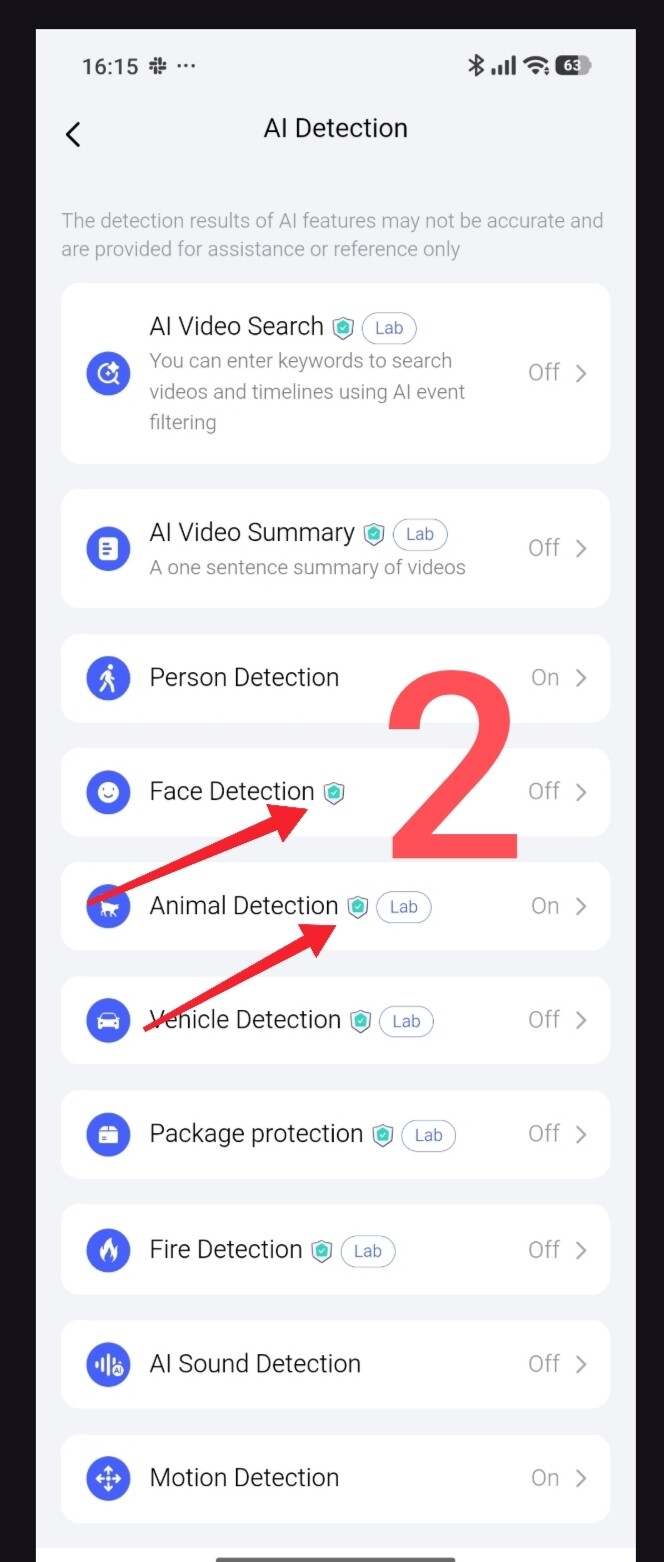
For other models—the G100, G410, G4, and E1—this feature is a paid service, as the facial analysis is performed via the cloud. Since the Aqara cloud service requires separate maintenance, it comes with a cost. I should also point out that any automation based on face recognition in these models is “cloud-based,” which introduces a slight delay when executing tasks. I have tested this personally, so I do not recommend using these models for automations that require rapid response times. Note: A shield icon next to a parameter indicates a paid service.
Fig. 2.
Adding a face.
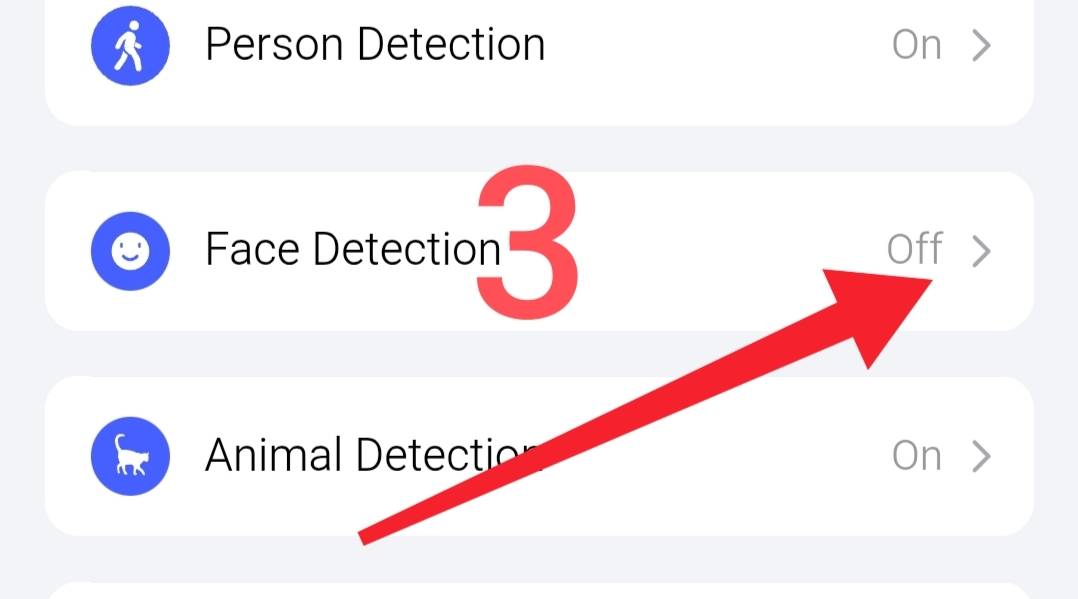
Open the “Face Detection” section under Artificial Intelligence.
Fig. 3.
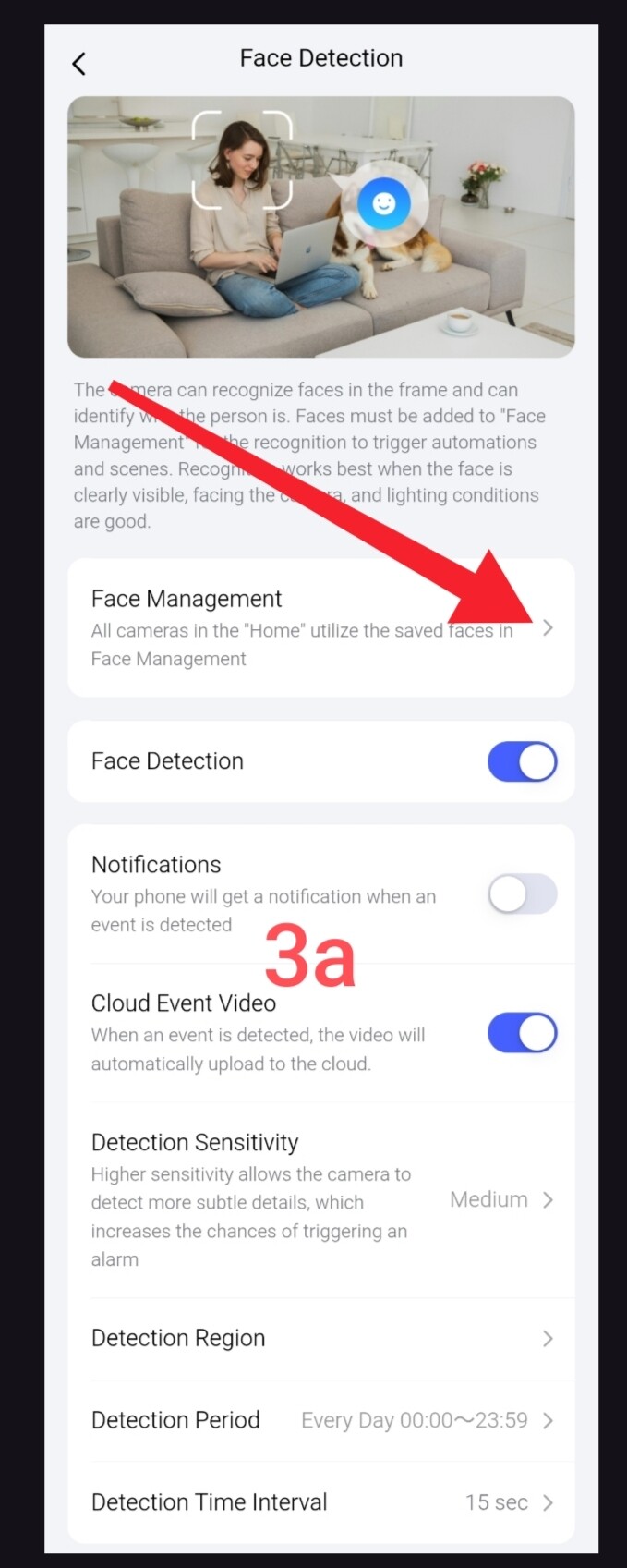
Next, select how to add the photo (from a file or via the camera). Please note: if the system fails to process the file, you will need to add it again.
Fig. 4.

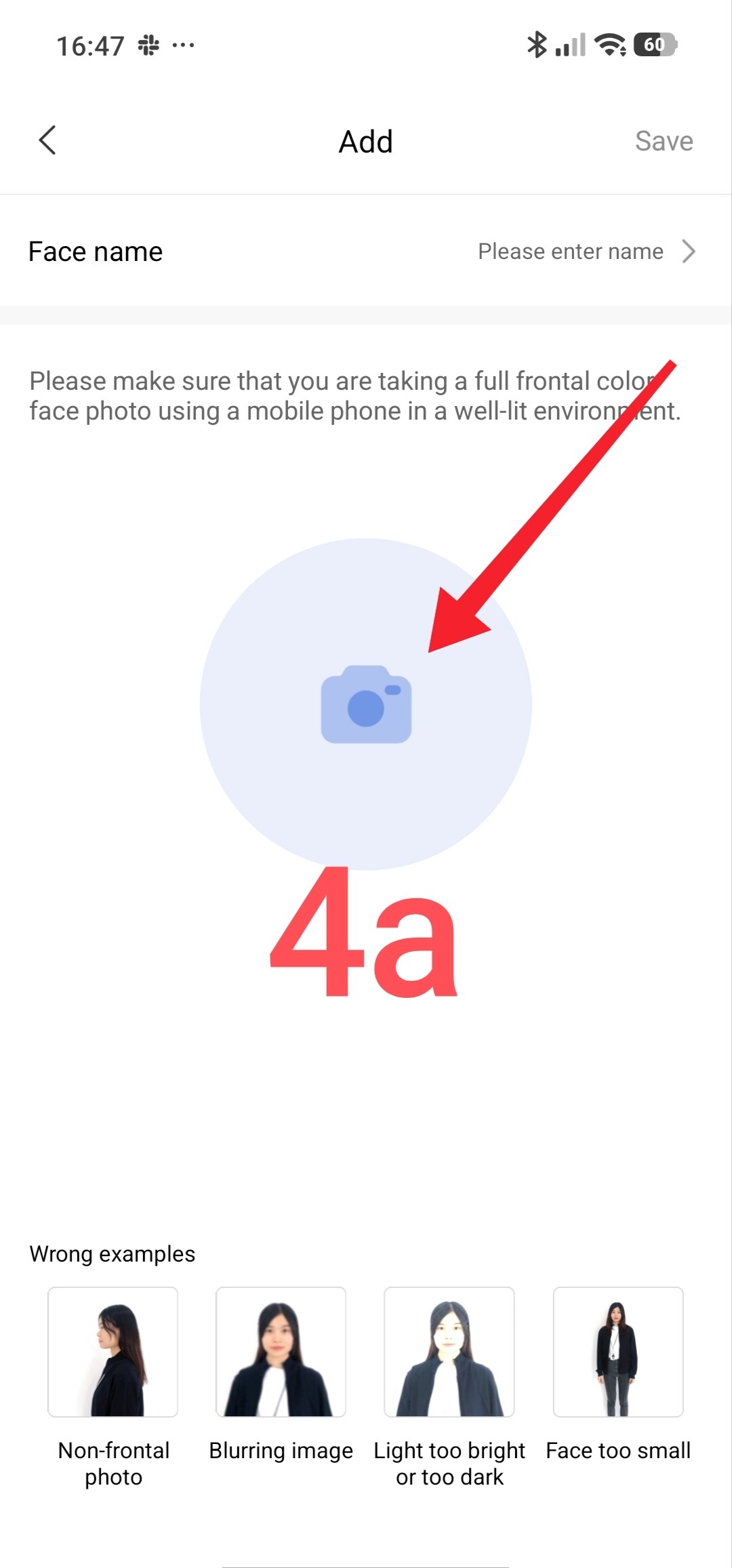
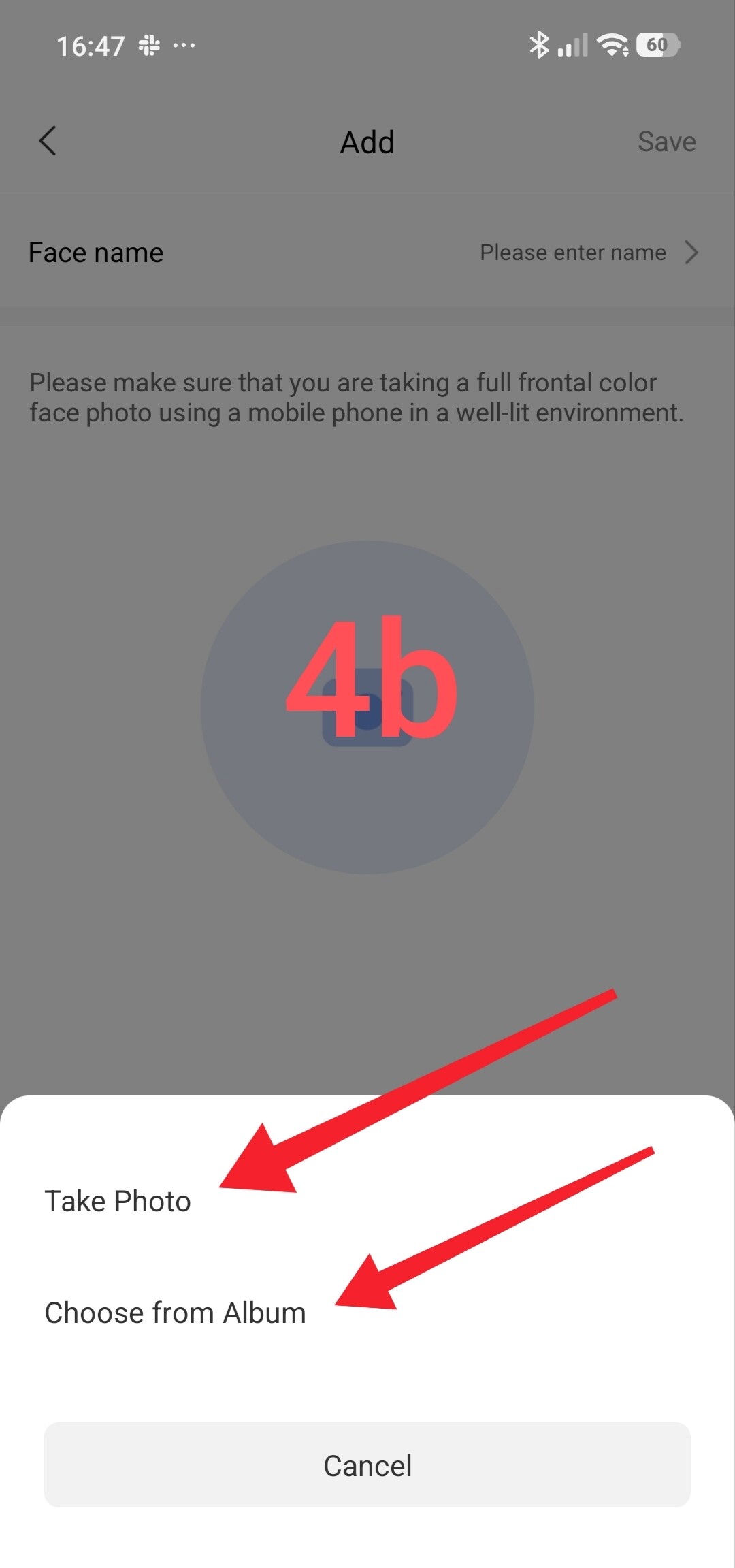
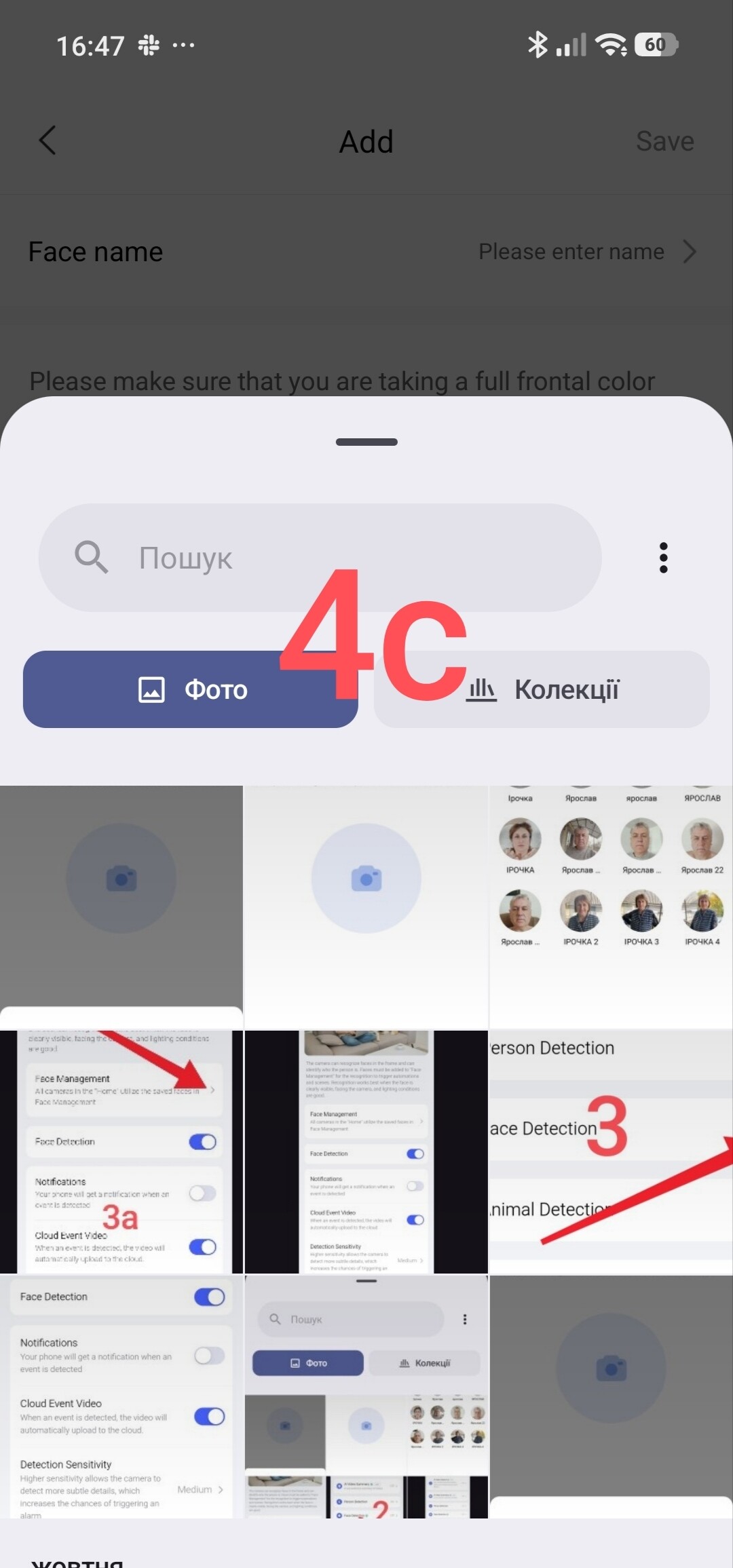

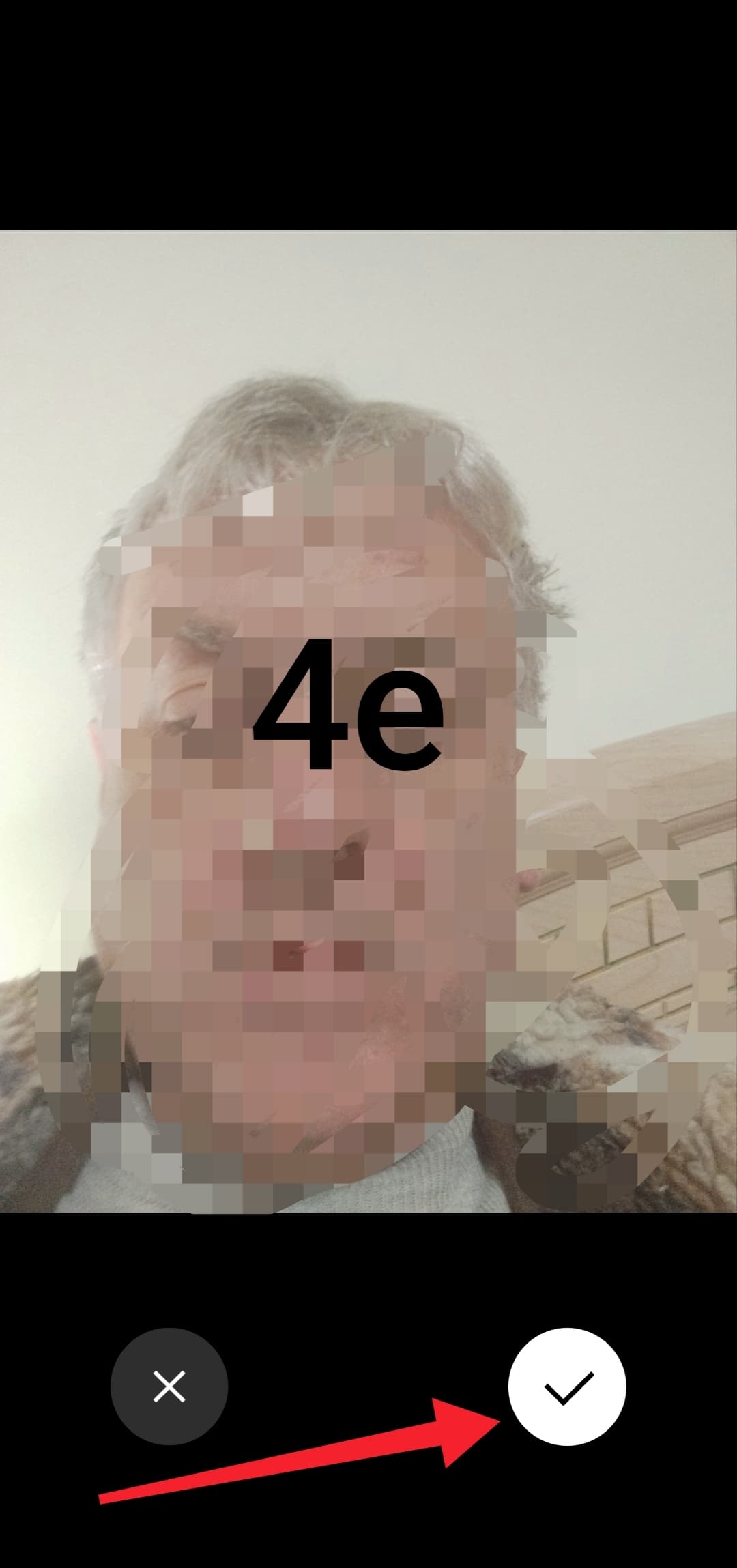
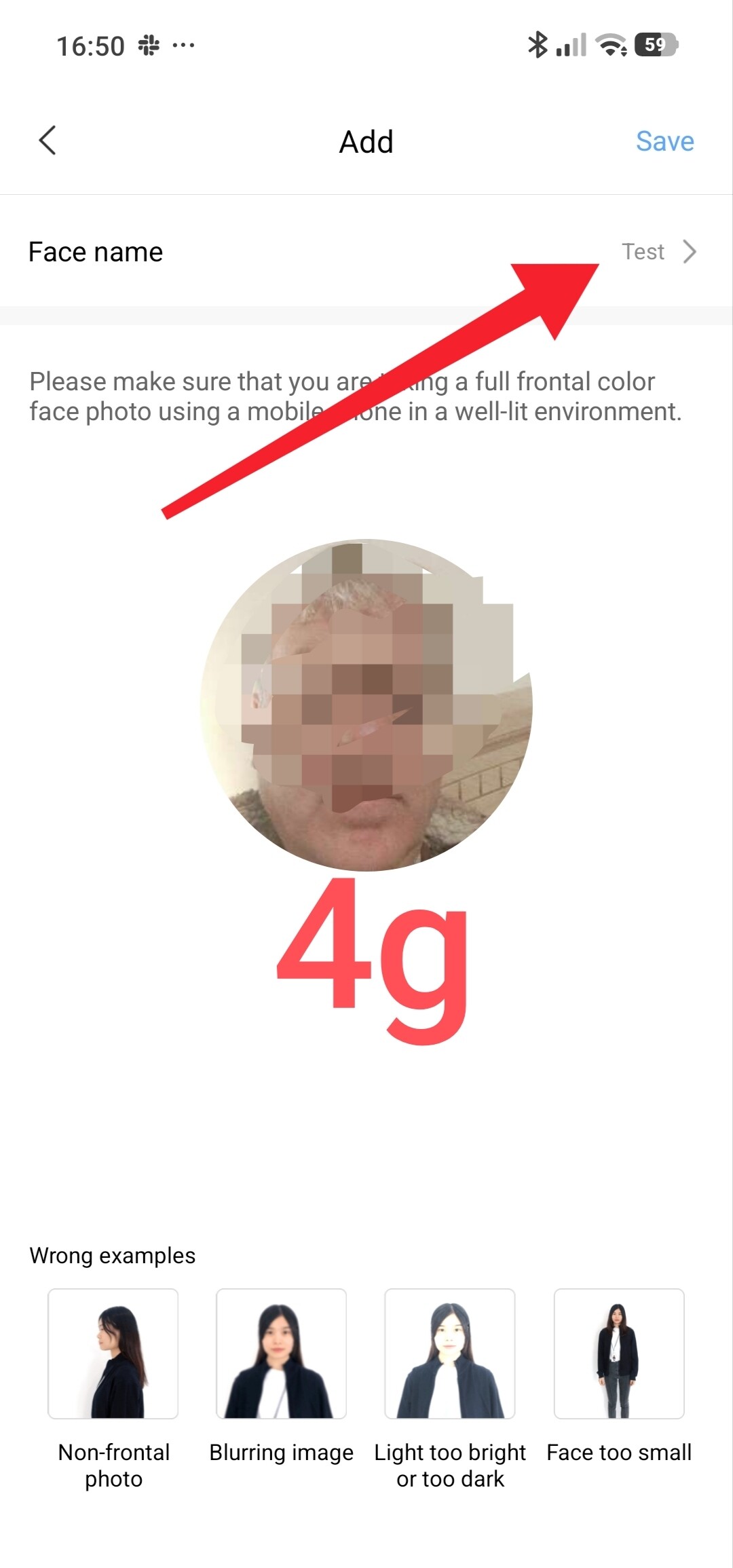
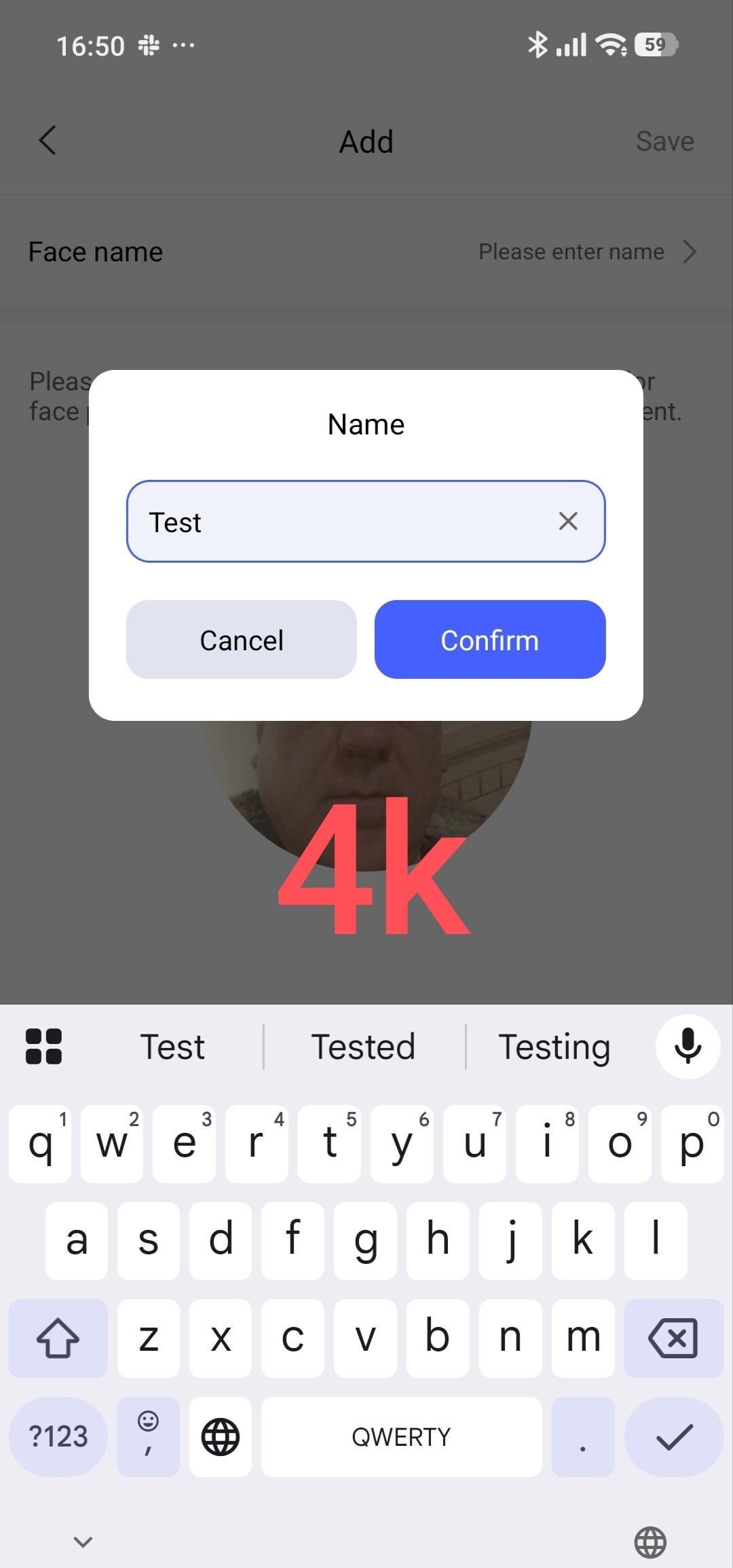
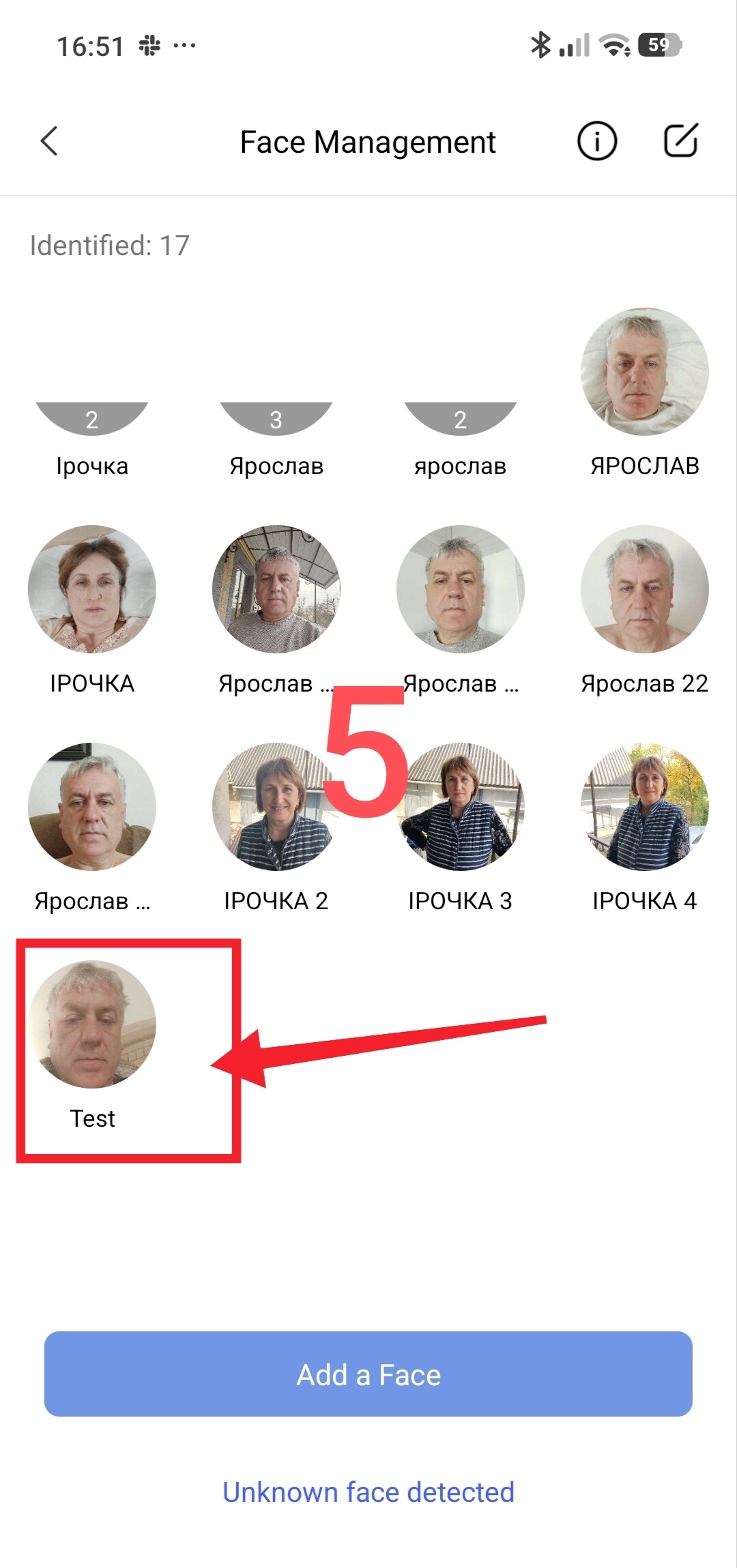
The photo is now ready for AI analysis.
Fig. 5.
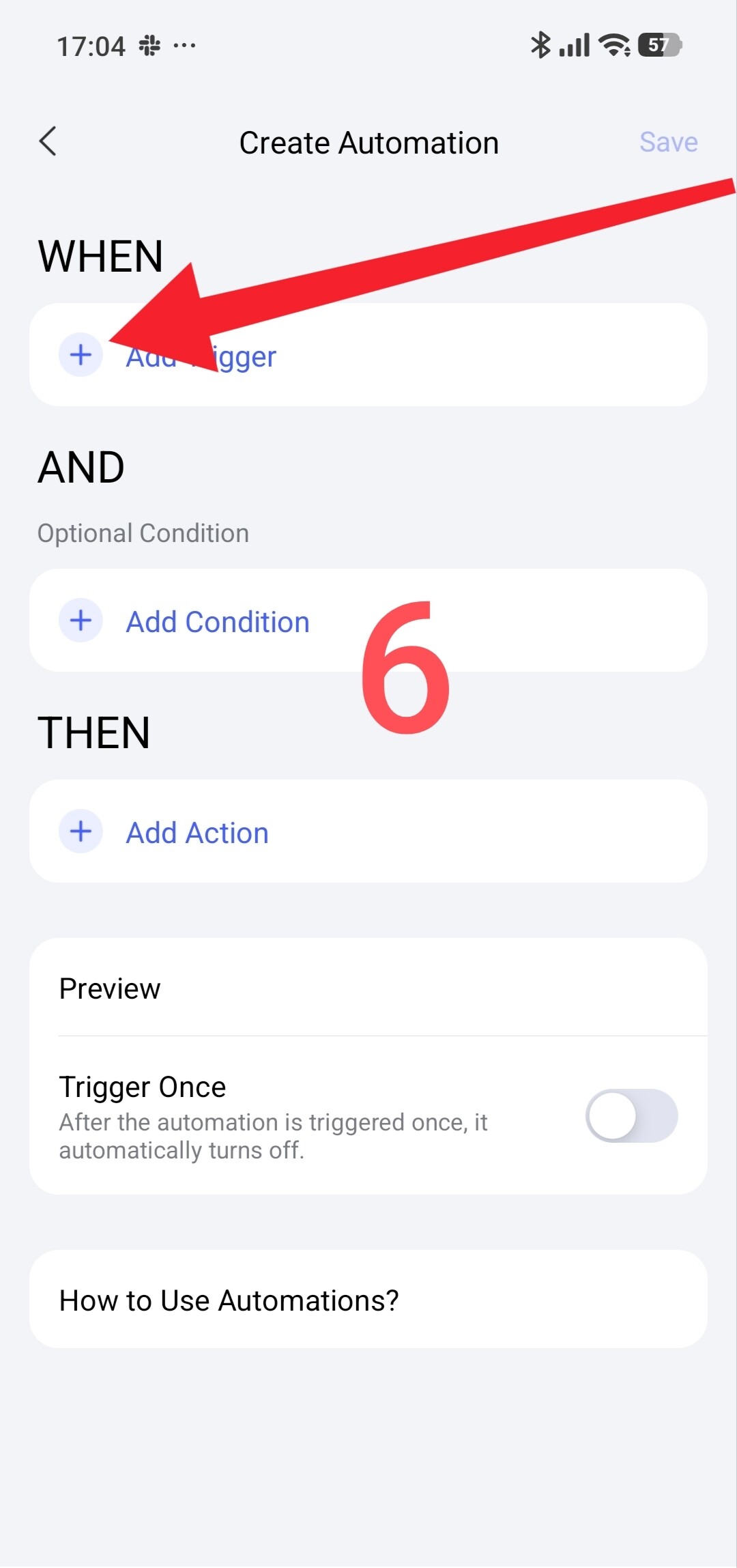
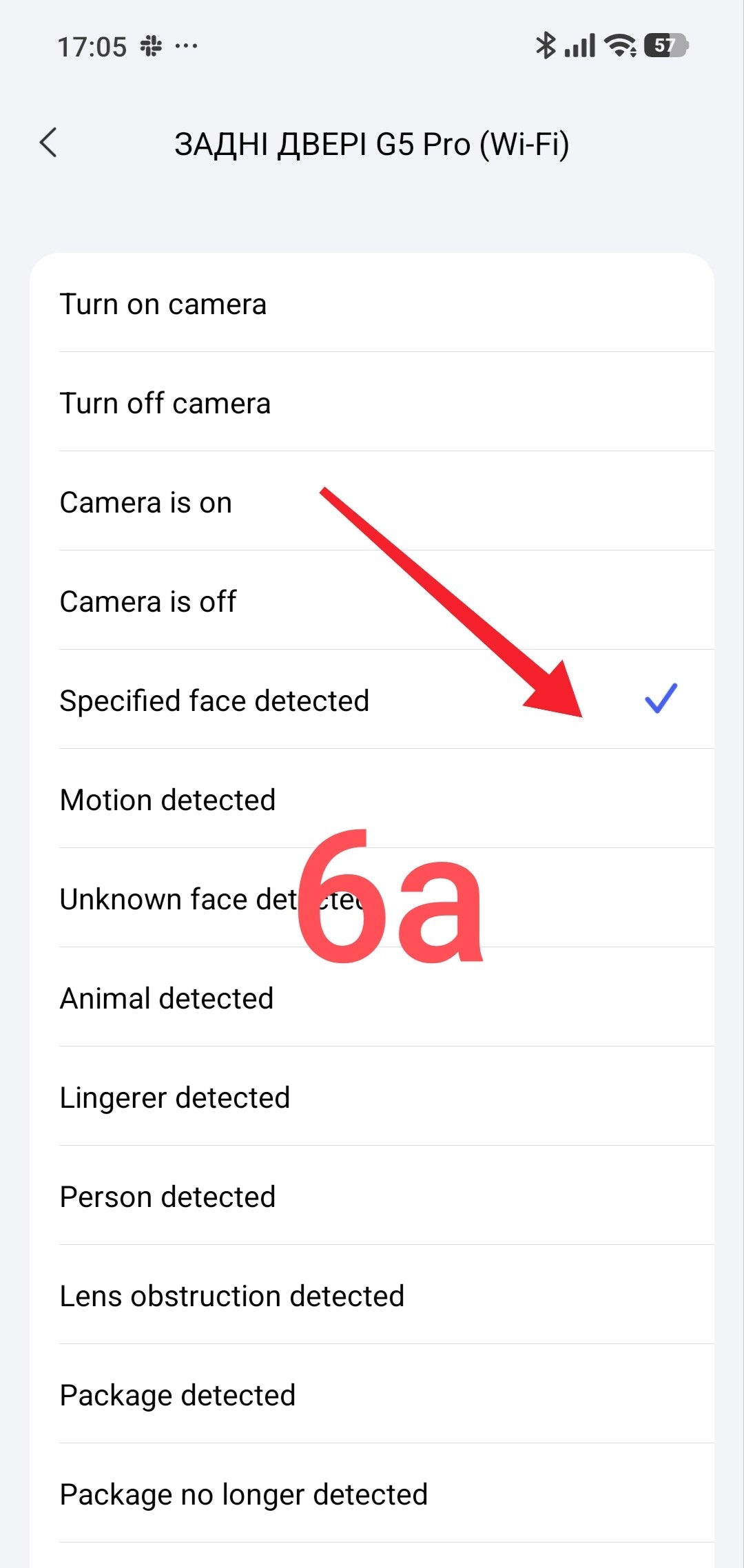
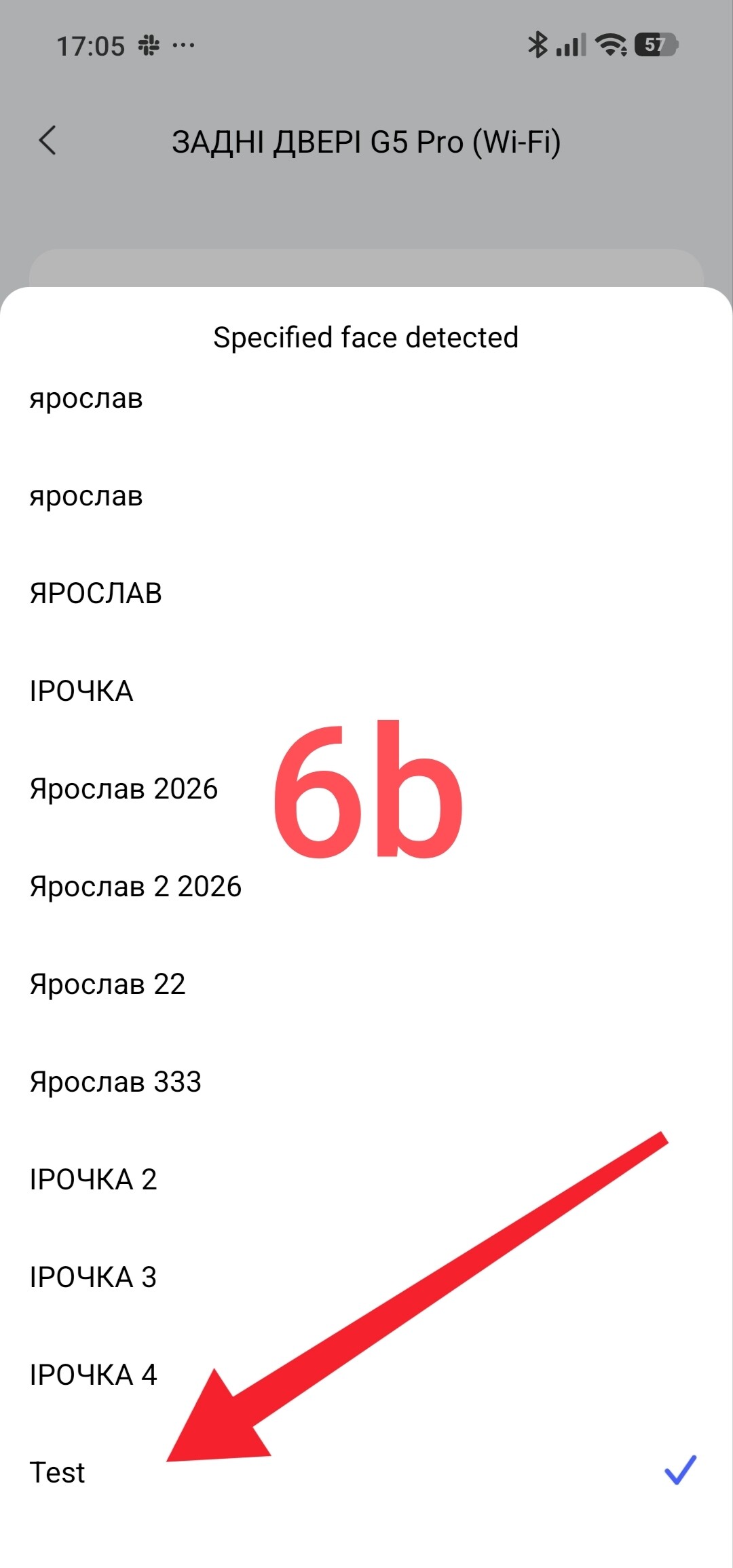
Now that the photo has been added, you must use “Automation 2.0” (in the “WHEN” section) to enable face detection.
Fig. 6.

This concludes this tutorial. As always, I intended to keep it brief, but—once again—it turned into a rather long post.
In the next lesson, we will look at how to add and use gestures to control the camera (G3, G350 models).
Thank you for reading.
_Aqara camera setup tutorial/explanation (for dummies). Part 1, "Detection Settings"