Having trouble with your Aqara Thermostat? Don’t worry—we’ve got you covered! Below are the most common issues users run into, along with simple, step-by-step solutions to get your device back on track quickly. No technical jargon, just easy-to-follow instructions.
20260703 Update:
Hello everyone, we’re rolling out new features for the W200 with firmware version 4.5.49. We look forward to your usage experience and feedback.
Release Notes:
1.Added Follow Presence function
2.Added lock screen password support
3.Added screensaver
4.Added option to swap Current Temperature and Ambient Temperature display
5.Added Heating and Cooling Deadband
6.Added minimum compressor on-time threshold setting
7.Added AC OverCool function
8.Added minimum outdoor temperature threshold for compressor (Visible for Y/SSW systems)
9.Added minimum auxiliary heat on-time setting
10.Fixed known bugs and optimized user experience
20260428 Update
Aqara OTA Upgrade Plan – Stay tuned.
1.Support reading temperature from multiple sensors, including third‑party Matter sensors such as IKEA temperature sensors, and calculate the average, maximum, and minimum values.
2.Support adjusting the hold duration on the screen.
3.Update third‑party ecosystem integration to incorporate humidity data under the thermostat.
4.Enable temperature sensor data configuration by scene.
5.Add Min Compressor Outdoor Working Temp with lower adjustable levels.
20260414 Update
Aqara Thermostat Hub W200 Compatibility Guide & Wiring FAQ
1. High Electricity Bills Due to Constant Auxiliary Heating (Heat Pump Systems)
If your heat pump’s auxiliary heating won’t turn off and is driving up your energy costs, here’s how to fix it in seconds:
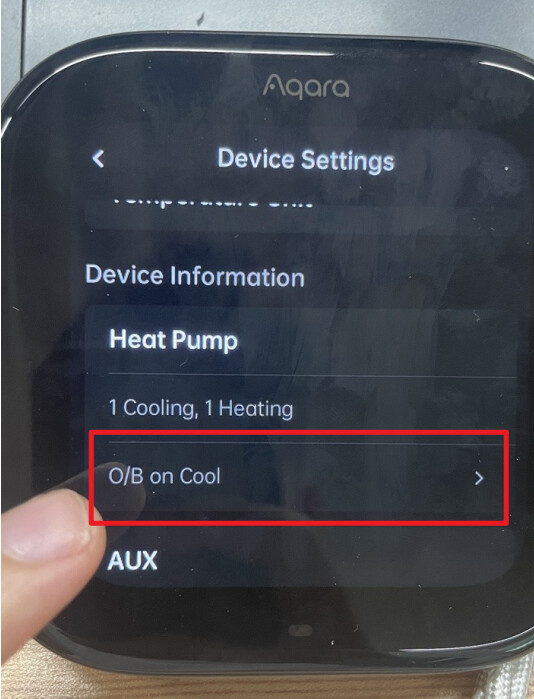
Swipe down on your thermostat screen to open the Settings menu → TapDevice Settings → Scroll all the way to the bottom and select the AUX page → Choose Enable to Work With Heat pump and set it to NO. That’s it—auxiliary heating will stop running unnecessarily!
2. Annoying Pop-Ups About Temperature Not Being Reached
Tired of constant alerts saying the temperature hasn’t hit your set point? This is usually caused by a settings glitch, and it’s easy to resolve:
Go toSettings → Thermostat Settings → Reminders and Alerts → Scroll to the very bottom and check if Operation Monitoring is turned on. Our default setting for this alert is OFF—if it’s enabled on your device, simply turn it off to stop the pop-ups.
3. Matter Integration Issue: Humidity Not Reading in Home Assistant (HA)
If you’ve connected your thermostat to HA via Matter but can’t read humidity (and can’t use it for automation), we’re on it!
Our technical team is currently testing solutions to fix this compatibility issue. We’ll roll out an update as soon as it’s ready—stay tuned for notifications in the Aqara app.
4. Inaccurate Temperature or Humidity Readings
If your thermostat’s temp/humidity readings don’t match your home’s actual conditions, use the temperature calibration feature to adjust it:
Swipe down on the device screen → OpenSettings → Tap Threshold Settings → Scroll down and select Temperature Calibration. Follow the on-screen prompts to fine-tune the readings until they’re accurate.
5. How to Switch Temperature Units in the Aqara App
Prefer Fahrenheit over Celsius (or vice versa)? Changing the temperature unit is a breeze:
Open the Aqara app → Tap Me in the bottom right corner → Go to Settings → Select Unit Switch and choose your preferred unit. The change will take effect immediately on both the app and your thermostat.
6. Can’t Access Adaptive Temperature
If you’re having trouble opening the Adaptive Temperature feature, check these three things first—they’re the most common fixes:
-
Make sure all family members’ devices are running iOS 26 or above (this feature requires the latest iOS version).
-
Confirm your home Wi-Fi is working normally—spotty internet can prevent the feature from loading.
-
Check your Apple account for unused “residents” (added users who aren’t actively using the device). Delete any unused residents, and the feature should work.
7. Temperature Fluctuations When Adaptive Temperature Is Enabled
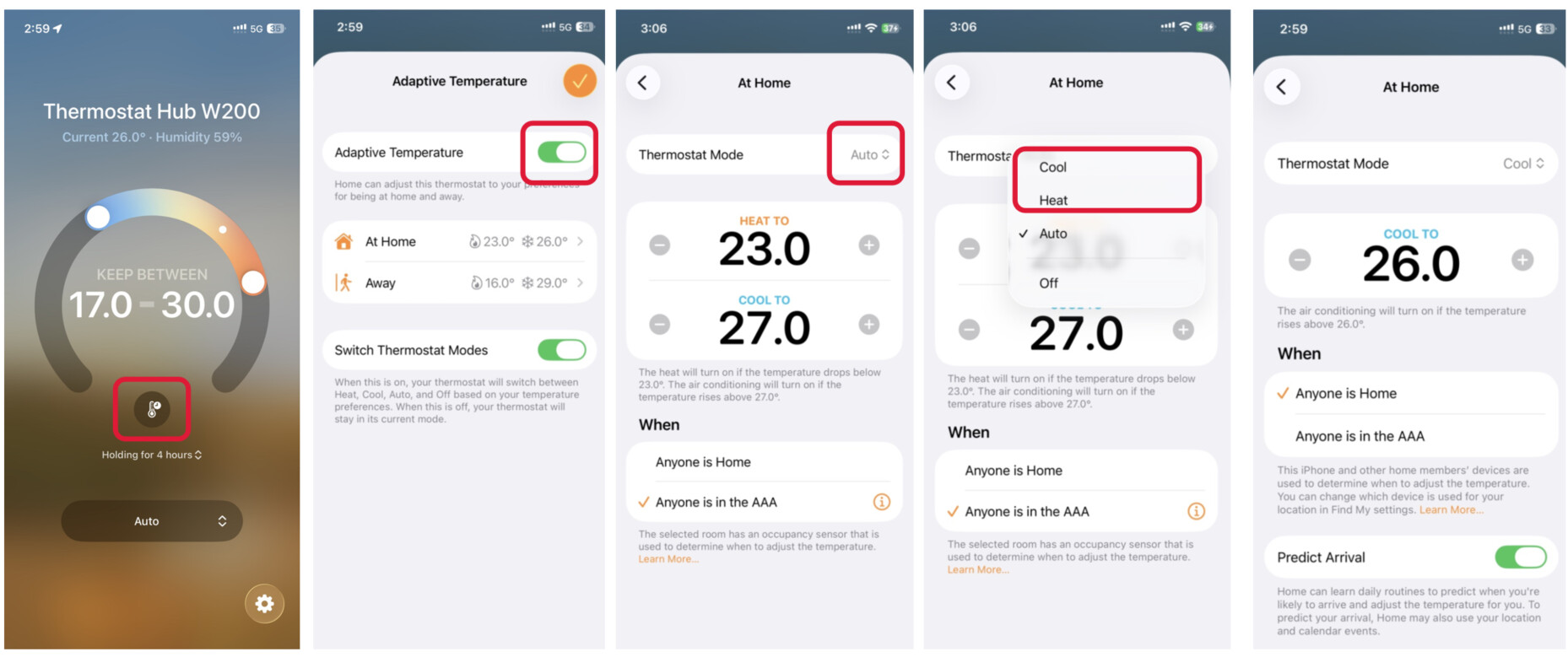
If Adaptive Temperature is on but the temperature keeps fluctuating (making your home uncomfortable), try these quick adjustments:
When Adaptive Temperature is enabled, you can set a specific cooling/heating range in Auto mode. For more stability in winter or summer, switch to Cool Only or Heat Only mode—this will keep the temperature fluctuation to a default of 1°F (nice and steady!).
Note: The current minimum temperature deadband (the range between cooling and heating) in Auto mode is 5°F. We’re working on an update to make this range smaller for Auto mode, so you can enjoy consistent comfort year-round.
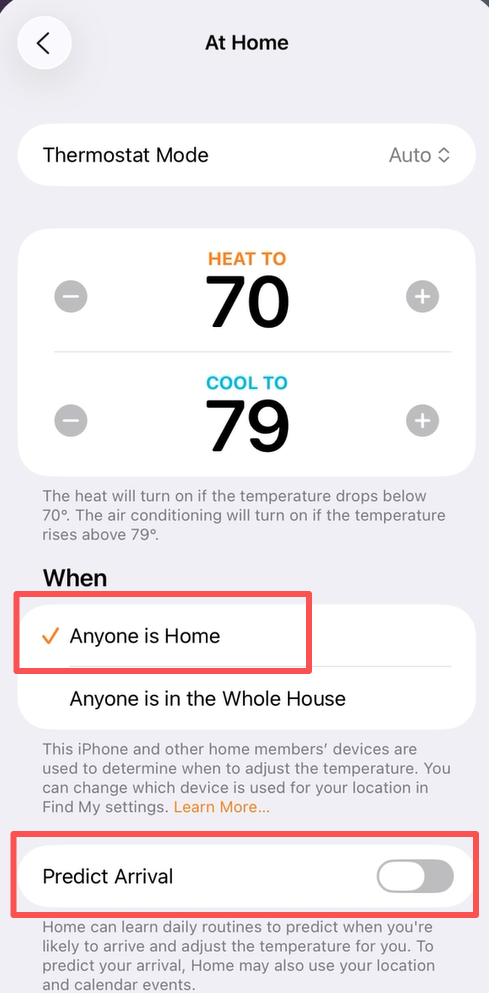
8. How to Enable/Disable Apple Predictive Arrival
Want to turn Apple’s Predictive Arrival feature on or off? It’s simple—just navigate to the dedicated settings page for Predictive Arrival (found in the AppleHome app under your thermostat’s settings) and toggle the switch to your preference.
9. Connecting Aqara Doorbell & Lock to Thermostat Hub W200
Linking your Aqara doorbell and lock to the Thermostat Hub W200 takes just a few steps—just make sure everything is on the same Wi-Fi network!
-
First, add your Aqara doorbell or door lock to your Aqara account (if you haven’t already).
-
Open the Aqara app and go to the Thermostat Hub W200’s homepage. Scroll down and select Configurations.
-
Tap Link a Smart Doorbell and select the doorbell you want to connect.
-
Under the connected doorbell, select Link a Smart Door Lock and follow the prompts to finish linking.
Important: Your doorbell and Thermostat Hub W200 must be connected to the same local area network (LAN) for the link to work.
10. Does Aqara Support Linking Multiple Sensors?
Yes! Aqara version 4.5.45 currently supports linking multiple sensors. You can select multiple sensors when setting up sensor associations, but this version will only use one of the linked sensors as the decision-making temperature.
To use different sensors for different scenarios, you can set up automations: for example, use Sensor 1’s temperature data for your “Morning at Home” preset, and Sensor 2’s data for your “Night Sleep” preset. This lets you tailor the temperature reading to your daily routine.
11. Does Aqara Support Taking the Average of Multiple Linked Sensors?
Not yet, but it’s coming soon! The next OTA-1 update for your device will add the ability to take the average of multiple linked sensors. Once the update rolls out, you’ll be able to link multiple sensors and use their average temperature reading for your thermostat settings.
12. Can I Select Different Sensors Based on Scenarios?
Yes, you can do this now using automations! We understand that setting up automations can be a bit complex, so our Aqara R&D team is working to simplify this process. Soon, you’ll be able to easily select different sensors for different scenarios with just a few taps—no complicated setup required.
13. Does Aqara Support a “Follow Me” Feature Like Other Brands?
It’s on the way! We’re excited to share that a “Follow Me” feature will be available in the OTA-2 software update. Aqara has already planned this feature, and it will integrate seamlessly with multiple products, including the FP300, FP2, W100, and Temperature & Humidity Sensor T1. This feature will let your devices intelligently switch the W200’s decision-making temperature (and temperature/humidity data source) for a more personalized, comfortable experience.
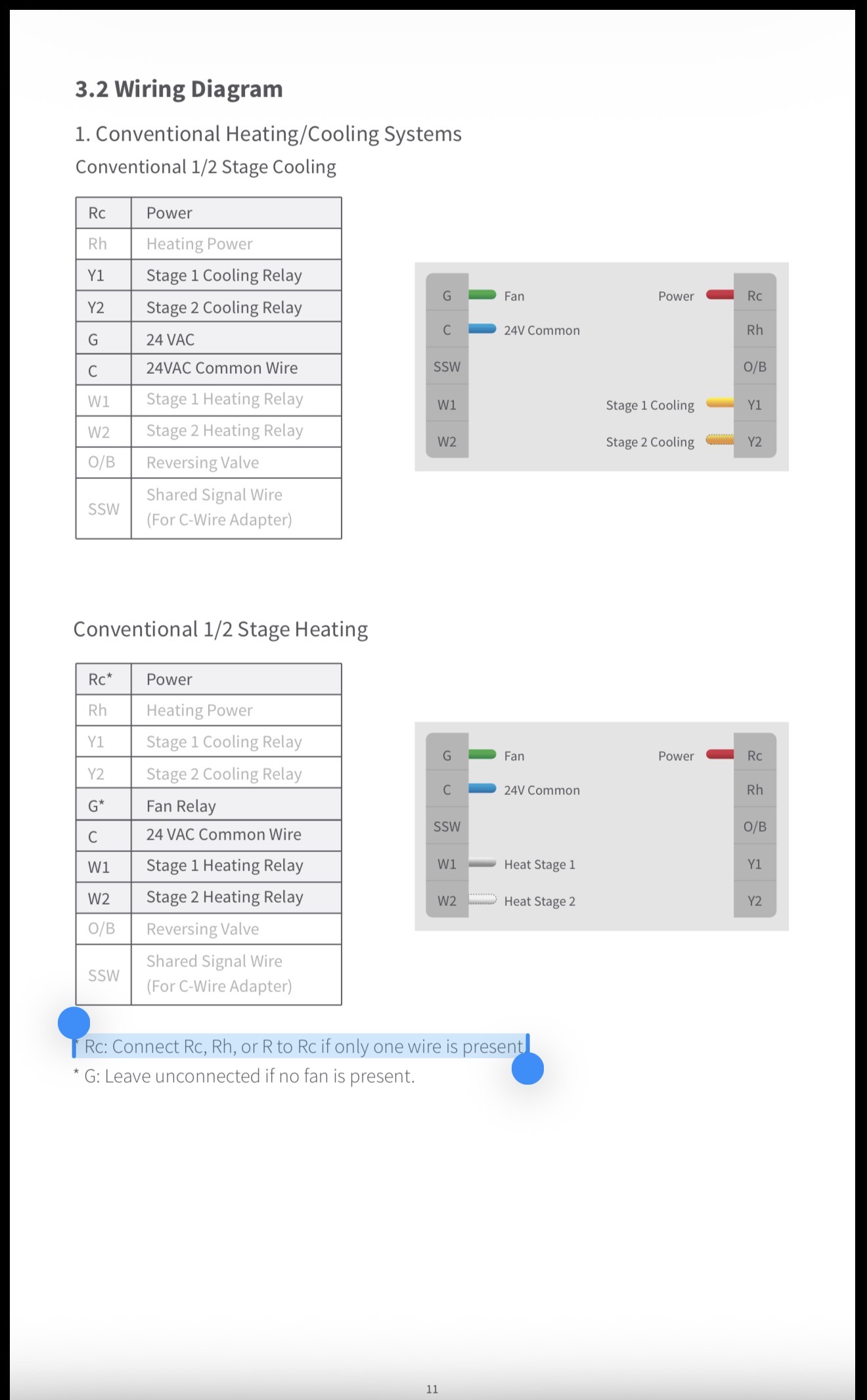
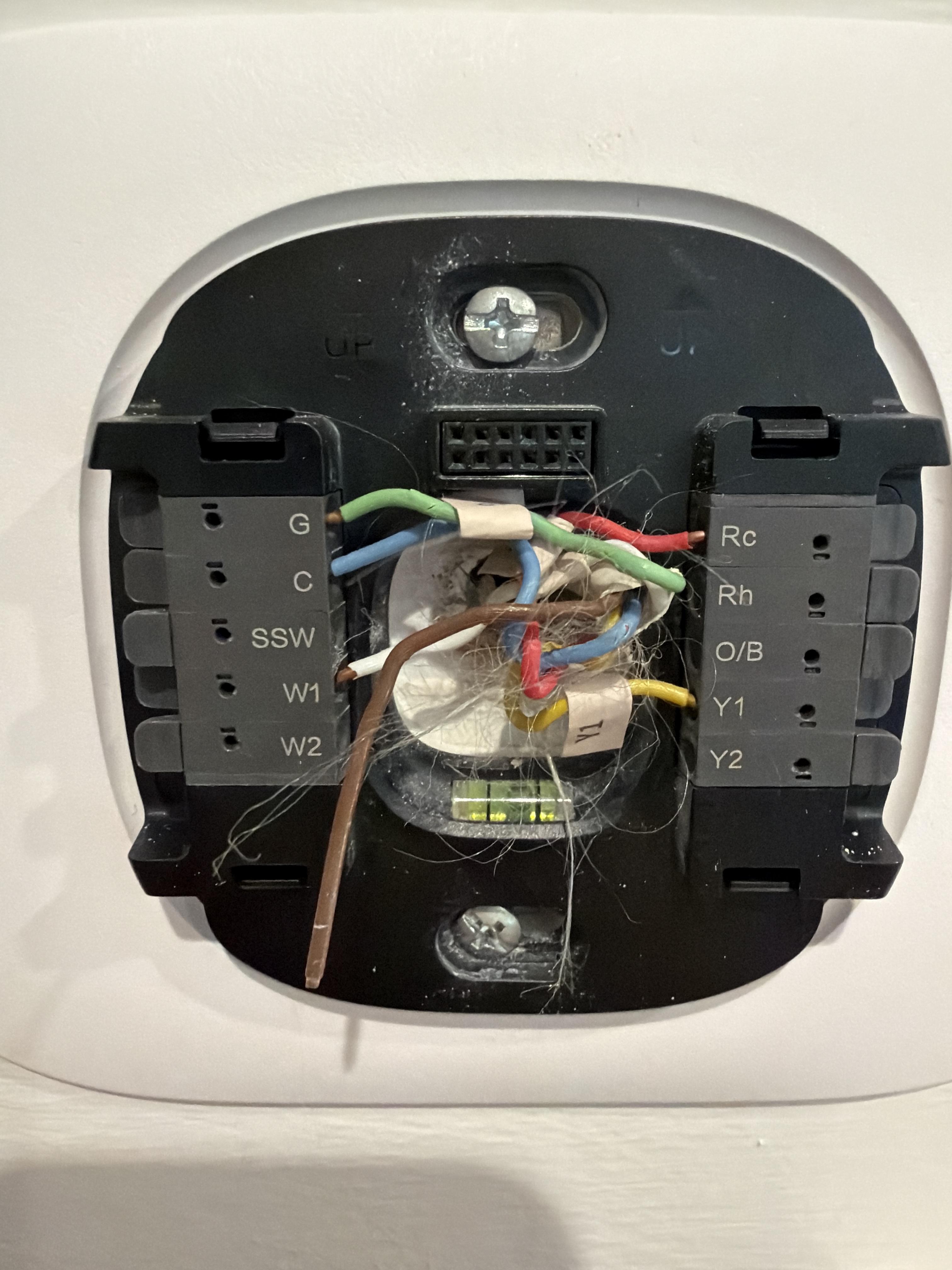
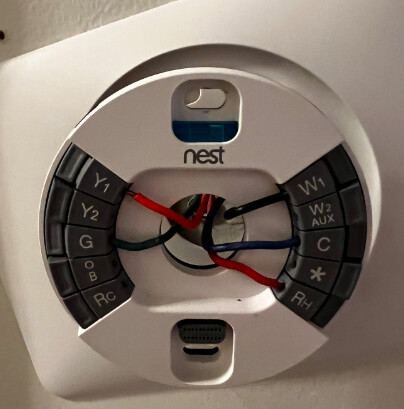
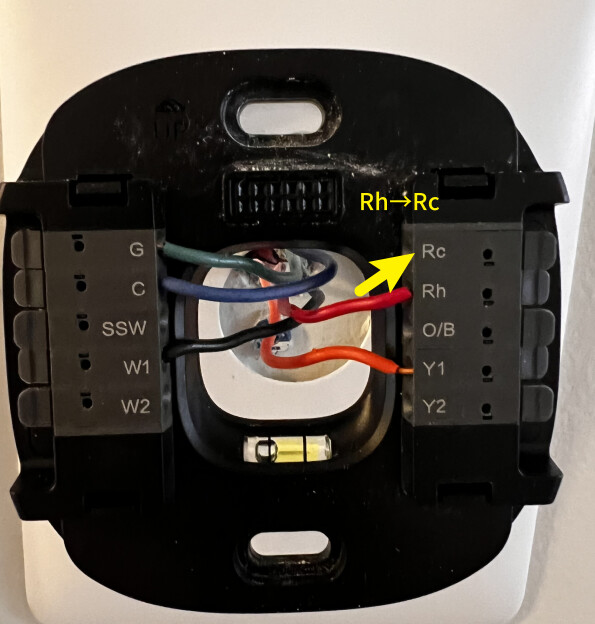
14. The original Nest thermostat was replaced with an Aqara thermostat W200, but it did not power on.
Connect the RH wire to the Rc terminal to resolve the issue.
Still having issues? Reach out to our customer support team—we’re here to help 7 days a week! Enjoy your smart, comfortable home with Aqara.